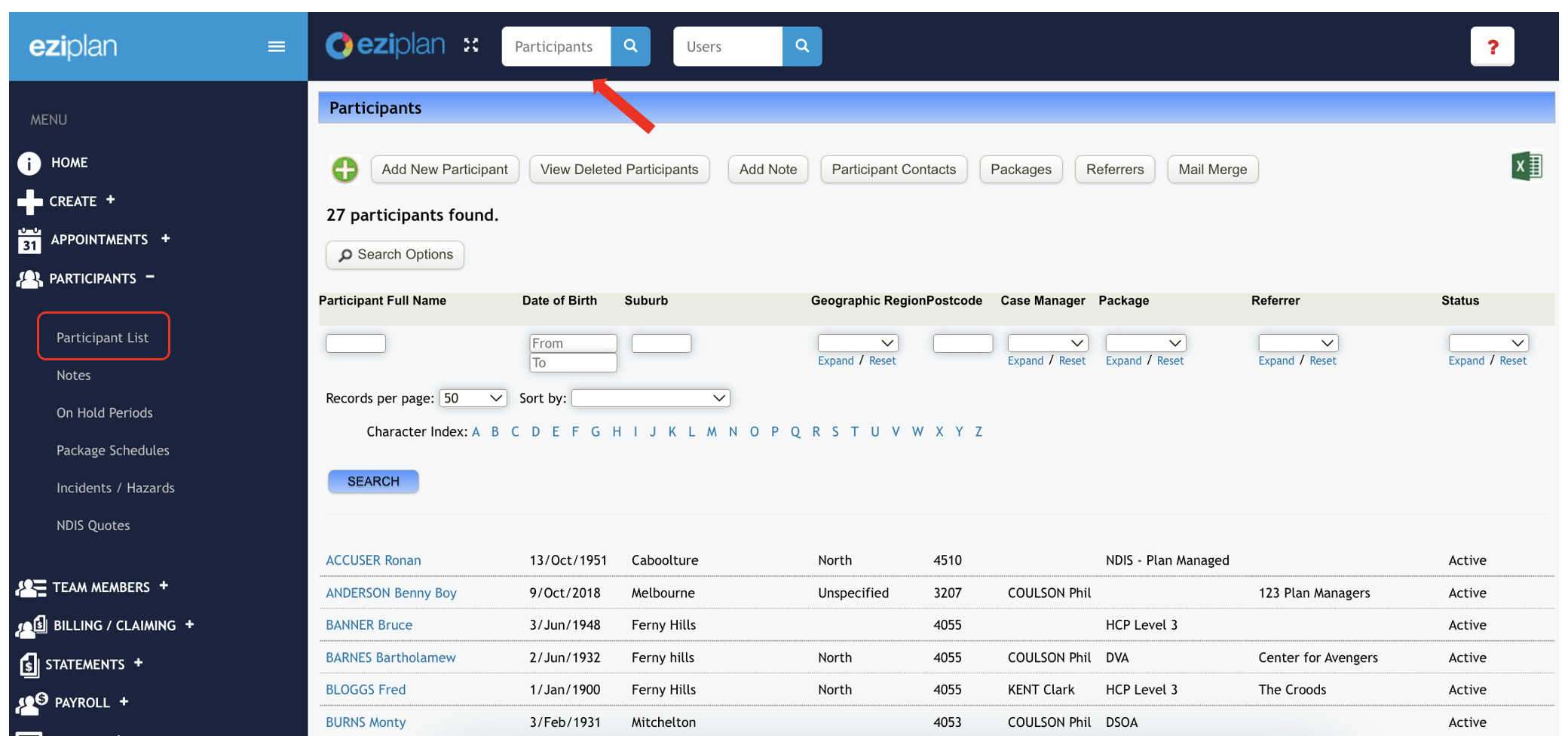
From the Eziplan Menu, go to Participants > Participants List
To add a Client's budget, you may select from the Client's list or simply type in their name in the Client's box
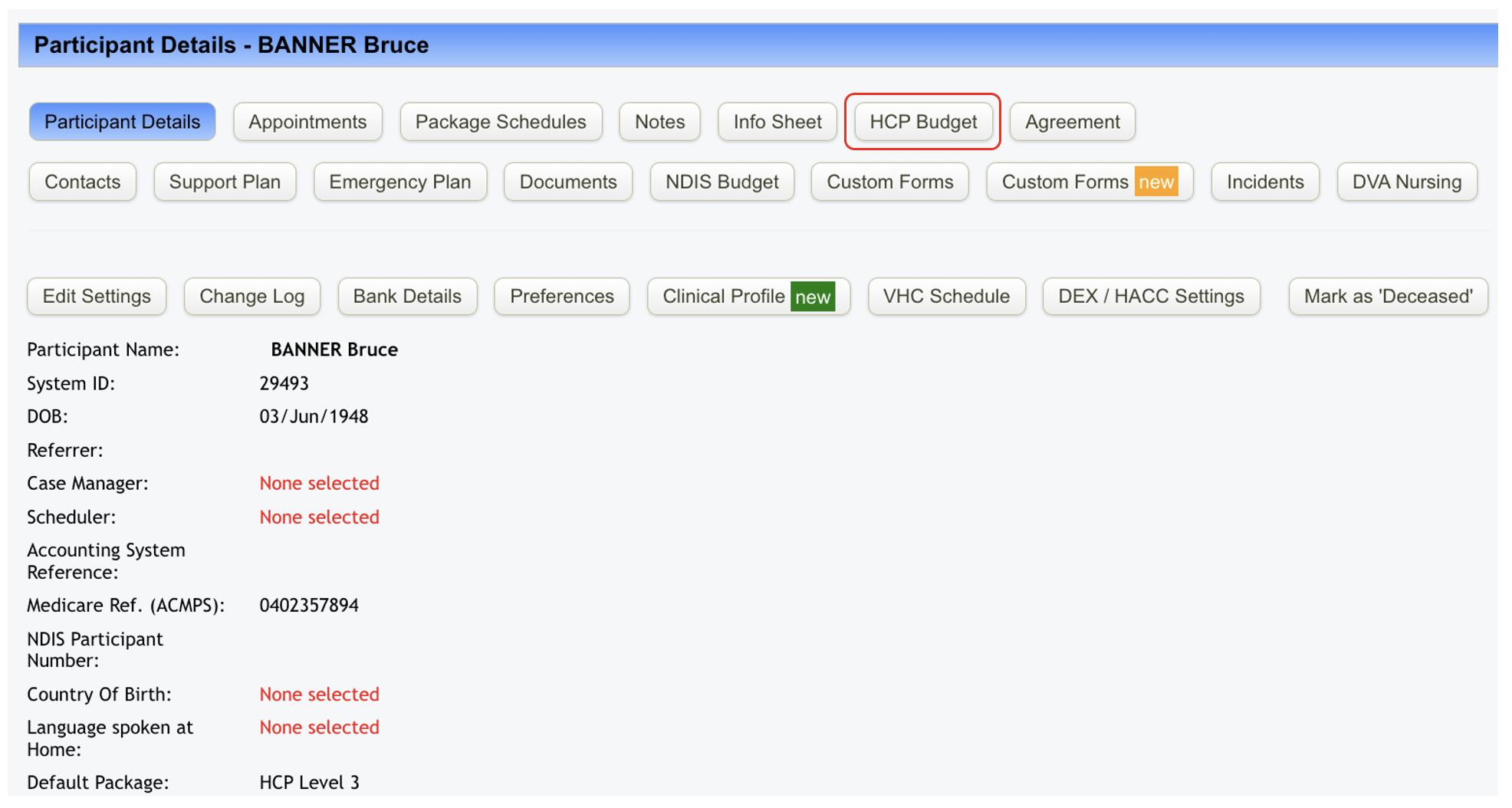
From their profile, select HCP Budget
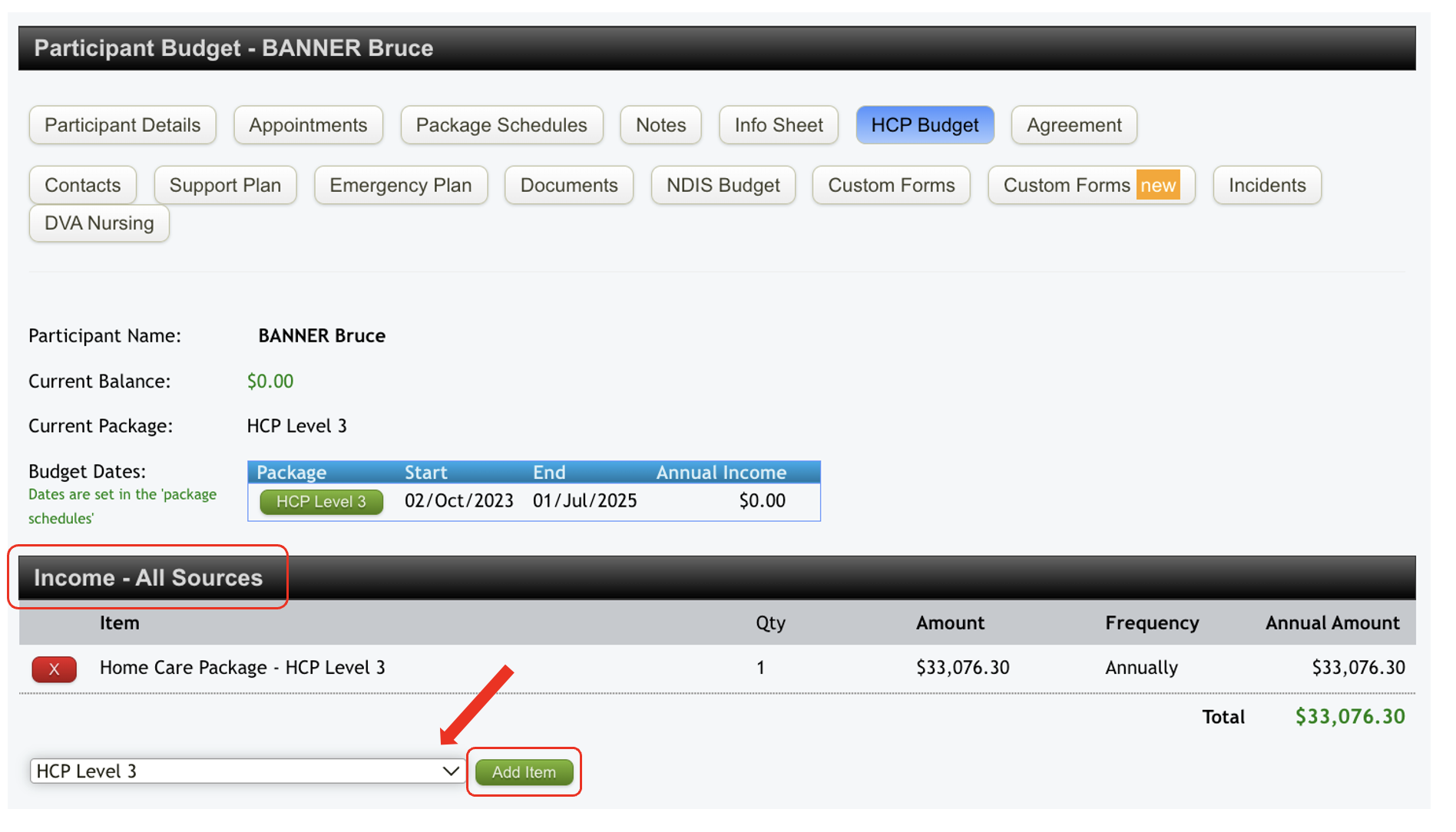
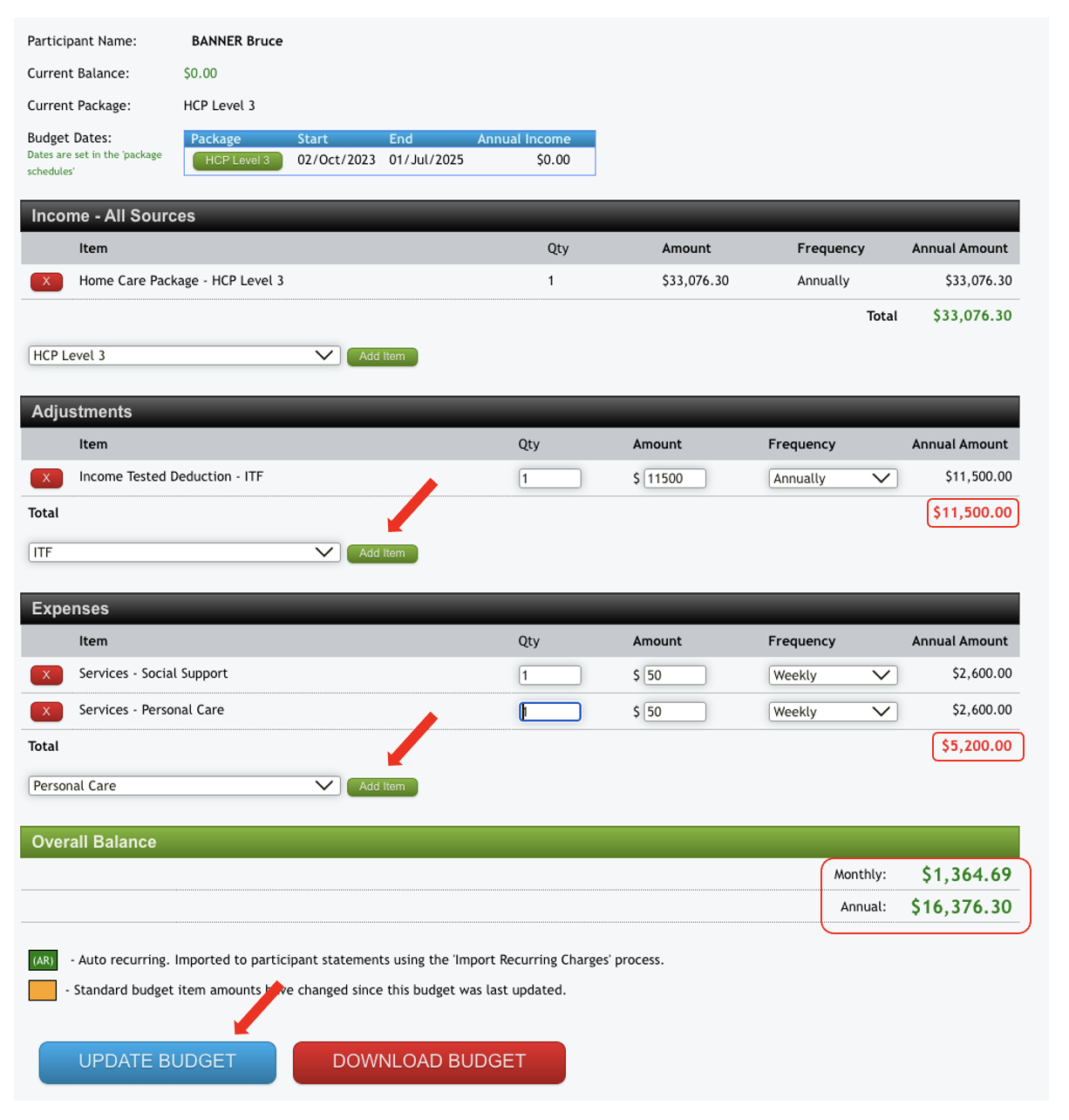
This will provide you with an overview of the client's current package and budget dates.
To begin updating the budget, choose the package the client has been using under the Income category then hit Add Item
After adding the item, you will see the client's annual budget amount for that specific package.
You may now begin adding items in the Adjustments and Expenses section, and the system will automatically calculate the totals. You can add as many items as needed, provided they align with the client’s plan and requirements. The rates will be determined based on the information you enter in the Budget Items.
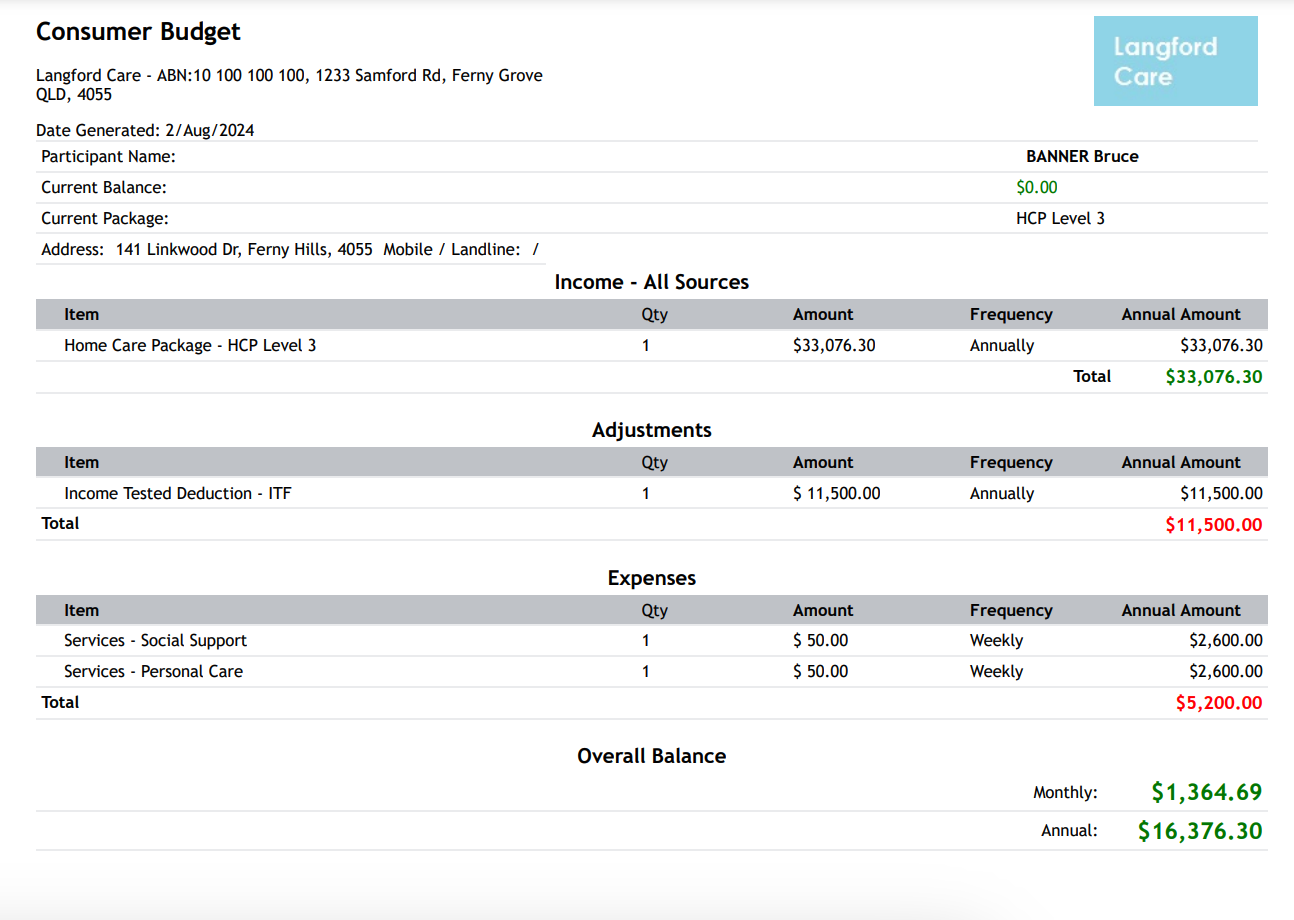
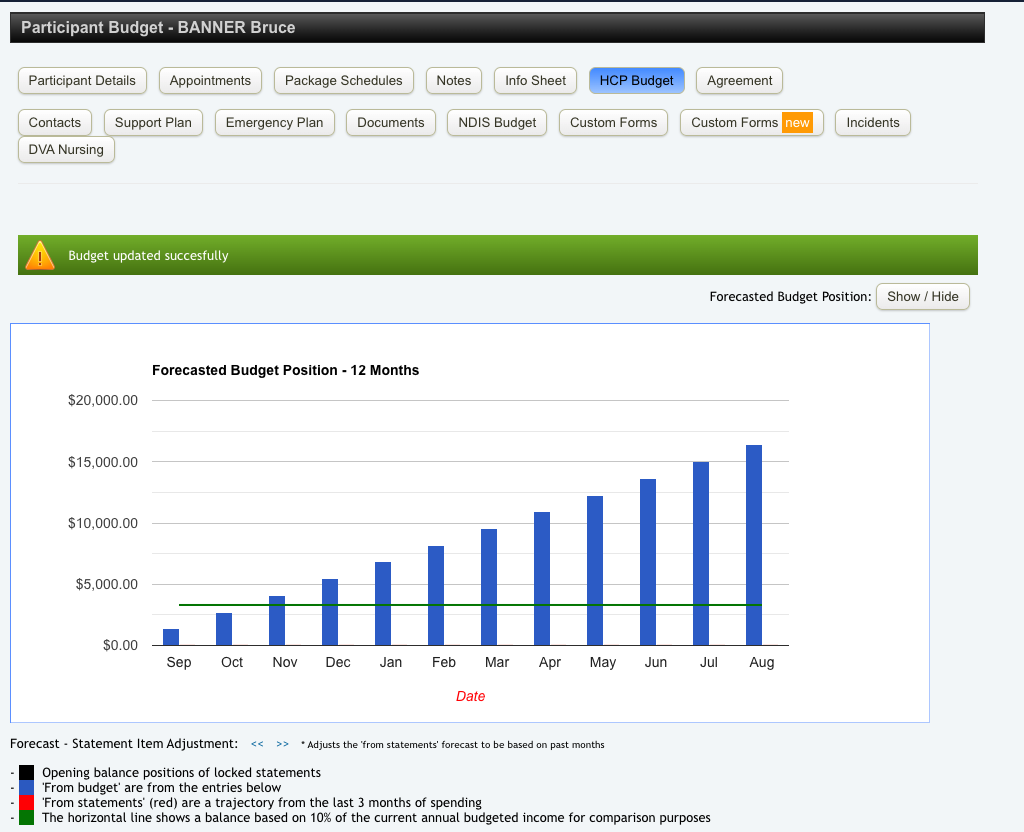
Once the budget has been updated successfully, you will be presented with a forecasted budget for a 12-month period. This will provide you with a clear overview of expected expenditures and financial planning, helping you manage and anticipate the client’s needs effectively.
If you want to export the budget on pdf, click the Download Budget button

Your pdf should look like this: