

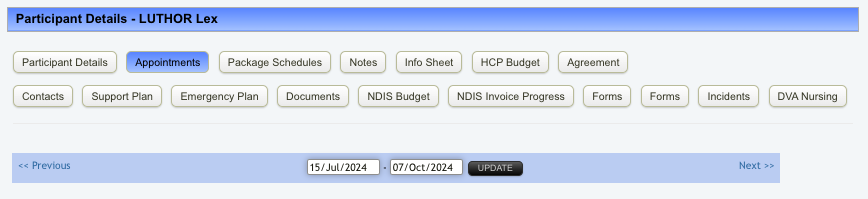
From the Participant's profile, click Appointments
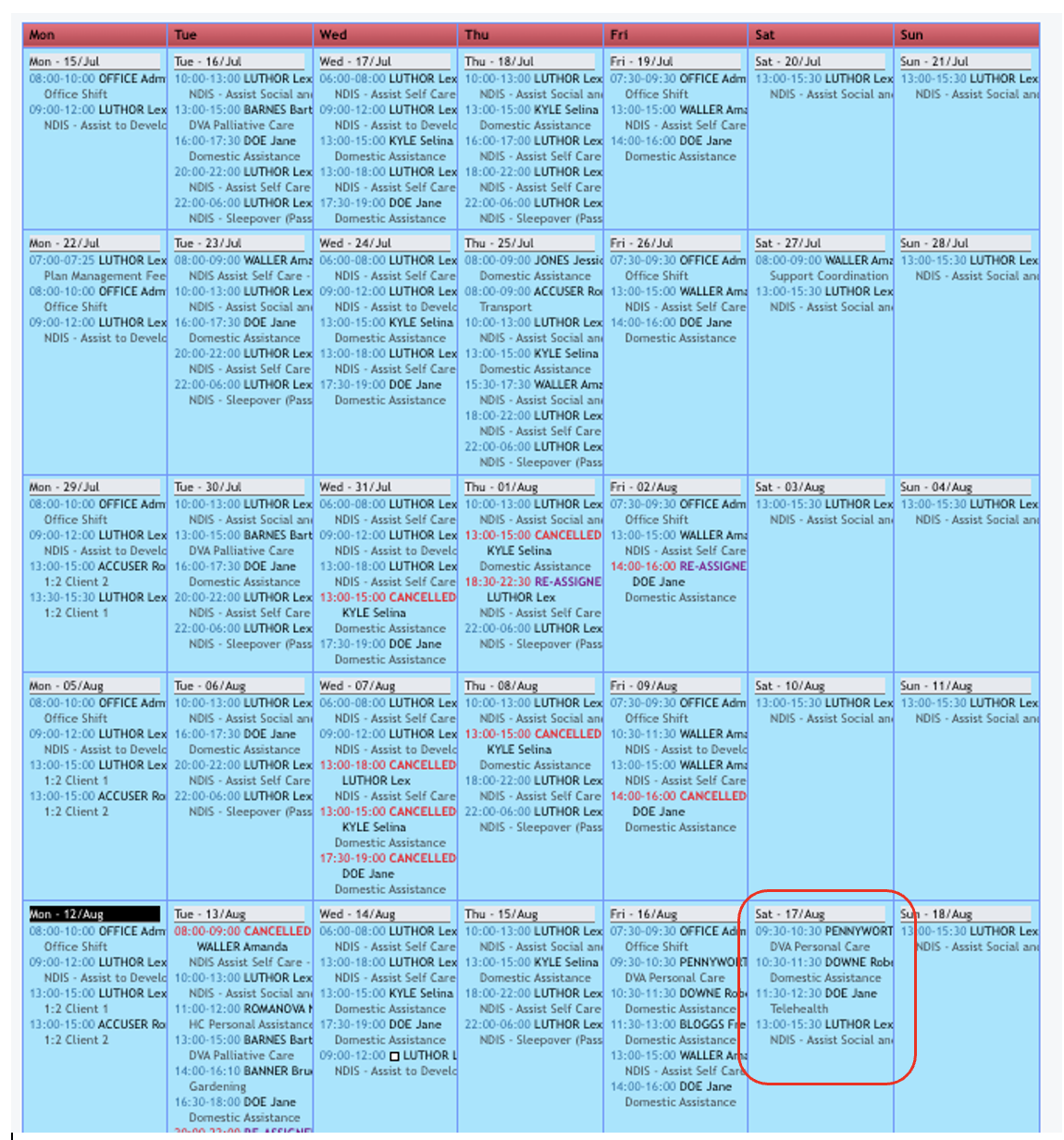
Within the Calendar, select any appointment you wish to exclude the travel kms
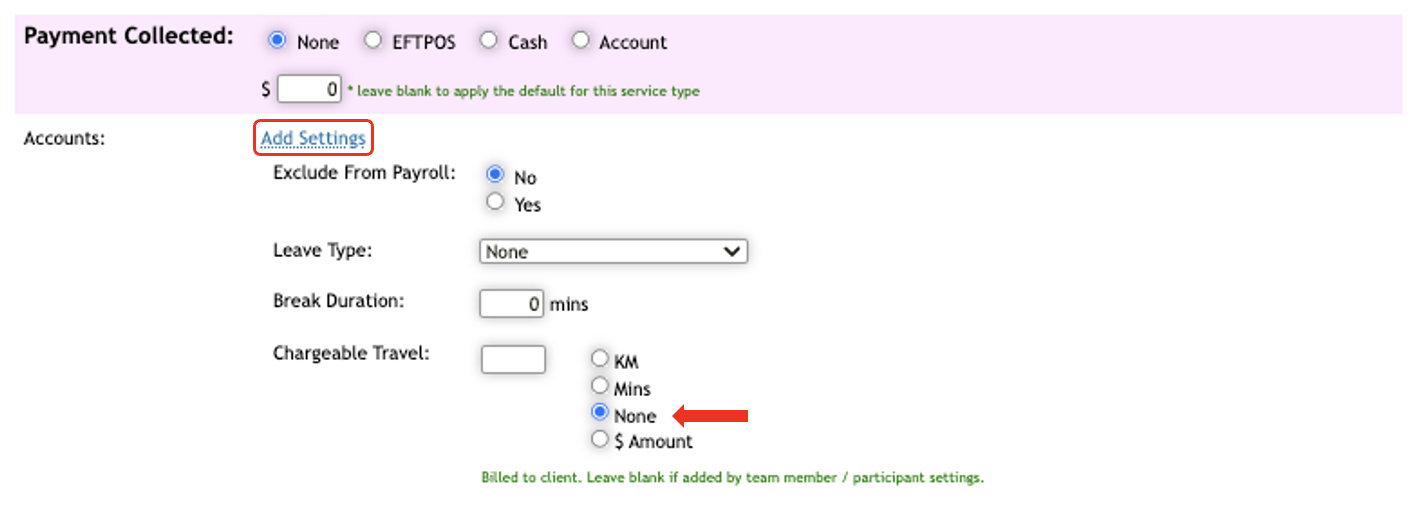
On the appointment page, click Add Settings under Accounts and mark the Chargeable Travel to None.
the hit Update Appointment to save changes

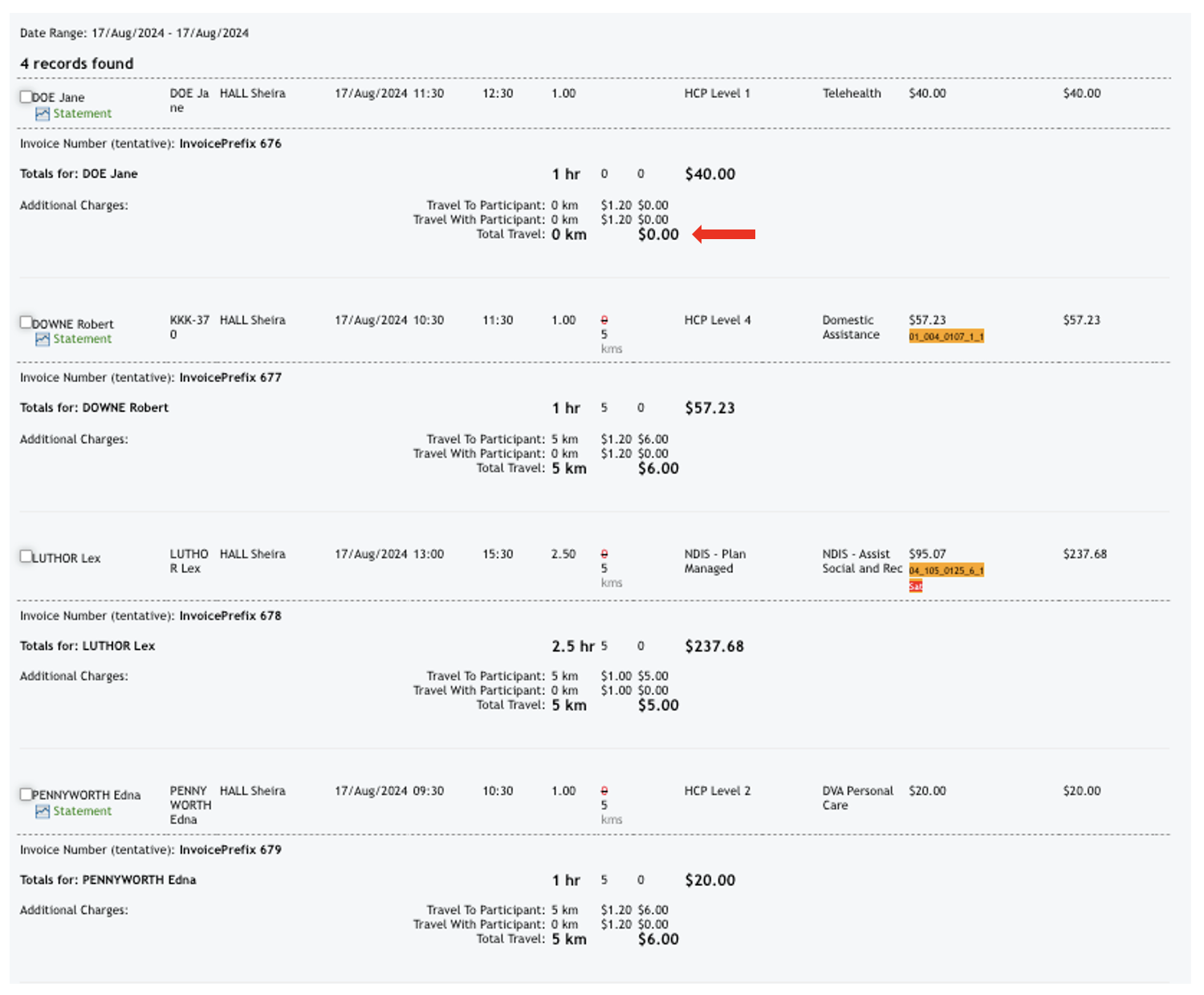
This will then appropriately reflect when processing invoices or payroll in the system. Client will be charged for the appointment but not for the travel, and the staff will also be paid for the appointment and none for travel.
If you encounter any issues, please contact the Eziplan Support Desk.