

Overview
When adding a new supplier invoice in Eziplan, you can upload a PDF copy of the invoice and let Eziplan read it for you. Using AI-assisted document reading, Eziplan will automatically extract key information from the uploaded file and pre-populate the invoice form — reducing manual data entry and the risk of keying errors.
This feature is available to all providers using the SAH Supplier Invoices module. No additional setup is required.
How It Works
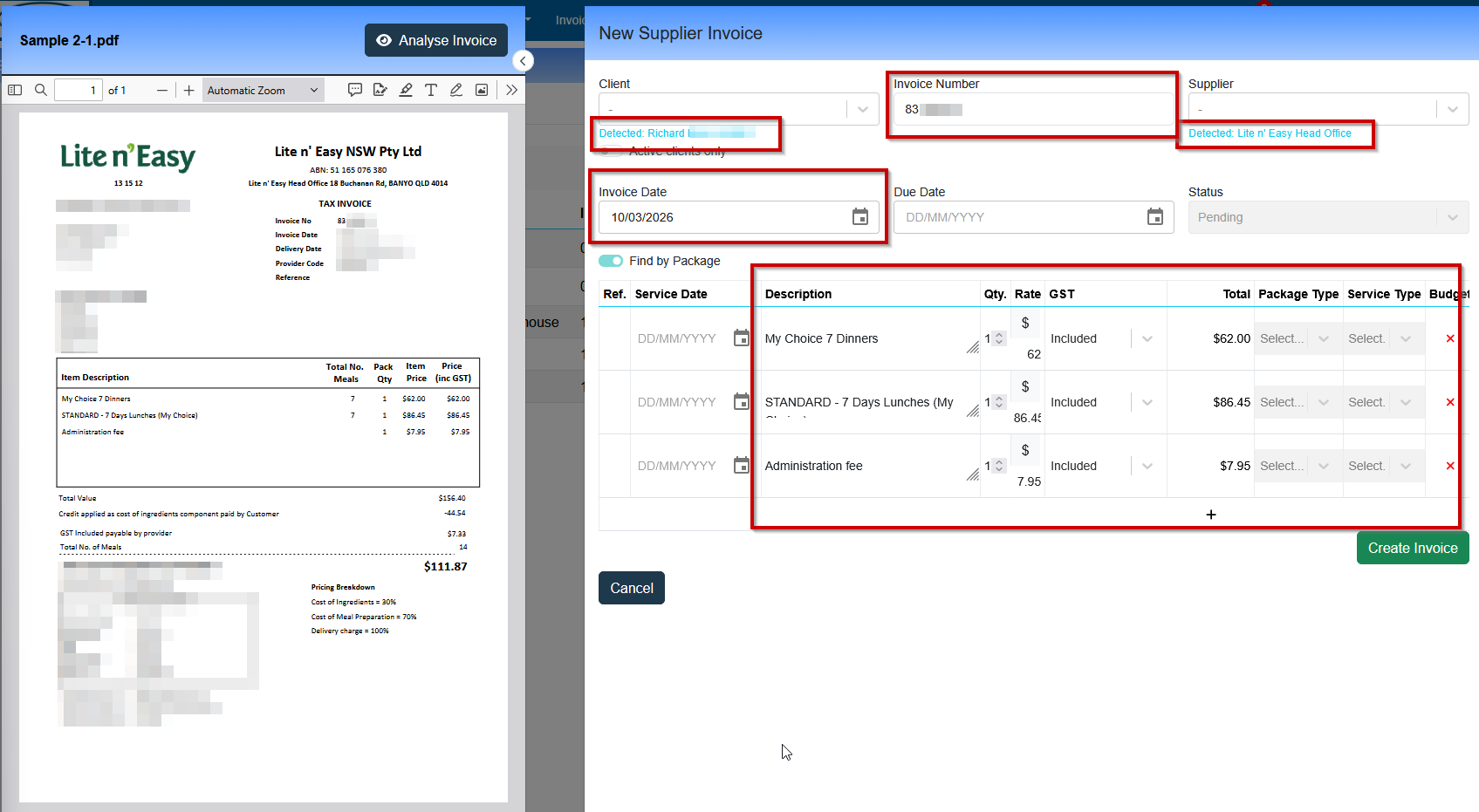
When you upload a PDF to the invoice form, Eziplan automatically sends the document for AI analysis. Once processing is complete, the following fields will be pre-populated where the information can be reliably identified in the document:
Invoice Number
Invoice Date
Due Date
Supplier (matched against your existing supplier list where possible)
Service line items — including Service Date, Description, Quantity, and Rate
Client Name
Fields that cannot be confidently read from the document will remain blank for you to complete manually.
Step-by-Step: Using AI Reading When Adding an Invoice
Navigate to Support at Home → Supplier Invoices and select New Invoice.
In the file upload area, drag and drop your PDF invoice, or click Upload File to browse your computer.
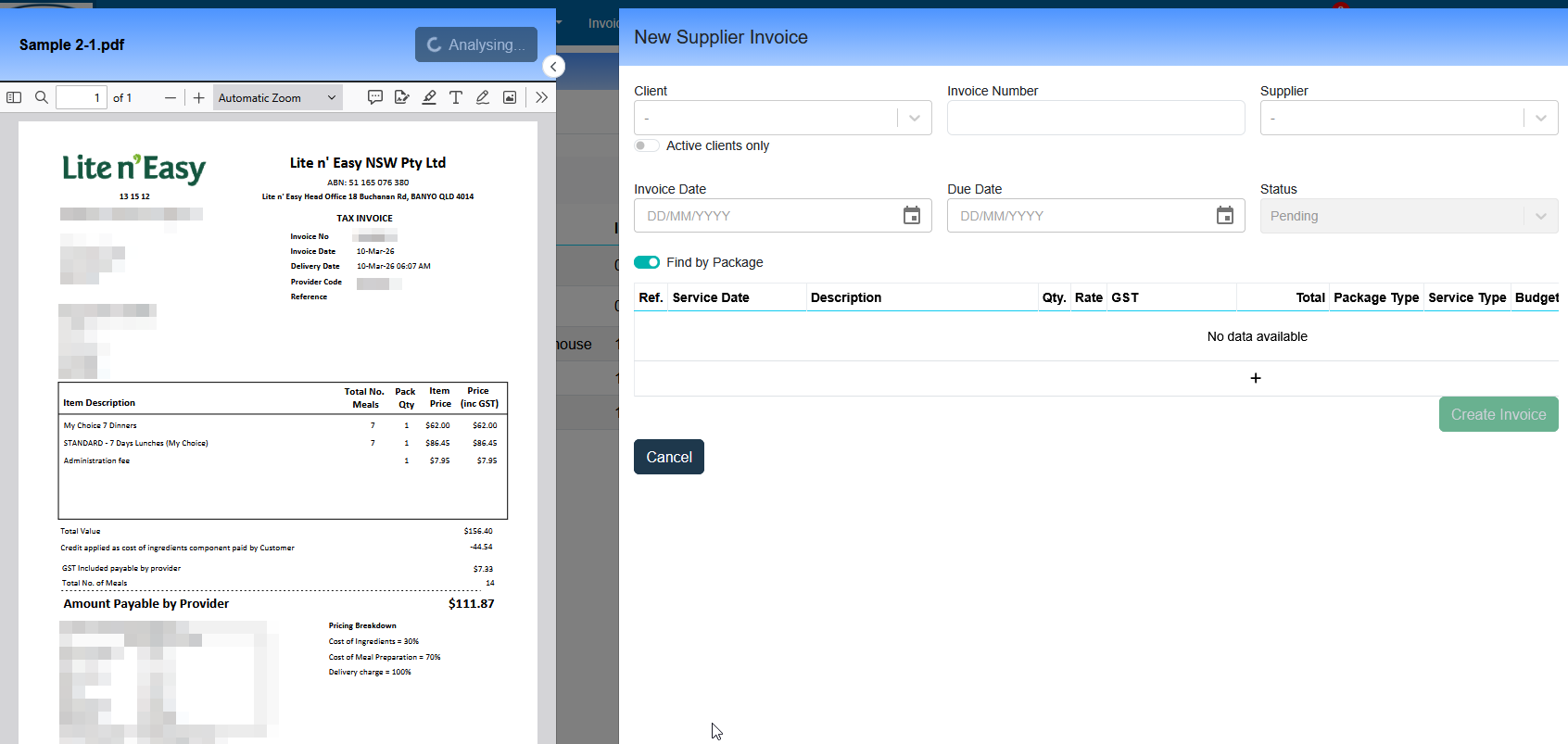
Once the file is uploaded, Eziplan will begin reading the document automatically. A brief processing indicator will appear.
When reading is complete, review all pre-populated fields carefully — confirm that values match the original invoice before proceeding.
Complete any fields that were not auto-filled, or correct any values that were read incorrectly.
Add your service line items if not already populated, then save the invoice as normal.
Tip: Clear, text-based PDFs (rather than scanned images) will produce the most accurate results. If your invoice is a low-quality scan, some fields may not be read correctly — always review before saving.
What to Do If Fields Are Incorrect
AI reading is designed to assist, not replace, your review. Always check pre-populated values against the original invoice before saving. If a field has been read incorrectly:
Simply click into the field and update the value manually — pre-populated fields are fully editable.
If the invoice is a scanned image or contains complex formatting, more fields may require manual entry.
If you notice a consistent pattern of incorrect readings on a particular supplier's invoices, contact the support team so we can investigate.
Data Privacy and Security
Eziplan takes the privacy and security of your client and supplier data seriously. The following measures are in place for AI-assisted invoice reading:
Data Stays in Australia
All document processing occurs within Australian cloud infrastructure. Your invoice data is never transmitted outside of Australia at any point during the reading process. Eziplan uses Australian-region cloud services in compliance with Australian data sovereignty requirements.
Data Is Not Retained After Processing
Documents submitted for AI reading are processed in real time and are not stored, retained, or used for any purpose beyond the immediate reading task. Once the extraction is complete and the results are returned to Eziplan, the document is discarded from the processing service. Your data is not used to train AI models or shared with any third parties.
Compliance with Privacy Obligations
This feature has been designed in accordance with the Australian Privacy Act 1988 and the obligations providers carry when handling participant and supplier information. The AI reading process does not create any new data storage or sharing arrangements outside of those already in place with Eziplan.
If your organisation has specific data handling policies or requires further information about the technical implementation, please contact the Eziplan support team.
Frequently Asked Questions
Does this feature work with all PDF invoices?
The feature works best with text-based PDFs — for example, invoices generated digitally by accounting software. It also works with scanned PDFs, though accuracy may be lower depending on scan quality. The feature does not support image files (e.g. JPG, PNG) — the uploaded file must be in PDF format.
Can I still enter invoice details manually?
Yes — uploading a PDF and using AI reading is entirely optional. You can continue to enter all invoice details manually exactly as before. If you choose to upload a PDF, you can also ignore or override any auto-filled values at any time.
Does the AI reading affect how the invoice is processed or claimed?
No. The AI reading only assists with populating the invoice form. The invoice itself is still reviewed, approved, and processed through the standard Eziplan supplier invoice workflow. The source of a pre-populated field has no impact on claiming or payment processing.
What happens if I upload a multi-client invoice?
If a single PDF contains services for multiple clients, Eziplan will read the document and pre-populate what it can. You will still need to create a separate invoice record in Eziplan for each client, as each invoice must be linked to a single client. You can upload the same PDF to each invoice record and adjust the line items for each client accordingly.
I can't see the analyse invoice option
Ensure that the setting is enabled in the Supplier Invoice Settings Menu:
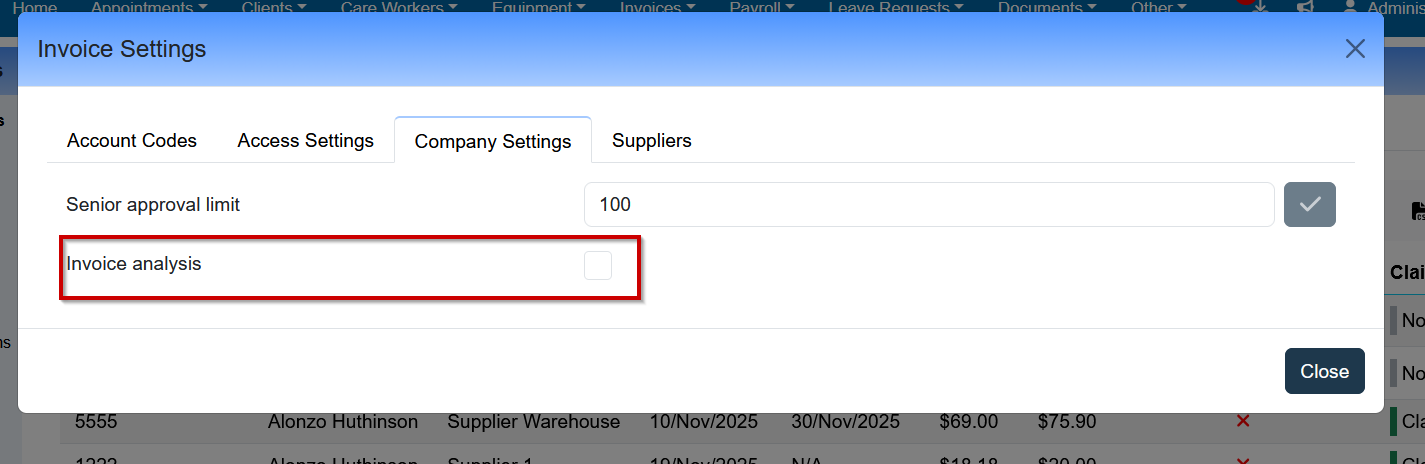
Make sure the uploaded document is in PDF form