

When an appointment is made available for bidding, eligible staff members will receive an SMS notification.
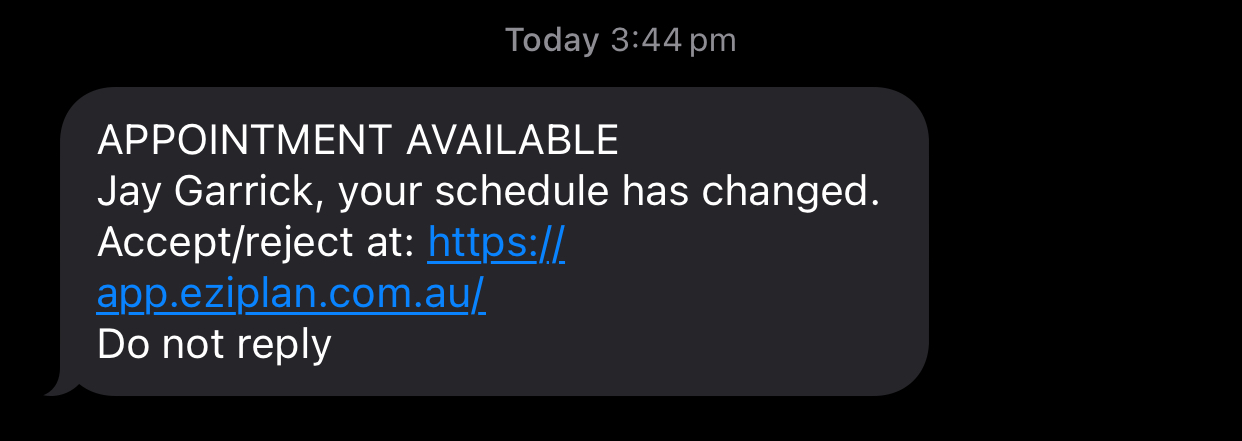
To respond, they must click on the provided link, which will direct them to their Eziplan homepage.
Reviewing the Appointment
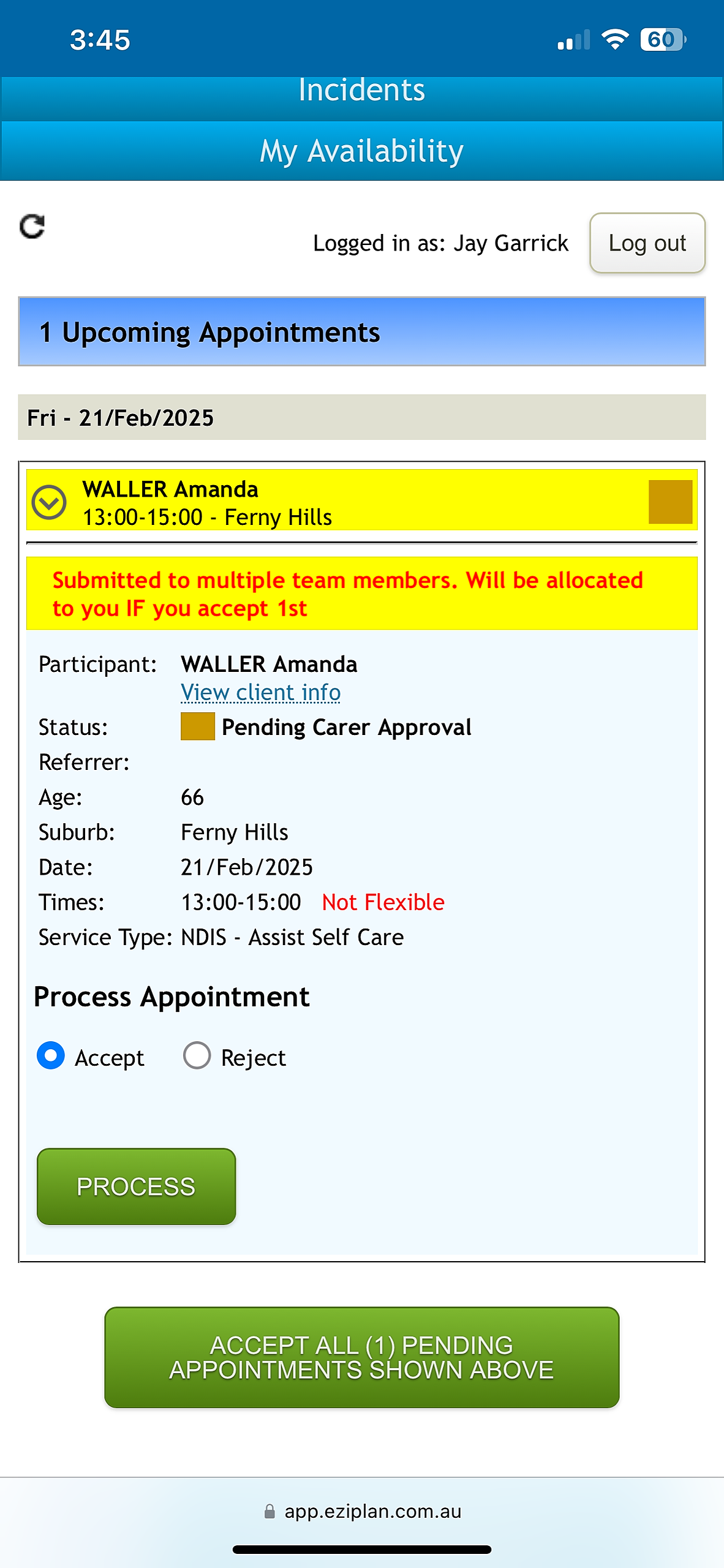
Upon accessing the homepage, staff will see a prompt indicating that the appointment has been sent to multiple team members. The shift will be assigned to the first person who accepts it.
Accepting an Appointment
To accept the shift, select "Accept" and click the "Process" button.
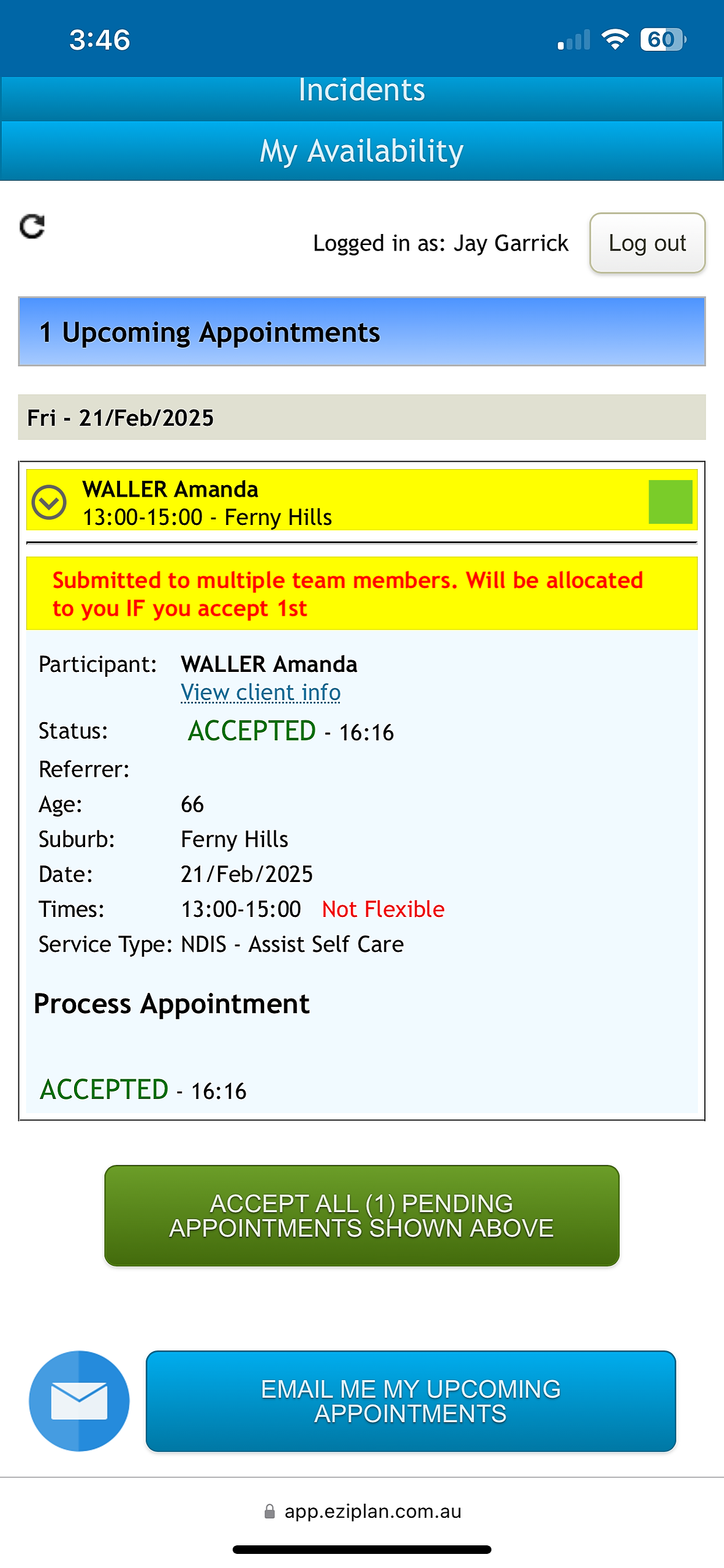
Once processed, an on-screen confirmation will appear, confirming that the shift has been successfully assigned.
Rejecting an Appointment
To decline the shift, select Reject, optionally provide a reason, and click Process.
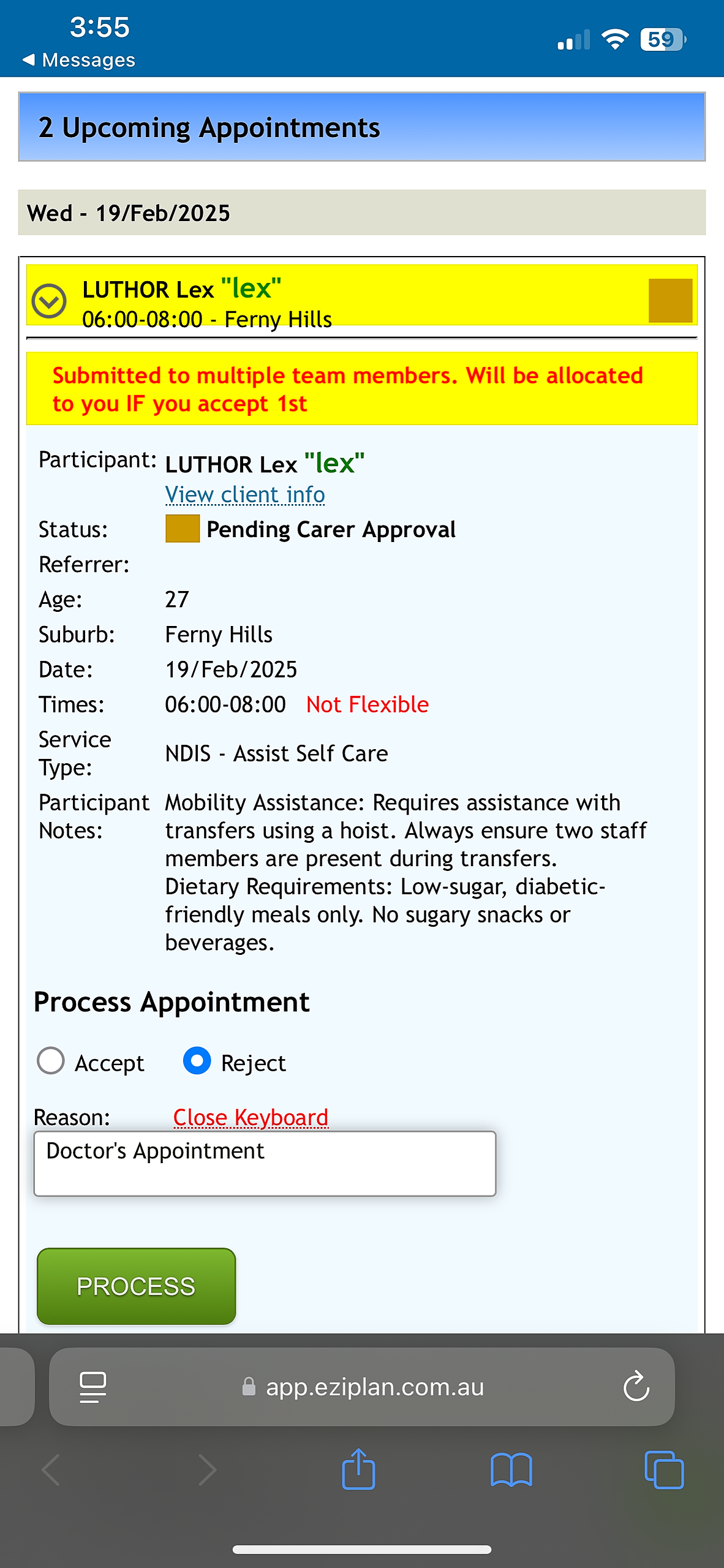
After processing, an on-screen confirmation will appear, confirming that the shift has been declined. The appointment will remain available for other eligible staff to accept. If no one takes it within a set timeframe, the Admin may manually assign the shift or resend the bidding notification.