

Occasionally, you may need to schedule multiple appointments with similar details, such as setting up three appointments for the same service type on Monday, Wednesday, and Friday.
Eziplan simplifies this process by allowing you to duplicate appointments effortlessly, saving you the hassle of creating each one from scratch.
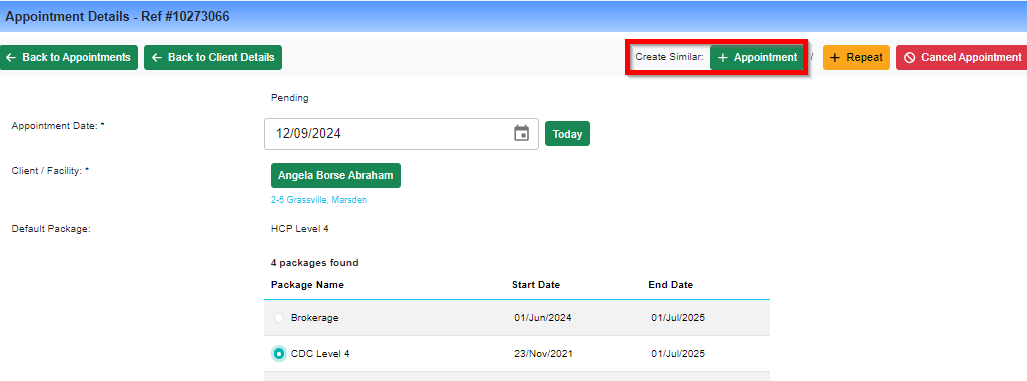
1. On the appointment you want to copy from, find "Create similar Appointment" button at the top right corner
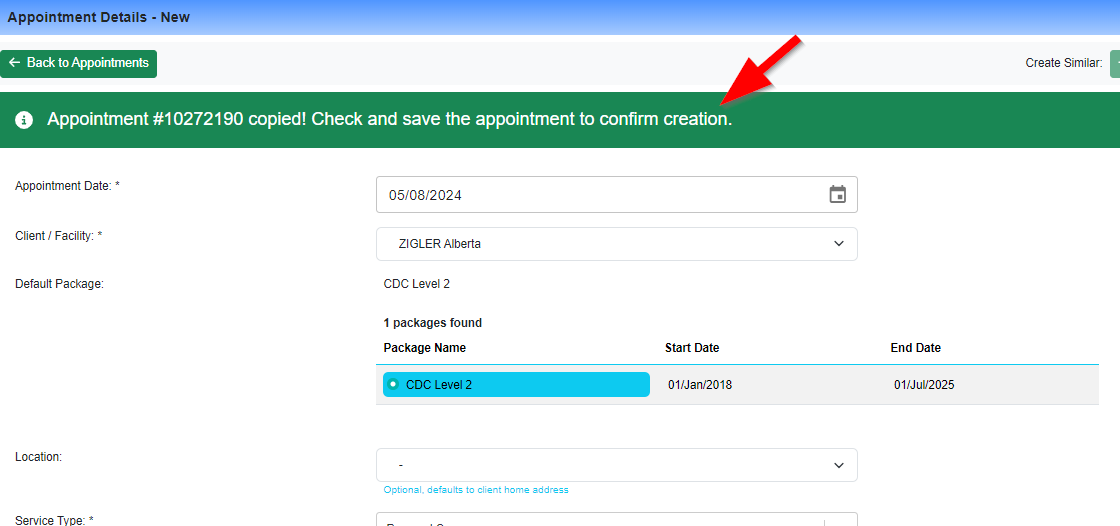
2. You will see the alert banner at the top if it's being copied correctly
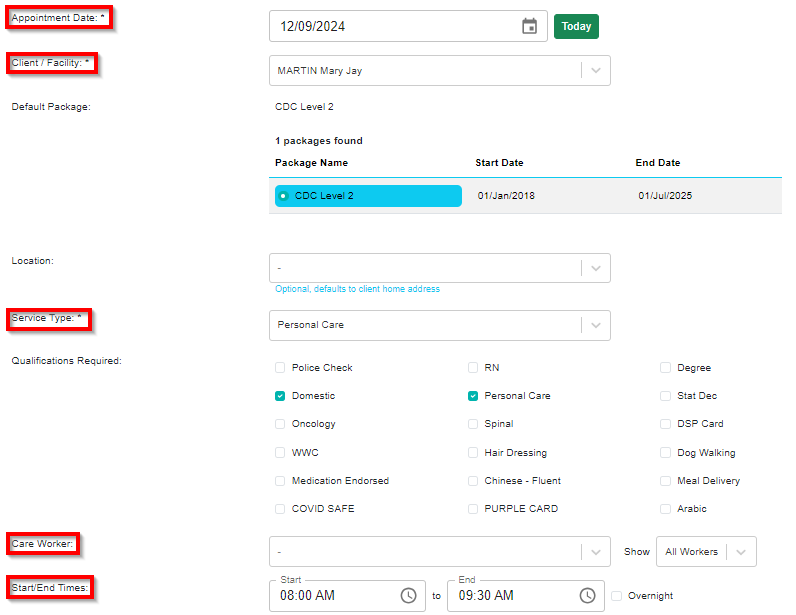
3. Make changes where needed (e.g. date, service type, or time of appointment, etc)
4. Once you have desired settings, click
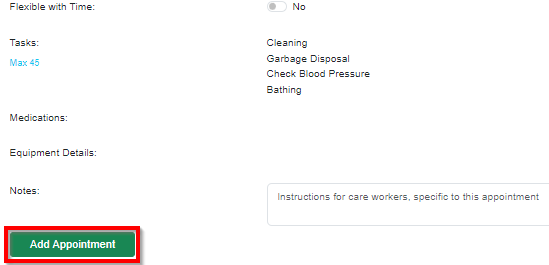
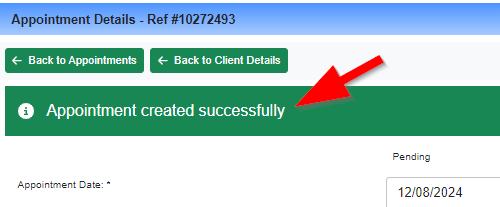
Once duplicated successfully, you will be able to see this banner at the top
If you change service type or care worker during this process, and encounter some error messages, please click HERE to check the reason and what steps to take.