

To locate the appointment you want to cancel you will need to first search for the appointment. To find instructions to search for appointments click here for single appointments or here for repeat appointments
Or, to get to the appointments search, hover over the appointments menu and then select "View All"
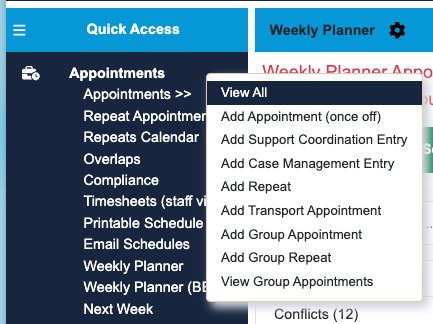
From this page you will need to then select "Search" here you will see a number of filter options available.
A commonly used filter is selecting: Client Name and Date of appointment.

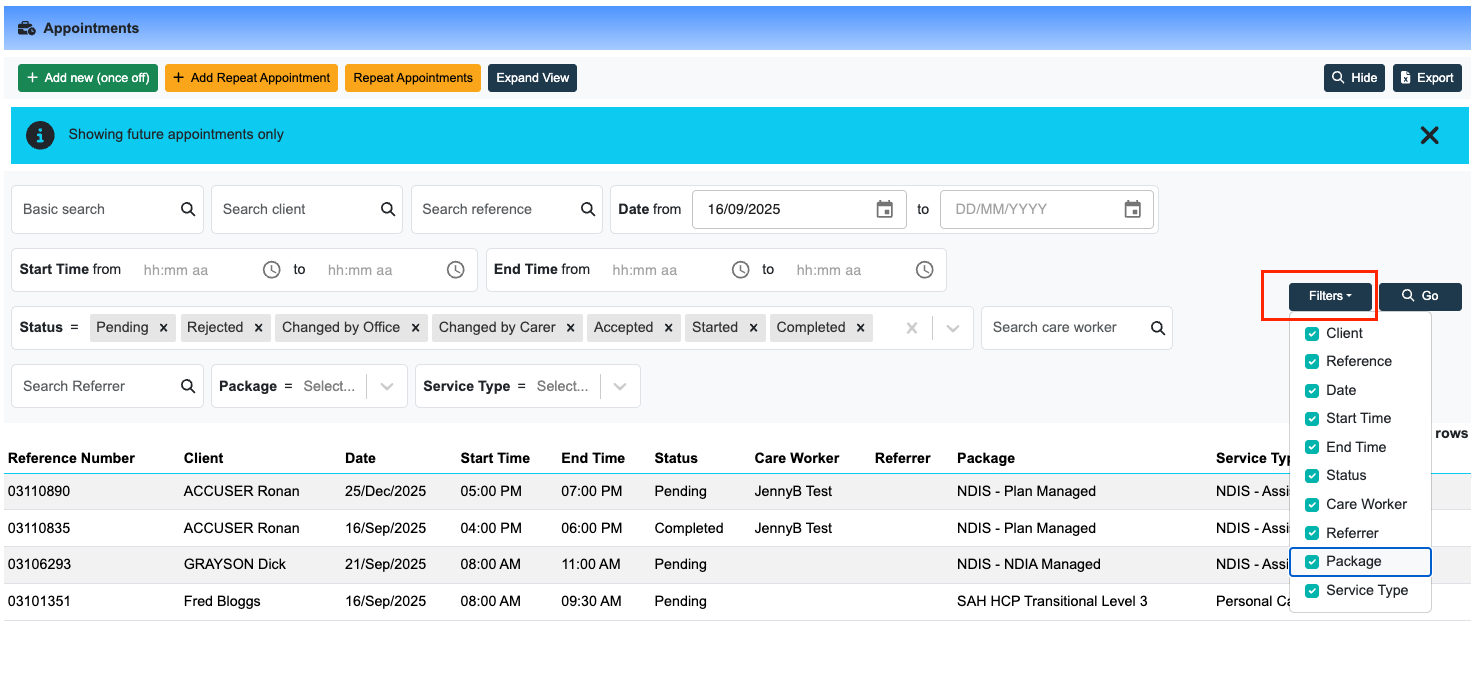
Select the required appointment for that client.
Here, the appointment details screen is displayed.
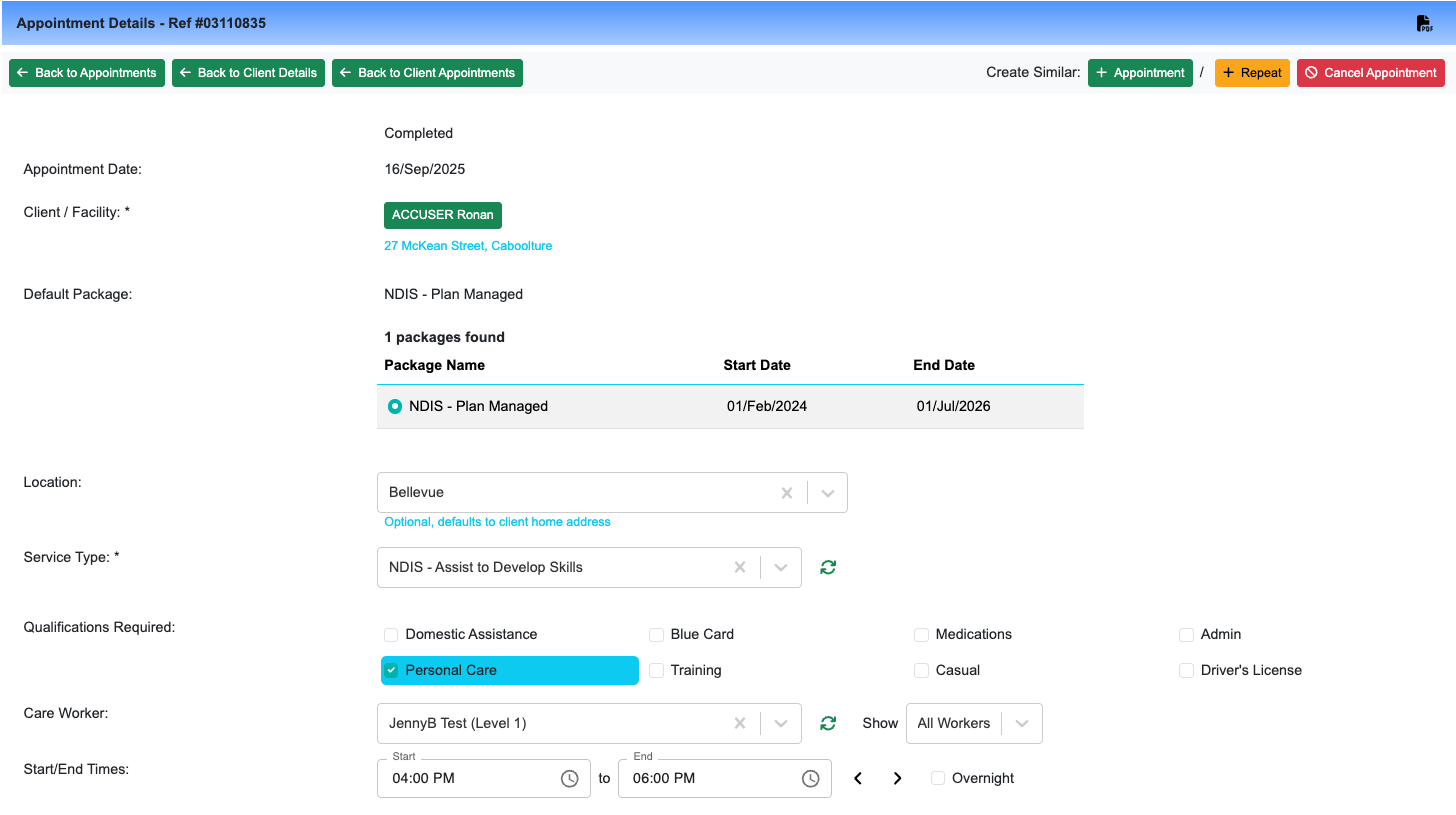
Once you check the details of the appointment to ensure you are cancelling the correct appointment, Click "Cancel Appointment" Button in the top right hand side of the screen.

Once you click this button, below fields will appear allowing you capture details of cancellation(e.g. reason) and also mark whether it's chargeable cancellation or not.
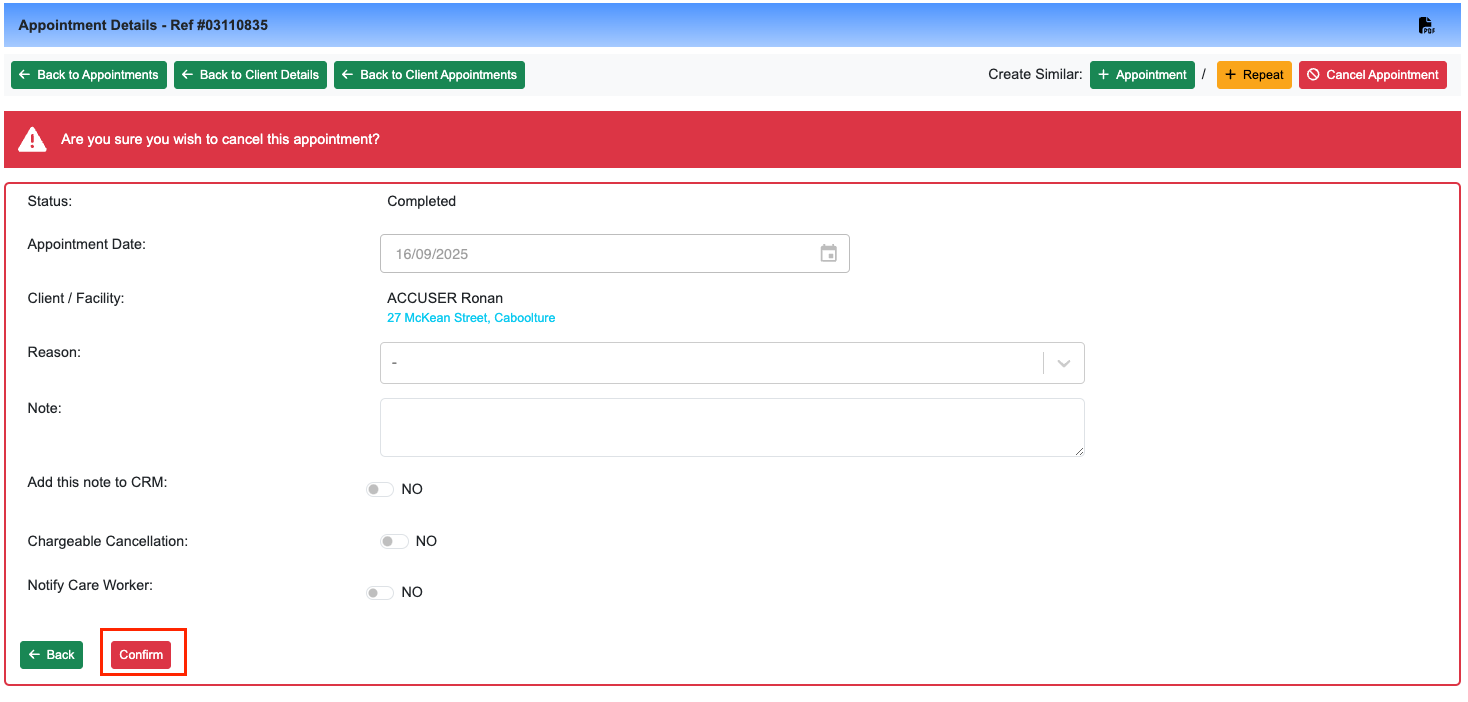
Please find the details of each fields below:
Reason
In this section you would are to select the reason for the cancellation of appointment. E.g Client is unwell, Conflict of appointments. If you want to modify the list, please contact Support team.
Note
The note that is placed in this section is to allow admin to capture more information in addition to reason of cancellation of appointment. If you tick Add this note to CRM, the note will be captured under Schedule Change in client's page
Chargeable Cancellation
This section is for billing purposes, depending on your organisations policy you will input the amount of time that is chargeable to client (e.g full appointment time or 25 mins etc) You will also be able to select whether you are to pay the care worker for their time for this cancellation. These settings will then be reflected to both invoicing & payroll
Notify Care Worker
"No" will not send any alert to worker that appointment has been cancelled. If selecting "Yes", the system will send an alert to the worker alerting them of a change of schedule via either sms or email.