

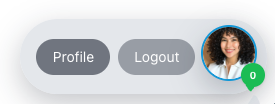
From the home page, click on your profile widget, then select Profile.
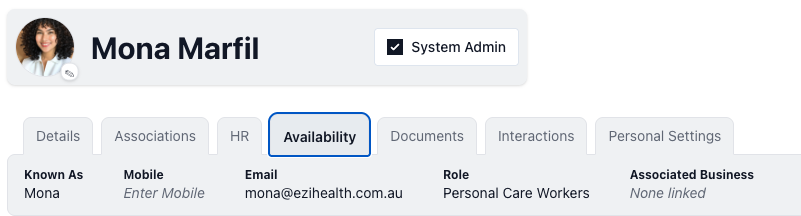
Go to the Availability tab.
You can add your availability for each day of the week.
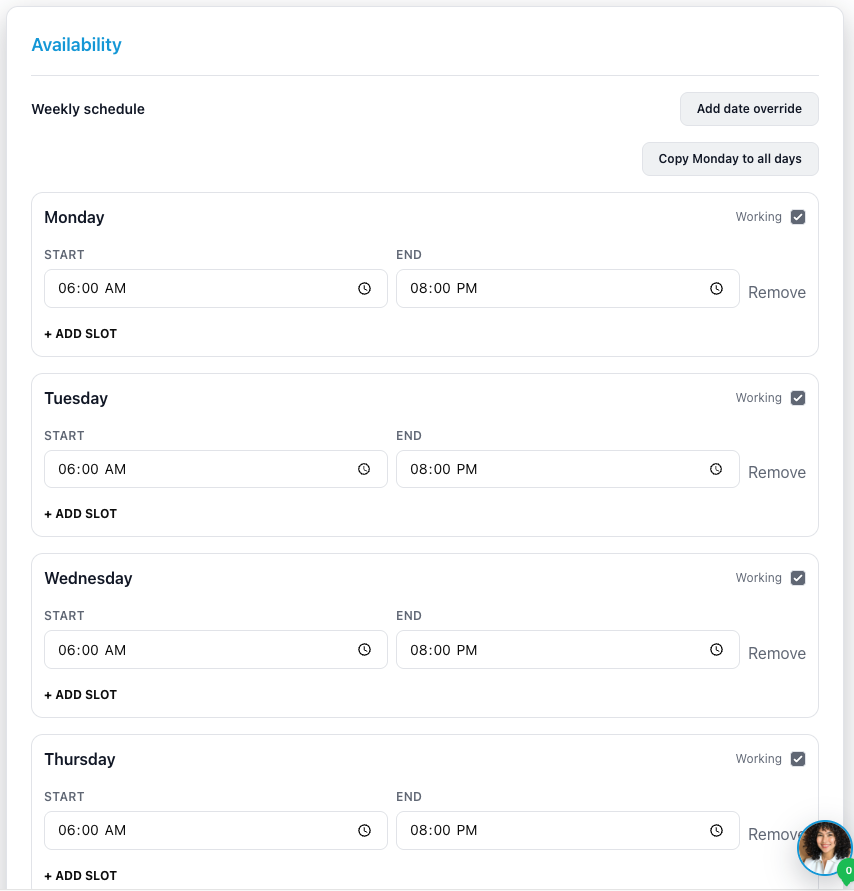
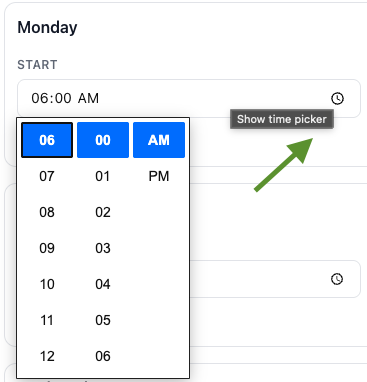
To customise the time of the existing schedule, click the clock icon in the field to open the time picker. This applies to both the start and end times of the schedule.
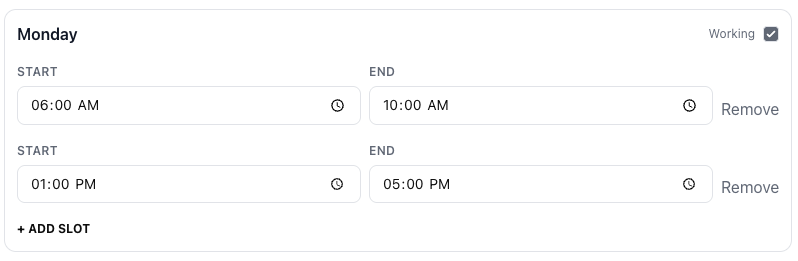
To add an availability, click Add Slot for your preferred day.
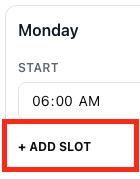
A new line with the time picker will then appear, allowing you to customise the schedule.
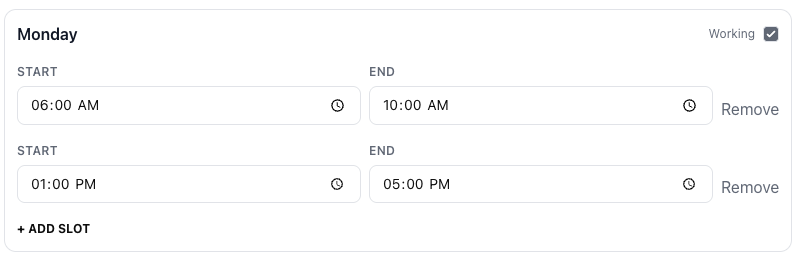
To remove a time slot, simply click Remove on the right side.

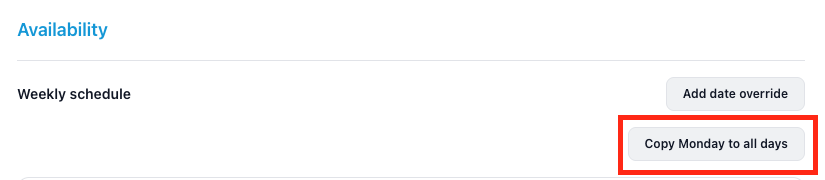
You also have the option to copy your availability to all days.
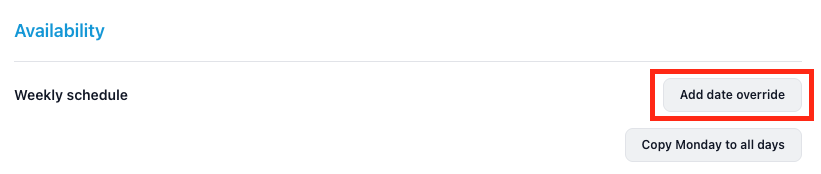
You can also add a date override for specific dates.
To select the date you want to add an override for, click the calendar icon and choose a date from the calendar.
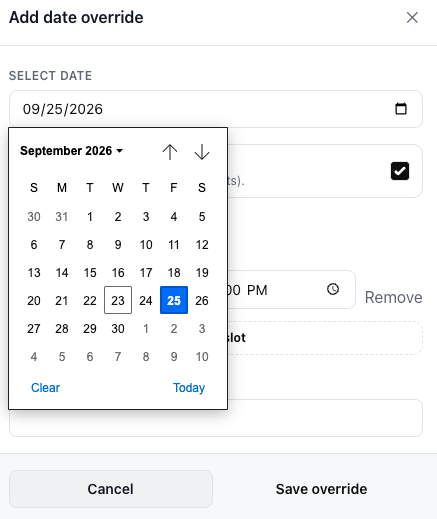
Then, tick the checkmark if you are available on this date, or untick it if you are not.

Customise the start and end times.
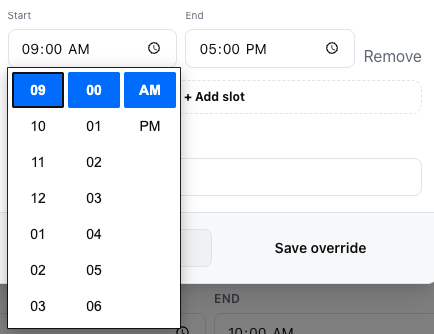
You can add additional time slots for the date override.

As well as add a reason for the date override.

Then, click Save Override.

Your date overrides will be displayed on the page.

Notes can also be added to your availability to provide additional information.

The click Save to update your availability changes
