

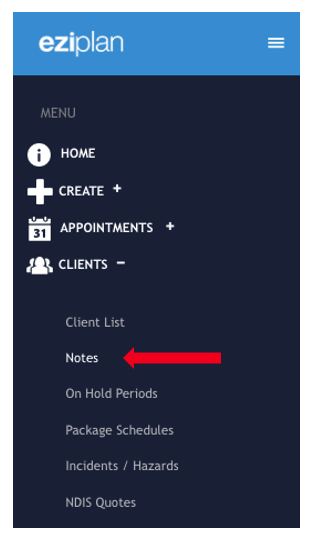
From the Eziplan Menu, navigate to Clients > Notes
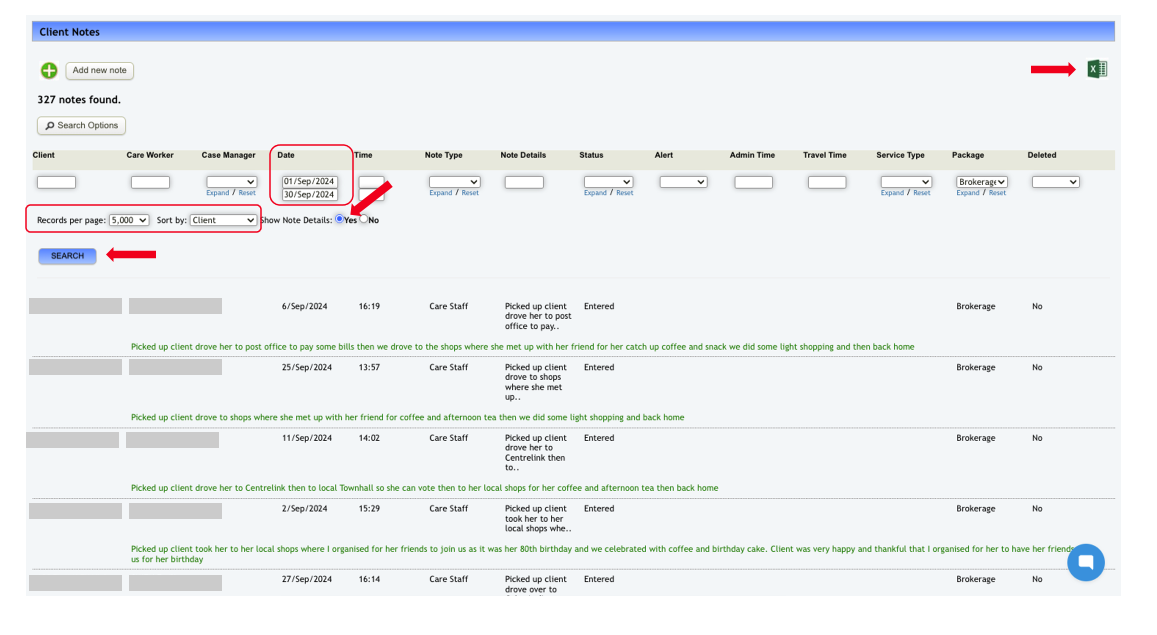
In the Notes page, make the following selections:
Date range of the report you want to export
Select Brokerage in Package
Number of records to show per page
Sort the result by Client and most importantly,
Don’t forget to tick the Yes in Show Note Details
then hit Search. Export the result by clicking the Excel icon on the right upper corner of the page.
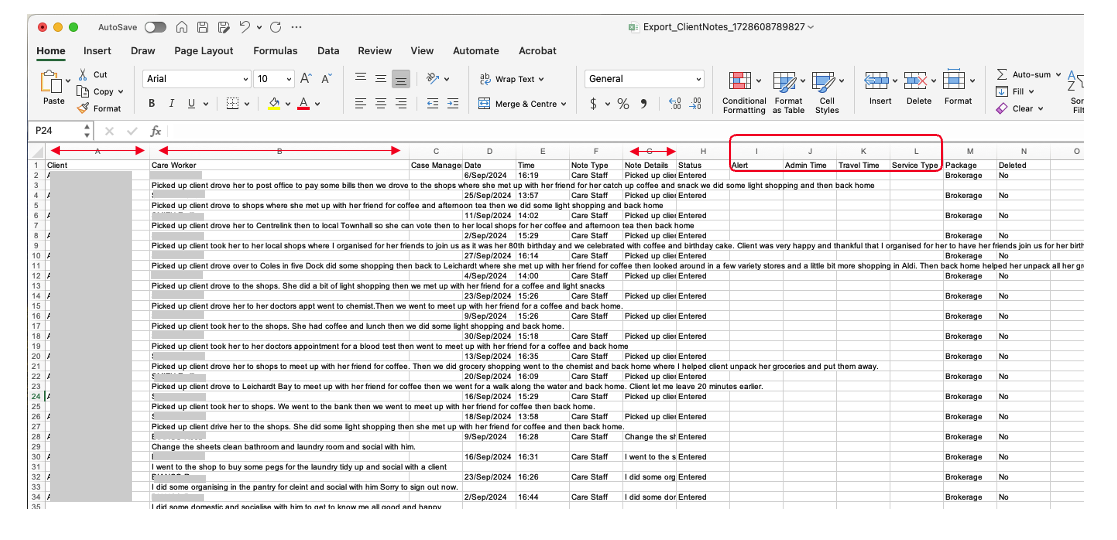
On the excel sheet:
Adjust the spacing in columns A, B and G
Delete contents in columns I – L (only if it’s not relevant for the report)
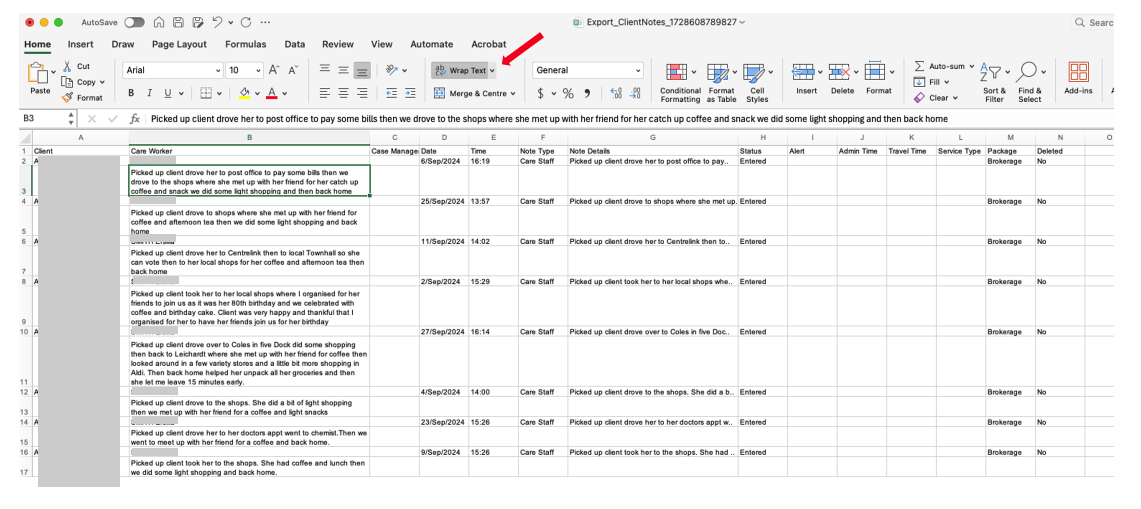
Highlight column B and click wrap text so you can view the full Notes details in one cell
Your spreadsheet should look something like this:
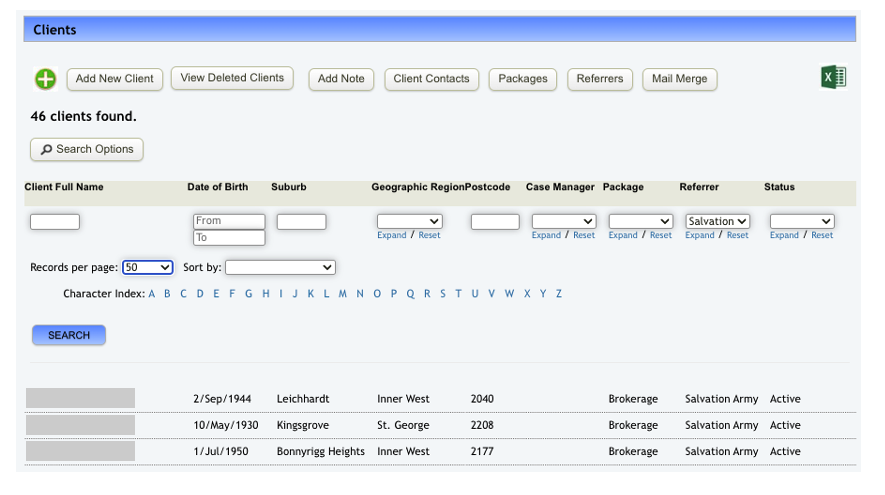
Then, go back to Eziplan: Clients > Clients List and filter your search per Referrer. In this example, let’s use Salvation Army.
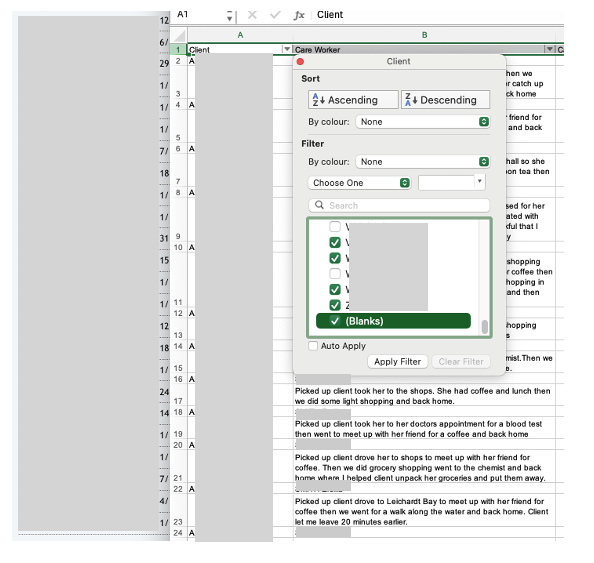
Create a filter on your spreadsheet and cross match the clients names in Eziplan. Don’t forget to tick the ‘Blanks’ option at the bottom then hit Apply filter.
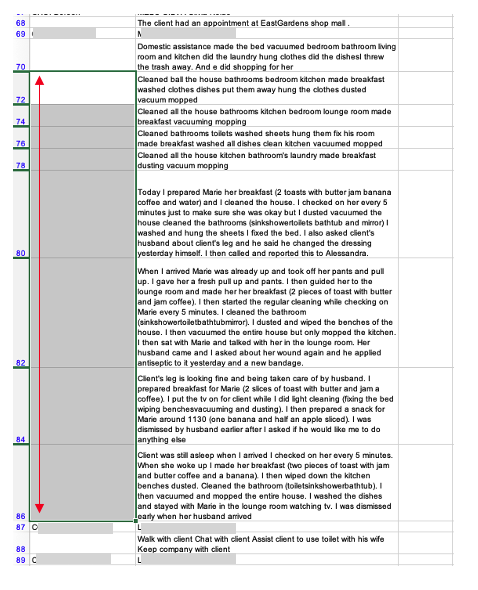
Spreadsheet should include a row for each client, followed by a blank cell for the complete details of the client’s notes. However, you may come across fields with multiple blank cells, like the one below. Please delete the entire row from the second blank cell and all subsequent blank cells until you reach the last blank cell right before another client's name.
That’s it! Follow the same process for clients under a different referrer and the report should be ready.