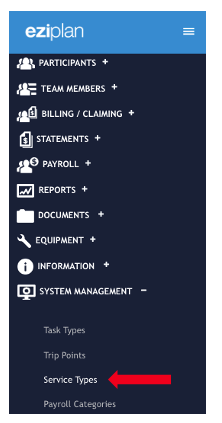
To set this up, navigate from Eziplan Menu > System Management > Service Types
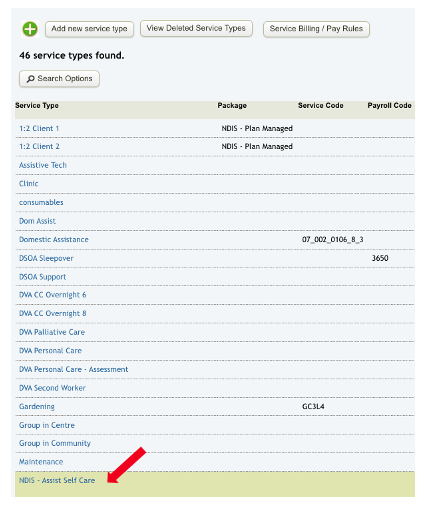
Select any service type from the list that you would like to include in the report.
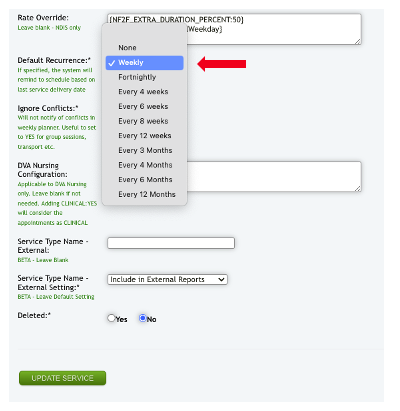
Once inside the service type, navigate to Default Recurrence, where you can set how often you would like this service type to reoccur. For example, the NDIS - Assist Self Care service type is generated with a default weekly recurrence. Once recurrence is selected, hit Update service.
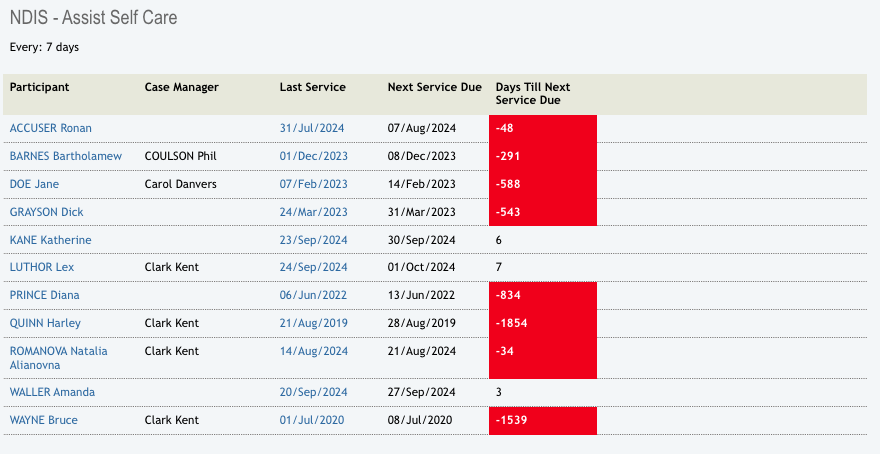
The system will capture this information through the client review report and show you any client that has had an appointment with this service type, and when the next service is due depending on their last service date.
This means the appointment with this service type has to be generated to be captured in this report.
Accessing Client Review Report
To review the upcoming reviews, navigate to the Reports section in the quick access menu and select Client (or Participant) Review Report
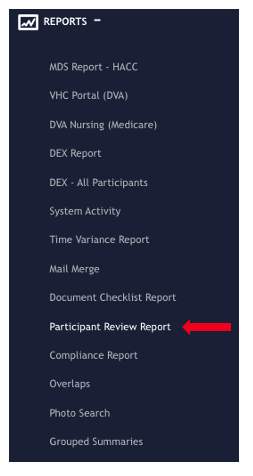
Any service type that has recurrence date set up will appear on the list.
To view the report for a specific service type, navigate to the desired service type, and the report should appear.