Most iPhones and iPads come with the Shortcuts app pre-installed. If it’s not already on your device:
Open the App Store.
Search for “Shortcuts”
Tap Download to install it.
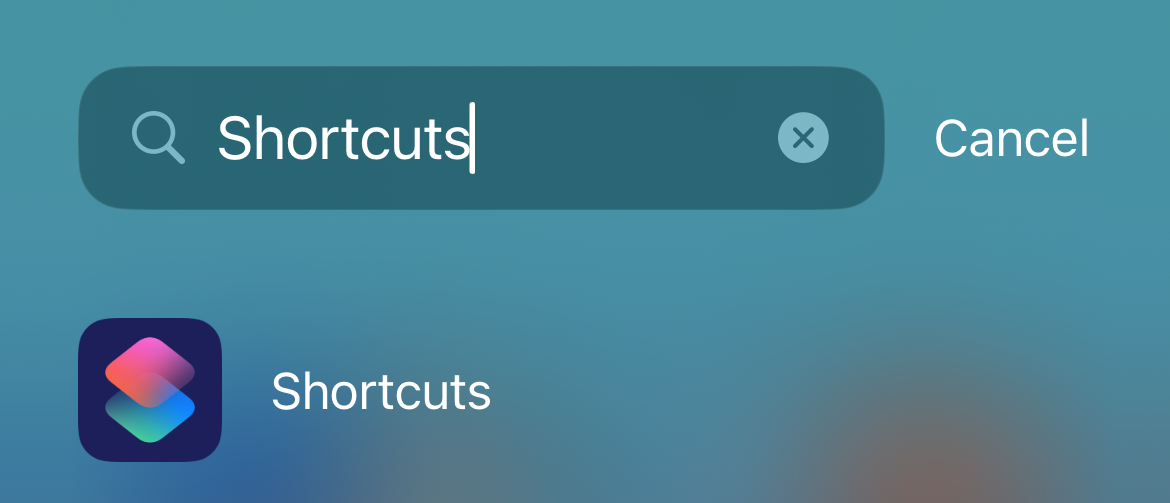
Open the Shortcuts App:
On your iPhone, use the search bar or scroll through your apps to find and open the Shortcuts app.
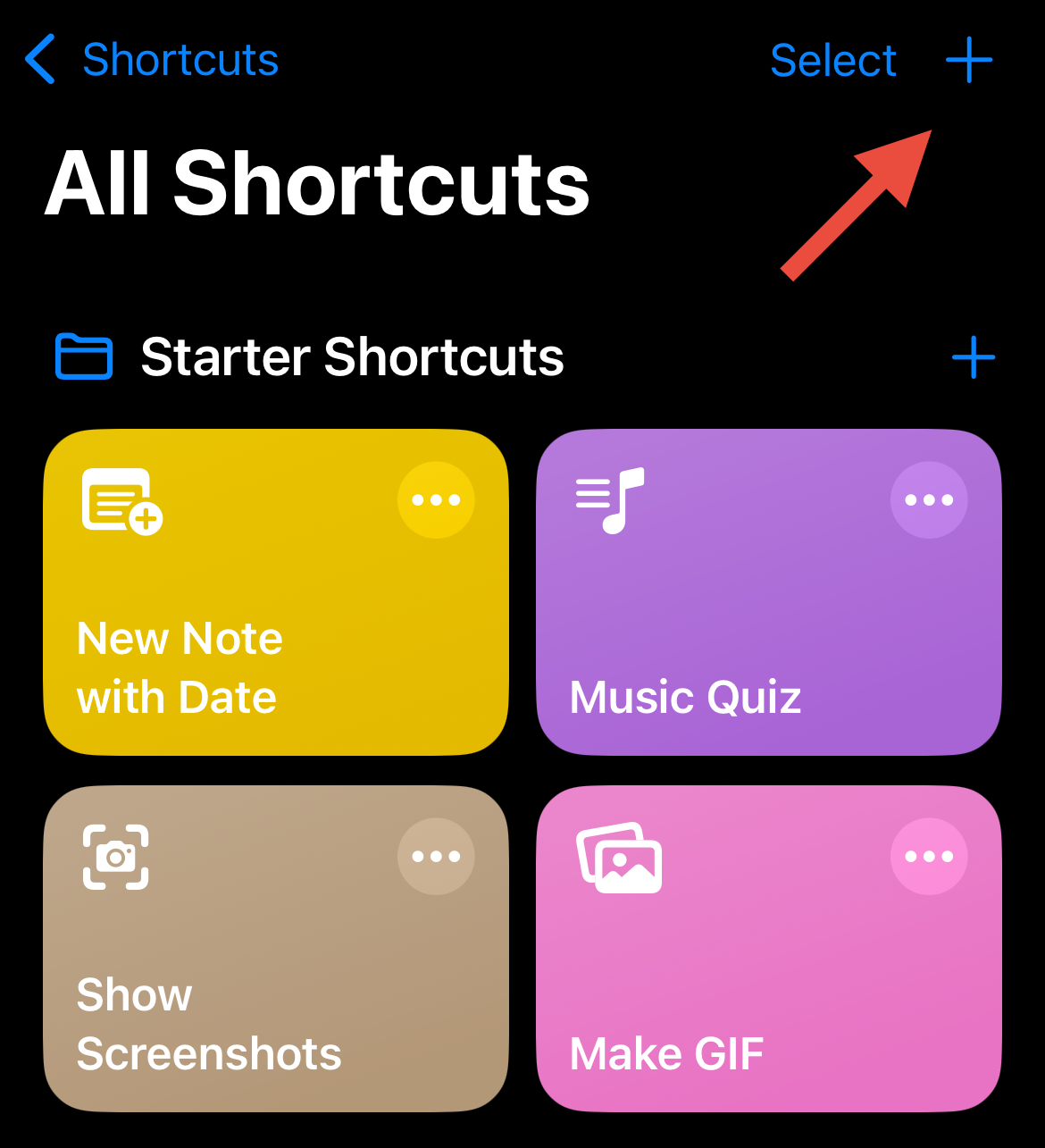
Create a New Shortcut:
From the main dashboard, tap the “+” icon in the upper right corner (beside Select) to create a new shortcut.
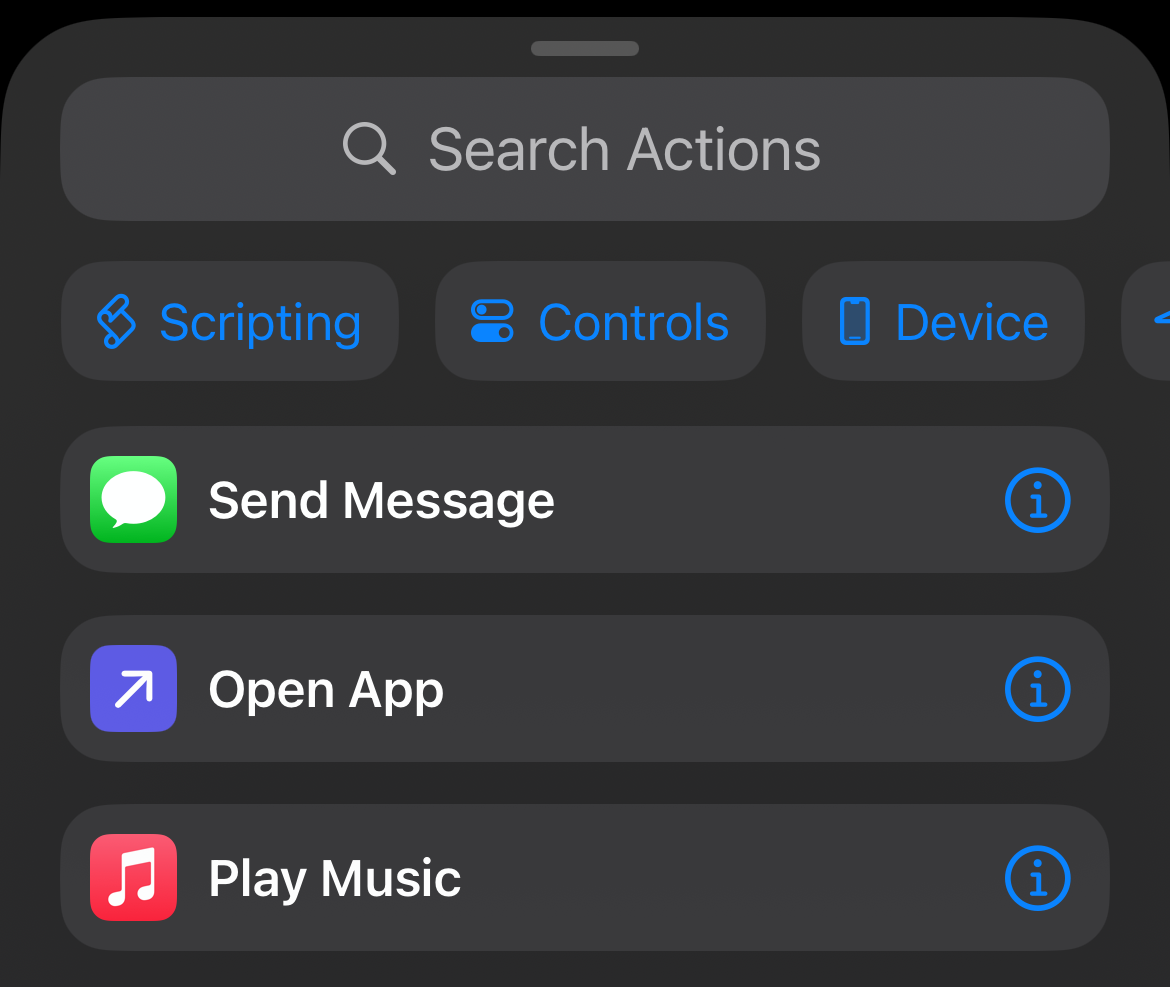
You’ll be prompted to search for actions.
Set the Shortcut to Open a URL:
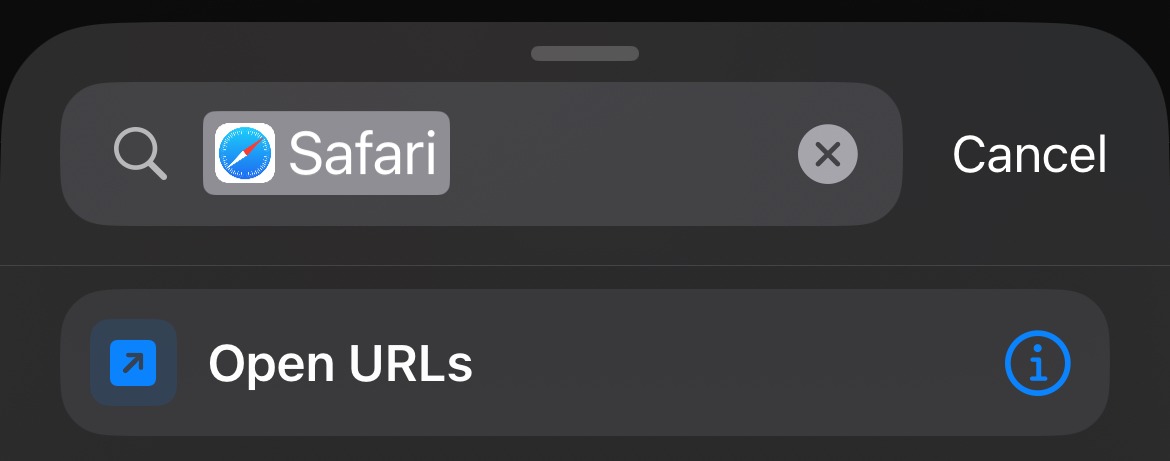
In the search bar, type “Safari”, then select “Open URLs” from the action list.
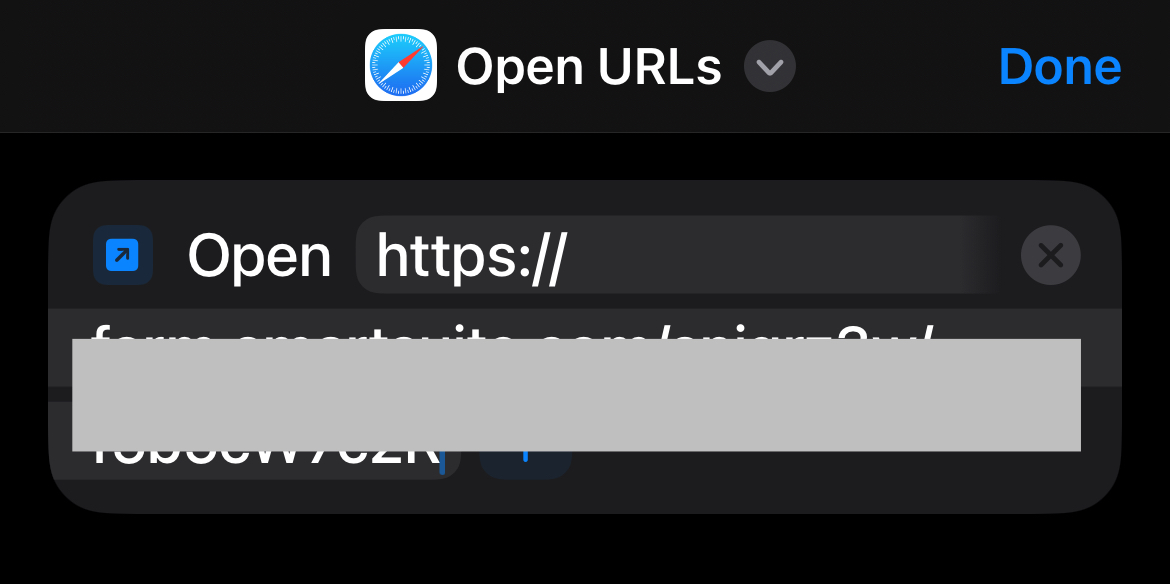
Paste the desired URL into the field provided.
Rename the Shortcut (Optional):
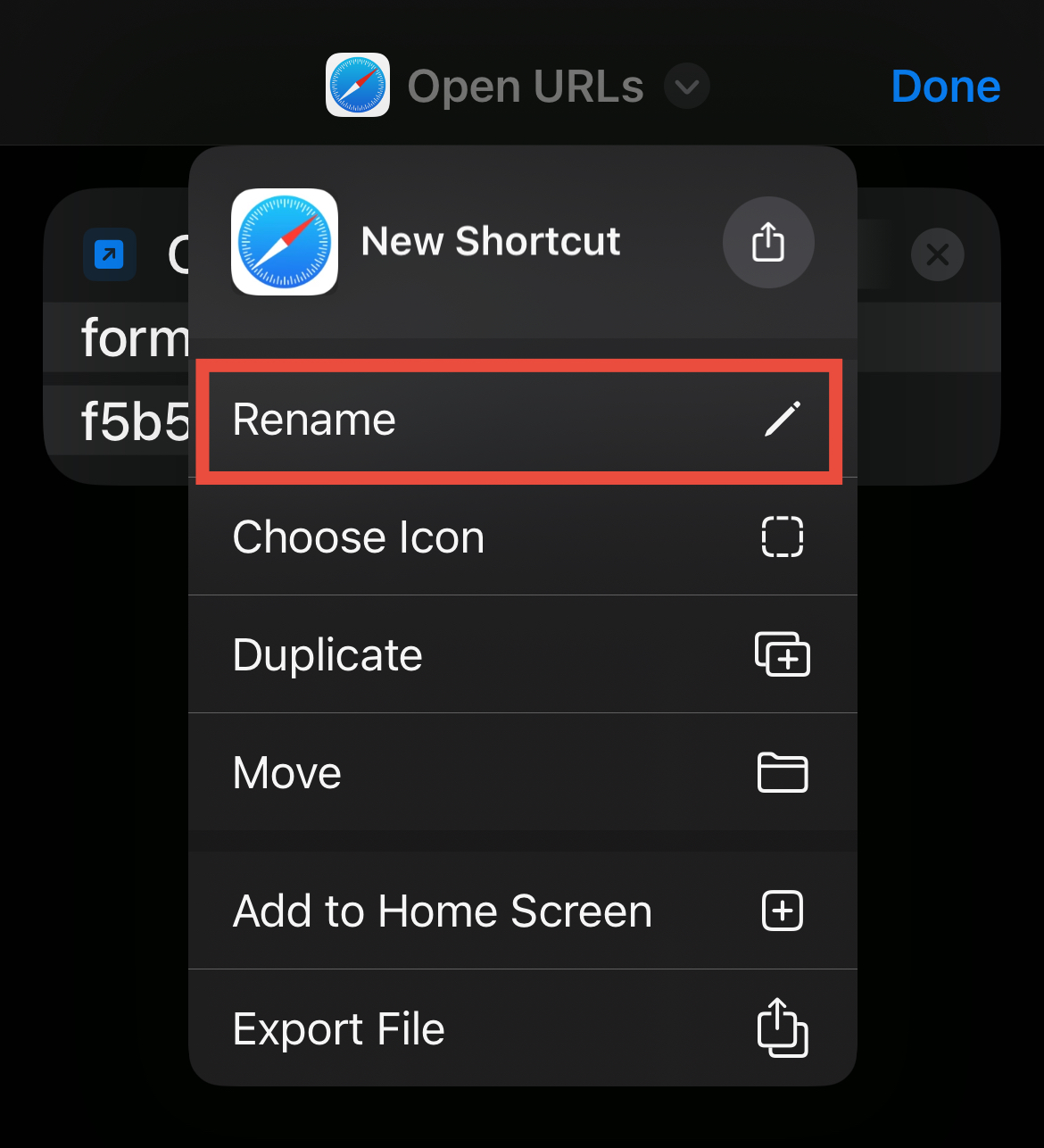
Tap the arrow down beside "Open URLs"
Select Rename, then enter the desired name (e.g., the name of the form or website).
Once Renamed, Tap Done in the top right corner.
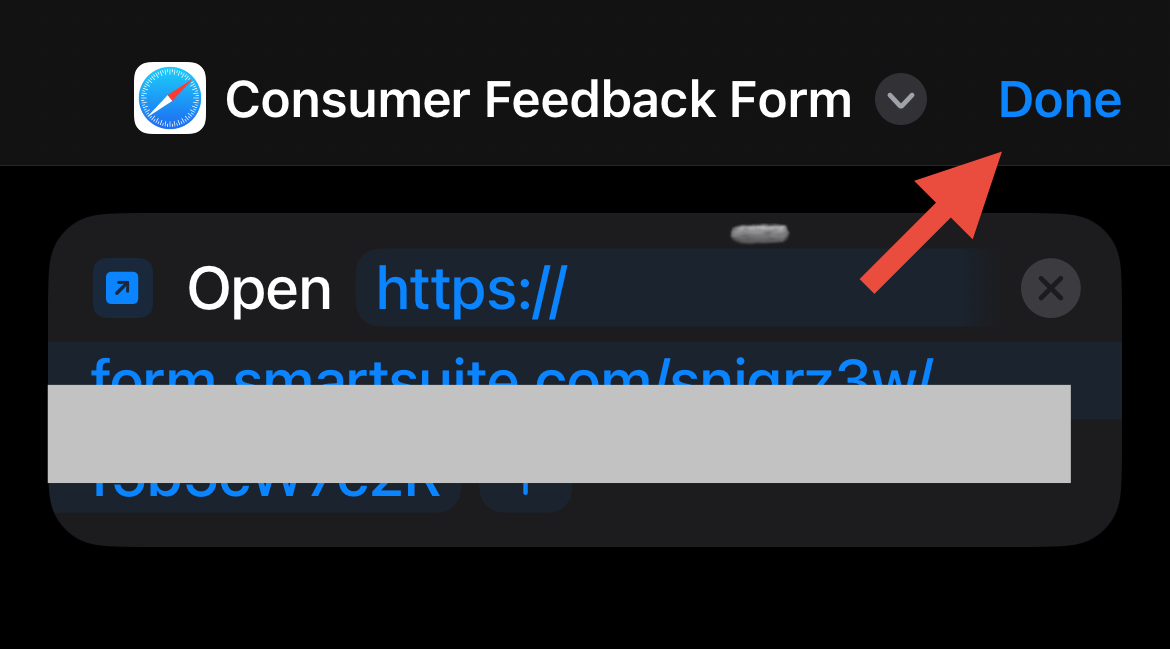
You’ll be returned to the main dashboard, and your new shortcut will now appear in your list.
Add the Shortcut to Your Home Screen:
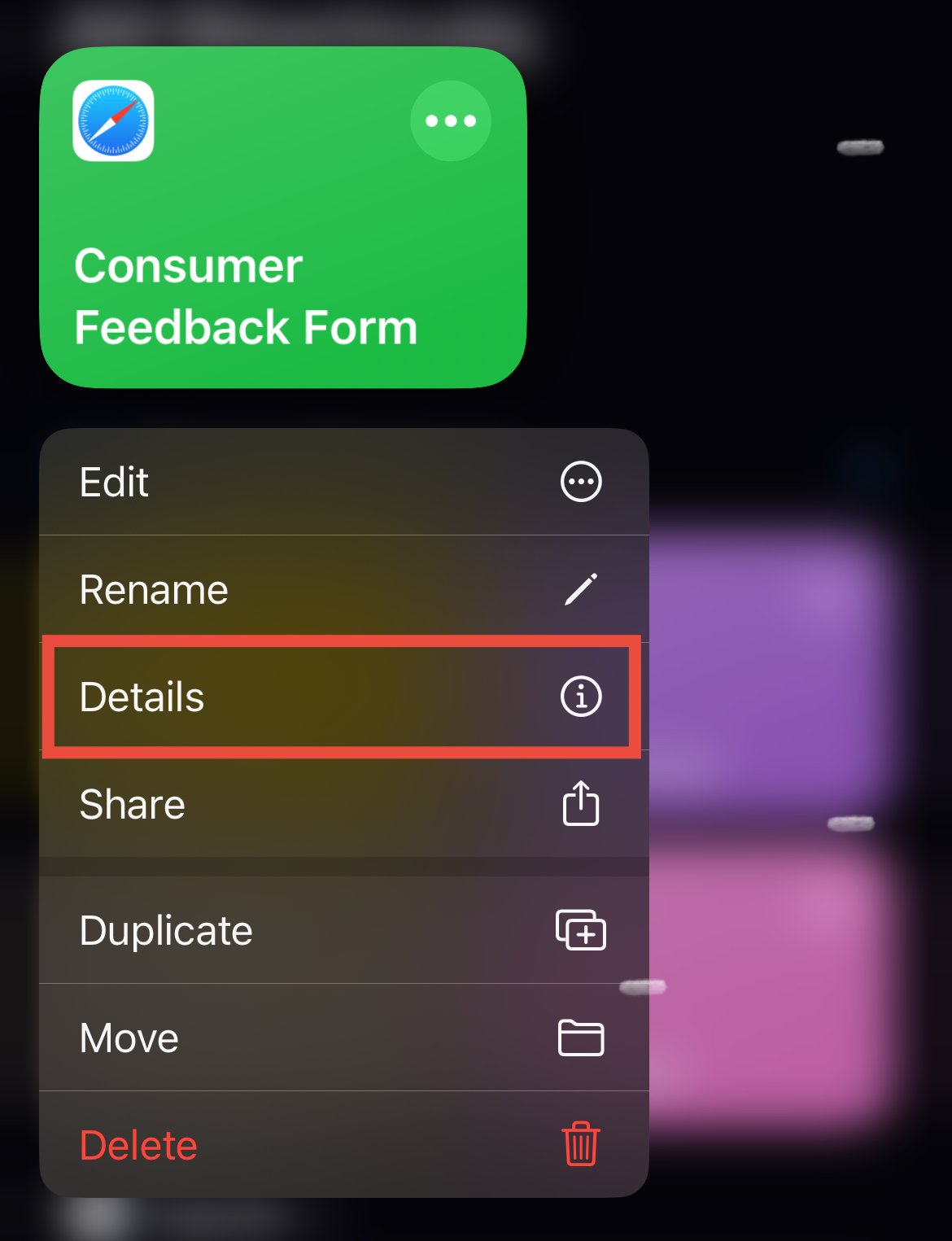
Press and hold the shortcut to open the pop-up menu.
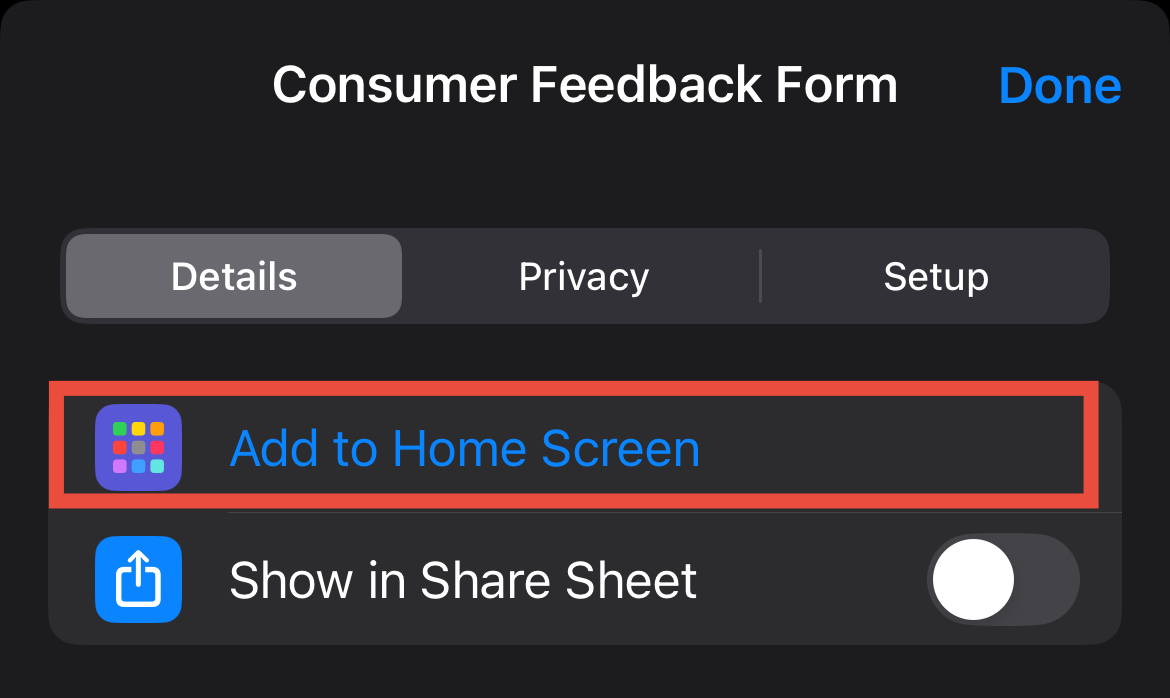
Select Details, then tap “Add to Home Screen.”
Customise the Icon (Optional):
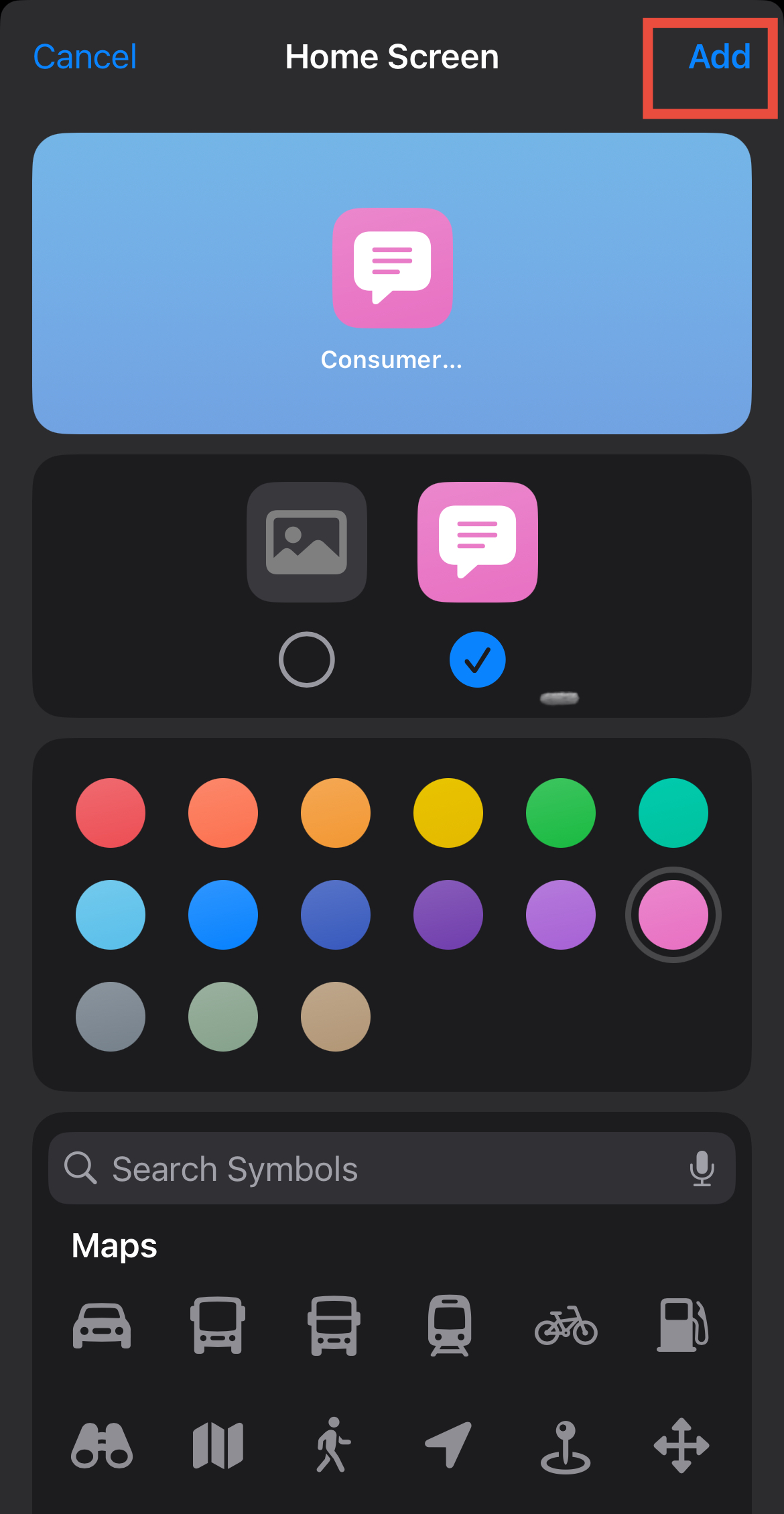
You can choose a photo from your gallery or select from the available symbols.
You can also customise the icon color to suit your preference.
Once you're done, tap Add in the top right corner.
Done!
The shortcut will now appear on your home screen like a regular app icon.

When tapped, it will automatically open the URL you assigned.