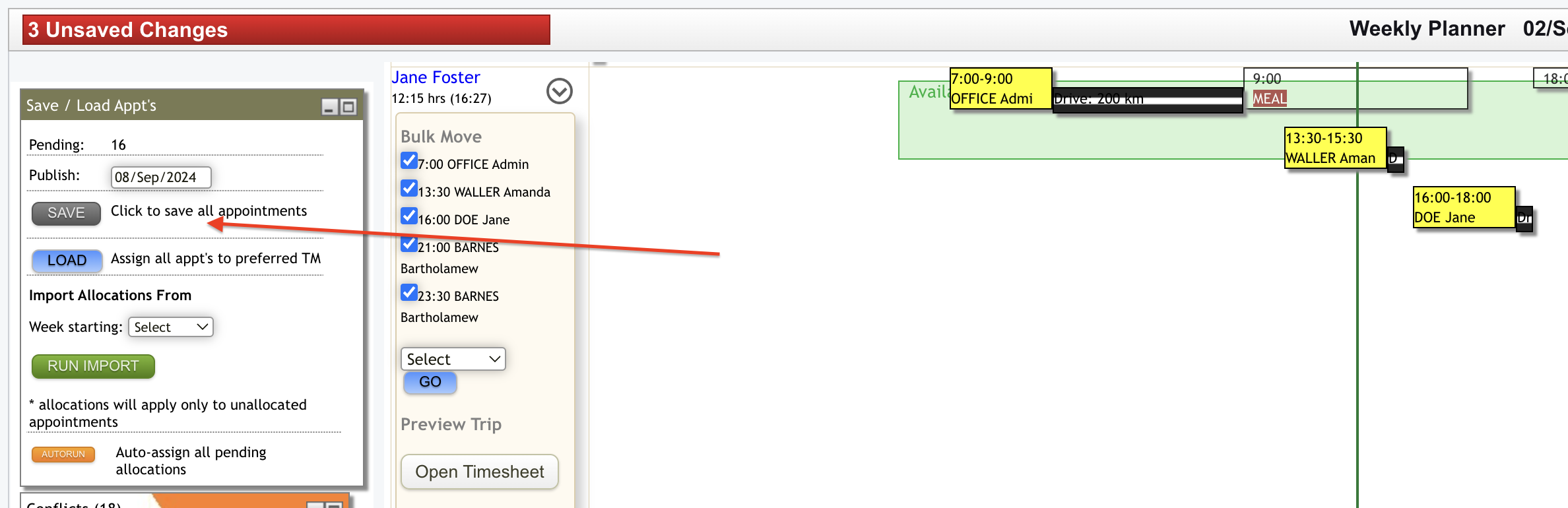
When your staff change their shifts, either due to requiring time off or swapping with another staff member, you are able to manage the reallocation of their appointments through the weekly planner.
Navigate to the daily view for the day of the shift changes by clicking on the day/date at the top of the planner:

The planner view will change to the below where you can navigate to the care worker concerned and open up their day by clicking on the down arrow next to their name:
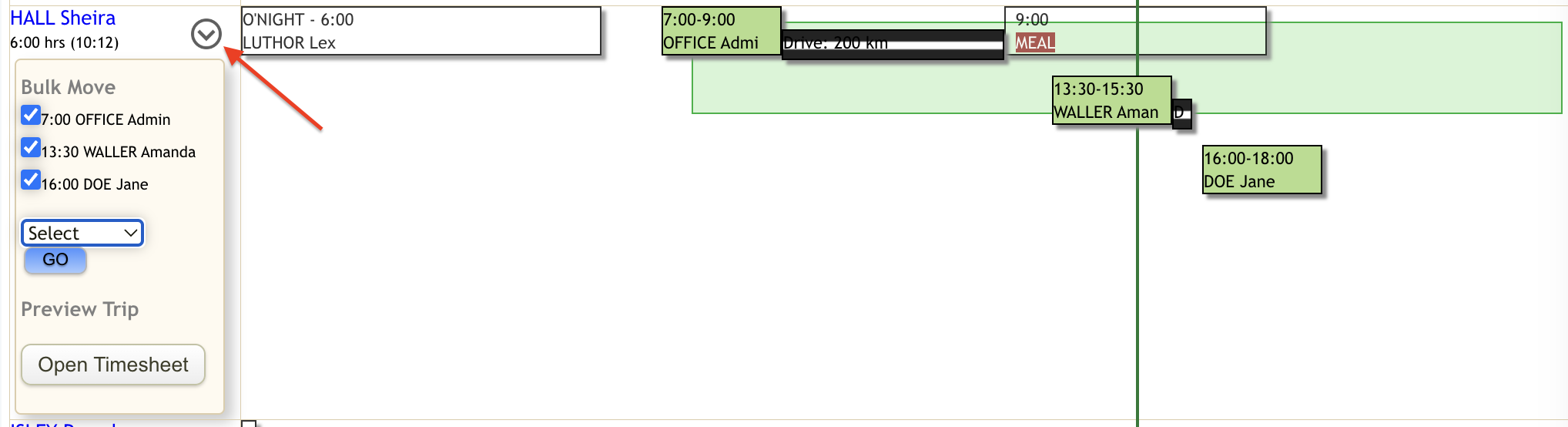
From here you can
Move one appointment to another worker by selecting the client/participant name from the list on the left, selecting the worker you are wanting to move the appointment to and then clicking on 'Go'.
Move all appointments to another worker by selecting all the clients/participants then selecting the worker you are wanting to move the appointments to and then clicking 'Go'.
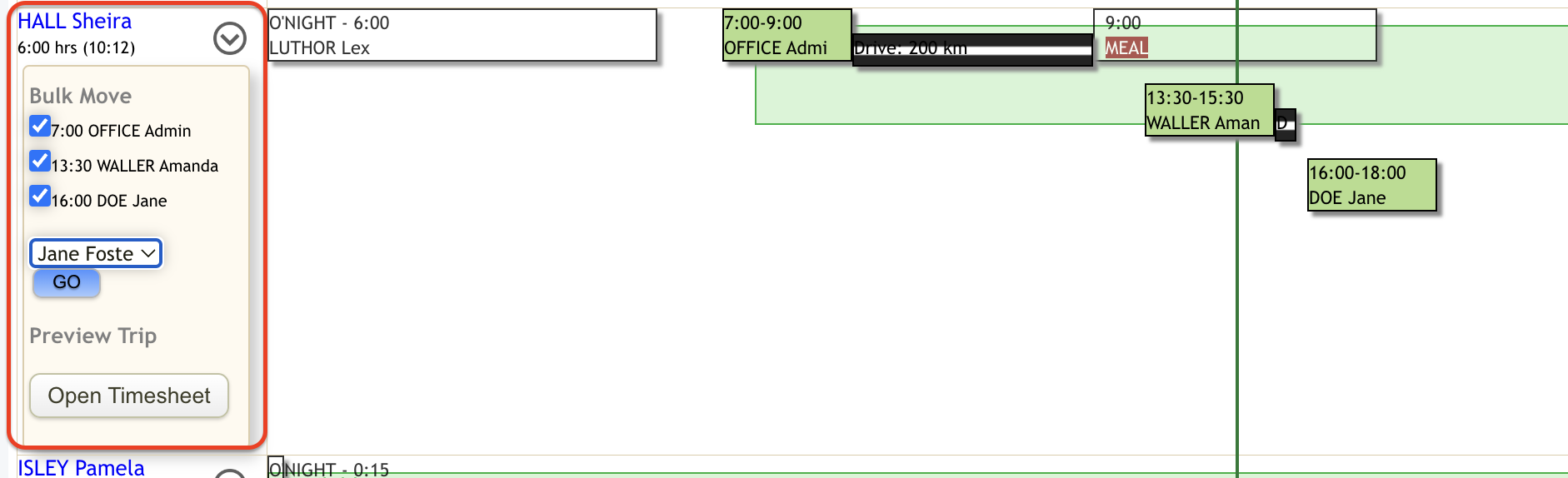
After you've moved the appointments, remember to click 'Save' for the changes to be made in the system and relevant notifications to be sent out to staff.