

In order to help providers know when a budget needs to be reviewed due to a new price revision, Eziplan provides visual indicators and filtering tools — as well as a quick inline action to update budgets directly from the list view.
Price Revision Warning
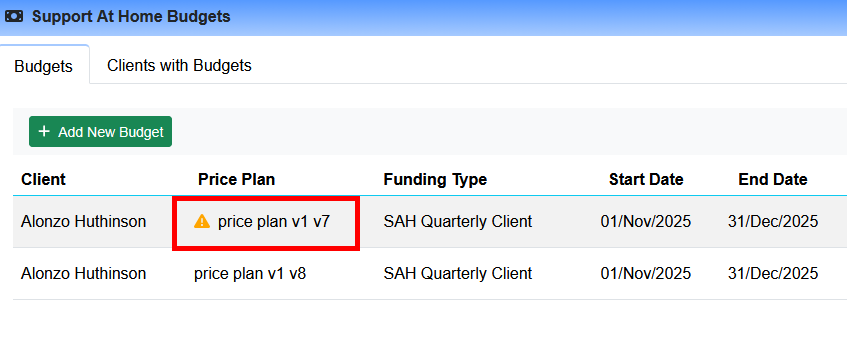
To help users identify when a budget might be out of sync with the most recent price plan, Eziplan displays visual indicators on the budget menu:
Filtering For Price Revision Warnings
To quickly find all budgets with an outdated revision:
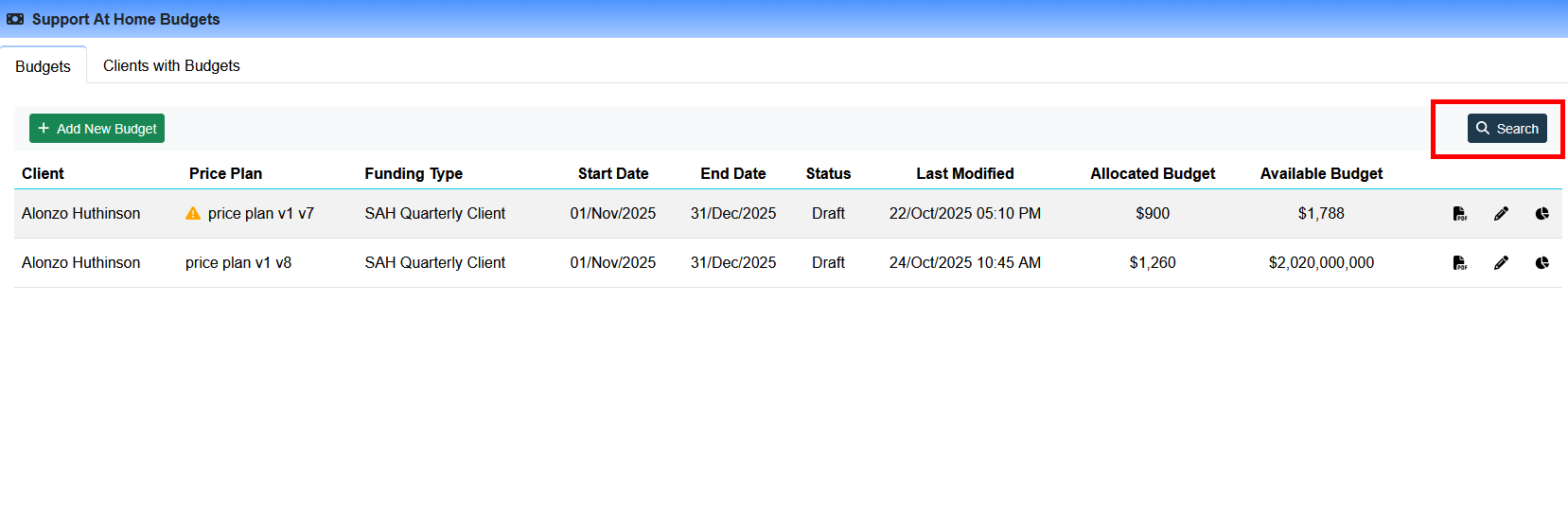
Click on the search icon to bring up the search bar
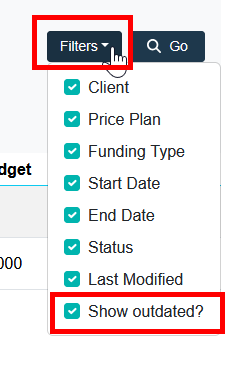
Make sure the relevant filter is included
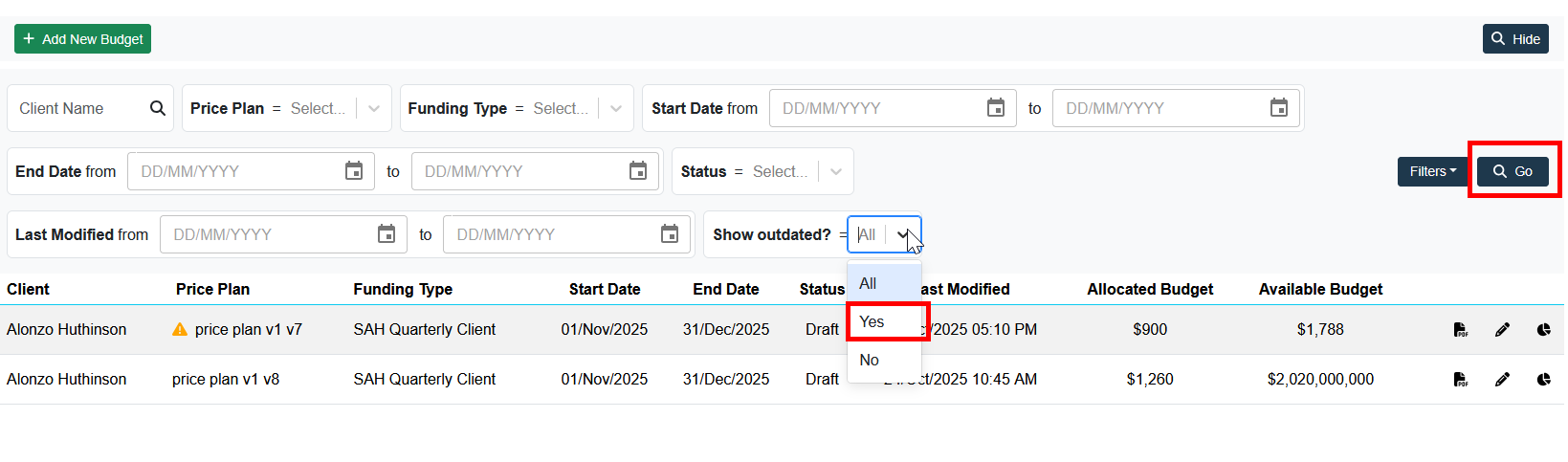
Use the filter drop down to select yes on Show Outdated and press Go:
Quick Update via Inline Row Action
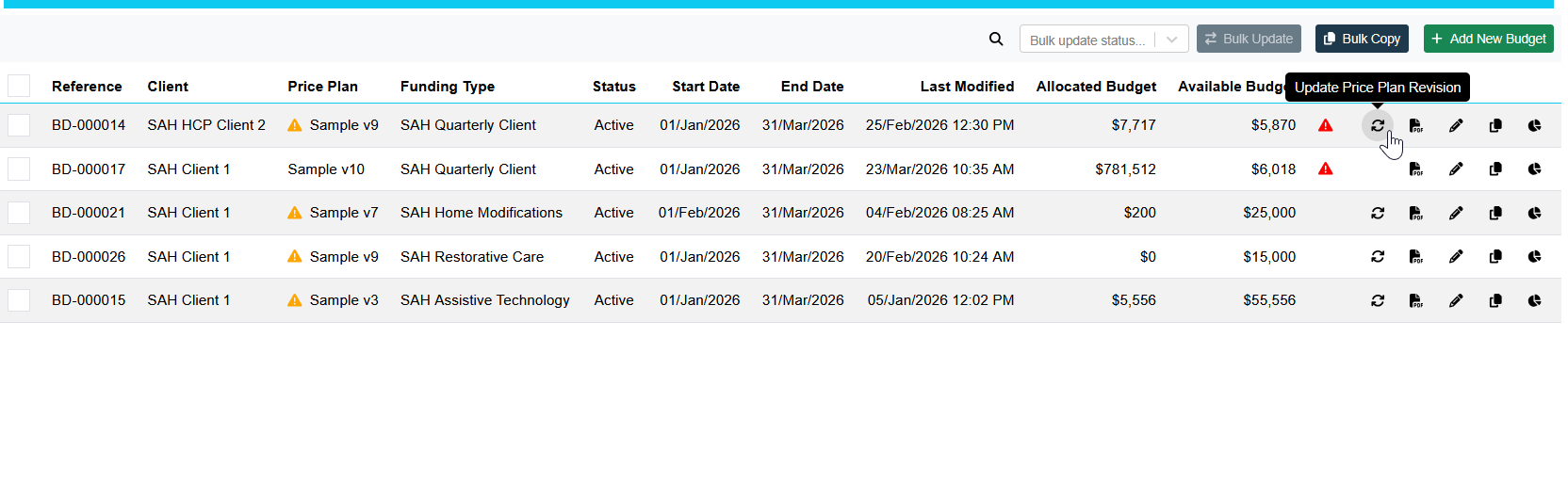
You can now update a budget's price plan revision directly from the Budgets list without opening the full budget editor. This is the fastest way to update one or a small number of budgets after a new price plan revision is released.
Locate the budget you want to update in the Budgets list.
Click the Update Price Plan Revision row action icon in the actions column.
Eziplan will automatically apply the latest available revision and recalculate all section items.
Only the affected row refreshes — the rest of the list is unaffected.
Updating to a new Price Revision via the Budget Editor
To update a budget to the newest price revision by opening the editor, click the pencil icon next to the budget you want to update:

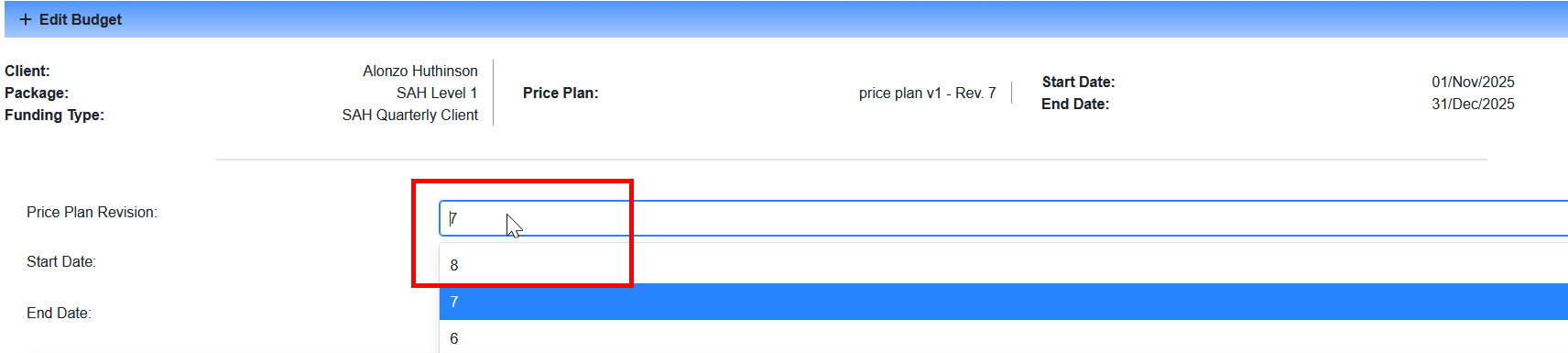
Once loaded, update the revision number to the most recent value:
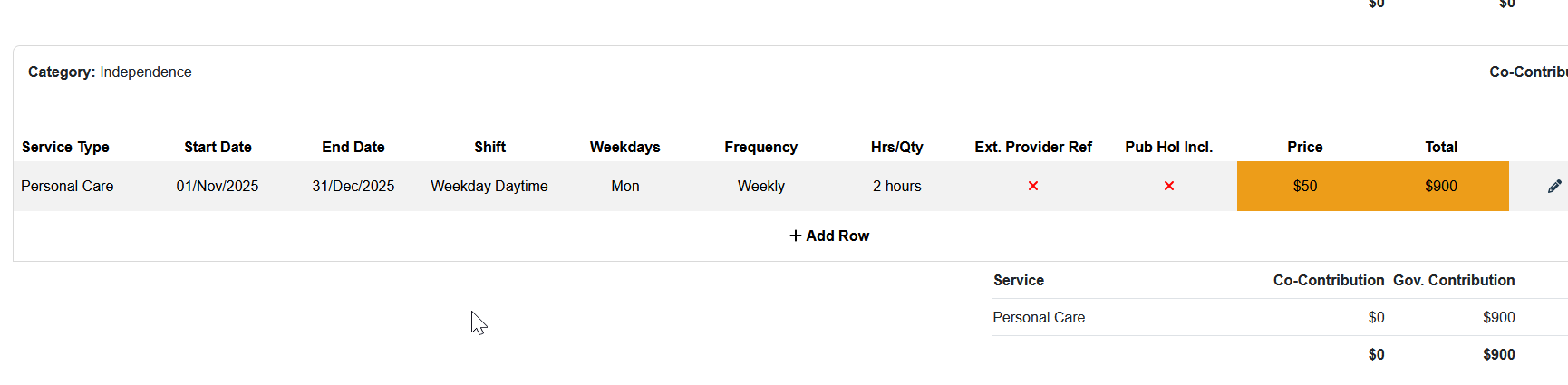
Once selected, double-check the budget item lines — if there has been a change in price, the row total will highlight in orange and show you the new value. Make sure the services selected are in line with the available budget.
To acknowledge and save the budget simply press Update.