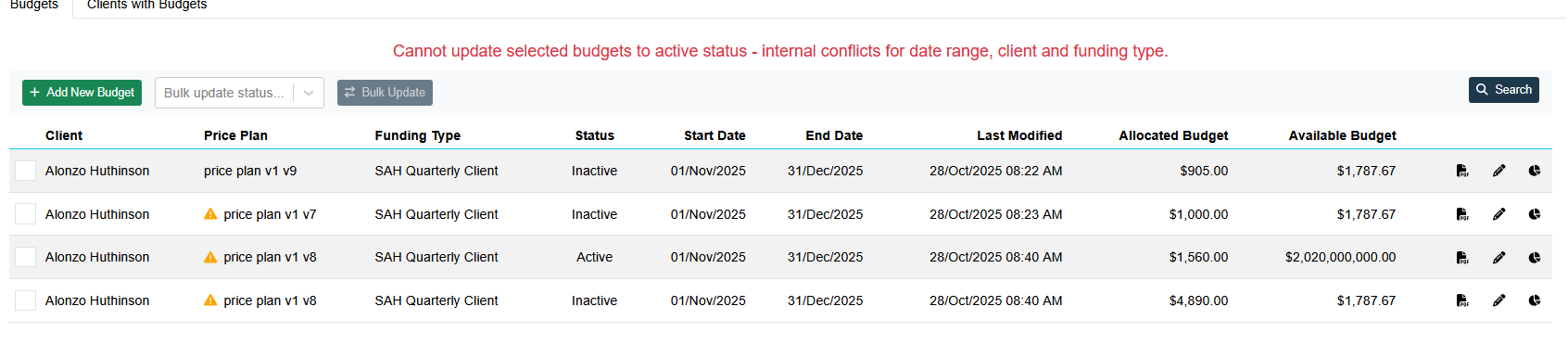
A big change from Home Care Package Budgets in Eziplan to Support at Home budgets is the ability to create more than one budget for each of your clients. We recognise that when creating budgets clients might want to see more than one option before committing.
To achieve this, Eziplan has introduced status' to the budget building process. It is important that you understand the various status', how they affect claiming, how they progress and how to change them. In this article we will go through each of the above points in detail.
Status Options
Within Budgets there are 5 Status' available:
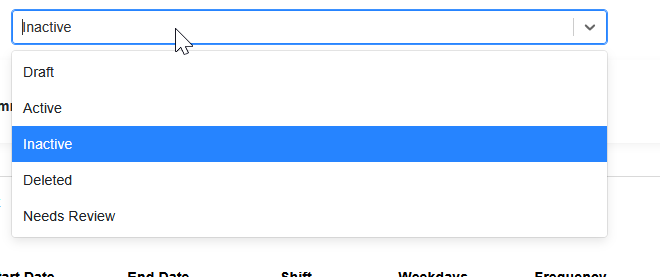
Draft - This status is used as the starting point for any budget creation. It represents that the budget is being worked on but not yet committed
Active - This status is used to represent when a budget has been committed to and is currently the Active version being implemented.
Support at Home budgets directly affect claiming and as such there a couple of rules that define when a budget can be active. Eziplan has safeguards in place to avoid not following the internal rules which will be explained in the status progression
There can only be one Active budget:Per Client
Per Funding Type (Quarterly/AT/HM etc)
Per Date Range (no overlaps)
Inactive - This status is used to represent budgets that were once active but have since been superseded by a new budget.
Deleted - This status is used to represent budgets that were once in draft but were never used
Needs Review - This status is used to represent budgets that have been bulk copied and need to be reviewed. The Bulk Copy feature is not yet available
Status Progression
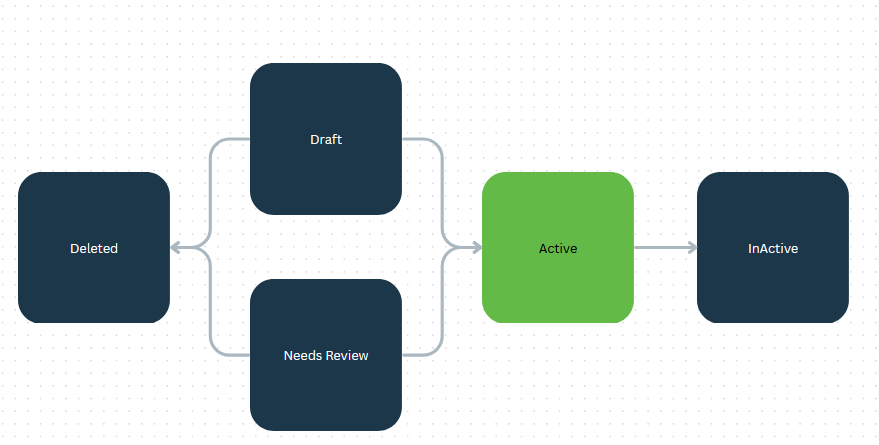
Above is our suggested Status Progression Flow
Single Update
When you are within a single budget in edit mode you are able to update the status of the budget using the drop down menu:
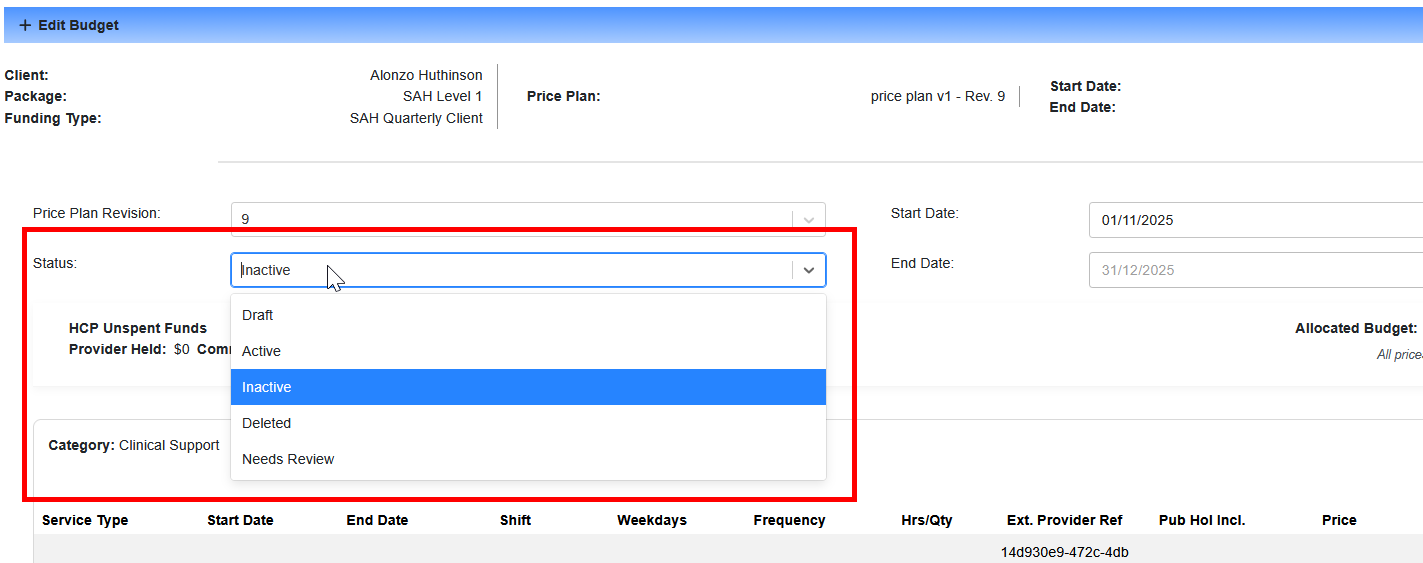
When updating to any status OTHER than Active, Eziplan will do no checks.
However, if you are updating to Active, Eziplan will prompt users with caution warning:
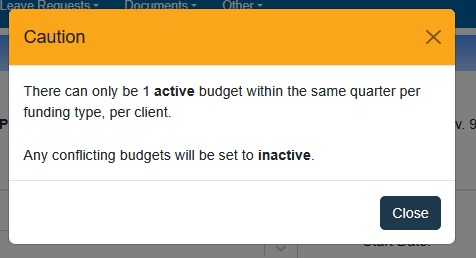
This warning, highlights that if you continue and save the budget as Active, any conflicting budgets that share the same client, quarter and funding type that are currently active will be set automatically to inactive.
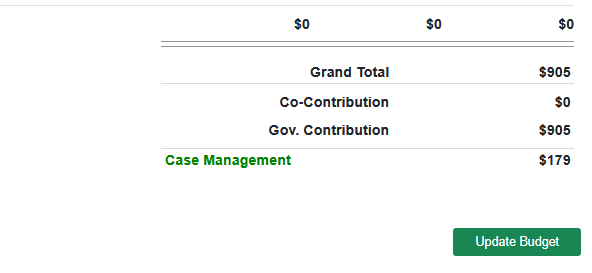
To save the budget with the new status, press close on the caution and then press update down the bottom of the budget
Bulk Update
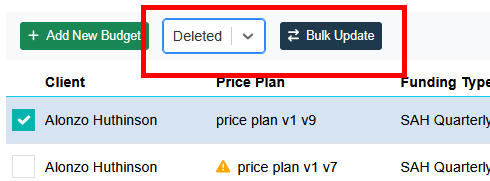
To help providers quickly update budgets there exists a bulk update option. To access the bulk update, users should navigate to the main budgets list page:
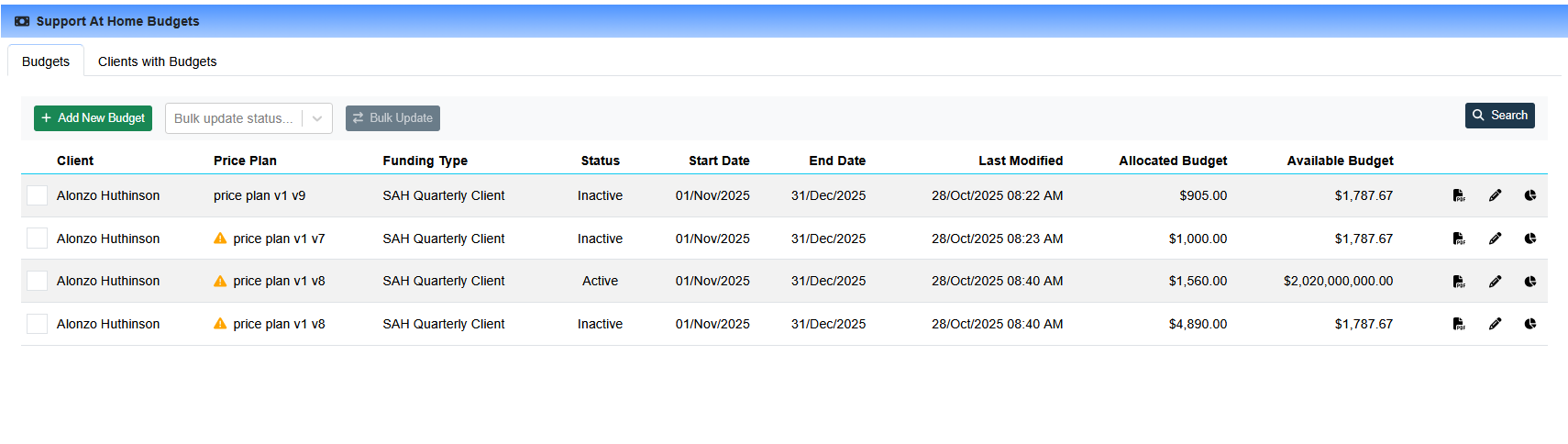
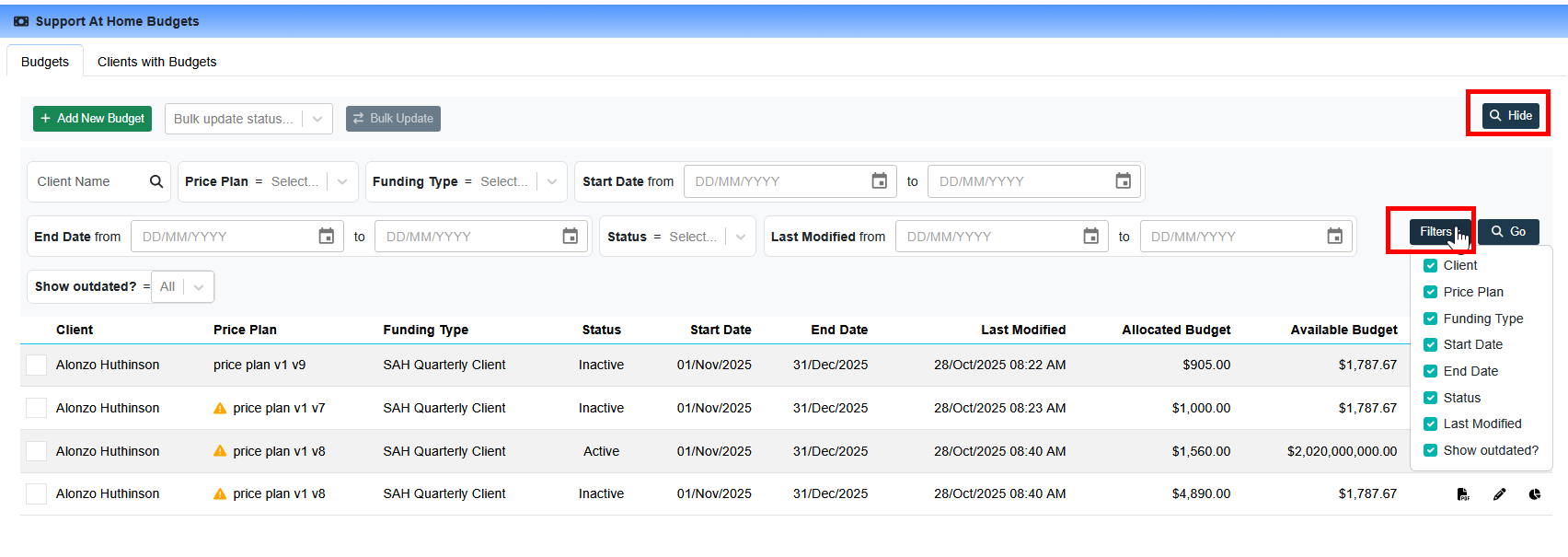
Users can then filter for specific clients, status or other search criteria using the search and filter menu:
When you have identified which budgets you want to bulk update you can tick the rows you wish to bulk update:
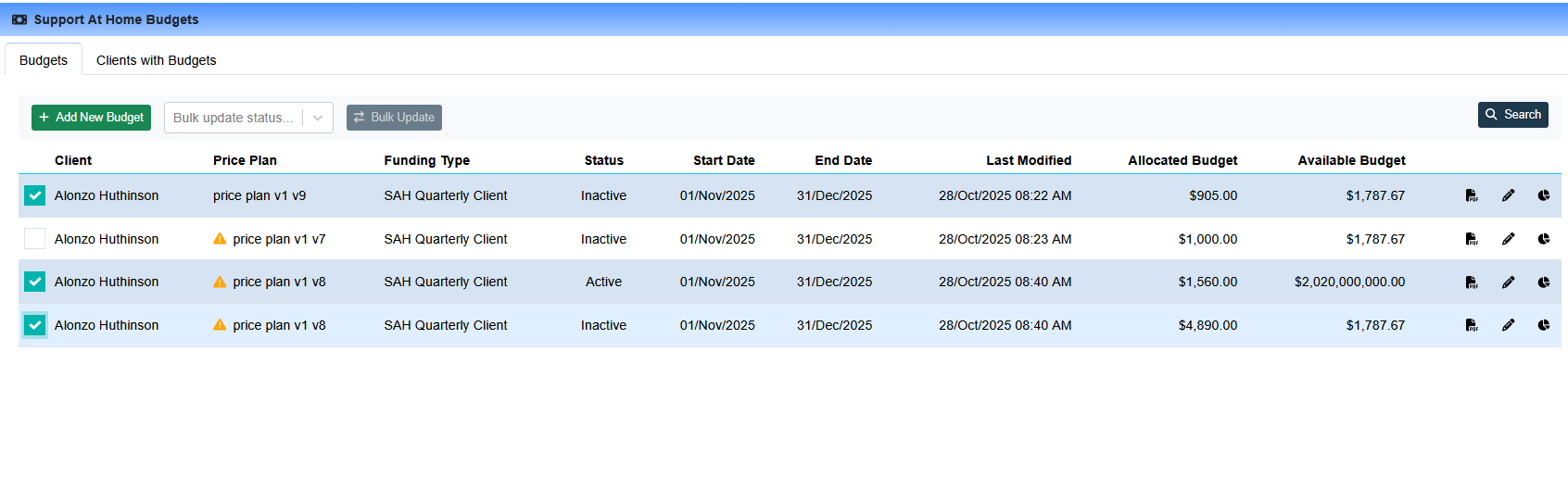
Then choose which status you want to update to and press the Bulk Update option: