

Overview
The Co-Contributions tab within Support at Home > Co-Contributions is where you generate, view, and manage client co-contribution invoices. This article covers how to create an invoice batch, view individual invoices, change invoice statuses, download PDFs, and email invoices to clients.
The Co-Contributions Invoice Table
When you open the Co-Contributions tab, you will see a table listing all previously generated invoices. The table displays the following information for each invoice:
Client Name
Invoice Date
Due Date
Net Amount
Gross Amount
Status – Draft, Sent, Paid, Failed, Deleted, or Void
The table supports search filtering, sorting, and pagination. You can also select multiple rows for bulk actions.
Generating a New Invoice Batch
To create co-contribution invoices, click the New Invoice Batch button in the toolbar. This opens a three-step wizard.
Step 1 – Set Invoice Criteria
In Step 1, you set the date criteria for the invoice batch:
Invoice Date – Select the date for the invoices. This must be today or earlier — you cannot set a future invoice date.
Due Date – Select the payment due date. This must be today or later.
Include Co-Contributions for reconciled services up to – (Optional) Enter a service date cutoff. When set, only reconciliation lines with a service date on or before this date will be included. Leave blank to include all eligible reconciliation lines regardless of service date.
Eziplan will include all reconciliation lines where:
The service date is on or before the Invoice Date (and within the cutoff, if specified), and
The reconciliation line has not yet been included in a co-contribution invoice.
Click Next to proceed to Step 2.
Step 2 – Confirm Invoice Summary
Step 2 shows a summary of the invoices that will be generated based on your criteria:
Total Amount – The combined dollar value of all invoices to be created
Client Count – The number of clients who will receive an invoice
Client Breakdown – A table showing each client and their co-contribution amount. Where a client has co-contributions from multiple payment summary reconciliations, these are shown as separate origin lines with a summed total.
Review the summary carefully before confirming. Once you click Confirm & Generate, invoices will be created and claim items will be locked to those invoices.
Step 3 – Review & Complete
After confirming, Eziplan generates the invoices. A loading state is shown during generation. Once complete, Step 3 displays a confirmation that invoices have been successfully created.
Close the wizard and return to the Co-Contributions table — your new invoices will appear with a status of Not Sent.
Viewing an Invoice
Click any invoice row to open the invoice modal. The modal has two sections:
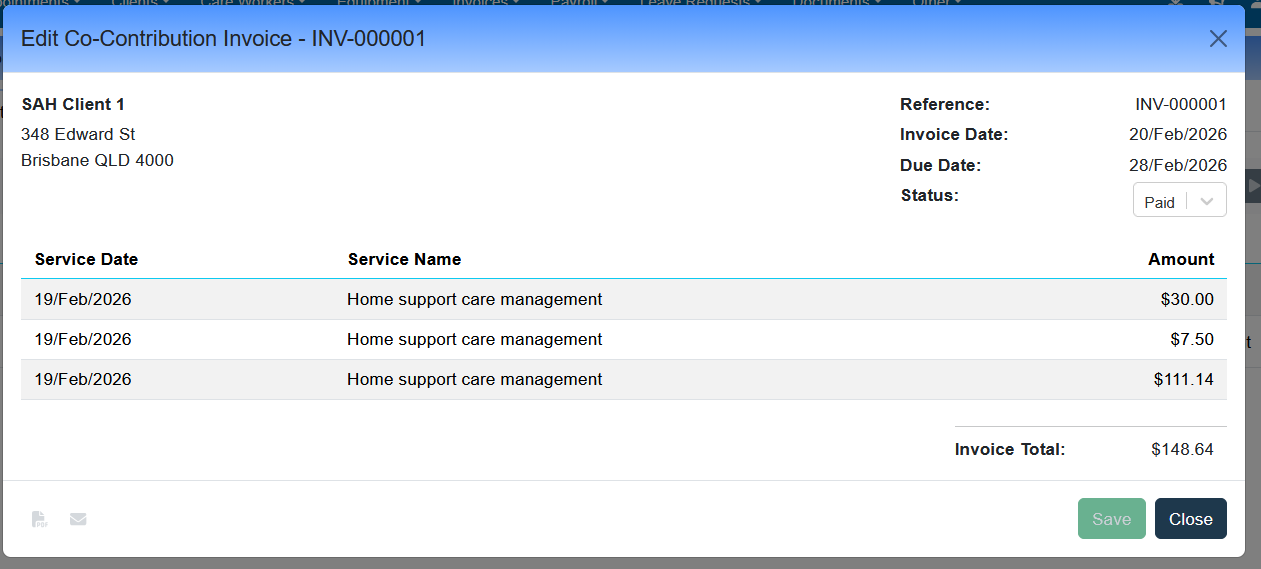
Invoice Summary
Read-only information including:
Client Name and Billing Address
Invoice Date and Due Date
Invoice Reference number
Current status with available transitions
Invoice Items
A detailed table of all line items, showing:
Service Date
Service Name
Quantity (units)
Unit Amount
Line Total
A subtotal and invoice total are displayed at the bottom.
Invoice Actions
From the invoice modal footer, you can perform the following actions:
Download PDF
Click the Generate PDF icon to download a single invoice as a PDF. The PDF uses your organisation's logo, the client's billing address, and is formatted for envelope window envelopes.
Email Invoice
Click the Email PDF icon to send the invoice directly to the client's nominated email address (as set on their client profile). The client must have a valid email address on their profile for this to work.
To send invoices to multiple clients at once, use the bulk action checkboxes in the invoice table to select multiple invoices, then choose Send via Email from the bulk actions menu.
Change Status
se the status selector to transition the invoice. Available transitions depend on the current status:
Not Sent → Sent or Deleted
Sent → Paid or Void
Paid → no further transitions
Void → no further transitions
Deleted → no further transitions
Company and Payment Details on Invoices
Once configured, Co-contribution invoice PDFs now include your organisation's company details and bank payment information, displayed beneath your logo. This allows clients to immediately identify the invoice issuer and make payment without needing to contact the office for account details.
The following information appears on the invoice PDF when configured:
Company name and address
Bank account name, BSB, and account number
To enable, please click setting on Co-contribution page,
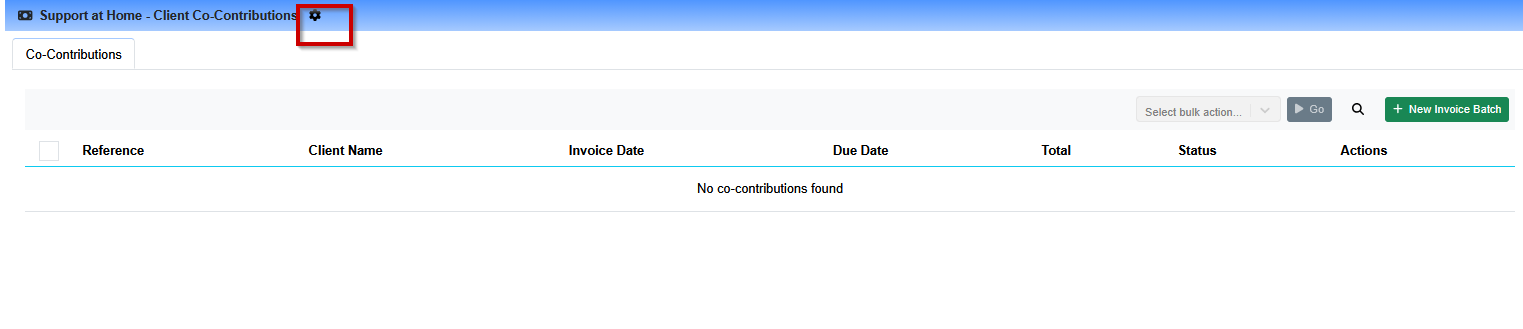
and click Show company bank details, (please note this is only visible to user with UNLOCK permission)
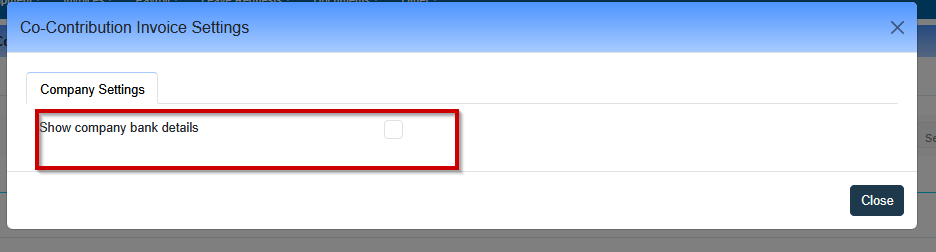
Company details are drawn from your organisation's settings in Eziplan. If your bank payment details are not appearing on invoices, please contact the support help desk to have them configured.
Co-Contribution Balances on Statements
Co-contribution activity is summarised on the client's monthly SAH Statement. The balance calculation works as follows:
Opening Balance – All unpaid co-contribution reconciliation items with a service date prior to the statement start date.
New Contributions This Month – Co-contributions raised during the statement period.
Closing Balance – Opening Balance + New Contributions
The invoice list on the statement shows all non-paid, non-void invoices, including date, invoice number, and amount.
How reconciliation adjustments affect future invoices
If a reconciliation adjustment contains a negative co-contribution amount (for example, a –$50.00 adjustment), this will flow through when the next co-contribution invoice batch is generated. The negative amount will appear as a line item on the next invoice, reducing the client's total payable accordingly.