

Once you have successfully submitted a claim to PRODA and have received a Payment Summary you are able to import this data back into Eziplan for Reconciliation.
Navigating to Reconciliations
In order to get to reconciliations you will first need to navigate to the SAH Claims area via the Quick Access Menu and select the Reconciliations Tab
Uploading and reviewing
To Upload a new Payment Summary, click on the Green "+ New" button.
This will then bring up a wizard to import and review the Payment Summary File
In this step you will select a valid XML file from your computer
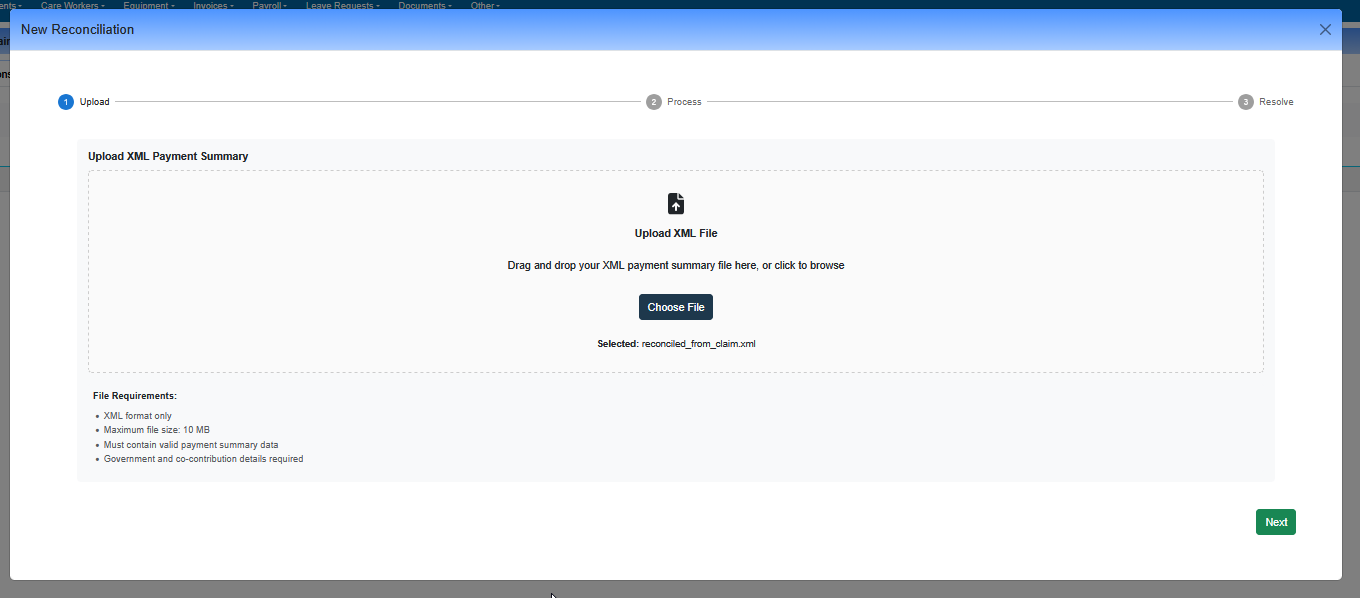
When you click next, Eziplan will unpack and process the file. It will break down the file into different statistics:
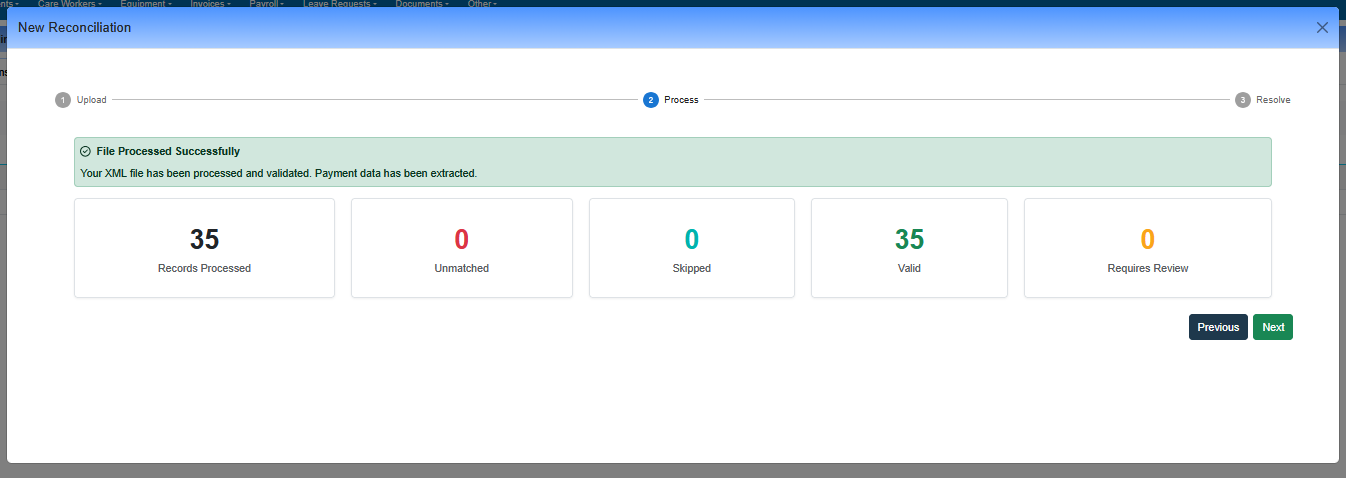
Records Processed: The Number of Payment Items available in the file
Unmatched: The Number of Payment Items that could not be found in the company claims records
Skipped: Items that are not relevant to the claim
Valid: The Number of Payment Items that have been successfully matched to a claim item
Requires Review: The Number of Payment Items that have been successfully matched to a claim but paid differently to what was originally claimed.
When you click next you will be given a full breakdown of claimed and paid items broken down by client.
At the top of the page you are given a Payment Summary Overview:
Total Paid: The total amount that will be paid as part of the claim
Government Contribution: Of the Total Paid, how much will be paid by the government
Co-Contributions: Of the Total Paid, how much will need to be collected by the Provider
Total Records: The total number of valid claim items
There will then be a Client Payment Breakdown that has a summary and is expandable to show each detailed line:
Claimed: Of the Payment Lines, how much was originally claimed
Govt. Contribution: How much is the Government going to directly pay
Co-Contribution: How much are you going to need to collect from the client
Paid: Sum of Government and Co-Contributions
Adjustments
In a variety of scenarios, the amount you claim for may not be the amount you get paid from Support at Home. These scenarios include:
Client has run out of funds
Funds will be paid from Commonwealth Unspent funds
Funds will need to be drawn from Home Care Unspent funds
There is also a scenario where a single service may be "paid" from multiple funds.
Eziplan has developed a way to show you as part of the reconcilliation, how much has been paid as part of the payment determination as well as if the funds are due to be paid from somewhere else. On a client by client level you will be show which clients have adjusted amounts
And on an invidiual claim item level Eziplan will also show you where the funds are coming from:
In the above example:
The Provider claimed $2,800
The Government has determined a final payment amount of $200
The Government will pay $2,600 from the Commonwealth Unspent Funds.