A brand new feature within Eziplan for Support at Home is its ability to keep track of 3rd party invoices from suppliers and brokers. In this article we will go through the settings menu's so you can setup the module correctly.
Access
To access this area, you will need to initially have Accounts Access or Unlock Access. Further Permissions can be setup as part of the below settings.
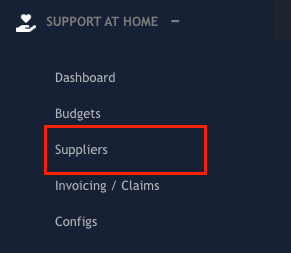
If you have the correct access, you can navigate to the feature through the Quick Access Menu:
To access the settings, click the cog in the top left of the page:

Account Codes
To allow for your invoice items to be exported to your accounting software, Eziplan will allow you setup Account Codes and Names in the module.
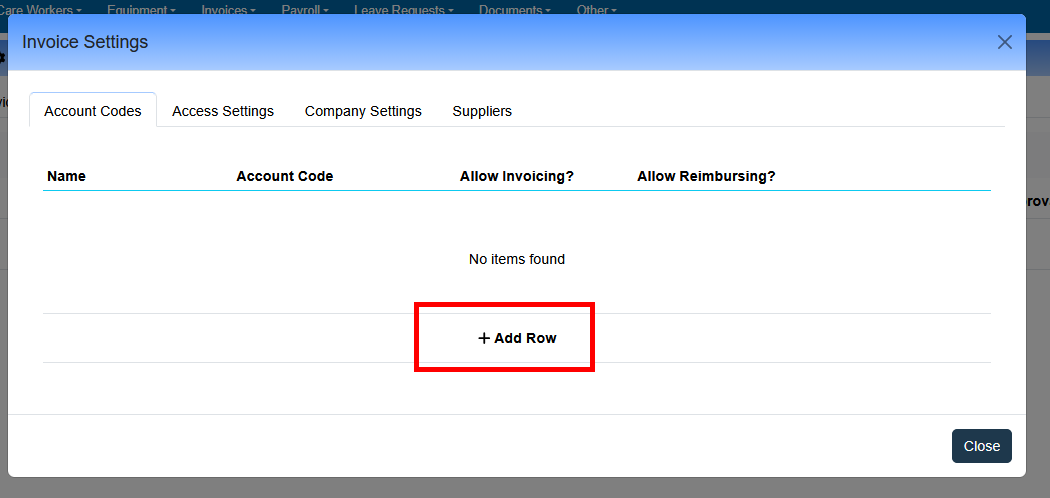
To add in an Account Code:
Click on the Add Row button:
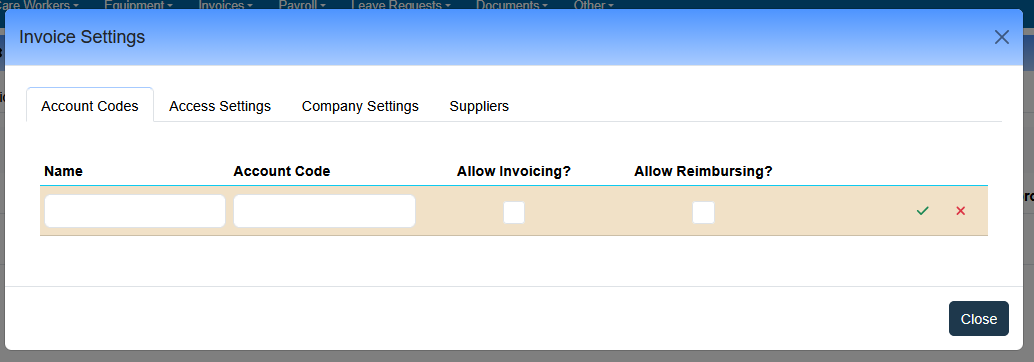
Type in the Name, Account Code, and whether you want to allow invoicing (claiming to the Government)/reimbursing (paying the supplier).
Currently invoicing/reimbursing is not utilised in workflows just yet - but will be adding to this functionality later on
Once happy, click the green tick to save, repeat as necessary:
Access Settings
By Default, only Accounts Permissions and Unlock Permissions are given access to the Supplier Invoice Module. However other users can be given permissions as well depending on the level of access you want to give.
To add in more users, simply select their name from the drop down and select the permission you want to give. If you want to add in multiple you can add in multiple times:
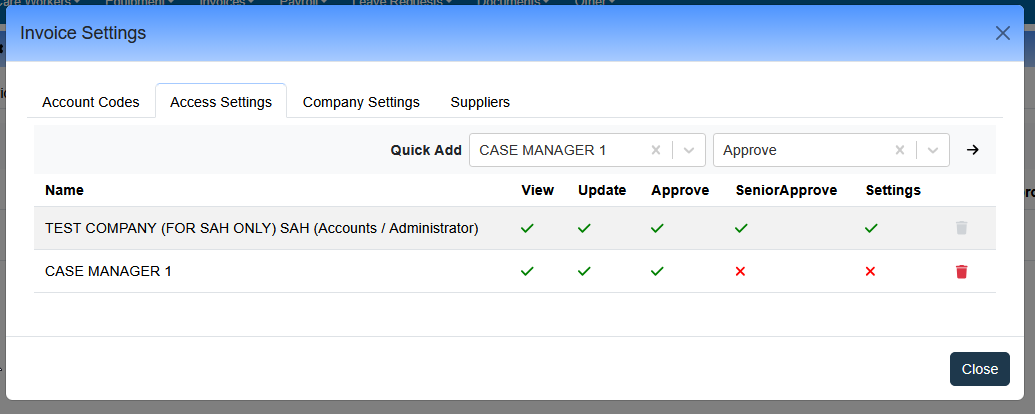
View: User is able to view loaded and saved 3rd Party invoices but is unable to add/update any
Update: User is able to add and update invoices
Approve: User is able to approve invoices below the senior threshold
Senior Approval: User is able to approve invoices above and below the senior threshold
Settings: User is able to access the supplier invoice settings area
Company Settings
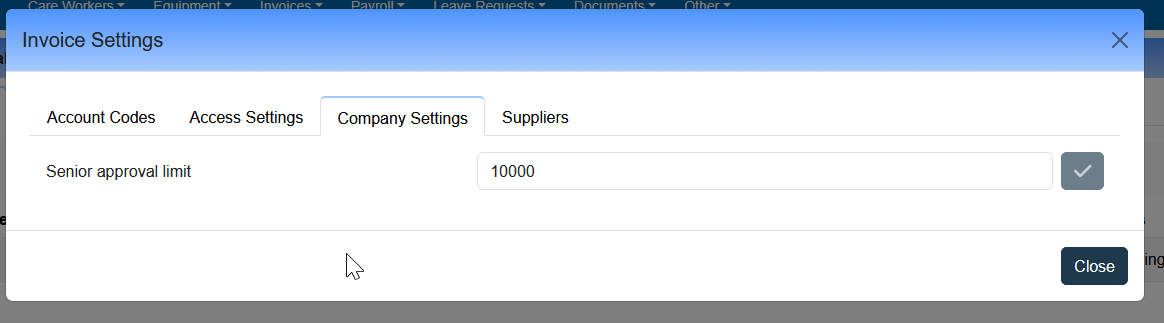
The user is able to set the Senior Approval threshold. This value represents a dollar figure where if the total invoice value is > or equal to the threshold it requires a user with Senior Approval to approve.
Suppliers
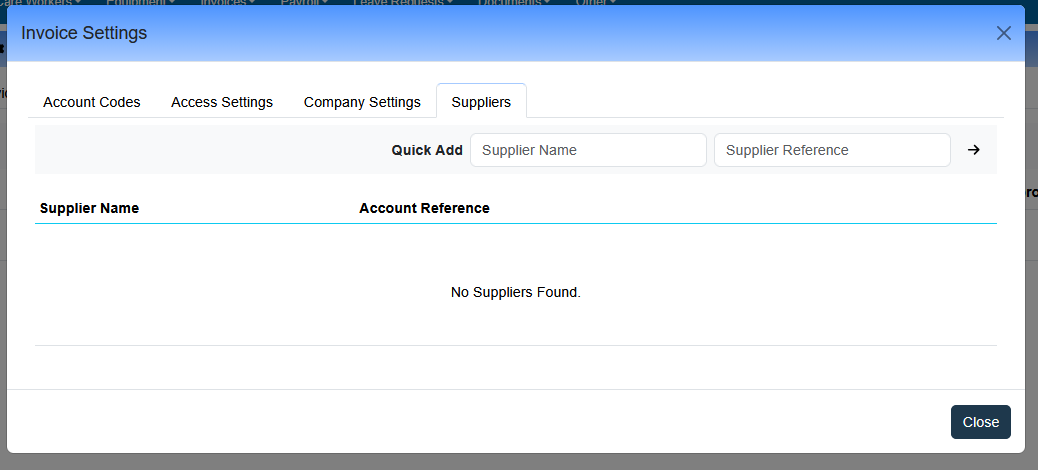
Users are able to quickly add in their 3rd Party Supplier List by adding in the suppliers name and a Supplier Reference.
The reference could be useful if your accounting software requires codes (MYOB) vs name (Xero).