

Before proceeding, please make sure:
That you have added in a clients budget where at least 1 service has been marked as Externally Provided (more information here), and;
That you have completed the setup steps found here
The following instructions have been created to guide users on adding in 3rd Party Invoices from subcontractors and brokers. Under Support at Home claiming there has been a large increase in the level of data that needs to be submitted as such a lot more information needs to be added in for each invoice.
For some providers, they will be completing the management of 3rd party invoices externally and uploading these in bulk. If this is you please ignore this article and use the separate bulk upload article.
Access
To access this area, you will need to have been given access (instructions found here)
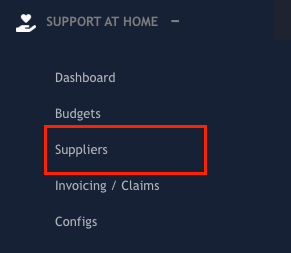
If you have the correct access, you can navigate to the feature through the Quick Access Menu:
Searching and Filtering Invoices
The supplier invoice list supports filtering by supplier name. The search is case-insensitive and supports partial matching — you do not need to type the full supplier name or match the exact capitalisation. For example, typing "lite" will surface a supplier named "Lite n' Easy".
Use the search bar at the top of the invoice list to filter results. Additional filters such as date range and status are also available.
Creating an Invoice
To create and invoice simply hit the the green "New Invoice" button found in the top right of the screen:

A screen will pop up and allow users to enter the details of the invoice
Base Setup:
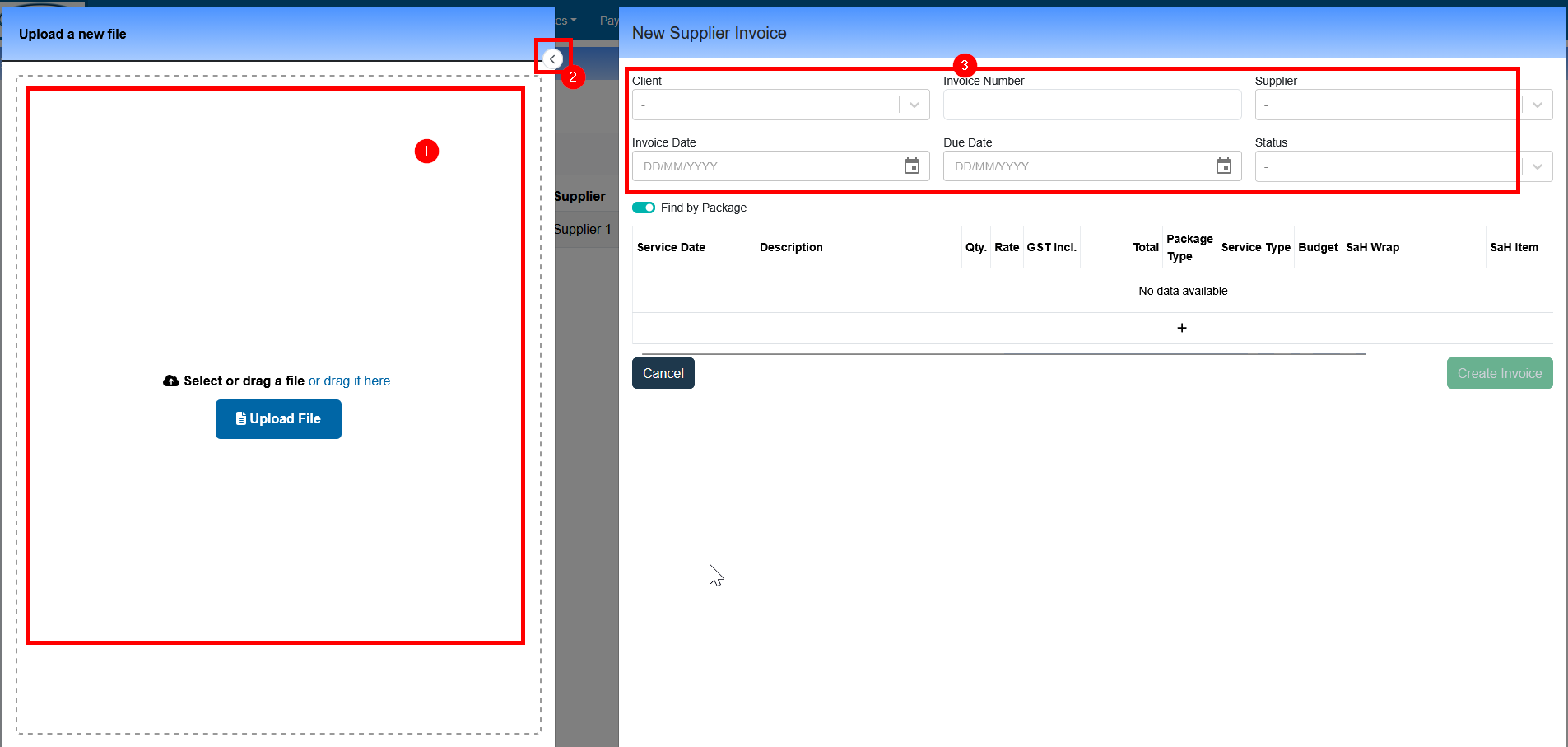
Users are able to drag and drop a file or alternatively click upload file and upload from their computers file system. Once uploaded, the file will display in this area for quick reference
If the user needs more space on the screen for filling out details they can hide the preview which will expand the right hand side
This area contains the base setup of the invoice:
Client - which client does this invoice belong to. Each invoice in Eziplan (and SAH) has to be related to one client. In the event you have multiple clients on the same invoice, you will need to repeat this process for each client but can use the same file
Invoice Number - used to reference later on as well as exporting to accounting softwares
Supplier - Name of supplier delivering the service
Invoice Date - Date of invoice
Due Date - Date the invoice is due, used for accounting softwares
Status - Pending
Find by Package - this is toggle that will allow the user to associate to a clients budget by either using:
Package Type
Purchase Order Number
Service Item Lines
This section will go through adding in individual service item lines

Service Date - Date the service occurred on. This is different to HCP where you could use invoice date, under Support at Home you MUST use Service Date
Description - This field is used to describe the service/item being delivered. It is especially important if it is an item with a code of "other" as this will be sent as part of the claim
Qty - The number of units from the invoice (Hours/Items etc)
Rate - The rate as displayed on the invoice (Depending on the Service Type chosen, this may or may not be used for claiming. If the Service Type is set to hourly or trip on the price plan, then this rate will be ignored. If the Service Type is setup as Invoice or Invoice +10% on the price plan, then this rate will be used for claiming)
GST - Is GST included in the rate entered - if so, Eziplan will remove the 10% GST before claiming
Package Type - Choose from the clients available Package Schedules based off Date of Service
Service Type - Once Package Type is chosen, Eziplan will lookup a clients budget to see if a service is available. If there is an external service type available on the budget it will show on the drop down list
If further information is needed, an edit icon will show up:
SaH Wrap - If Eziplan detects a AT/HM Service Type, the Wrap drop down will be made available. Wraps are used to identify services that have been delivered as part of AT/HM Items. This might include Case Management as Administration or other services such as training. You must associate either a Wrap OR an Item with an AT/HM Service Type
SaH Item - If Eziplan detects a AT/HM Service Type, the Item drop down will be made available. Items are used to further identify AT/HM Service Types as to the product/home modification item that has been utilised as part of the clients funding. You must associate either a Wrap OR an Item with an AT/HM Service Type
SAH Health Professional - For some AT/HM items you will need to specify which Health Professional referred the item for purchase
Account Reference No. - Assign an Accounting Ref number per line as required
Repeat for as many rows as required.
Exporting Invoices to CSV
The supplier invoice list can be exported to a CSV file for use in external accounting systems or for reconciliation purposes. To export, use the Export button in the invoice list toolbar.
The CSV export includes the following fields for each invoice and its line items:
Invoice Date
Reference No.
Due Date
Supplier Name
SII Reference Number (e.g., SII-12345) — Eziplan's unique internal reference for the invoice
Status
Client
Service Date
Description
Qty / Rate / Amount
Note: Only active line items are included in the export. Deleted or soft-deleted lines are excluded to ensure the exported data accurately reflects the invoice as it stands.
Invoice Status and Claim Protection
Supplier invoices move through a status workflow: Pending → Approved–Unpaid → Approved–Paid (or Declined). Once an invoice has been included in a claim, reconciliation item, or statement, Eziplan applies additional status protection:
Statuses cannot be changed away from the approved group while the invoice is claim-linked. For example, you cannot move a claimed invoice back to Pending.
Transitions between approved statuses (e.g., Approved–Unpaid to Approved–Paid) remain permitted.
This protection prevents accidental changes that would cause data integrity issues in downstream claiming and reconciliation.
If you need to make a status change that is blocked, please contact your Eziplan support team to discuss the appropriate resolution path.