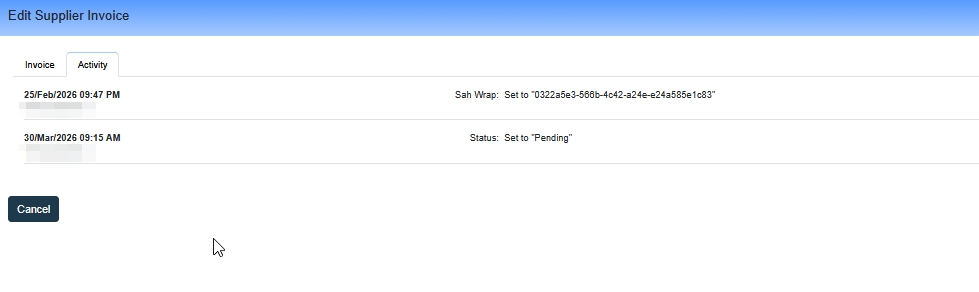
There are four statuses in the Supplier Invoice Module:
Pending:
This is the first status in the flow. It is automatically assigned when an invoice is created directly in Eziplan. It is shown in blue in the list view:
When an invoice is in the Pending stage, there are two options to update its status. These buttons will only appear if the user has Approve or Senior Approve permissions. If the invoice amount requires Senior Approval, only users with Senior Approve permissions will see the actions below.
Approve
Moves the invoice to the Approved – Unpaid status.
Decline
Moves the invoice to the Declined status.
Approved – Unpaid
This status indicates that the invoice has been reviewed, approved for payment, and is ready to be claimed.
Accounts users will see two options:
Mark Paid
Moves the invoice to the Approved – Paid status.Decline
Moves the invoice to the Declined status.
Approved – Paid
This is the final status for a successful invoice. It indicates that the invoice has been paid to the supplier and is ready to be claimed (if it hasn’t been already). Claiming is handled within the Claiming Module.
Declined
This status indicates that the invoice was not successful at some point in the process. The invoice will not be paid or claimed. For auditing purposes, if an error is made, a new invoice must be uploaded and the process restarted.
Status Override
In some circumstances, authorised users need to manually adjust an invoice's status outside of the standard transition flow — for example, to move an Approved – Paid invoice back to Approved – Unpaid to correct a processing error.
Who can override invoice statuses?
Two permission levels grant override access:
Admin – Automatically assigned to users with Unlock permissions. Grants full override access with no restrictions.
Override – A separate permission that can be granted independently to users who need override capability without full Admin access. This is configured in Settings > Access Tags alongside other permission tags.
Users without either permission continue to see only the standard status transitions available for their role.
How to override an invoice status
Open the supplier invoice you need to update.
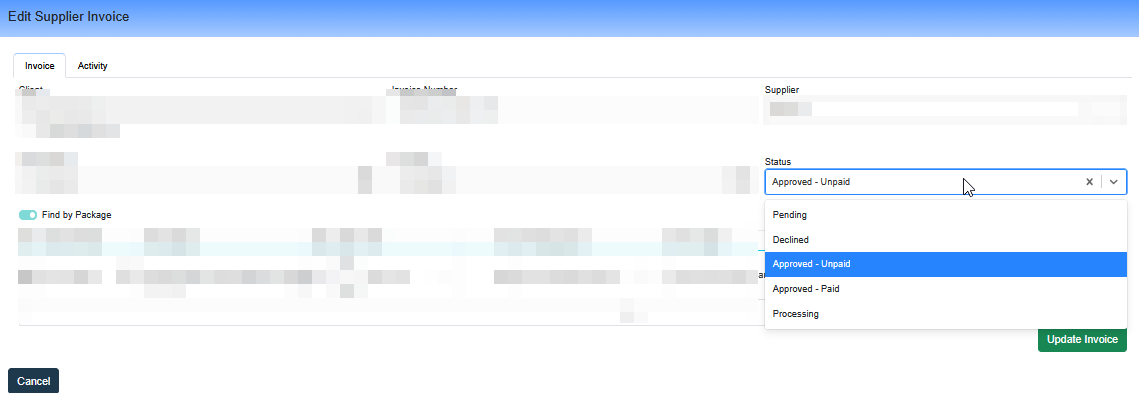
Locate the Status field in the invoice header.
With Admin or Override permission, you will see all available statuses in the dropdown — not just the standard next transitions.
Select the target status and confirm.
Note: All override actions are captured in the Activity Log with the responsible user's name and timestamp.
Activity Log
Every supplier invoice maintains a full activity log of all changes made. The log is accessible from within the invoice record and displays entries in chronological order.
The Activity Log captures:
Status changes — who made the change and when
Invoice header edits — such as date, reference, and amount updates
Line item changes — including Qty, Rate, service date, and description edits
System-level fields (internal IDs, system timestamps) are excluded from the display to keep the log readable.
Viewing the Activity Log
Open the supplier invoice.
Scroll to the Activity Log section at the bottom of the invoice record.
All recorded changes are listed with the action, responsible user, and timestamp for each entry.