

You can export large number of repeat appointments for reporting purpose by following the steps below.
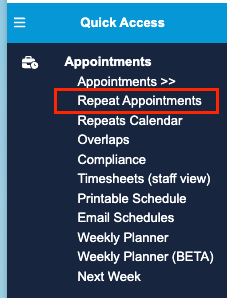
1. First, click Repeat Appointments under Appointments menu to navigate to the list of repeat appointments:
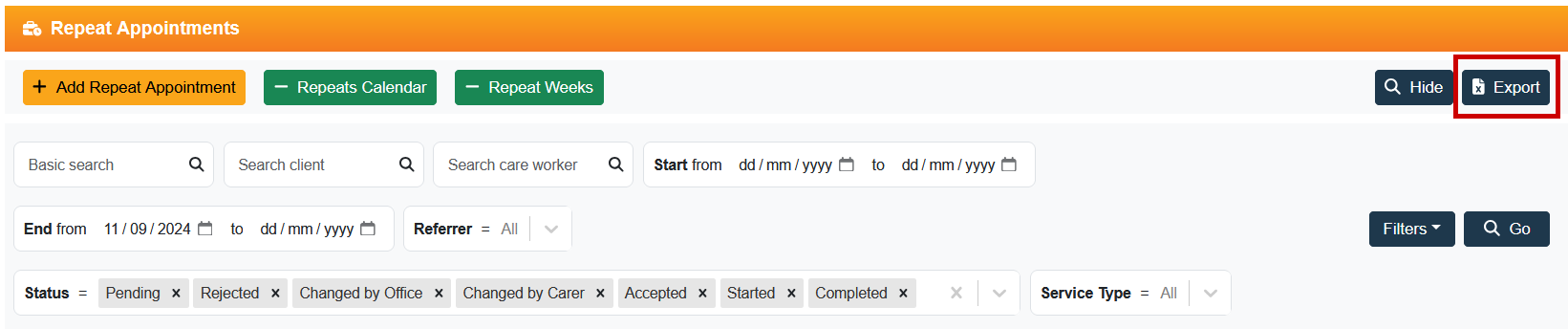
2. On the page, look at the top right corner where you will find two buttons:
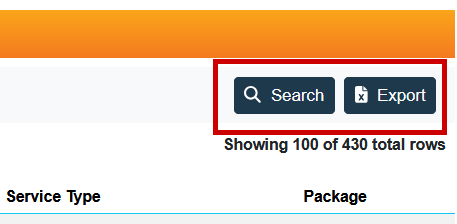
These two buttons can be used for different purpose. Please see relevant tab below:
Search
This function is to assist you with reviewing and exporting a small number of appointments.
Once you click SEARCH button, you will see search bar will appear to help you apply few options depending on appointments you are looking for:
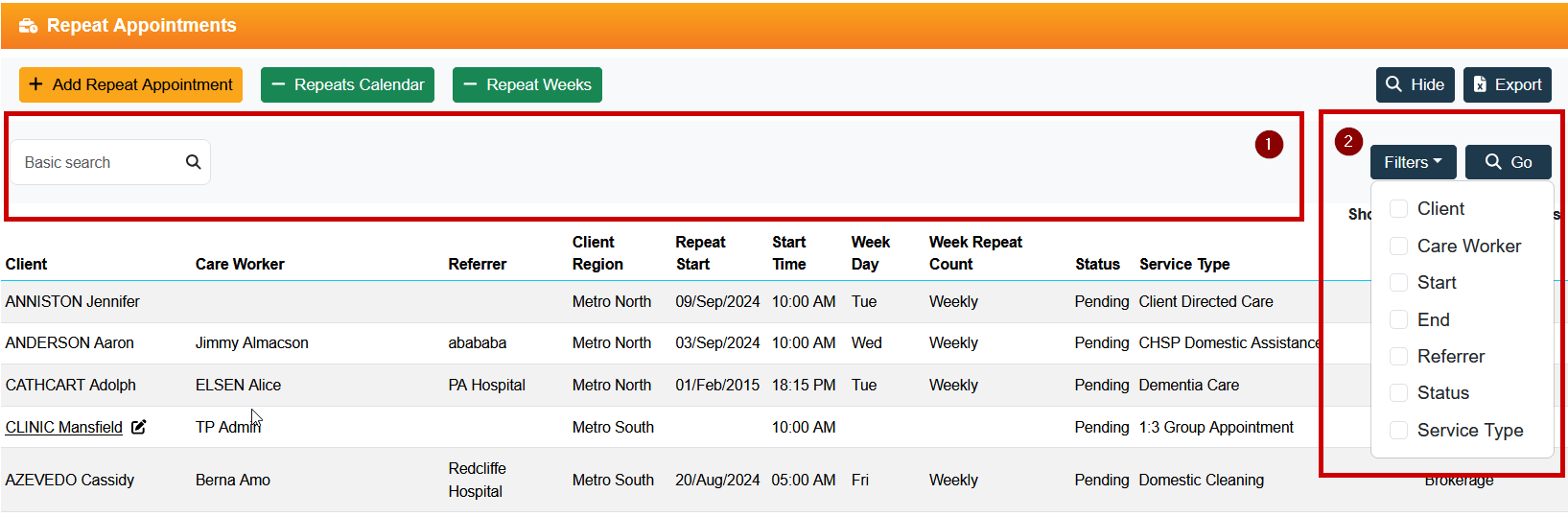
1. Consist of the below filtering options by default:
Basic Search - you can type either client name or care worker name
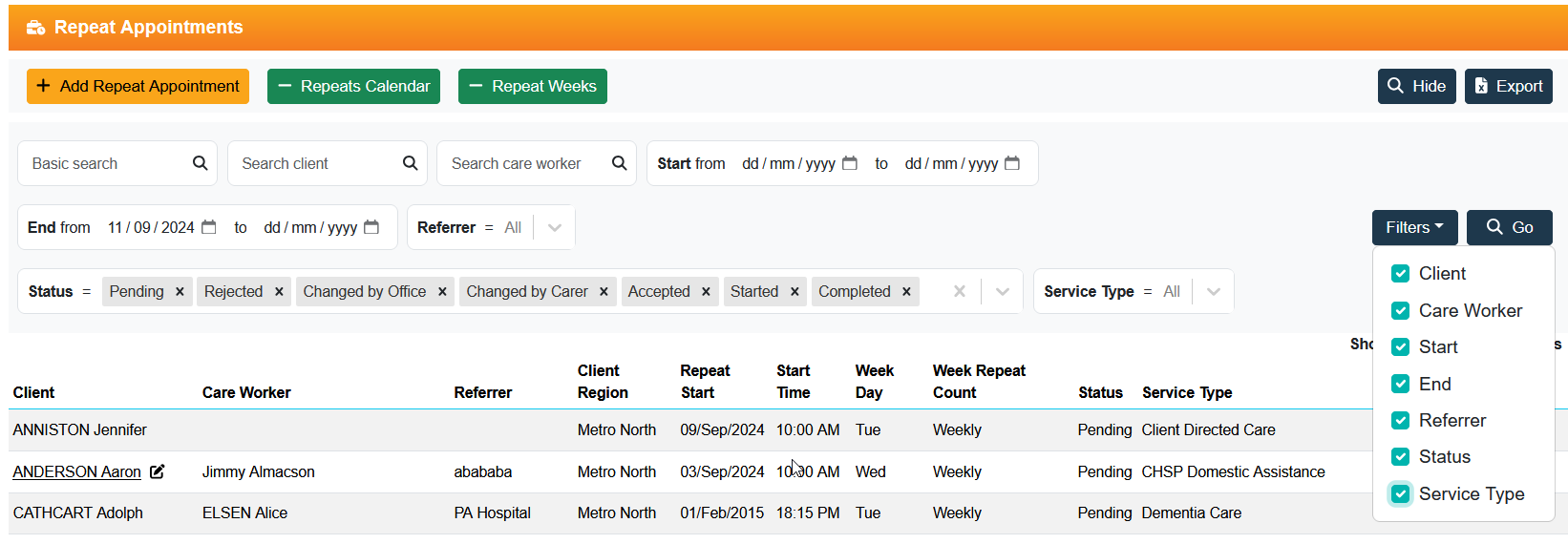
2. You can add more specific filtering conditions such as Client, Care Worker, Start, End, referrer, status, service type
Once you have the desired outcome and want to export it to excel file, click EXPORT button at the top corner:
The below wizard will appear:
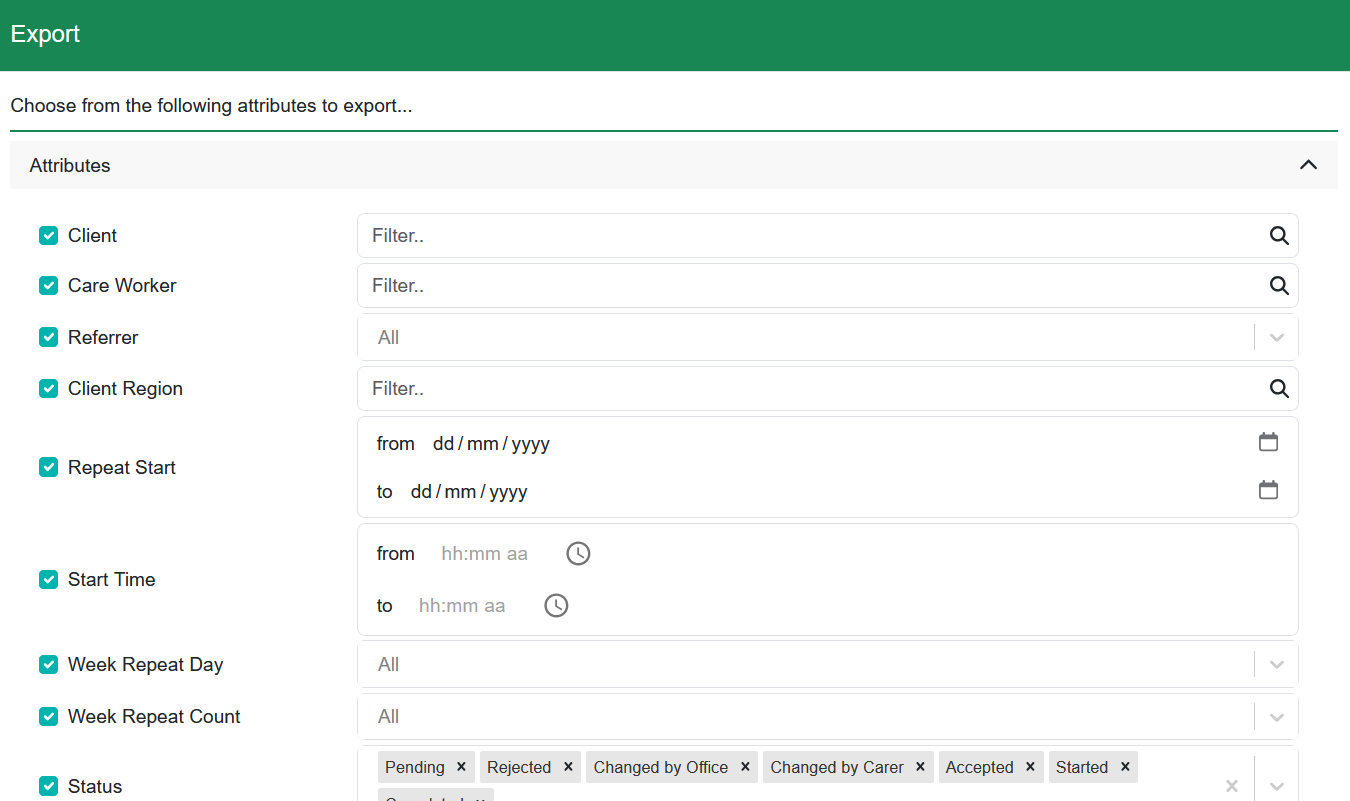
The search condition you've applied previously is populated under "Attributes" category in this wizard, but you can adjust again if necessary.
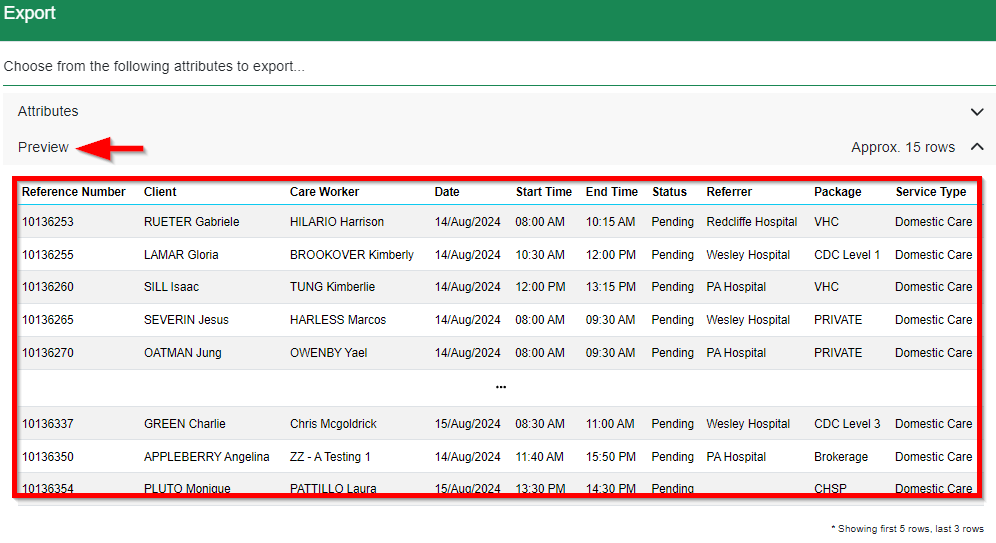
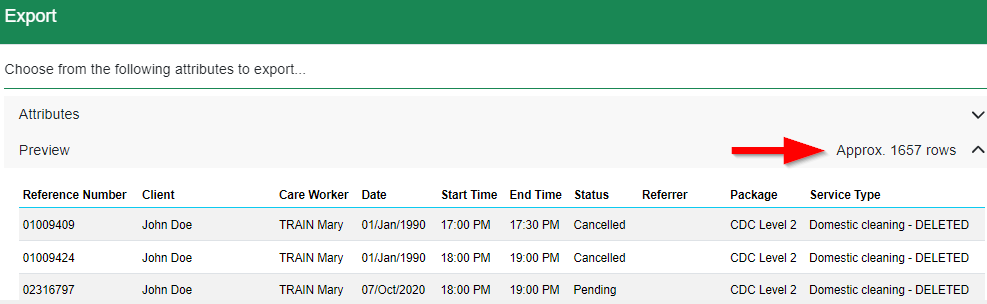
1. Estimate/Preview - you can check preview before downloading the data. The system show first 5 rows and the last 3 rows.
2. Download - download to excel file
3. Close - close the wizard when no longer needed
Export
When you click EXPORT button, the below wizard will appear(same as the above):
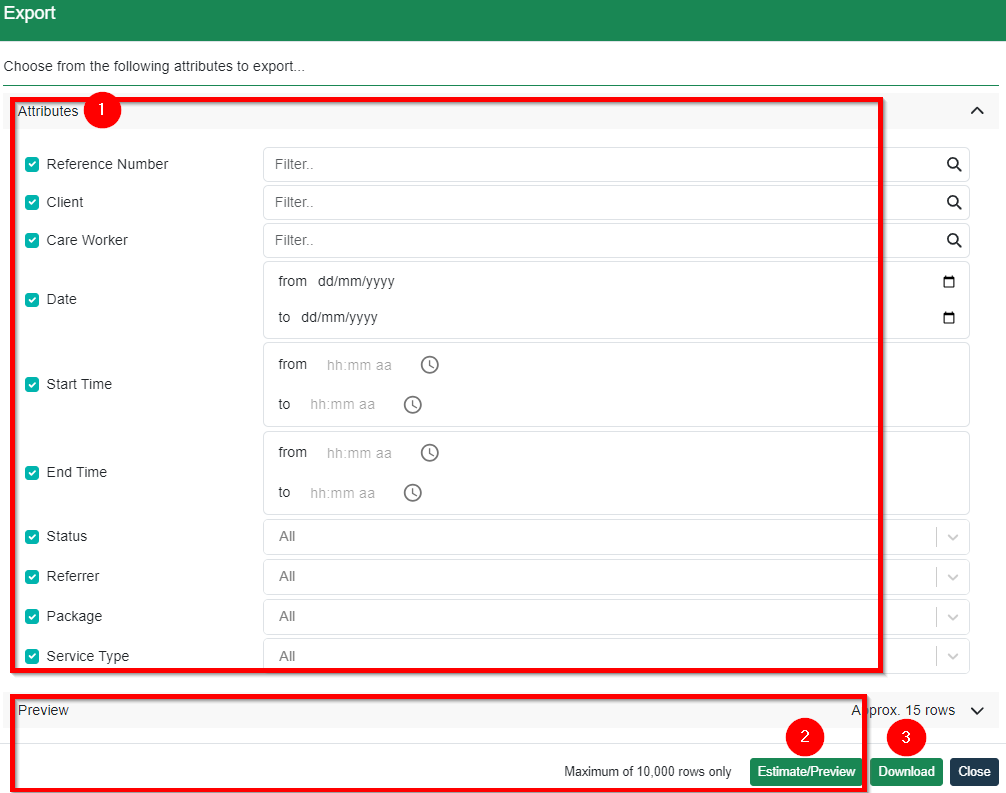
1. Attributes - You can apply different search condition here. Once selected, click Estimate/Preview to check preview
2. Estimate/Preview - once the condition is applied through Attributes section, click the button to check preview. It will show total number of rows (first 5 rows and the last 3 rows will be be displayed)
3. Download - download the data