

To find the repeat appointment you wish to cancel, you will need to search for the repeat appointment
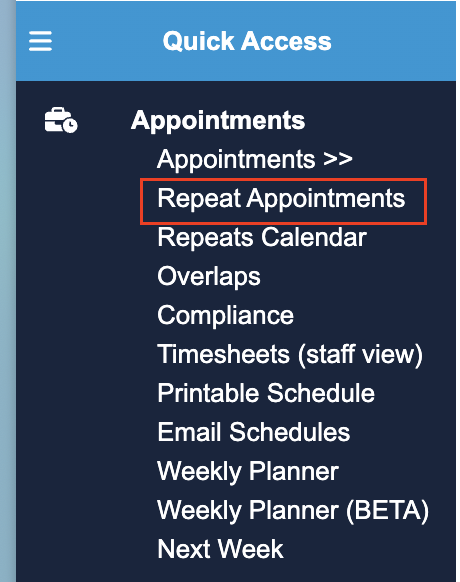
Start by going to the left hand side panel Appointments (on quick access panel) and then selecting > Repeat Appointments
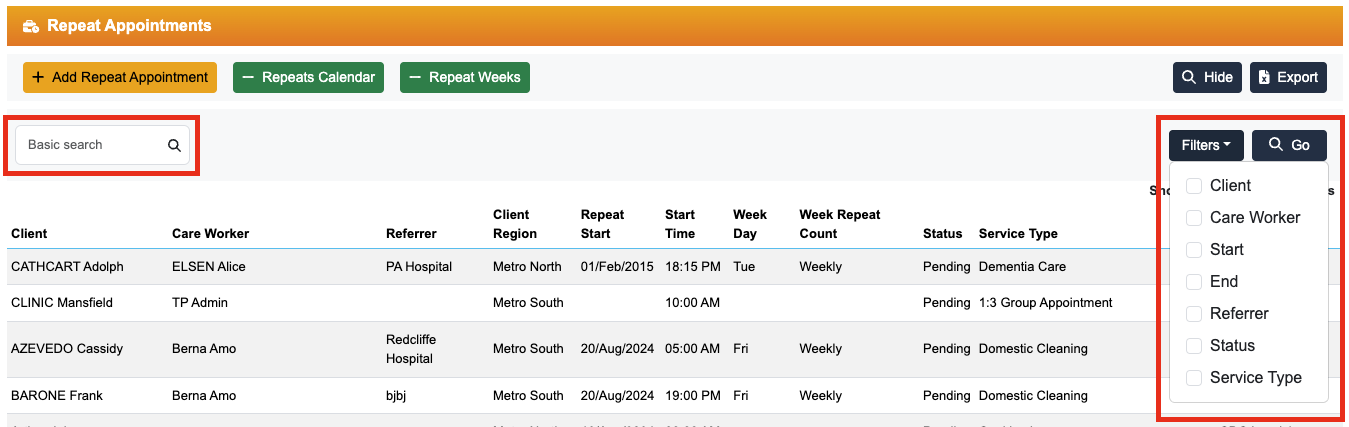
Located at the top of the page, you have a Search button, from here you can choose to simply use the Basic Search function or utilise the filters option to narrow down your search for a specific client or repeat appointment. There are a number of filtering options available but the most commonly used one is Client Name

Once you have located the repeat appointment you wish to cancel and select to open, you will find the red Cancel Appointment button in the right hand corner

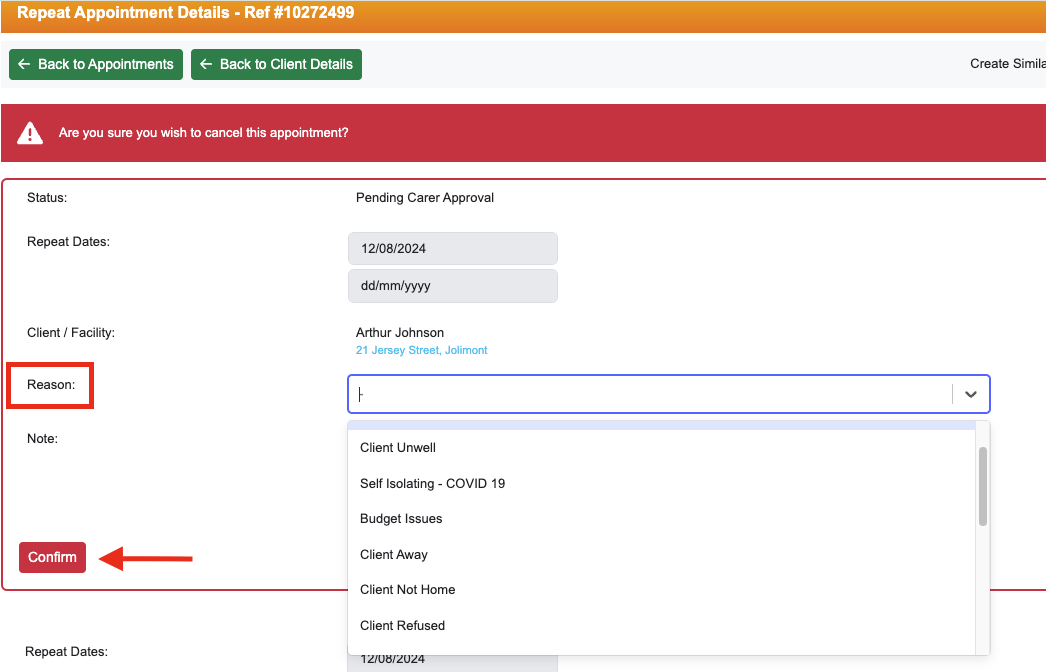
You will then need to input any additional information regarding cancellation. (e.g. Reason for cancelling and additional note.
Once done you can then click Confirm
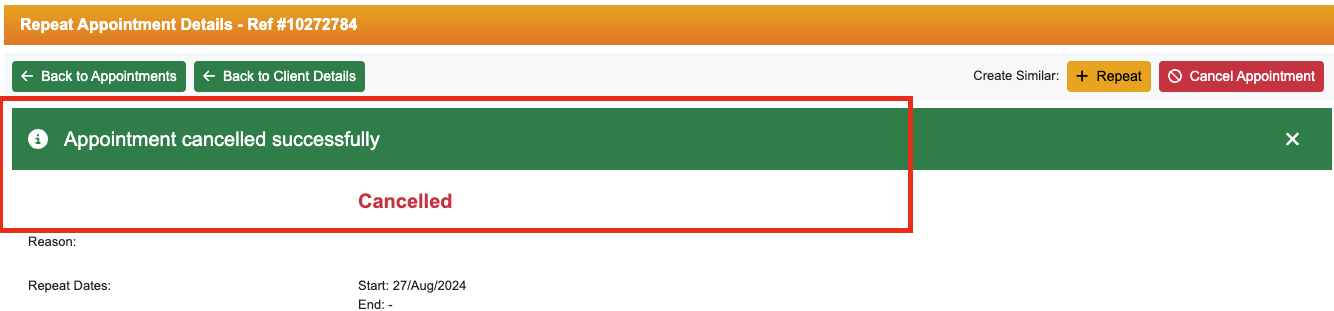
You will notice that the repeat appointment has been successfully cancelled.
*NOTE - Future appointments from this repeat appointment that haven't been allocated yet will be cancelled along with repeat appointment. Appointments already allocated and published will remain in place. To cancel these appointments as well, refer to the Cancel a Single Appointment article.