eziplan offers the ability to search notes written on clients/participants based on key/trigger words to help quickly identify any appointments/events that need further attention e.g. additional assessment due to a fall.
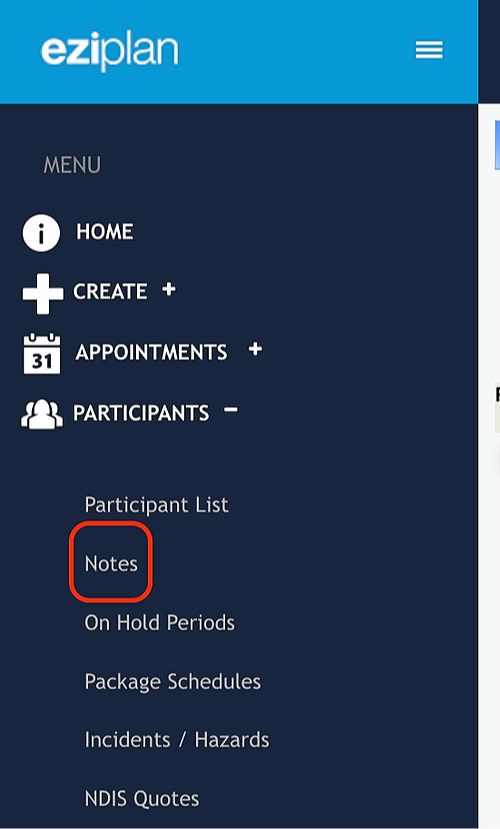
To access the notes field, click on 'Participants' in the left hand menu panel to open up the options and then click on 'Notes':
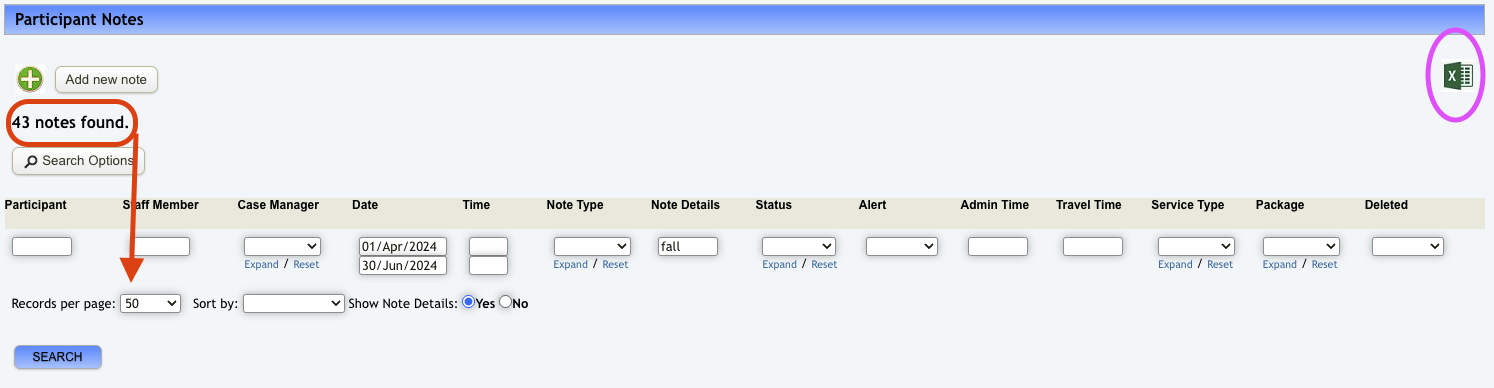
The screen that opens up has a range of search fields. Enter details into the search fields that align with what you are looking for and include the key/trigger word in the 'Note Details' field. Click on 'Yes' to Show Note Details and then click on 'Search':

Depending on the number of records returned, you can adjust the records per page to have all records show on one page. From here, you can export the information by clicking on the Excel icon in the top right corner: