

This feature is available by request to our Ezihealth Helpdesk Teams. This is a brand new module within Eziplan aimed at capturing three components of a Case Management action:
Case Management Billing
Case Management Consumption
Case Management Case Management Note
Accessing the Case Management Feature
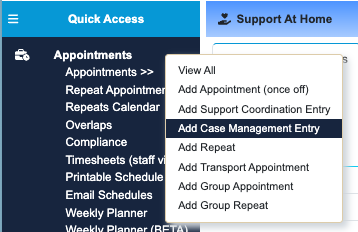
You can access the Case Management Feature using the quick access menu:
Case Management Billing
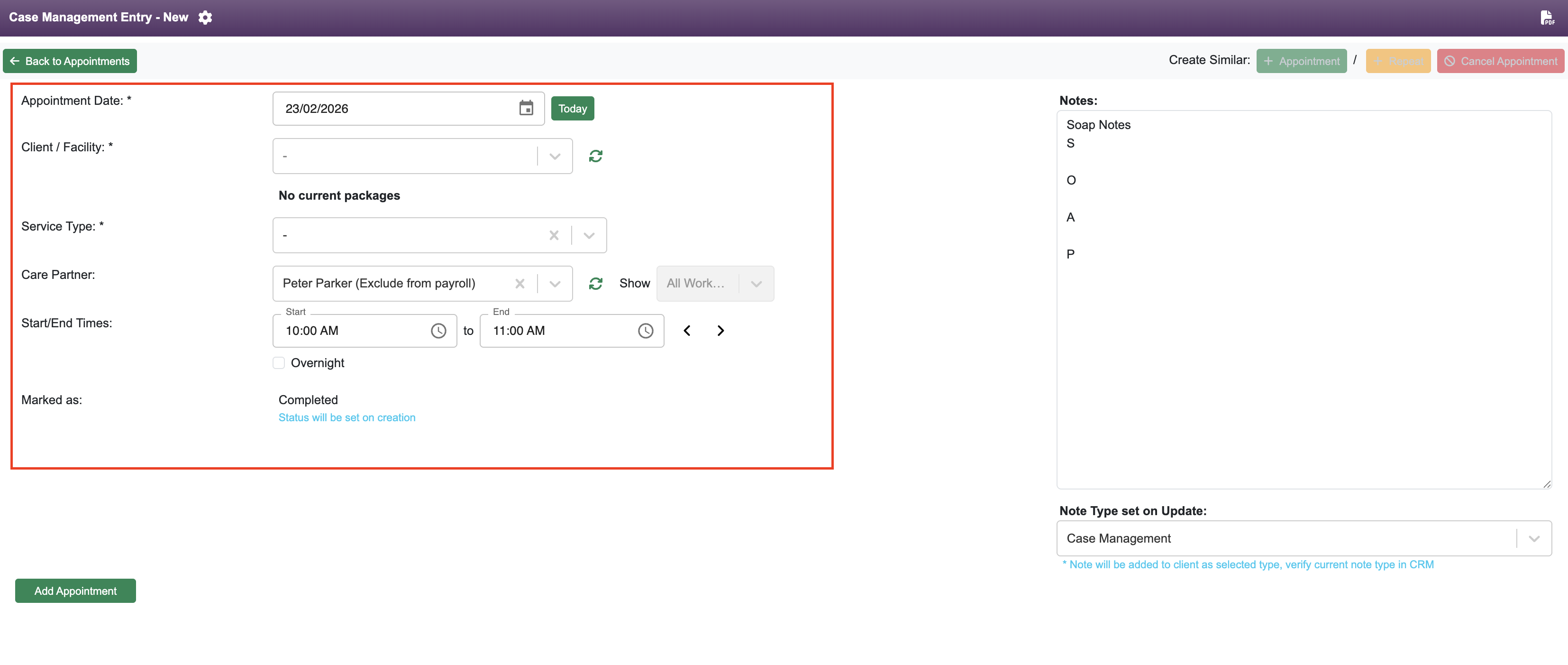
This component of the Case Management Feature acts in the same way as an appointment in Eziplan. It records; Client, Package, Service Type, Worker and Time.
The Worker and Time are pre-filled with the logged in User and the Current Time minus 1 hour. Update both as required and make sure to fill in the other details.
Case Management Notes
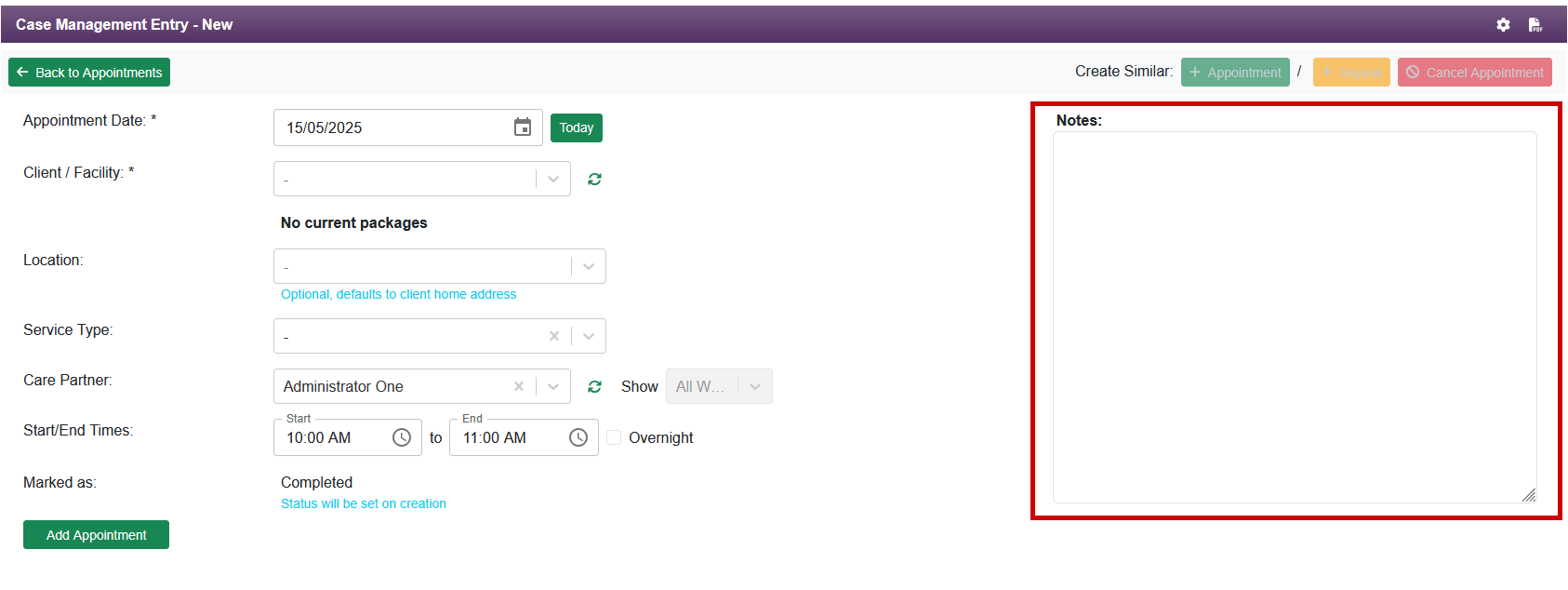
This is the simple open text inputs that will be added into the clients Notes module as a Case Management entry once the appointment is added. Simply fill out this section with required notes of the Case Management session.
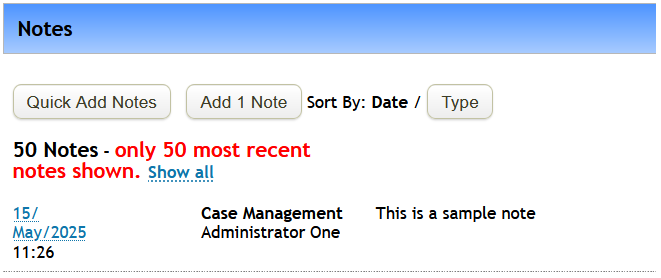
Once the appointment is added, you will see the note within the Client Module and when you click into the note you will see the details of the note including a reference to which appointment it came from.

Note Template
Eziplan has added a feature allowing users to setup a company wide note template for Case Management notes.
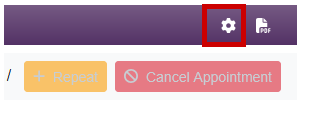
To access, simply jump into adding a Case Management Note and click the cog icon in the top right:
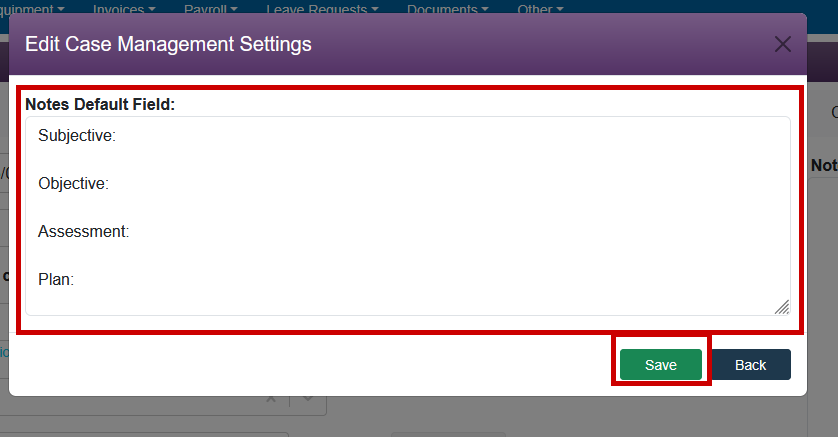
This note will then preload on every new Case Management entry.