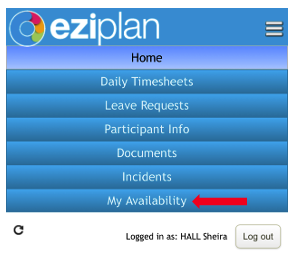
Let's start by navigating to My Availability from your Eziplan Mobile Web App home page
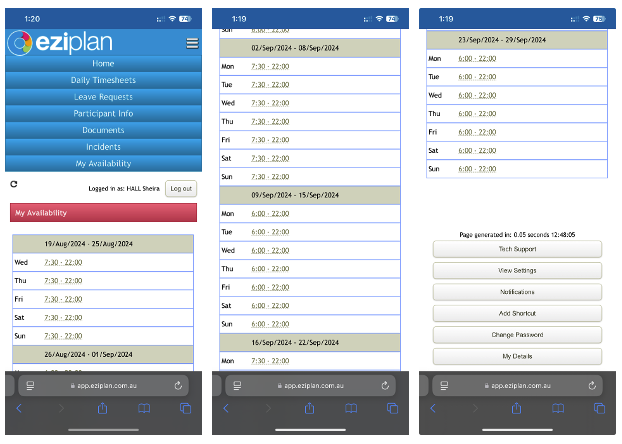
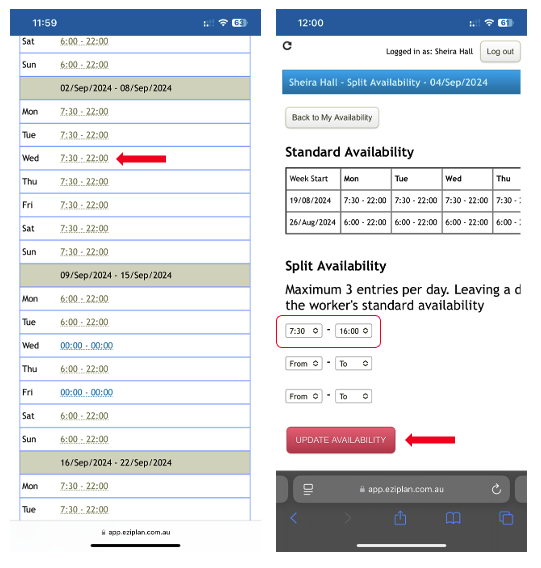
From here you can see a 6-week availability view where you can input in advance your desired days and times of split availability
Choose any day/s and then you will be taken to the Split Availability page where you are able to enter a maximum of 3 entries of split availability per day. On this page you will also see your Standard Availability of the current week. Once done, hit Update Availability and entries should then reflect from your Split Availability page and on your company admin's end.
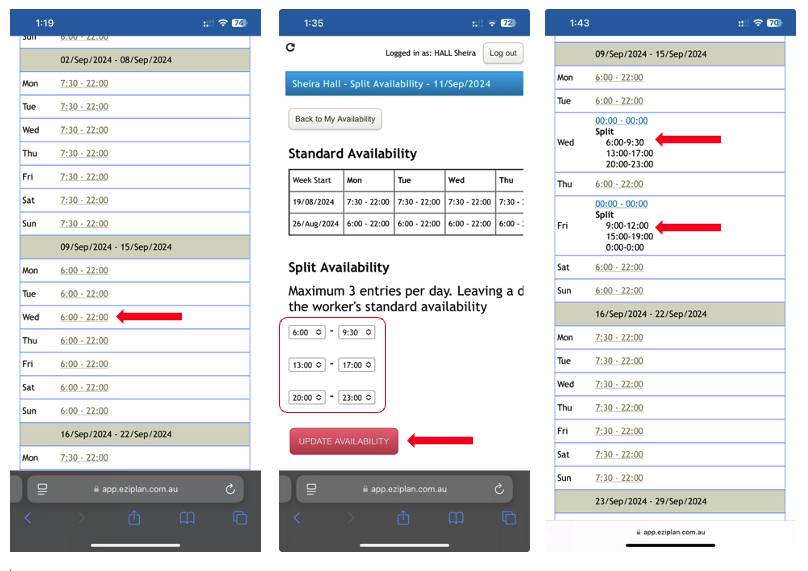
Important!
If you want to enter only one start and end time for a particular day, you may do so on the first tab and hit Update Availability.
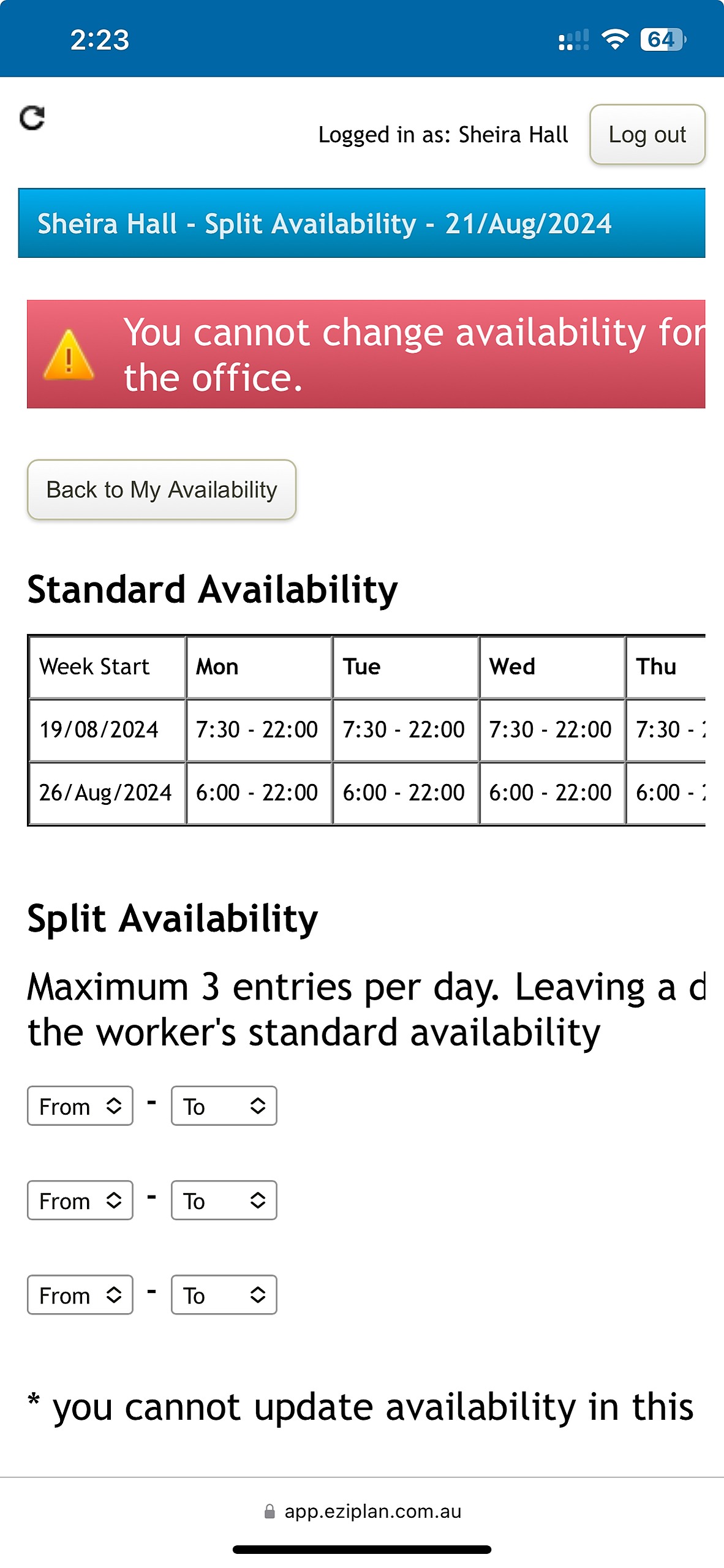
Note that you cannot modify the availability of dates after they have been published (e.g. Trying to update an availability for 19/08 when the roster is published until 01/09.
The system will display an alert message saying that you cannot change availability