At some stage you may need to cancel an individual instance in a series of client appointments. For example, you may be planning for Christmas period and you cannot put the client on hold because they are still receiving some appointments but trimming some others.
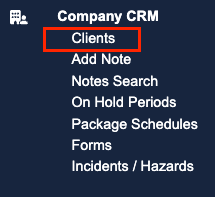
To do this, go to the Client's profile and open the Appointments Tab
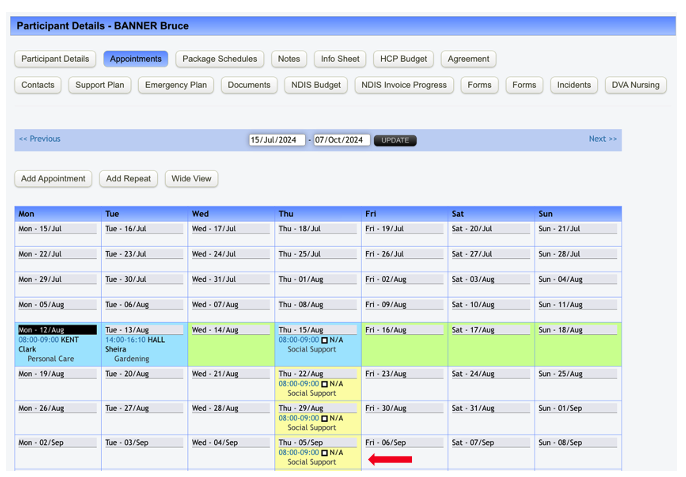
Once there, find the appointment you wish to cancel and open it by clicking on the time link.
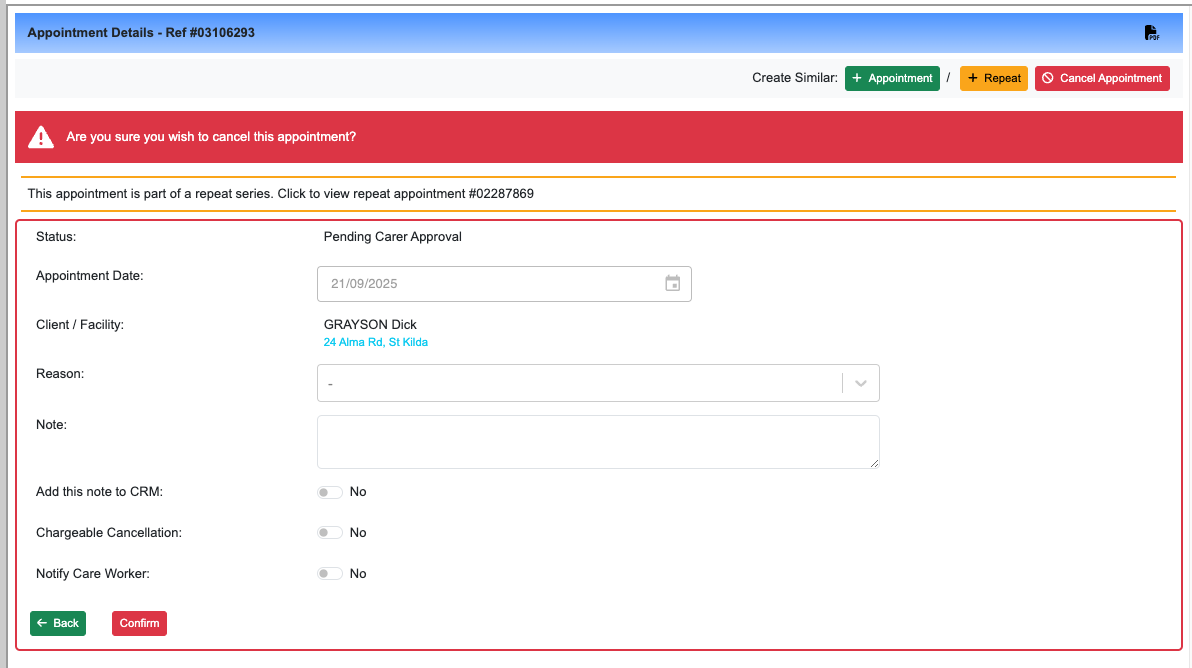
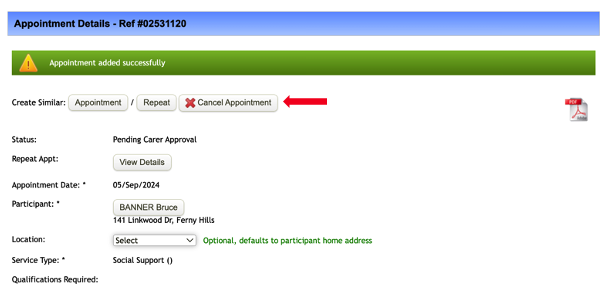
This will open the repeated appointment as if it were an individual instance. Go to the bottom of the page and hit Add appointment to add it to the calendar and then immediately go back to the top and hit Cancel Appointment


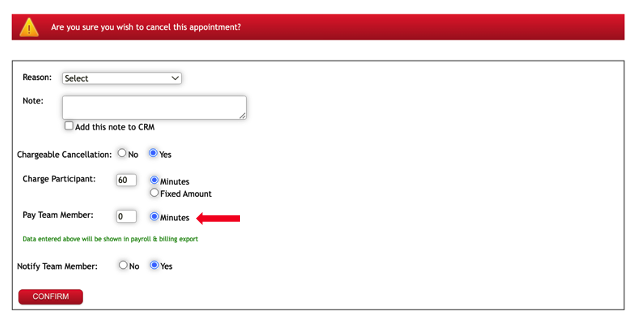
This will direct you to the confirmation page, where you can select the reason for cancellation from a dropdown menu, add a mandatory note, and choose whether the cancellation is chargeable or not.
If the appointment is chargeable, select Yes and indicate whether you will charge the client or pay the staff (either by minutes or a fixed amount). If neither the client nor the staff will be charged, enter zero (0) in the box. Then hit Confirm
At some stage you may need to cancel an individual instance in a series of client appointments. For example, you may be planning for Christmas period and you cannot put the client on hold because they are still receiving some appointments but trimming some others.
To do this, go to the Client's profile and open the Appointments Tab
Once there, find the appointment you wish to cancel and open it by clicking on the time link.
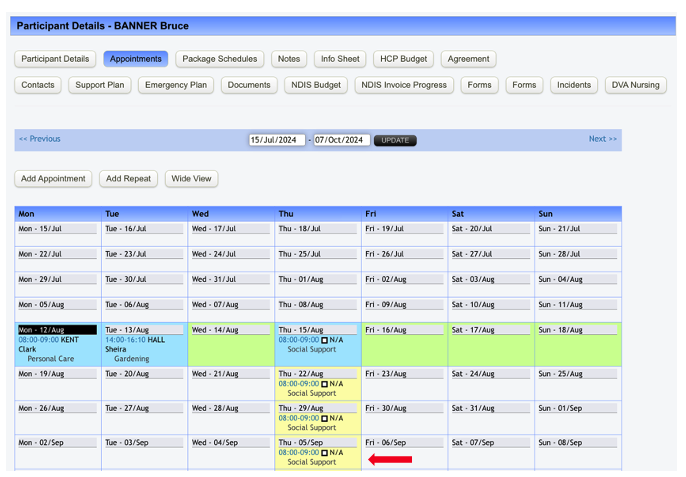
This will open the repeated appointment as if it were an individual instance. Go to the bottom of the page and hit Add appointment to add it to the calendar and then immediately go back to the top and hit Cancel Appointment
This will direct you to the confirmation page, where you can select the reason for cancellation from a dropdown menu, add a mandatory note, and choose whether the cancellation is chargeable or not.
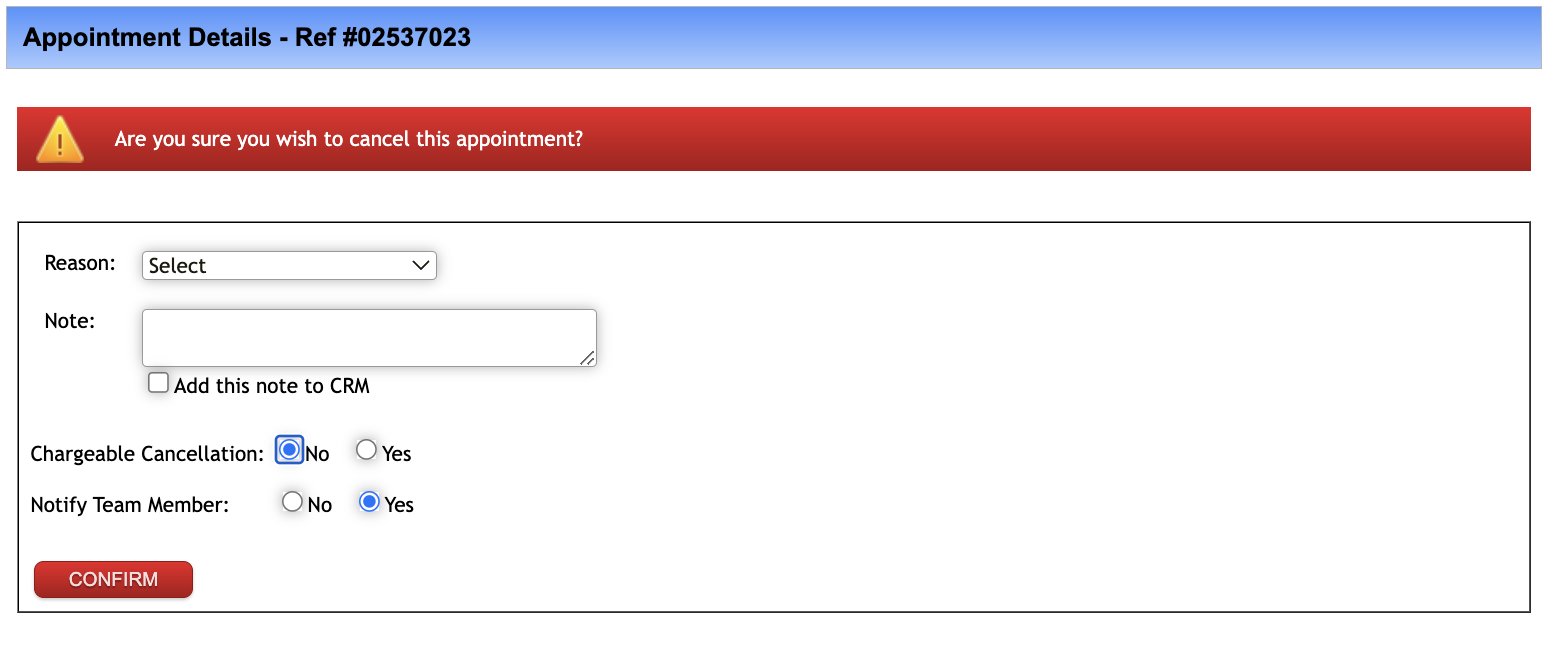
If the appointment is chargeable, select Yes and indicate whether you will charge the client or pay the staff (either by minutes or a fixed amount). If neither the client nor the staff will be charged, enter zero (0) in the box. Then hit Confirm