

If you are wanting the ability to specify pick up and drop off trip point locations in an appointment, first the service type needs to have the function enabled.
Enabling Transport Points
Open your existing service type from your list and scroll down to find the option just below the required qualification fields:
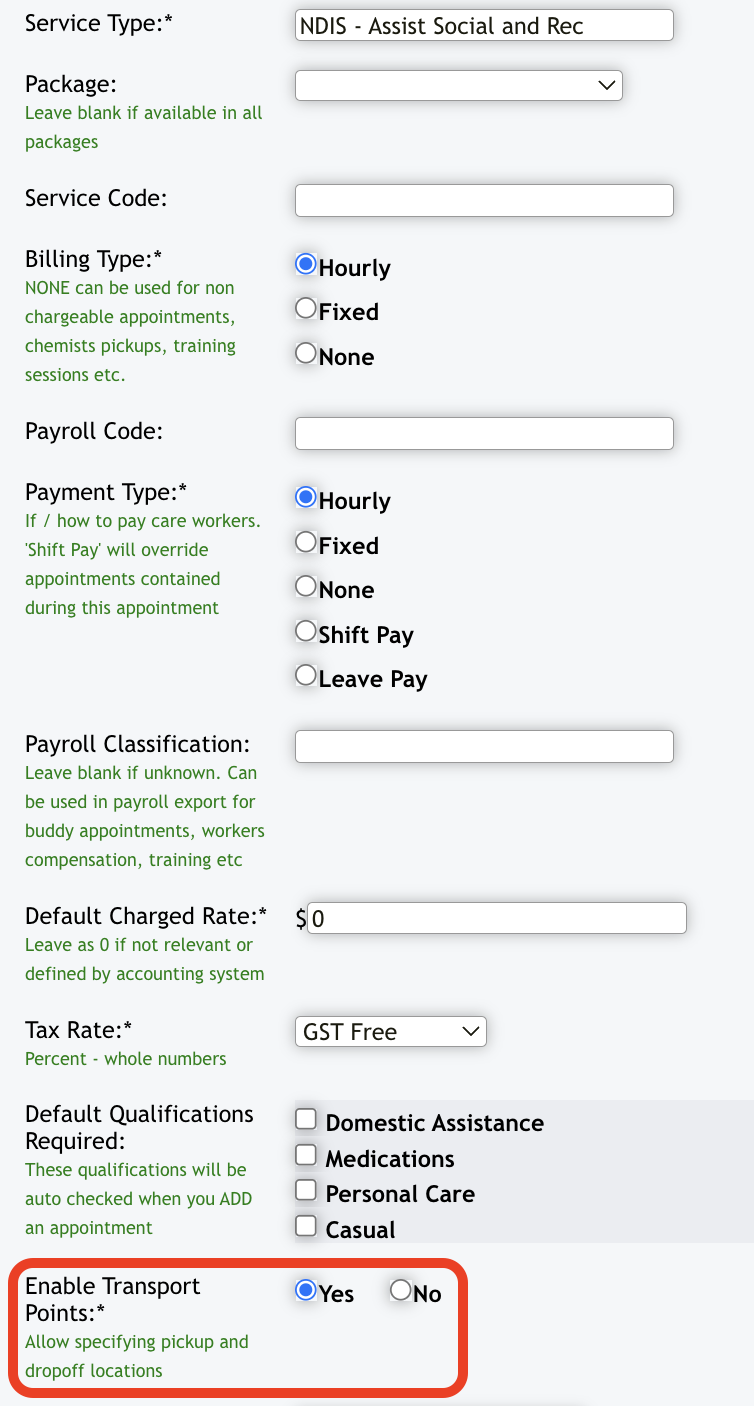
Select 'Yes' if it isn't already and then scroll to the bottom and click to update the service. You can also enable this function when you are adding a new service type that you are wanting to utilise transport points with.
Once you've enable this feature, the next step is to add in the details of the pick up and drop off points/locations you are wanting to allocate when creating appointments.
Adding Trip Point Locations
To create your list head to the left hand menu panel and click on 'Transport' and then select 'Trip Points' from the options that open up:
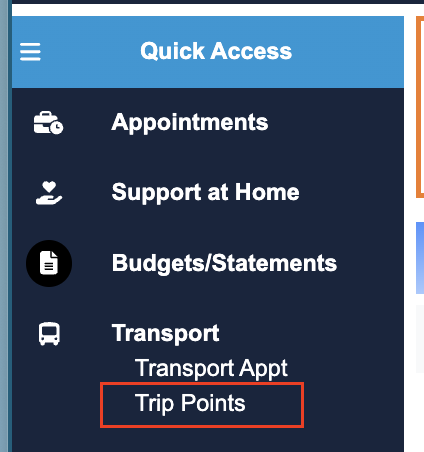
Note: If the Transport option is not visible in your Quick Access menu, please contact the Service Desk and request to have it enabled.
The trip point screen will then open up. If this is the first time you are adding in locations the screen will be blank with your option buttons across the top. If you are adding in new locations, you will see a list of current locations below the option buttons.
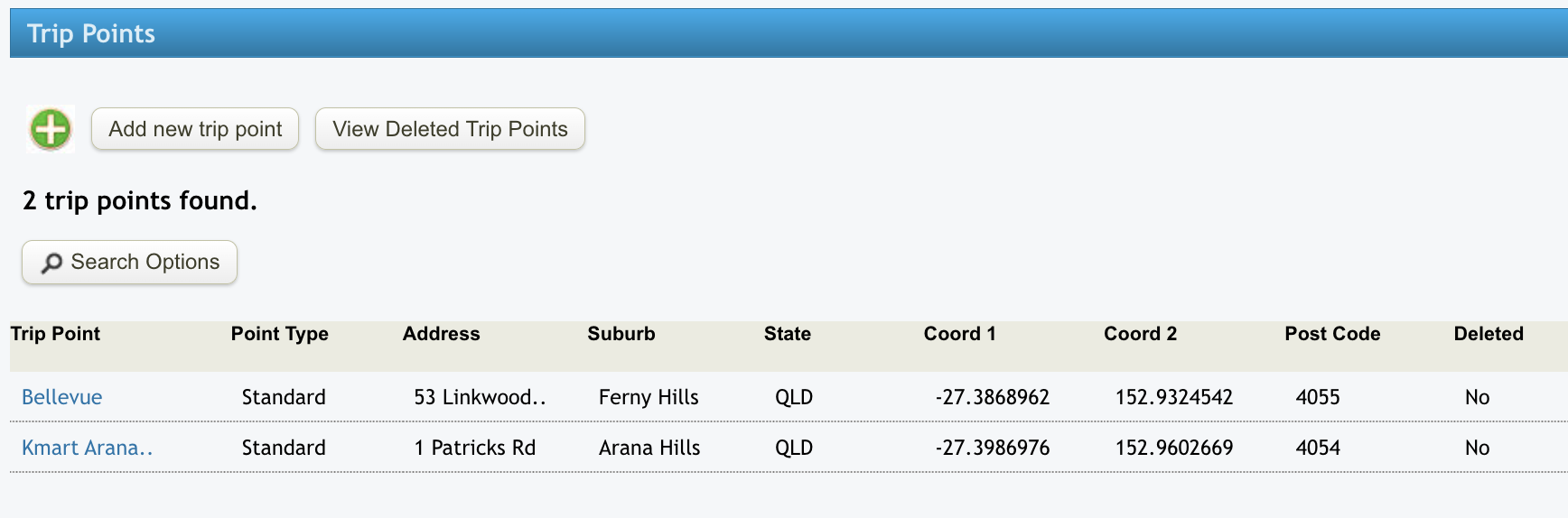
Click on 'Add new trip point', you will then get a screen with fields for you to complete. You have four options for the point type - standard, medical centre, work site and other.
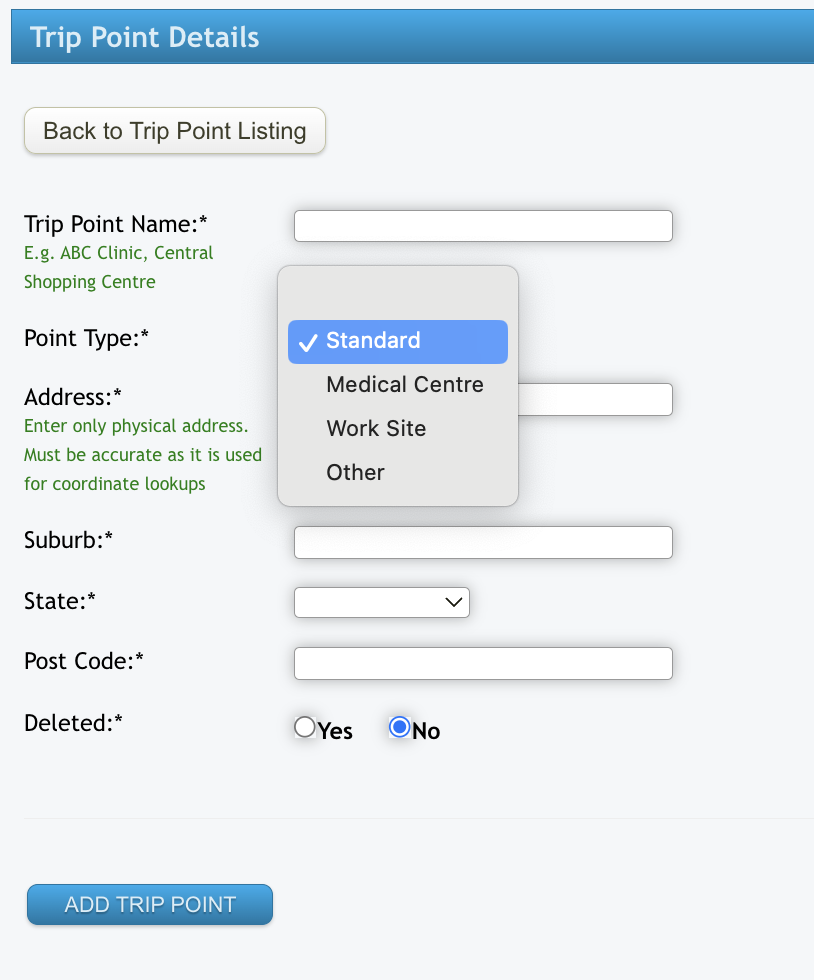
Fill in the details for your trip point and then click on 'Add Trip Point'. N.B. Ensure there is a street number for your location addresses if you are wanting to utilise the billable trip calculation discussed in the next section. You will see a summary of the saved information, click on 'Back to Trip Point Listing' to return to the Trip Point main page.
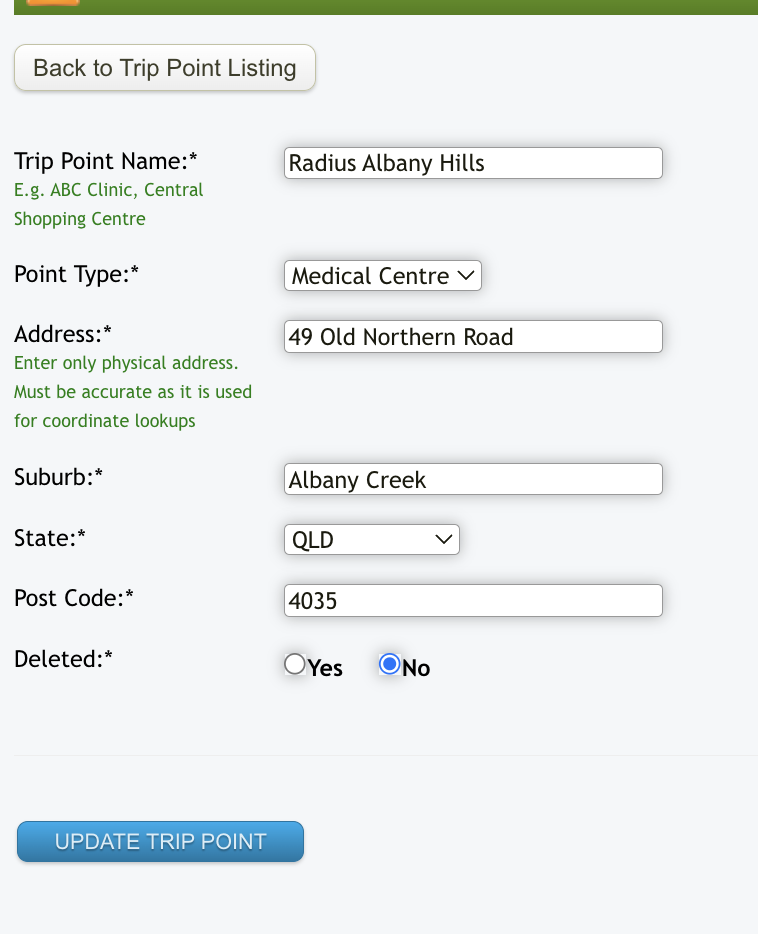
Just repeat the above steps for each trip point location you want to add into the list.
Allocating Trip Points in an Appointment
Create an appointment as per the usual process for one-off or repeat appointments. When you first go into the appointment screen it won't look any different initially:
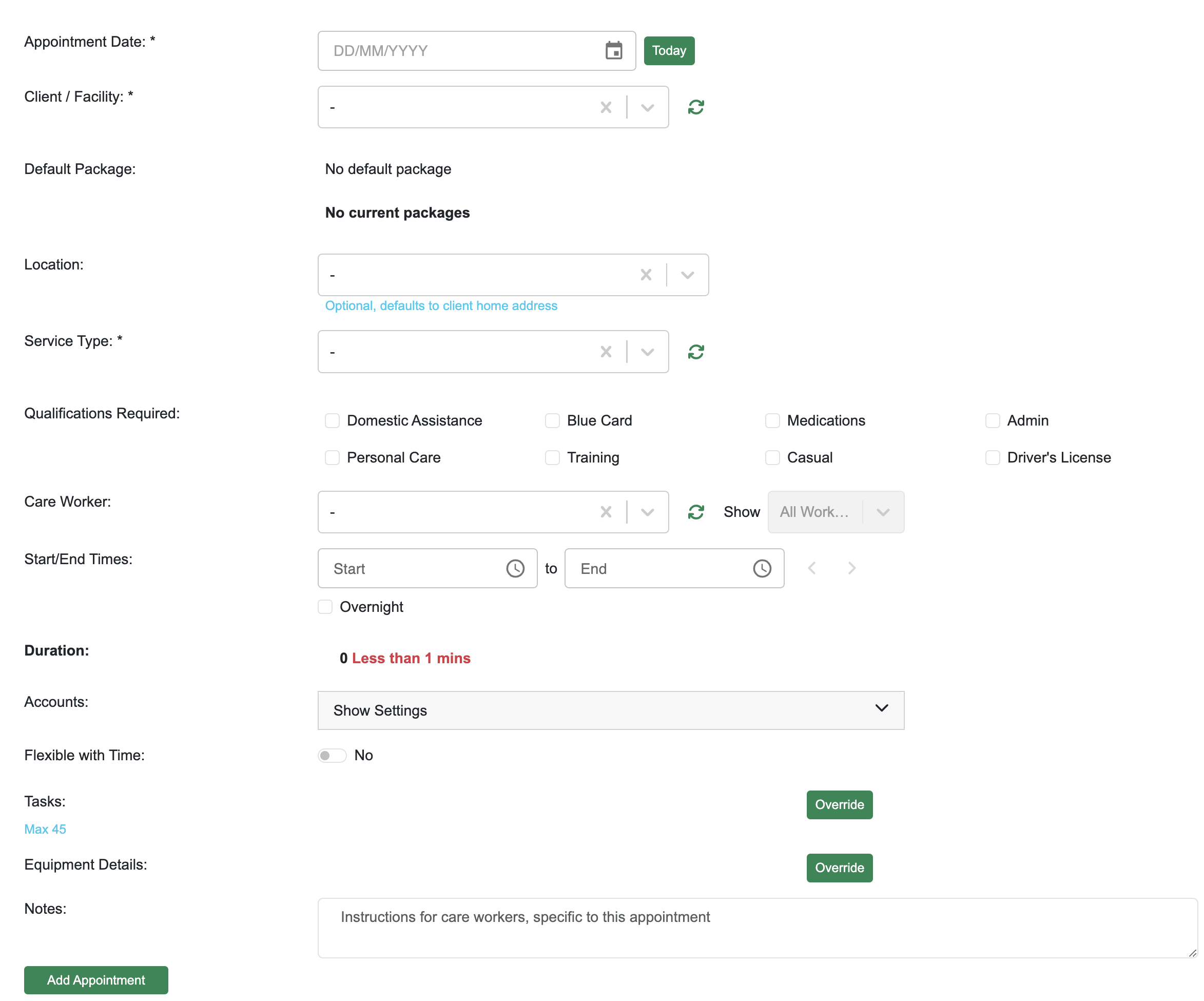
Once you select the service type for the appointment, if transport points are enabled for this service type you will then see your trip point fields display:
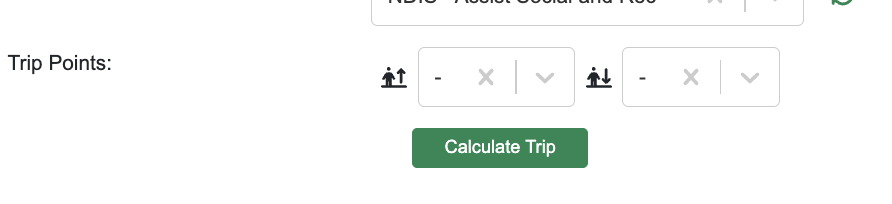
As well as being able to identify pick up and drop off points, you can also calculate the billable amount for activity-based travel (for services that allow for the claiming of ABT) from the trip points selected N.B. Ensure there is a street number for your location addresses for this function to calculate correctly, the system will not calculate for example if the address in Cnr X and Y Streets:

Complete the rest of the appointment details as per the usual process and save.
Care Worker View
When your staff open the appointment on their device, the pick up and drop off locations will display at the top of the appointment details:
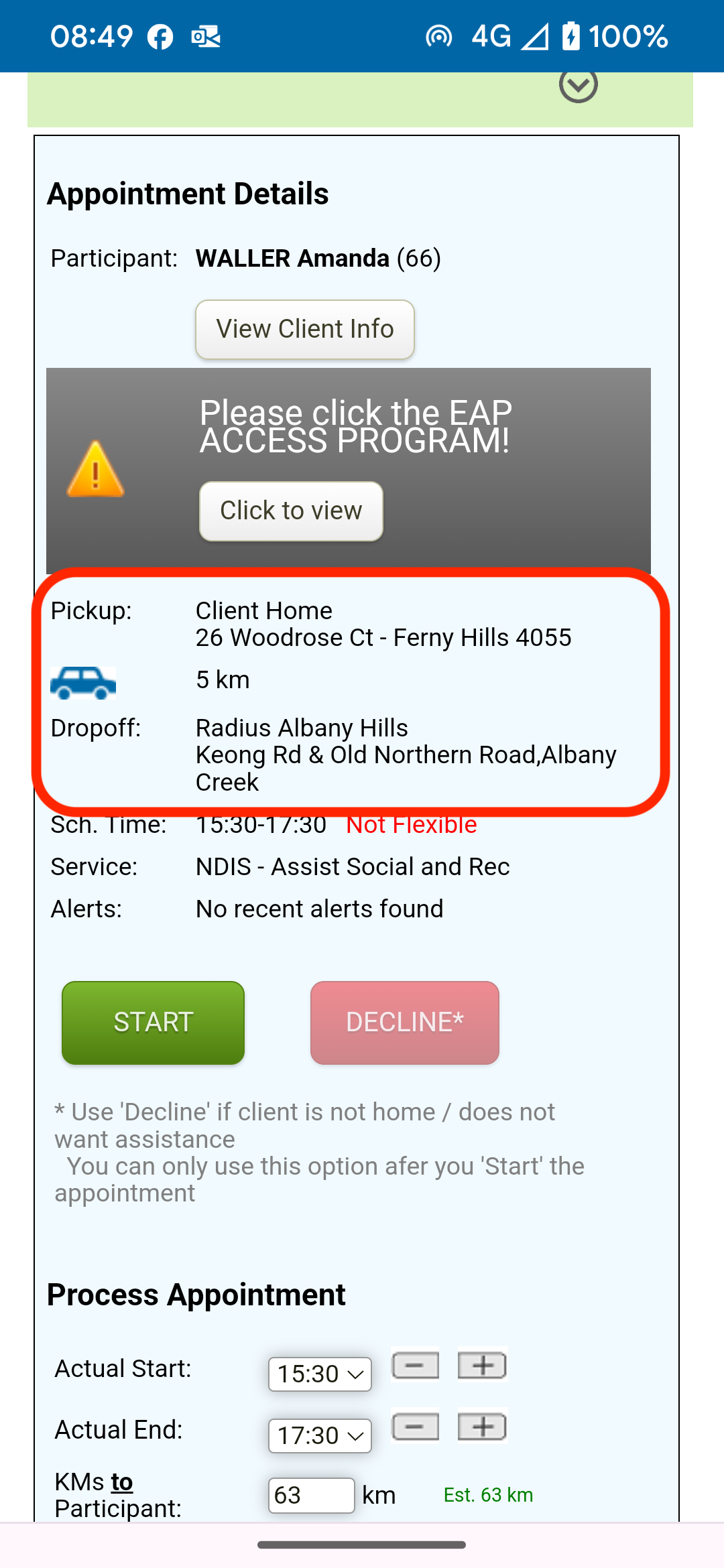
They complete their appointments on their device as per the normal process.