To change the TRAVEL TO or TRAVEL WITH amounts in an individual appointment after it has been completed, you first need to access that appointment in the "Individual Appointment List"(refer o the Searching and Exporting Single Appointments article). Once there, filter the search list to find the appointment you want to modify and open it by clicking on the link.
Once open, scroll down to the Travel section of the appointment. Use the Override link to open the edit feature.

Make the required adjustment to the TRAVEL TO or WITH field as appropriate and then remember to hit "UPDATE APPOINTMENT".
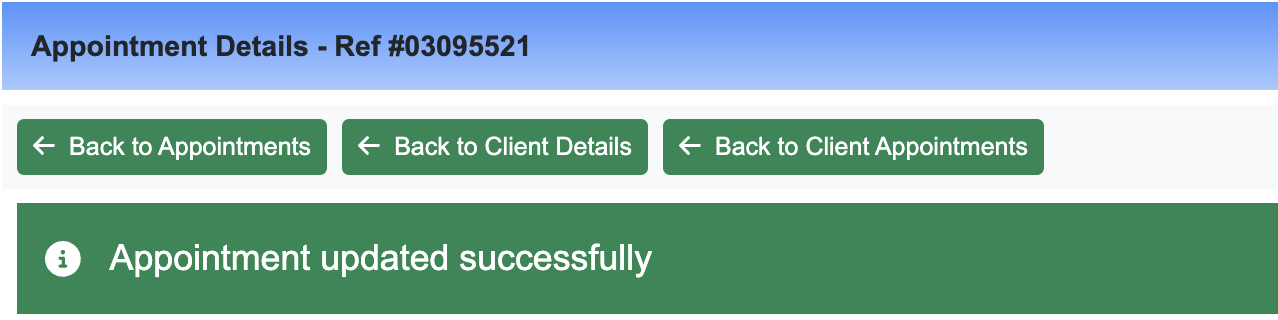
You will then see a message in a green bar at the top of the page saying "Appointment updated successfully".