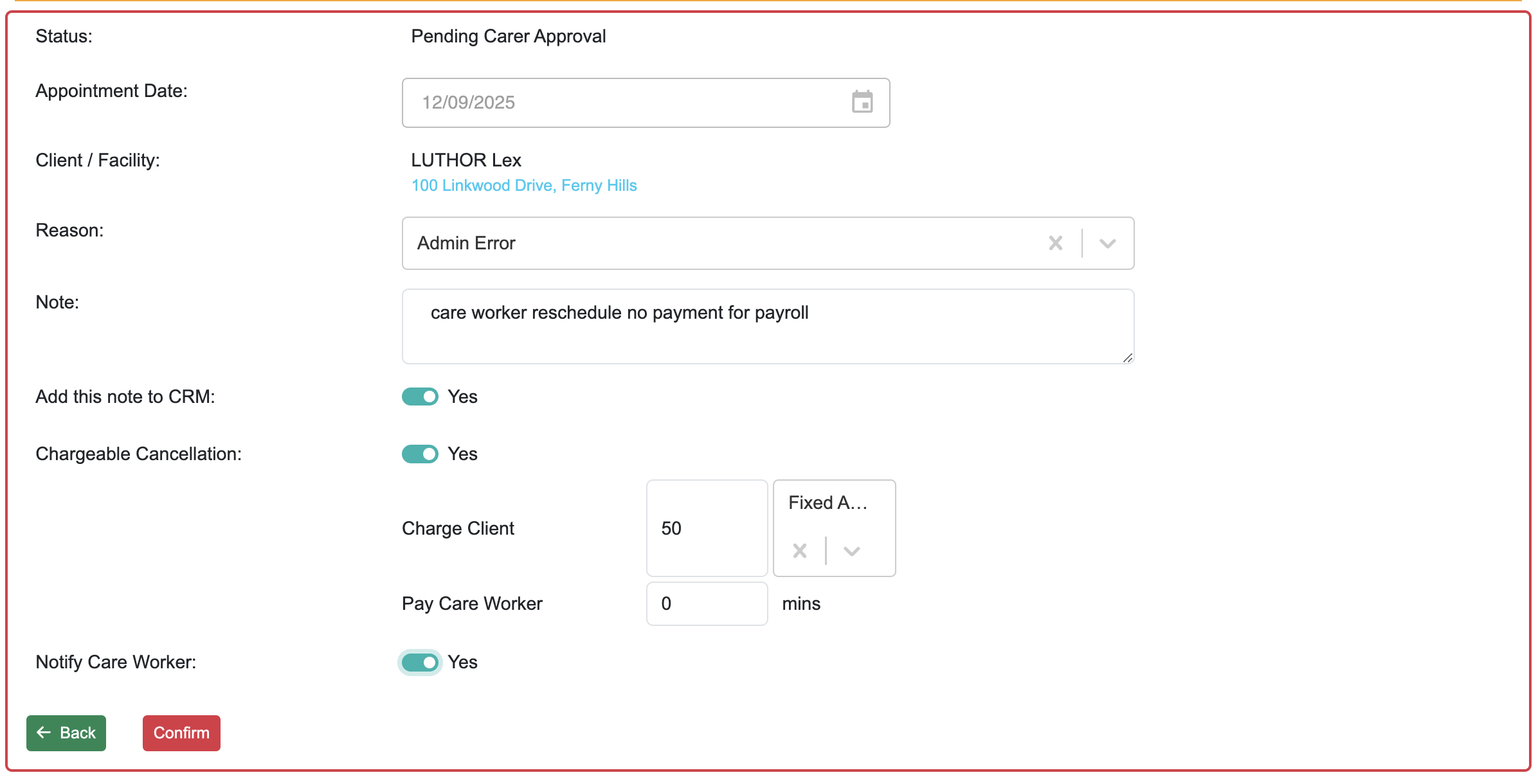
There may be a time that a cancellation attracts fees, usually as a result of your agreed policies and procedures with your clients. When you need to apply these charges or pay your Care Workers for time spent then follow these steps. N.B. Any cancellation in the system will require a reason for cancellation to be entered before it can be processed.
Select the individual appointment via the Client or Appointments V2 - Searching and Exporting Single Appointments. N.B. Chargeable cancellations cannot be processed via the Weekly Planner. Click the 'Cancel Appointment' button.

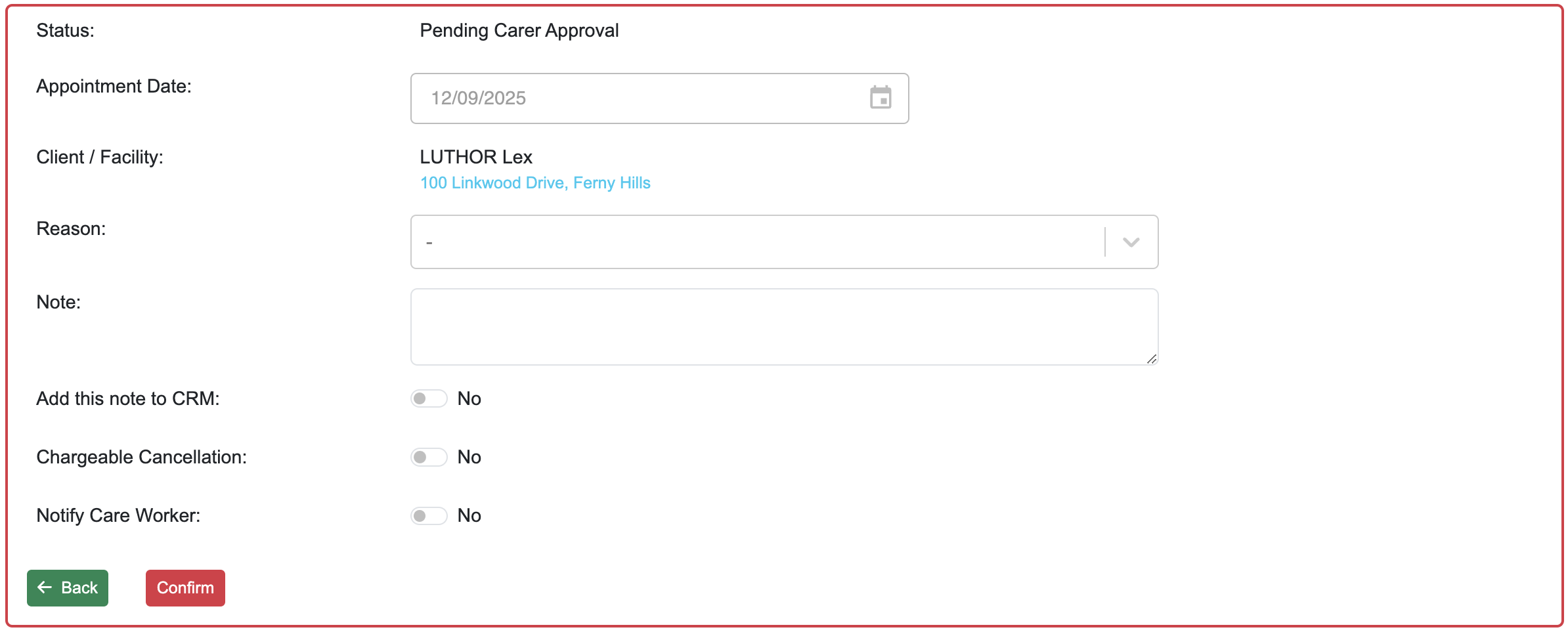
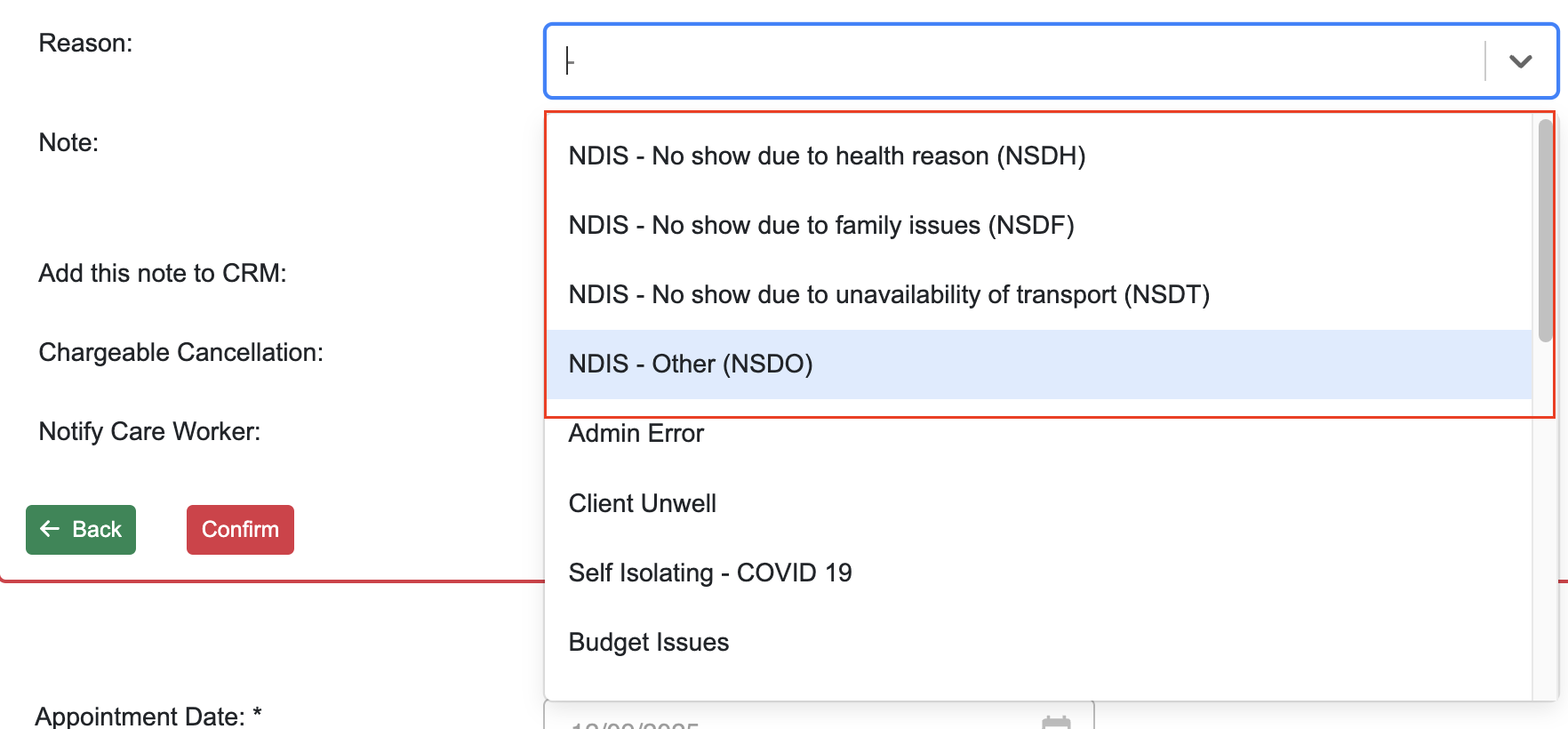
Select a Reason for cancellation (this is a mandatory field) and add a description to add this information to Notes history. NB this is particularly important for NDIS claims to PRODA so they are not rejected. The appropriate NDIS cancellation codes are linked.
Click 'Yes' for chargeable cancellation which will open up additional field where you can enter the chargeable Client hours OR clicked 'Fixed Amount' and key in the total dollars to be charged based on your signed agreement with your clients.
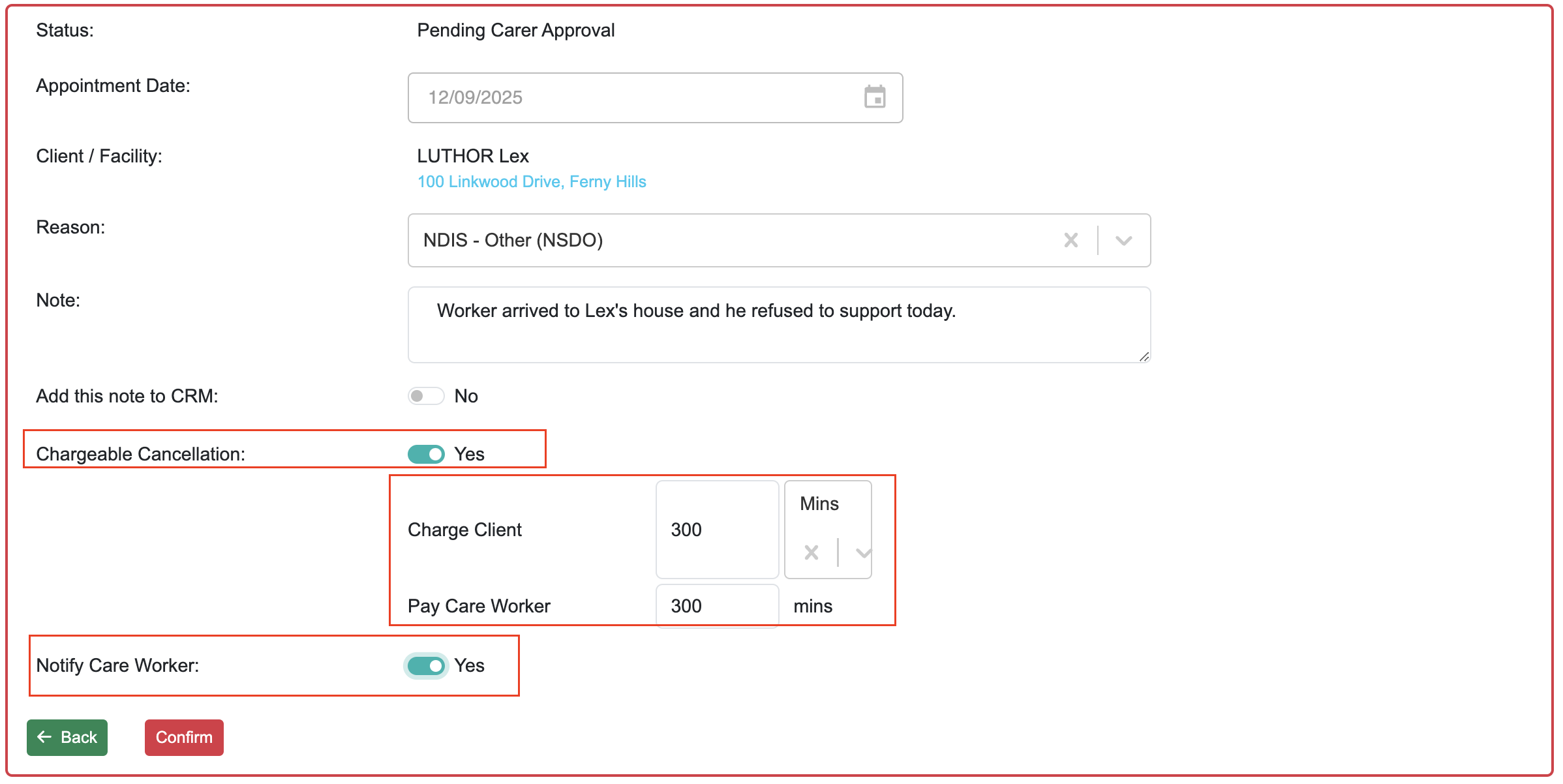
Enter the chargeable hours to pay your Care Worker. If there is no payment to be made i.e. you have rescheduled their time, enter 0 for no payroll payment.
Click 'Yes' to send an immediate SMS notification to your Care Worker. Change this setting to 'No' if they have already been notified.
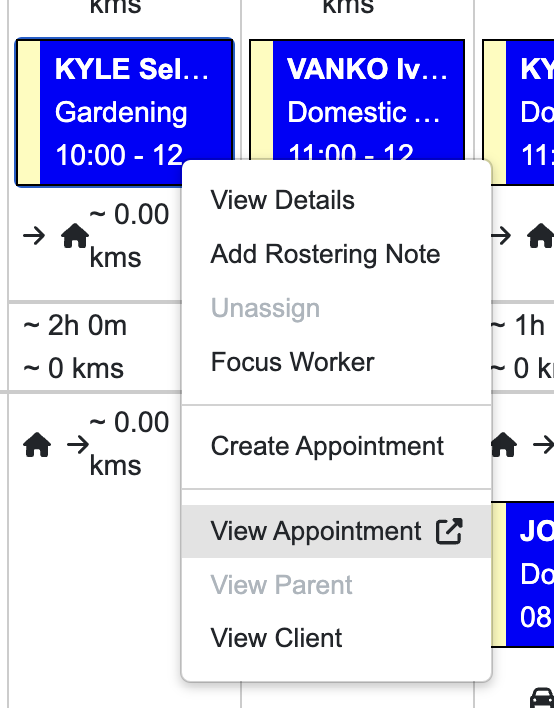
Important to note that the cancellation needs to be done in the actual individual appointment. In the weekly planner, right-click and select View appointment and it will direct you the actual individual appointment.
Click on 'Confirm' to process the cancellation.
Reversing a Chargeable Cancellation
There may be an occasion that the charges applied when cancelling an appointment, were incorrect. To correct the charges, simply process the cancellation of the appointment again. Complete the correct values/hours to be charged, add notes to record details about the correction. This process will overwrite the previous cancellation, storing the correct values in the system i.e. you do not need to make any adjustments to the original amounts, key the amounts to be charged.
If you have already processed the Payroll and Invoice pay run, you will need to correct this error in your Accounting and Payroll system also.
Find cancelled appointments using the Status filter and Date Range option to narrow your search.