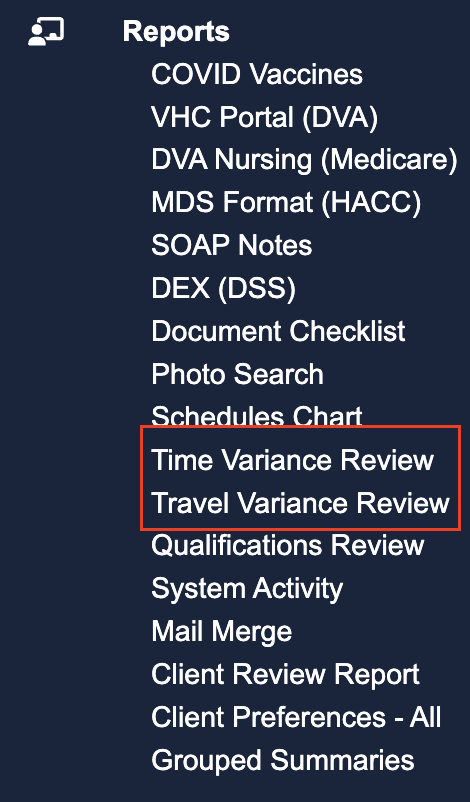
It is possible to edit a Care Worker's appointments where you are required to override the start/end times and the travel to/with a client. To see what variances, click on Time Variance Review or Travel Variance Review under the Reports tab.
Processing these variances on a daily basis will ensure your invoicing and payroll exports are correct, having reviewed and accepted/rejected any differences.
Start/End Variances - appointments that have differences in their scheduled start/end times in the last 21 days
Travel Variances - differences in kms claimed TO and WITH the client against those recommended in the last 21 days
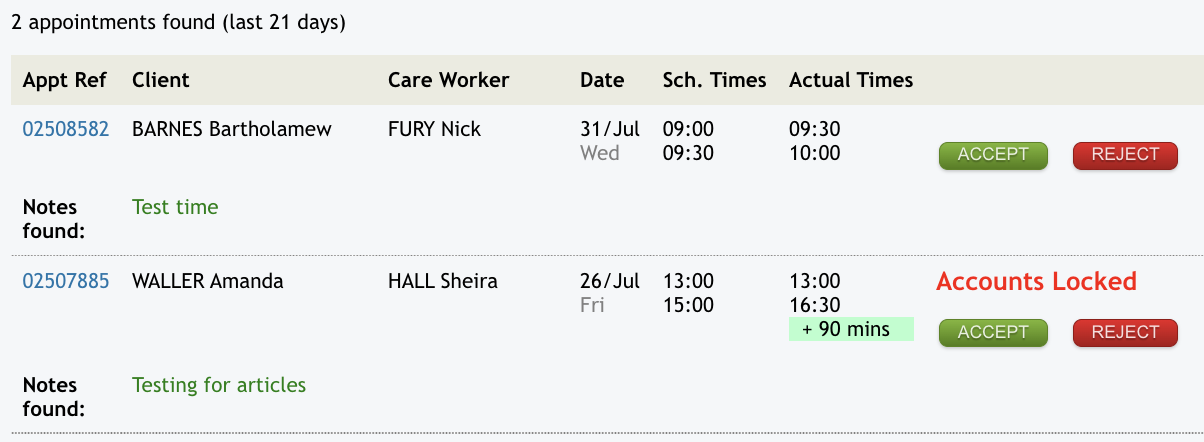
Once you click into the variance you want to review, a list will display with all the variances waiting to be processed.
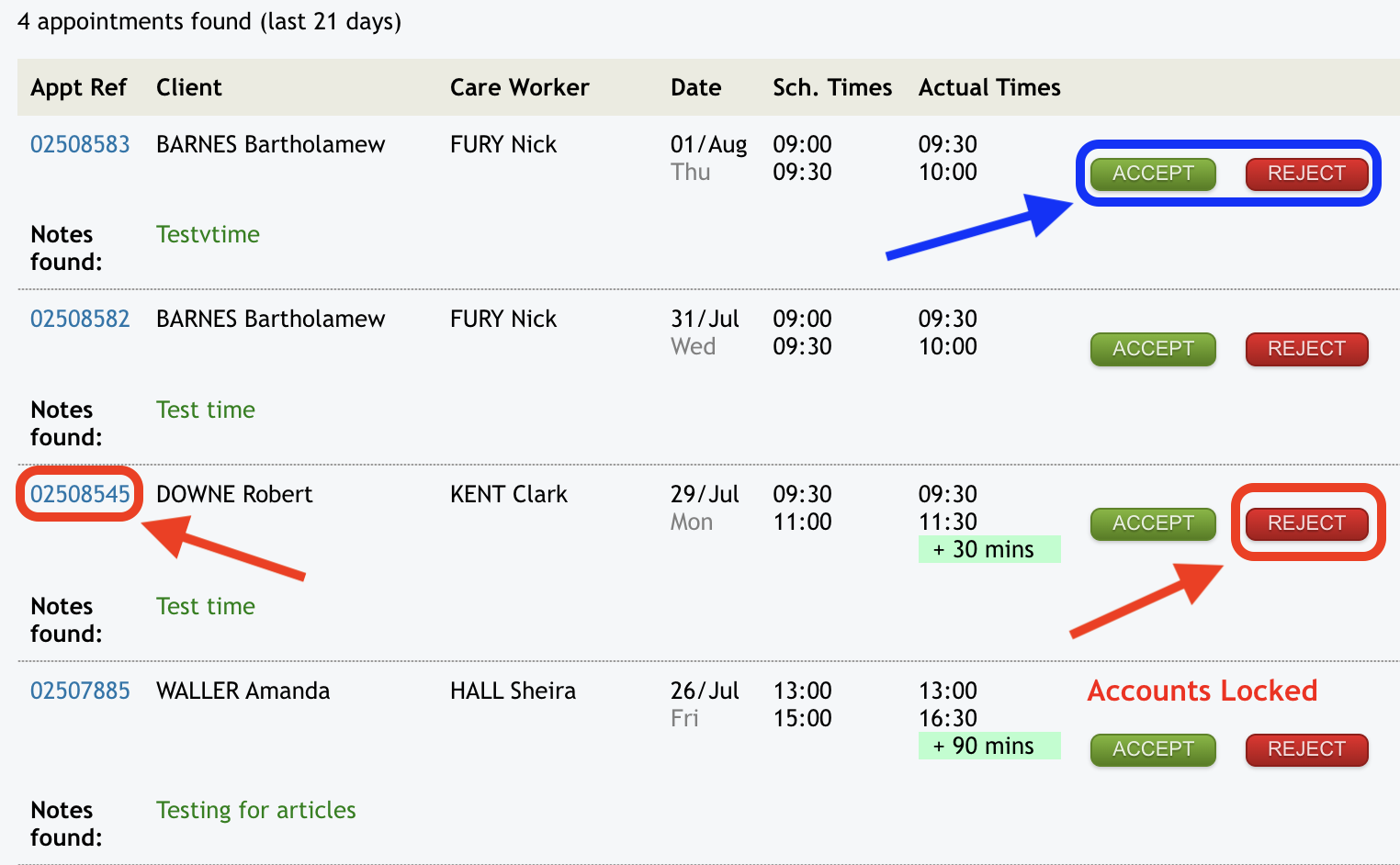
Best practice would see detailed notes displaying that the staff have written as to why they are submitting a variance e.g. delayed in dropping client back home due to being caught in accident from an accident on the way. There are two ways you can process these depending on whether you are happy to approve the variance or not.
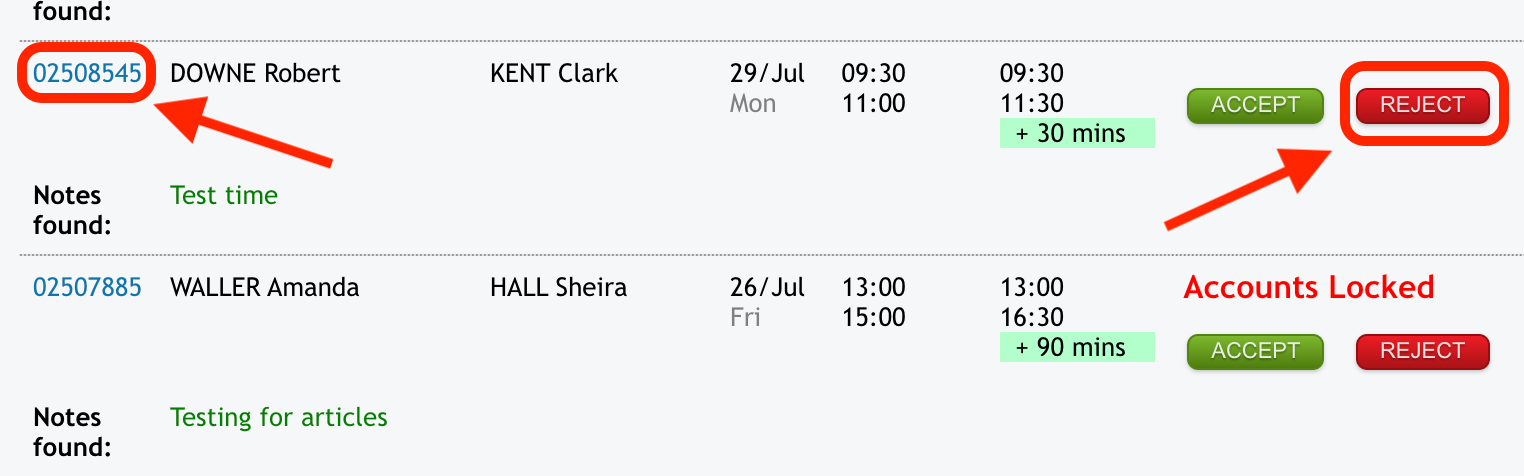
1. If you are happy with the information and willing to approve, click on 'Accept' and the variance is automatically accepted and processed for payroll and billing.
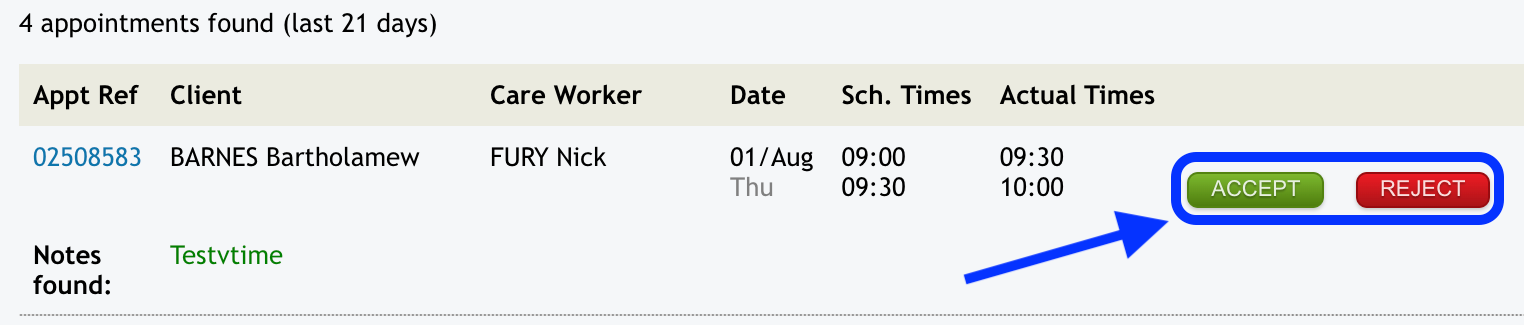
You will get an accepted message against the variance.

2. If you are not happy to approve you can either click on the reject button which will then default to the scheduled times for payroll and billing processes, or you can click on the blue appointment ID to open up the specific appointment and make further changes to the times etc.
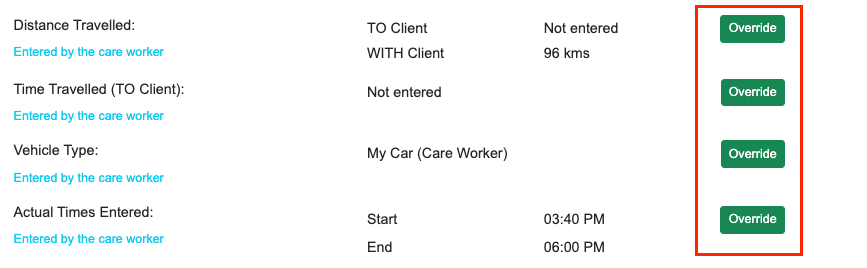
The appointment screen opens up and towards the bottom of the screen is the option to override times entered as well as KM travel to/with client and time travelled to the client (this information is normally entered by the care worker in the Mobile Web App).
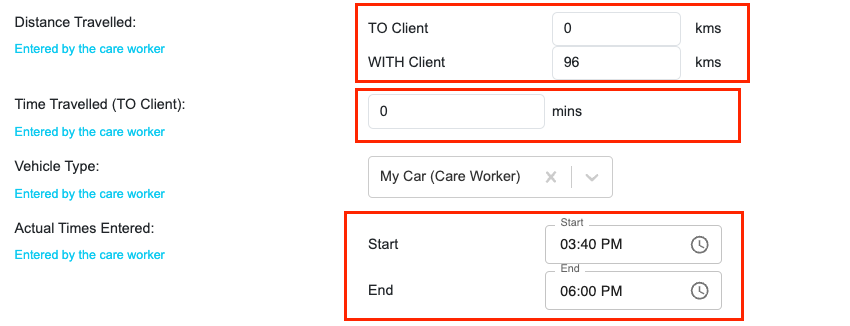
When editing appointments, the actual times and distance travelled values are used for billing and payroll purposes. Overriding this information as an Administrator will make any adjustments needed for invoice and payroll processing. To update the appointment time, edit the values in the Start or End fields or click on the icon to adjust the time; to override the time/travel, edit the values in the TO Client, WITH Client, or Time Travelled (TO Client) fields.
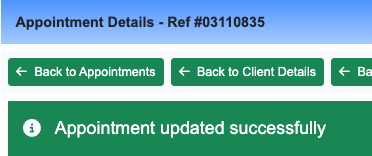
After the correct information is entered, click on 'Update Appointment' at the bottom of the screen, you will get a confirmation message appear in a green notification bar at the top once it is updated.
When you go back to the variance screen, you will only see the appointments still needing to be processed.