

Eziplan has a built in support care plan that can be used to plan out the goals and associated actions in consultation with your client, based on their specific care needs. There is also the ability to electronically sign this form. Alternatively, we are able to build a custom care plan form for you - please contact support@eziplan.com.au to discuss custom form needs.
From the left hand menu panel, click on 'Clients/Participants' then select Client List from the options that drop down to be taken to your full list to select a specific client.
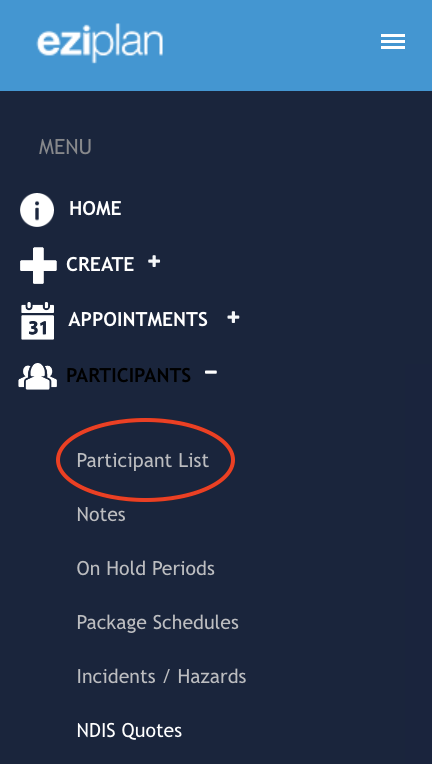
Alternatively, you can type part of the client/participant name into the search field at the top of your screen and then select the client you are wanting from the search results:

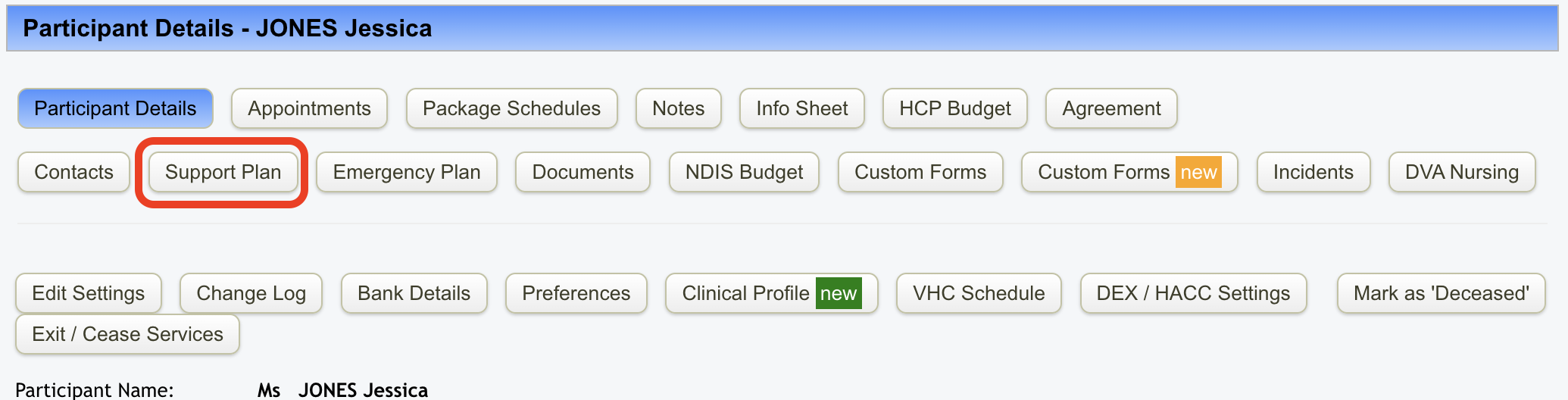
From the client/participant profile, click on the 'Support Plan' button, this will then open up the form for completion:
|
|
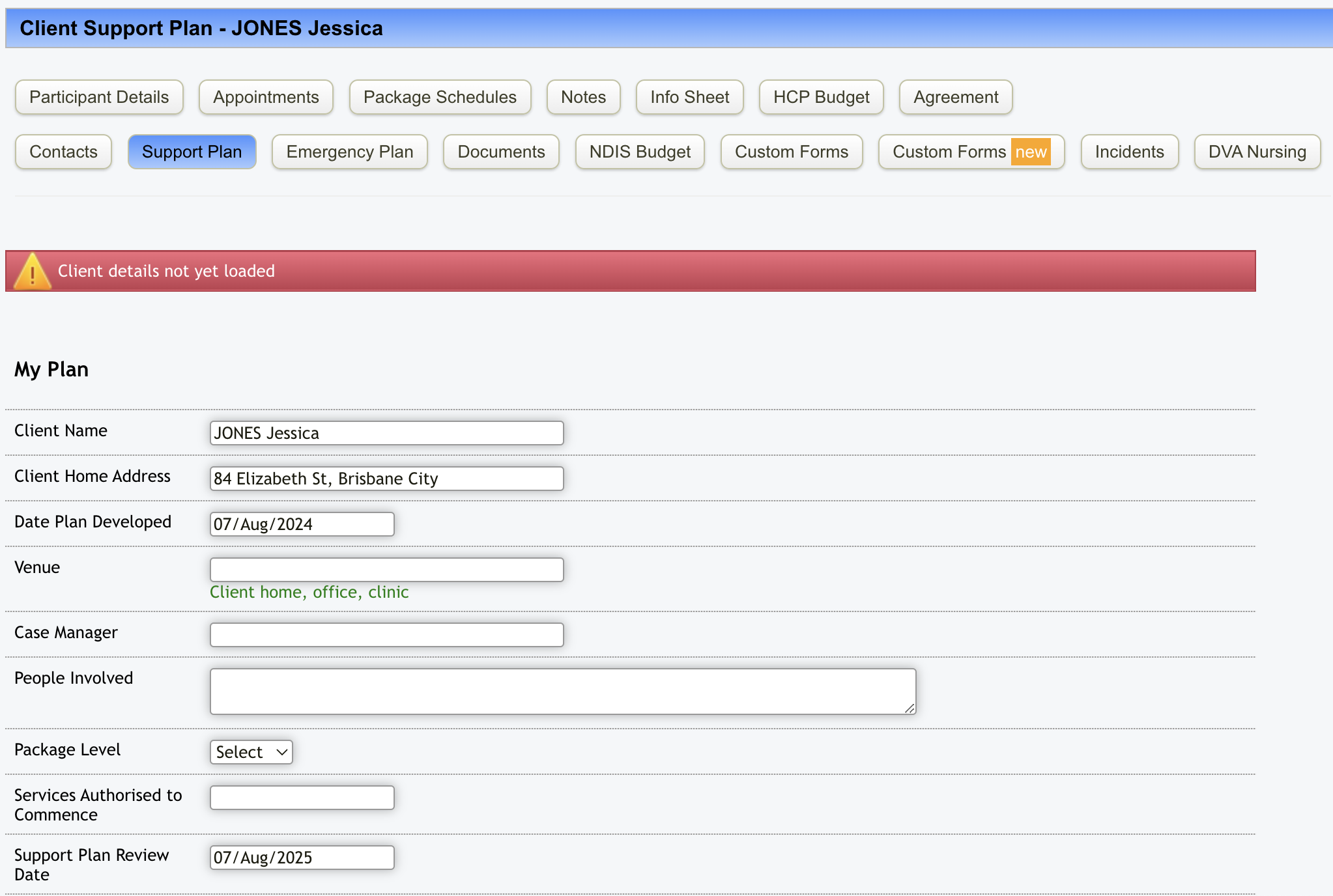
Populate the fields with the required information - there is space for 10 goals to be recorded.
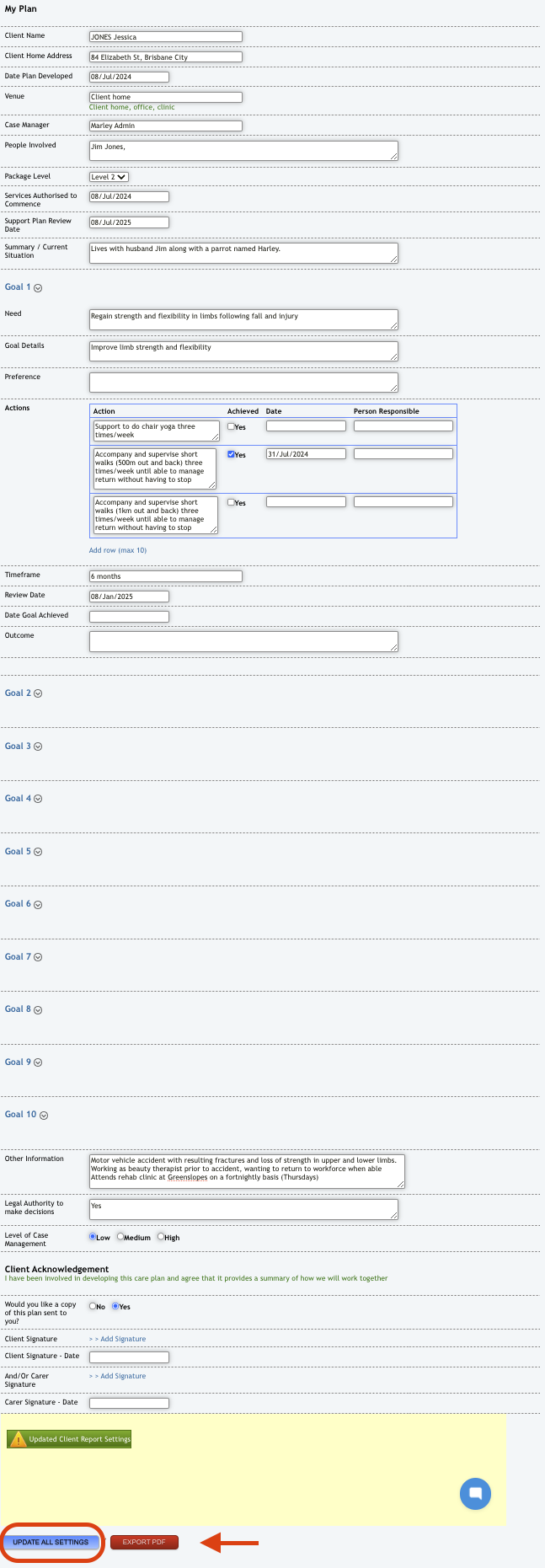
To save changes click on the 'Update Settings' button at the bottom of the page. You also have the option to export the PDF which you can then print off and provide to the client/participant and family.
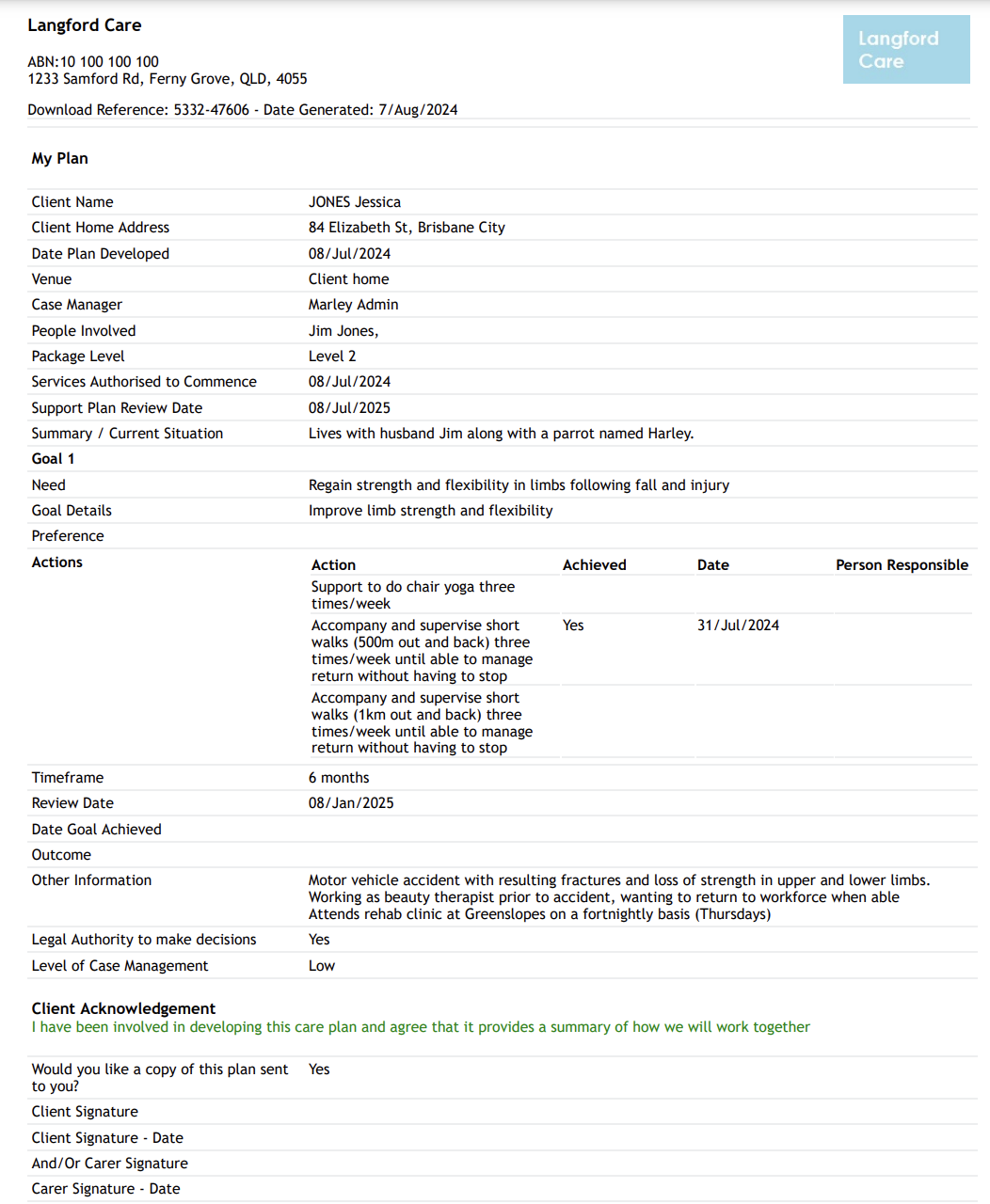
You also have the ability to share the support care plan with your field based staff, contact us at support@eziplan.com.au to have this functionality enabled.
Updating the Support Care Plan
To update the support care plan, access it as per the above instructions and update the fields that require updating. Click on 'Update All Settings' at the bottom.
If you need to access older versions of the form, this can be done from the top of the screen. The number of entries will be indicated under the 'Client Support Plan Changes' heading. Click on 'view all' to open up the list of available entries.
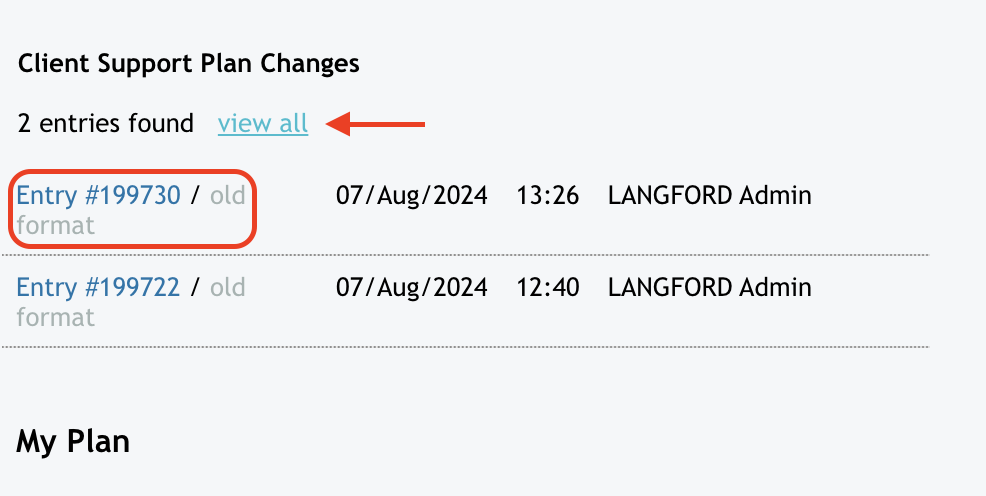
To look at one specifically, click on the hyperlink that is the Entry #.