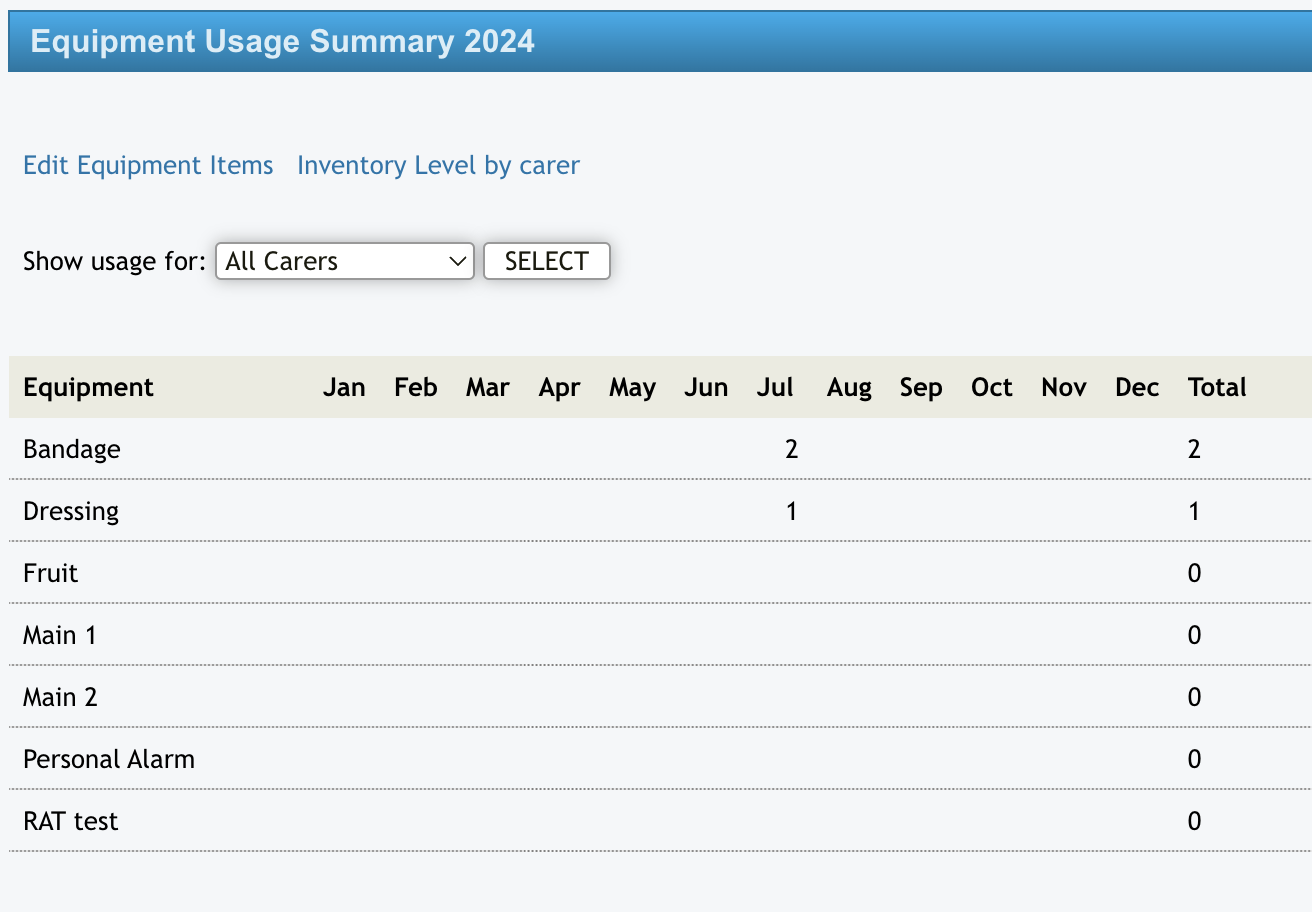
At times, staff may be required to use a range of single-use items during appointments e.g. bandages. You can use the Equipment section of eziplan to keep an inventory list of items which can be allocated for use during an appointment.
MANAGE STOCK
Creating Your Equipment List
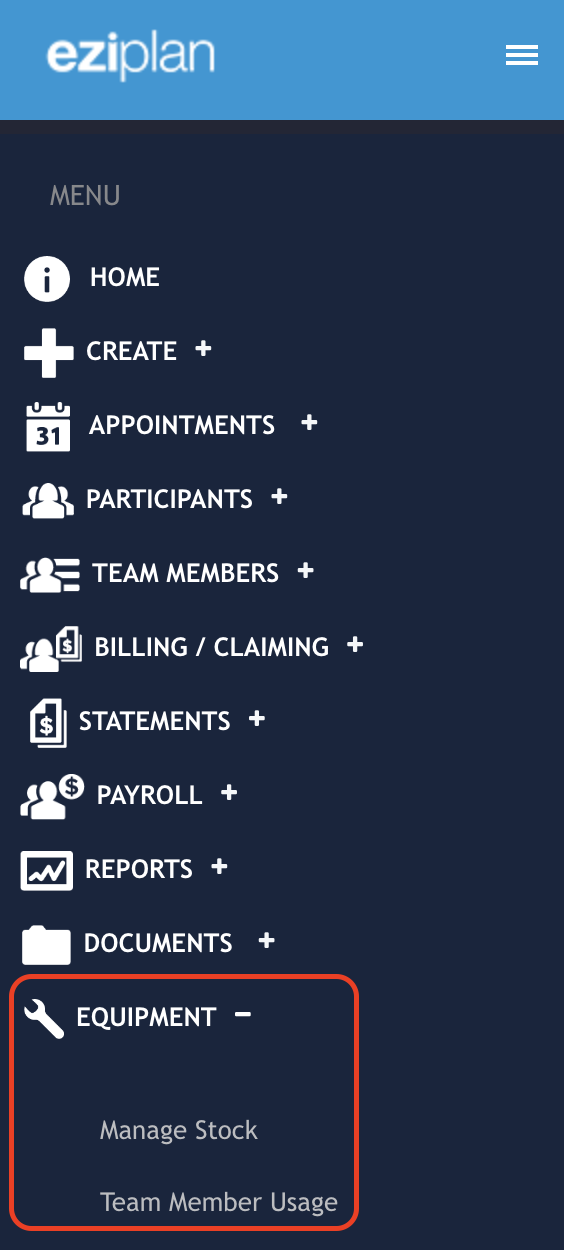
One the left hand menu panel, you will find the Equipment option towards the bottom:
When you select manage stock, the following screen opens up and has three sections - Purchase summary for the year, Dispensations for the year (stock supplied to staff) and then Current stock levels i.e. purchase summary numbers minus the dispensation numbers.
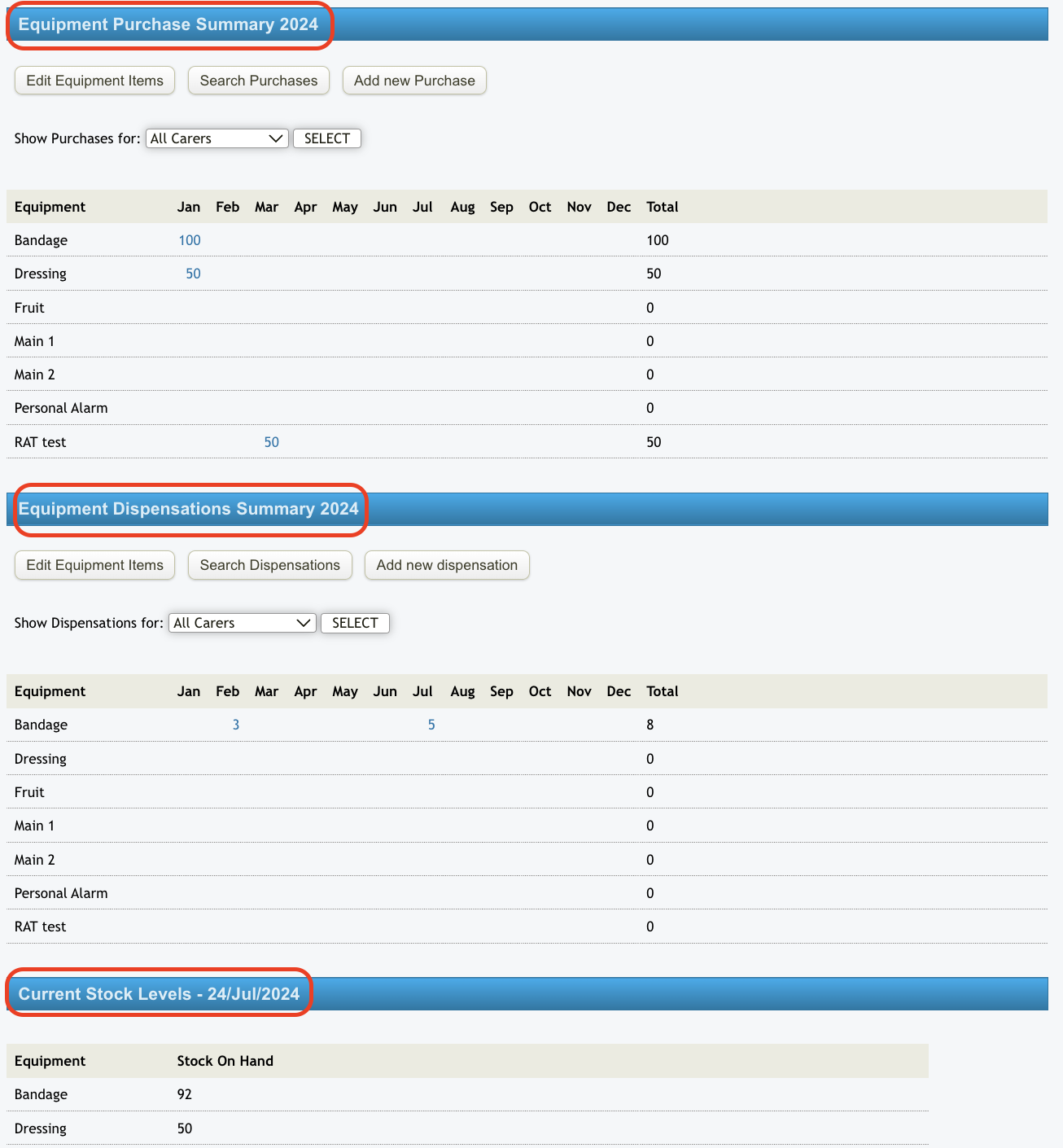
Equipment Purchase Summary
You can use this section to record your starting levels of stock and then additional equipment as it's purchased, giving you visibility of items purchased/added through the 12 month period.
You can search for purchases made by each staff member i.e. which staff member has added numbers of items in as purchased, by selecting their name from the drop-down list above the yearly layout (the default is All Carers) and clicking Select:

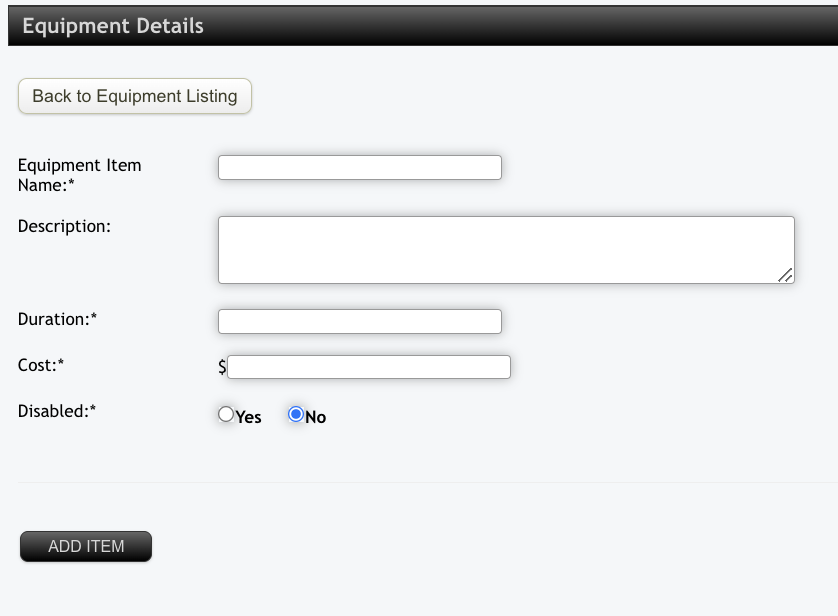
To create your list of items, click on the 'Edit Equipment Items' button which will open up the following screen and then click on 'Add new item':
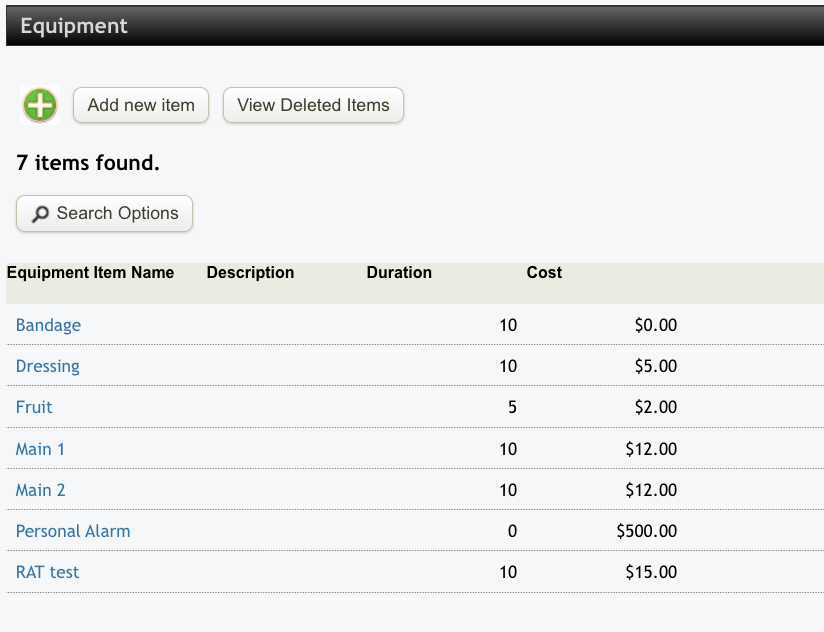
Fill in the details of the item (fields marked with * are compulsory) N.B. The cost field is FYI only and does not feed into the budget/finance sections.
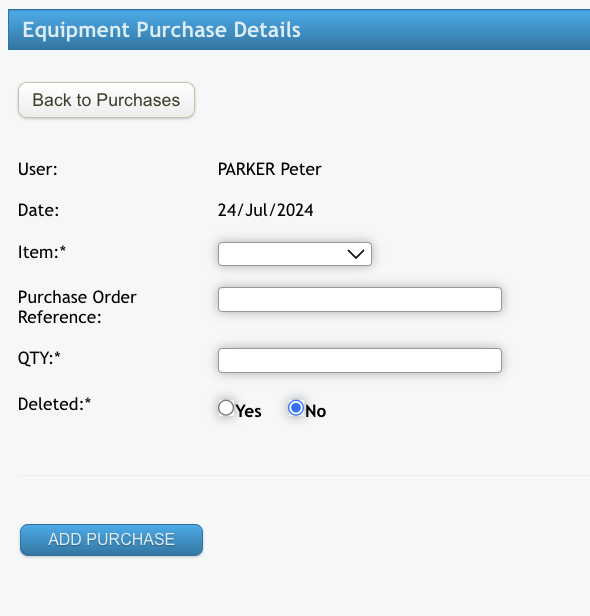
To add new purchases/stock numbers, click on the 'Add new Purchase' button and then fill in the fields as required:
Equipment items can be edited either through the purchase summary section or the dispensation summary section by clicking on the 'Edit Equipment Items' button and then clicking on the name of the item to be edited:
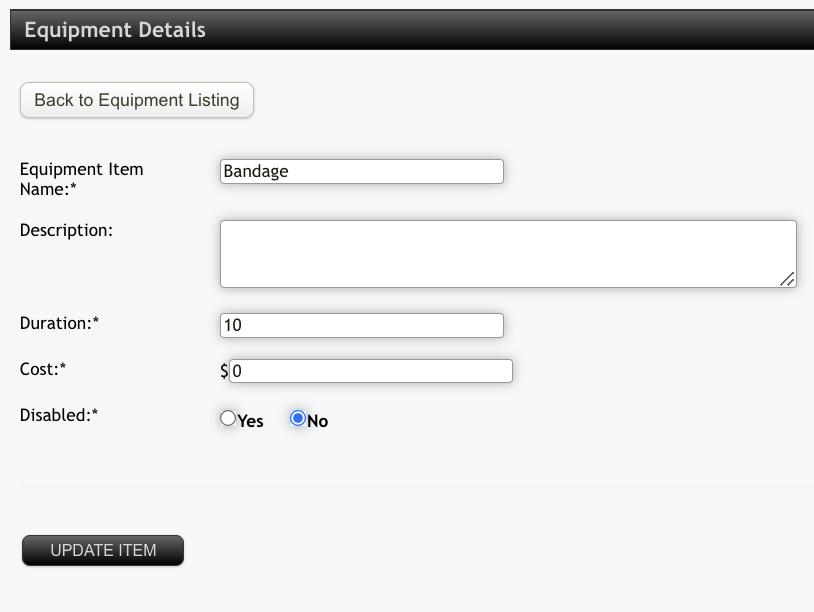
Update the relevant fields and then click on 'Update Item'.
Equipment Dispensation Summary
This is the section where you record the numbers of the stock items you have dispensed to the staff. The main screen shows you the summary of how many of each item has been dispensed each month across the 12 month period.
You can also see the number of items that have been dispensed to individual workers by selecting their name from the drop down and clicking select (Default is All Carers):

To add a new amount dispensation against a staff member, click on 'Add new dispensation':
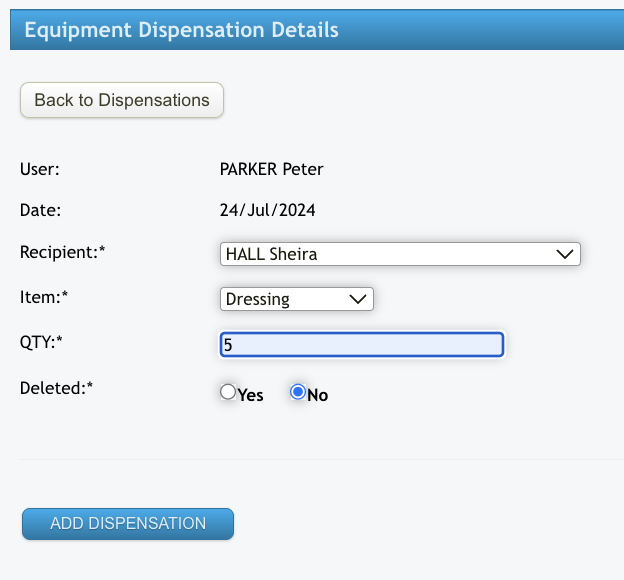
Your name will show as the user at the top of the fields, then complete the required fields selecting the staff member, the item being dispensed and the quantity then click on 'Add Dispensation'.
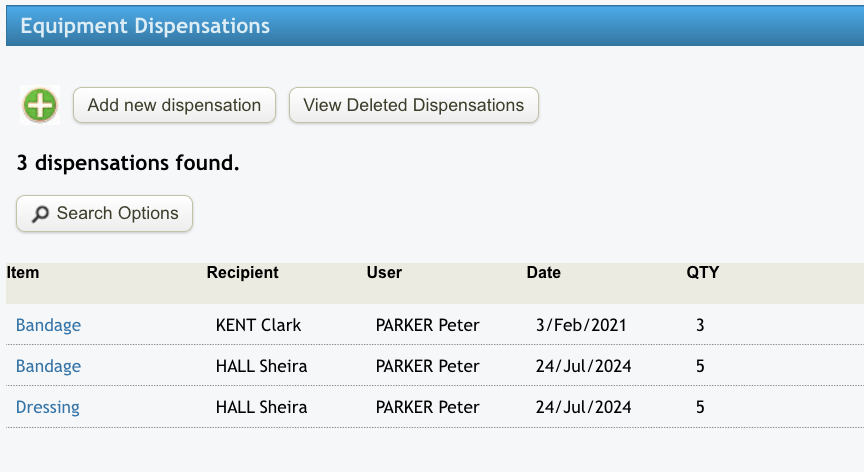
After the information has been saved, click on 'Back to Dispensation' and you will be taken to the below screen which provides you with a summary of all items that have been dispensed and who to:
Current Stock Levels
This section provides you with a summary of stock on hand i.e. numbers from purchase summary minus the numbers from dispensation summary.
TEAM MEMBER USAGE
Equipment allocated to an appointment and marked off by staff as used/completed will reflect on the 'Team Member Usage' screen under the Equipment section of the left hand menu panel. N.B. If staff update the number of items used before completing their appointments, the updated number of items does not feed through to the usage screen, only the original number allocated