

In this context, Budget Items refer to the specific categories or components of funding designated for different services and supports. In Eziplan, you are able to set up these items to help manage and allocate resources efficiently, ensuring that spending aligns with the Client's plan and needs while remaining compliant with guidelines.
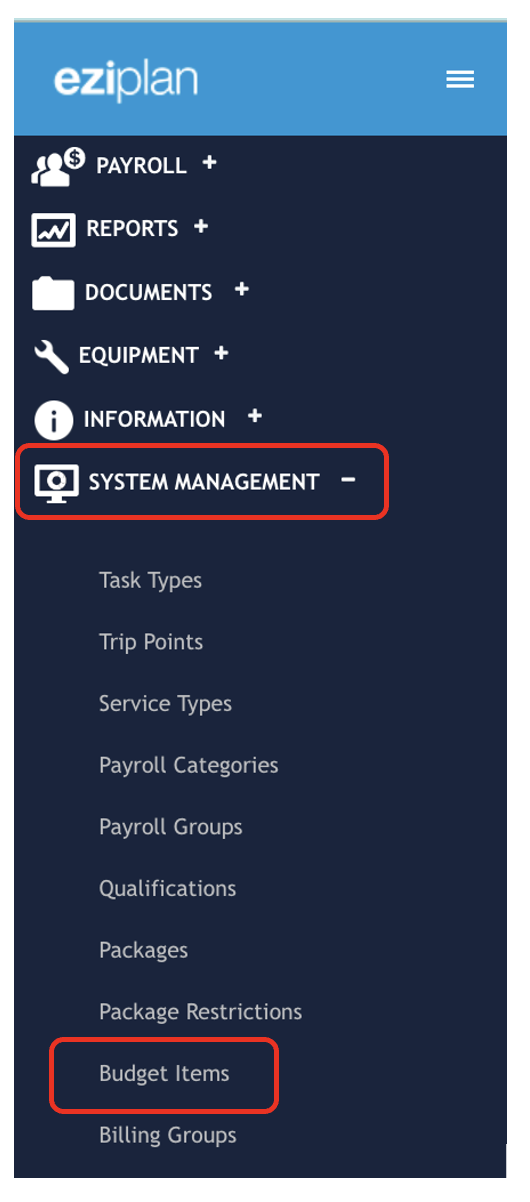
Let's start by navigating from the Eziplan Menu:
Select System Management and then Budget Items
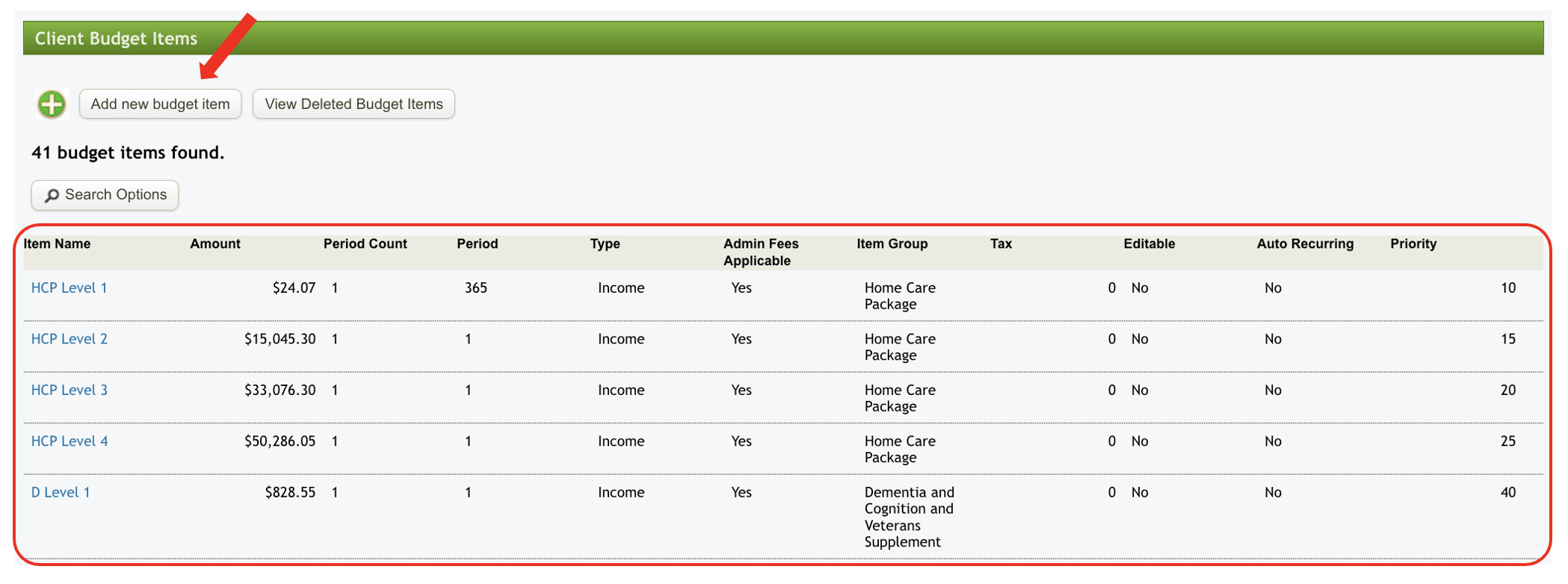
If items have already been listed, they will be immediately visible when you access the Budget Items page.
To add a new budget item, click the Add New Budget Item button at the top.
then start filling out necessary details for the budget item which include the following:
Item Name
Amount
Percentage of Income
Period Count - frequency or time frame over which a budget item or financial allocation is applied. Drop down options available be set daily, weekly, fortnightly, every 4 weeks, quarterly, half yearly or annually
Type - a drop down option available to choose whether it's an Income, Adjustment or an Expense
Item Group - a free text field where you can specify the item group such as Home Care Package, Personal Contribution, Charges, Services, or any other relevant designation based on Client's needs
Item Category - drop down options are available such as Government subsidy, Client Contribution, Contingency, etc. You may leave it as Not Set if unsure
Admin Fees Applicable - tick Yes if you want admin fees to include in the statement or tick No if not
Tax
Editable
Auto recurring - choose Yes if you want the budget to be automatically included in the statement, or No if you prefer not to include it.
On Hold Calculations - drop down option either Full amounts during on Hold which means that the entire allocated amount is being temporarily held or reserved and will not be used until the hold is lifted. Or you may select No charge.
Priority
Once completed, click Add Budget Item and the item will appear in your Budget Items.
And that is how you add a Budget Item!
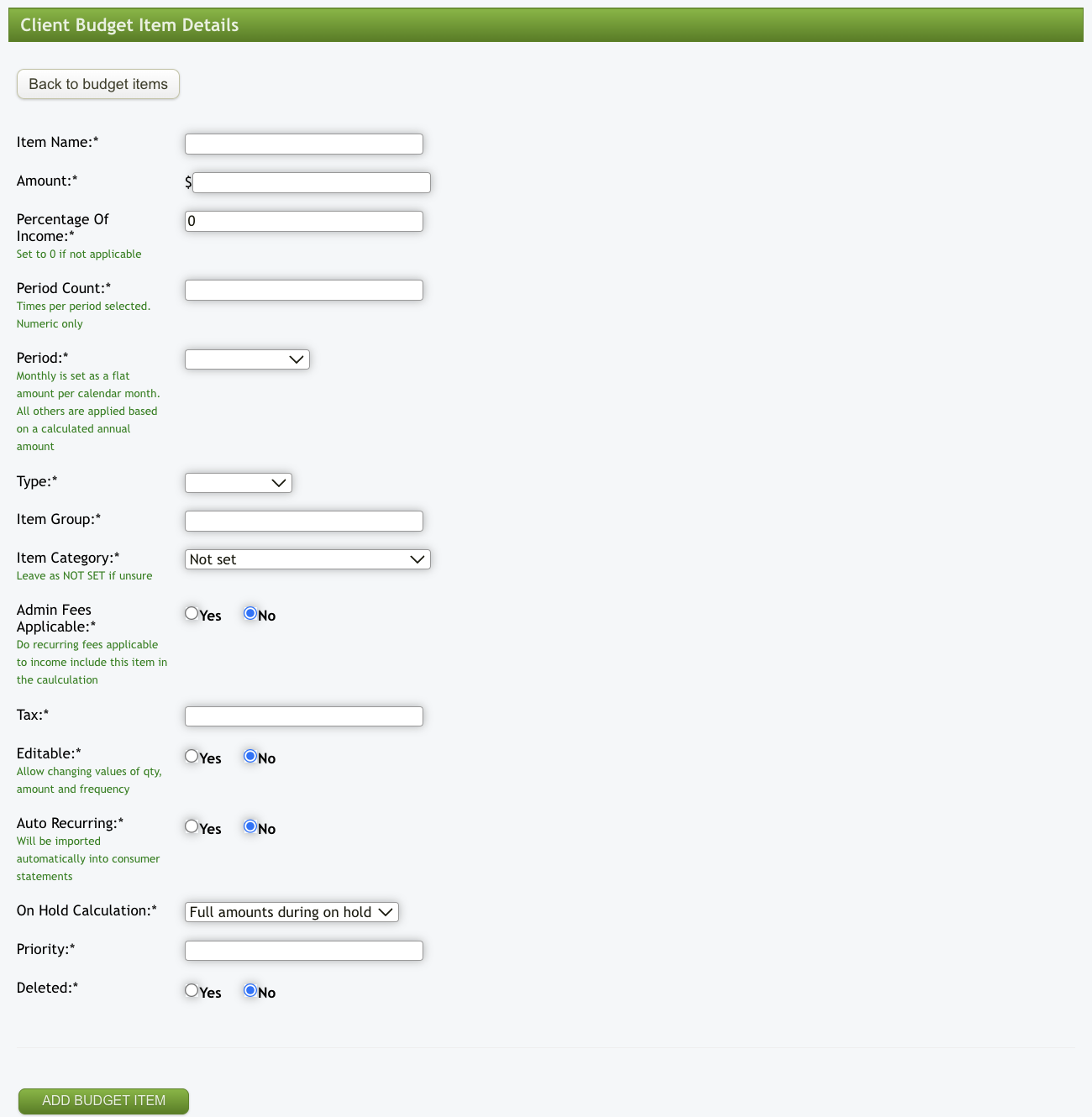
To edit (for ex: update rate) a budget item, go to the Budget Items page, select the item you want to modify, and make the necessary changes. Then hit Update
You may want to review Update Budget in Eziplan section for more details.
To delete an item, scroll to the bottom of the page, tick Yes under Deleted, and click Update.
Click on the following links if you want to know more about Budget Forecasting or the NDIS Budget Forecast