

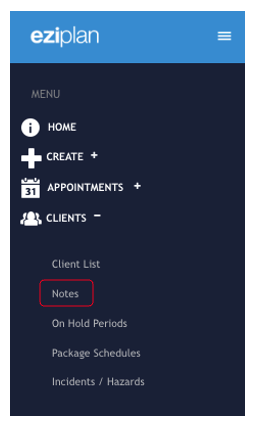
To edit a note, navigate to Clients > Notes from your Eziplan Menu
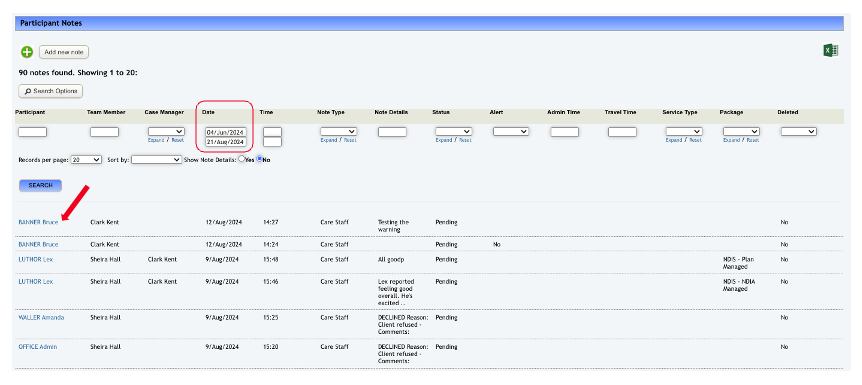
Fill out details from the filtering options whether it's for a particular client, care worker, date, etc. Then hit Search.
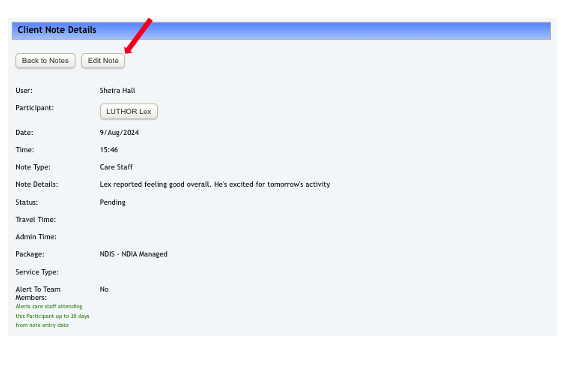
Once you have selected the client, click Edit Note
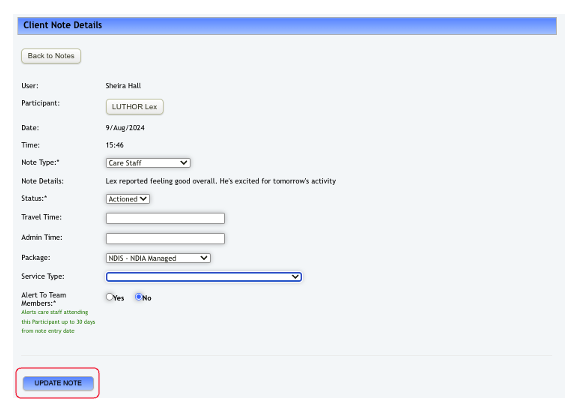
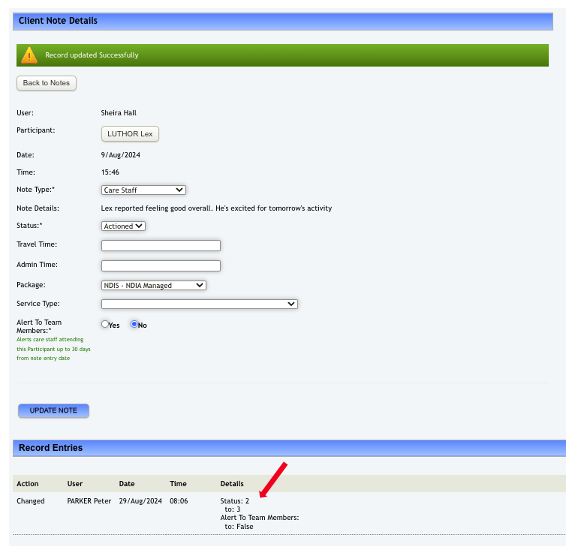
And from there, make necessary changes. Once done, hit Update Note
Changes and activity log within the note should then automatically reflect in the system.
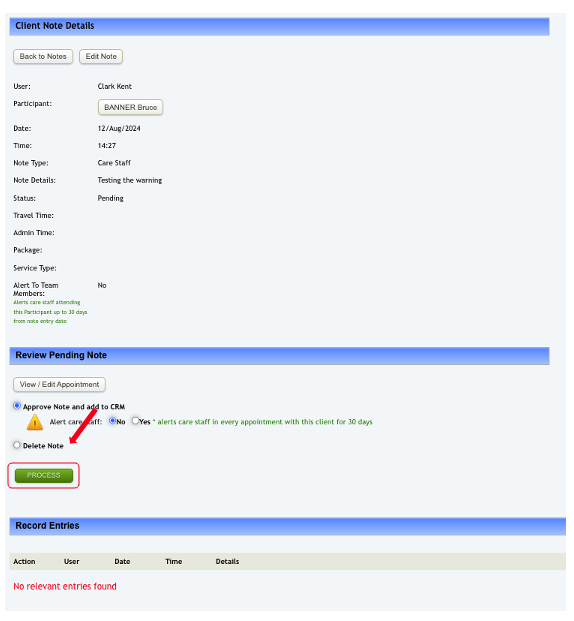
To delete a note, same process as above but scroll down a bit to the bottom and tick Delete Note then click Process
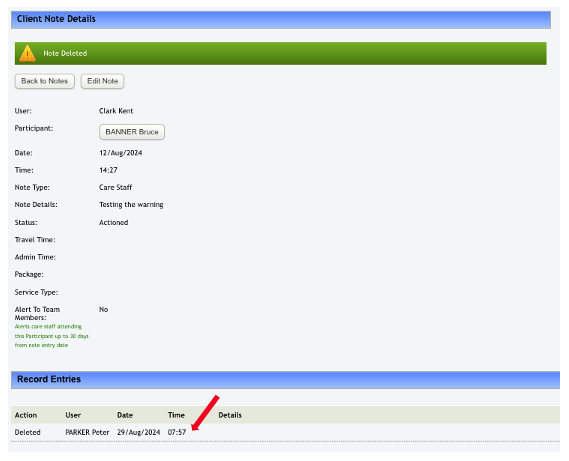
This should be automatically handled by the system. As an admin, you can view the activity log below to see any changes made to the note. If a note is deleted, the log will show the user responsible for the deletion, along with the exact date and time it occurred.
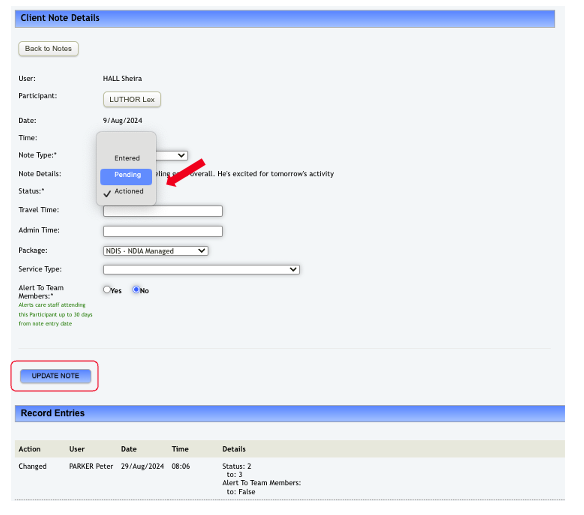
In the event where the note you want to delete has already been actioned, select a particular note and then hit Edit Note
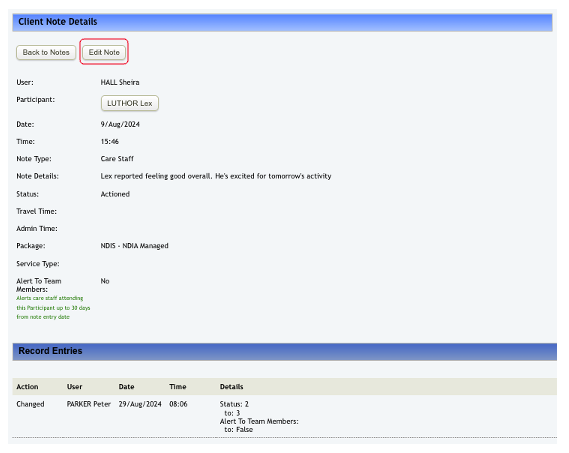
from here, change the status from Actioned to Pending then hit Update Note. Then follow the same process above on how to normally delete a note.
And that is how you manage notes in Eziplan!