

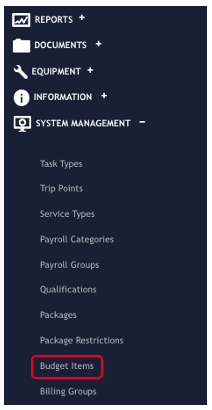
To start with, navigate to System Management > Budget Items from the Eziplan Menu
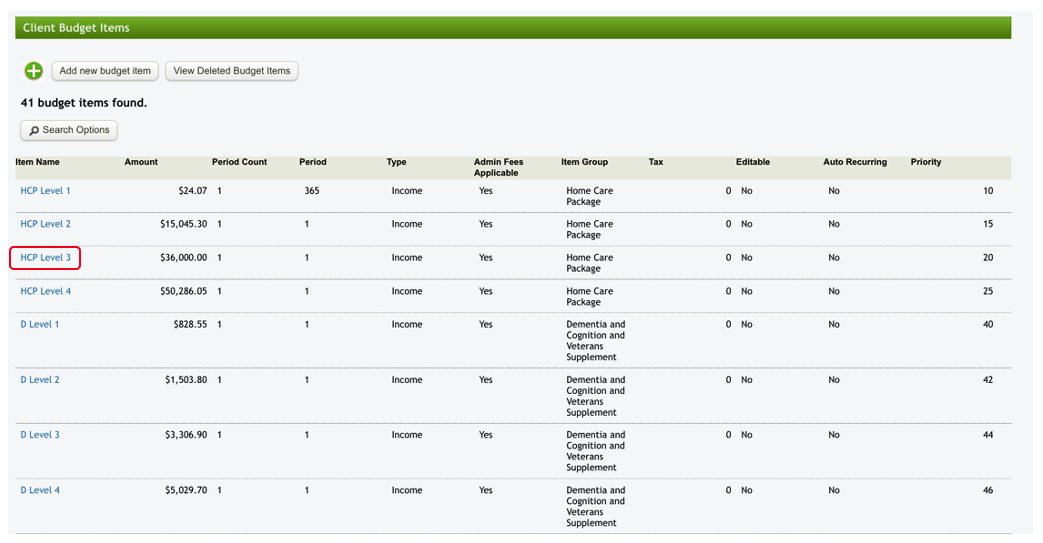
You will then see all the Budget Items listed within your system. Select any item you want to update
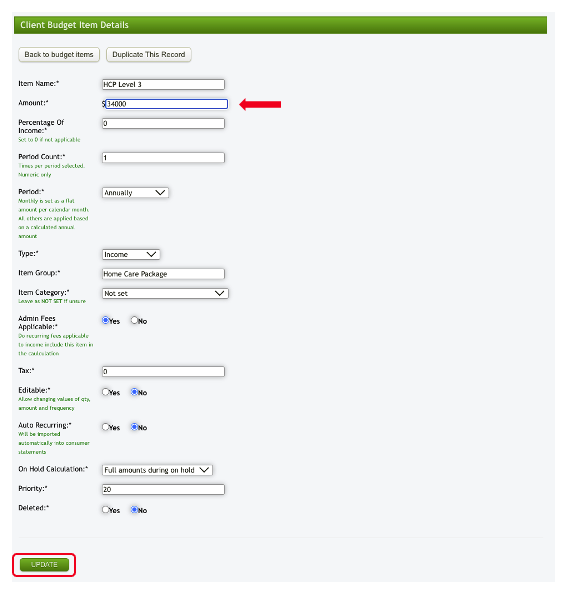
This will then open up the Budget Item details. In the amount field*, put in the new rate and then hit Update to save the changes.
If the amount to be set up is daily, enter the daily rate and set the period to daily.
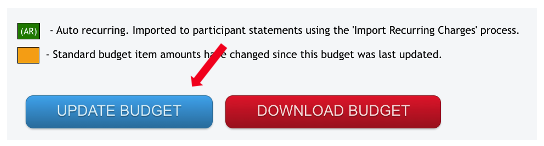
Next, go to the Client's profile, select the HCP Budget tab and you will see the amount highlighted in yellow meaning the amount has been changed since the budget was last updated.
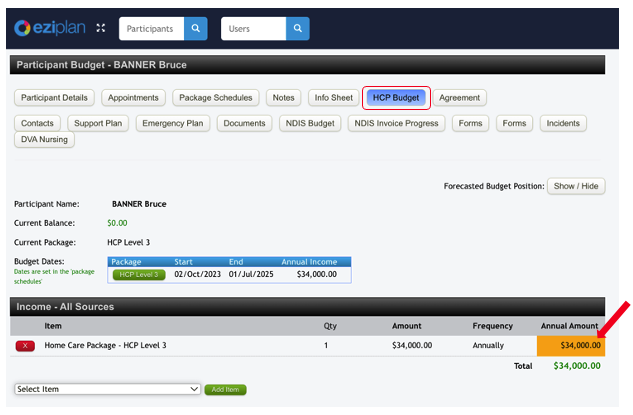
While you can see the change here live, items that are automatically put in the Statements (like Management Fees) will not update in the Statement until the Budget is updated by clicking the blue Update Budget button below.
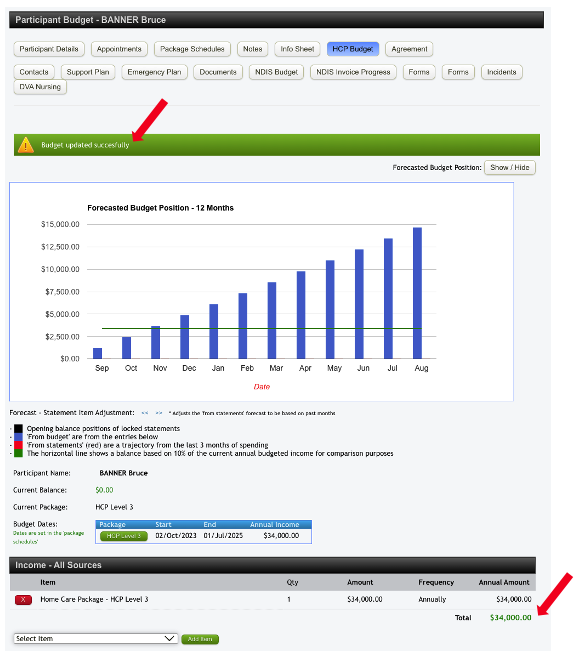
A green confirmation prompt will appear to indicate that the update is successful. Update should then come through the Client's statement.
And that is how you update the budget in Eziplan!