

Important to note that if a Group Appointment is created with a start date set weeks in the past, the system will only display upcoming appointments. It will not backtrack or show past appointments from the original start date.
Adding or removing clients mid-way through a Repeat Group Appointment in Eziplan is straightforward. The process is similar to managing dates for regular Repeat Appointments but the key difference is Admins can view all clients involved in the Group Appointment regardless of their individual start or end dates.
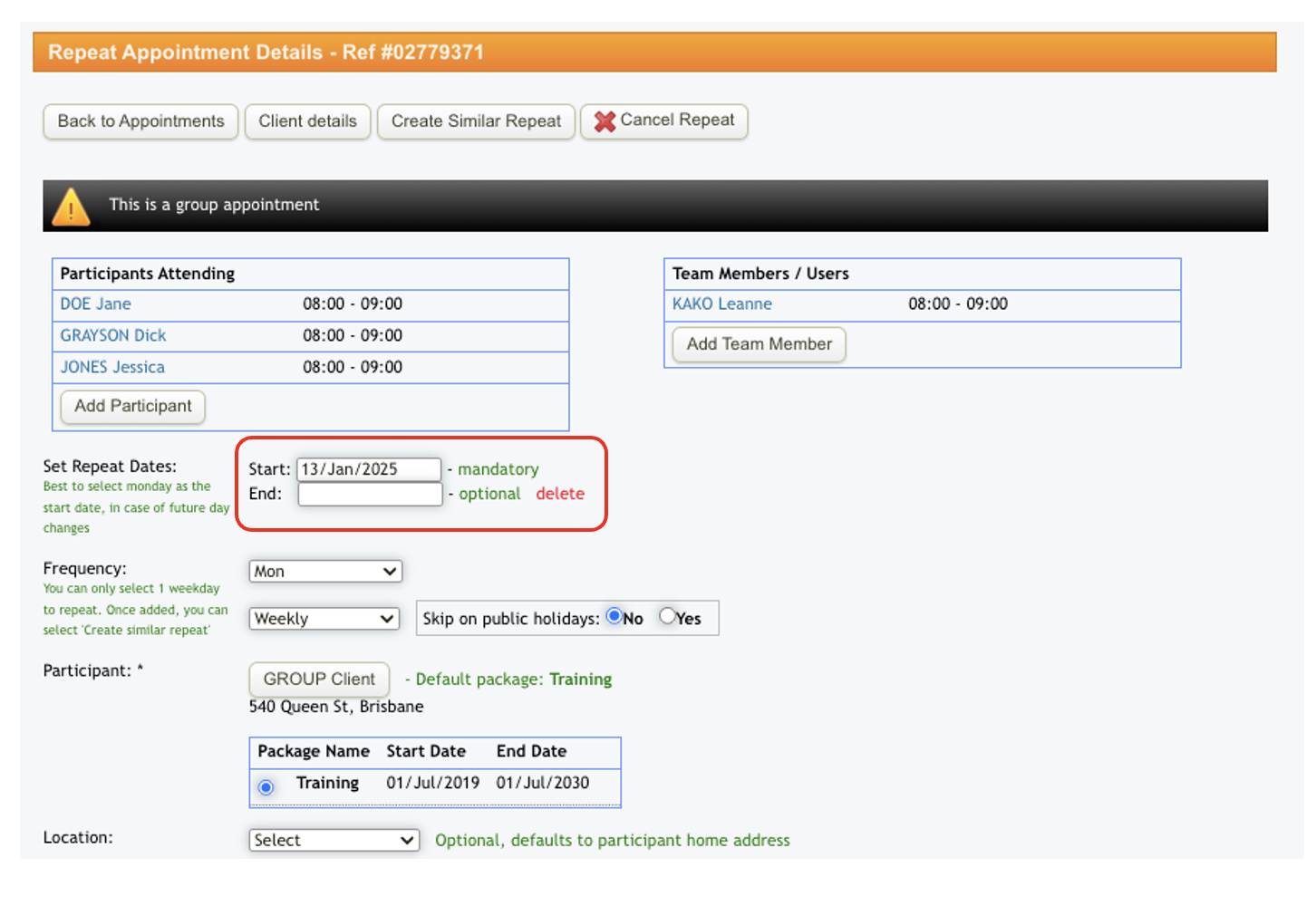
For context, below is a sample of a Repeat Group Appointment with starting date of 13 Jan. As this is a recurring appointment, no specific end date has been set for this Group Appointment. Clients within this Group Appointments have different start and end dates.
Modifying a Client’s Start or End Date
If you need to adjust a client's participation within a Repeat Group Appointment, follow these steps:
To add an end date:
Click on the client’s name.
This will direct you to their specific Repeat Appointment page.
Enter the desired End Date and click Update Repeat Appointment to save changes.
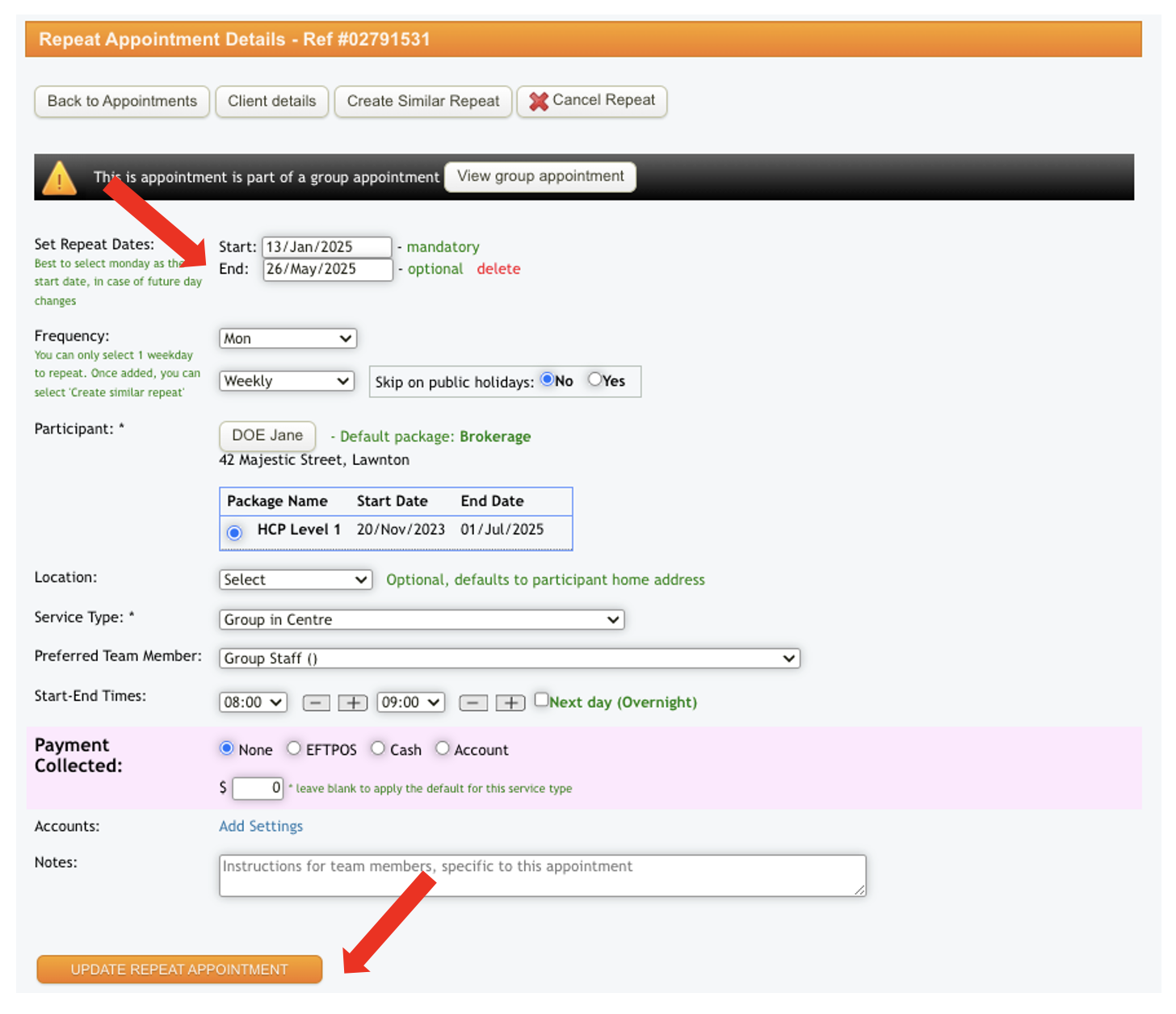
To add a start date, follow the same process:
Click on the client’s name.
The Repeat Appointment details page will open.
Select the desired Start Date and click Update Repeat Appointment to save changes.
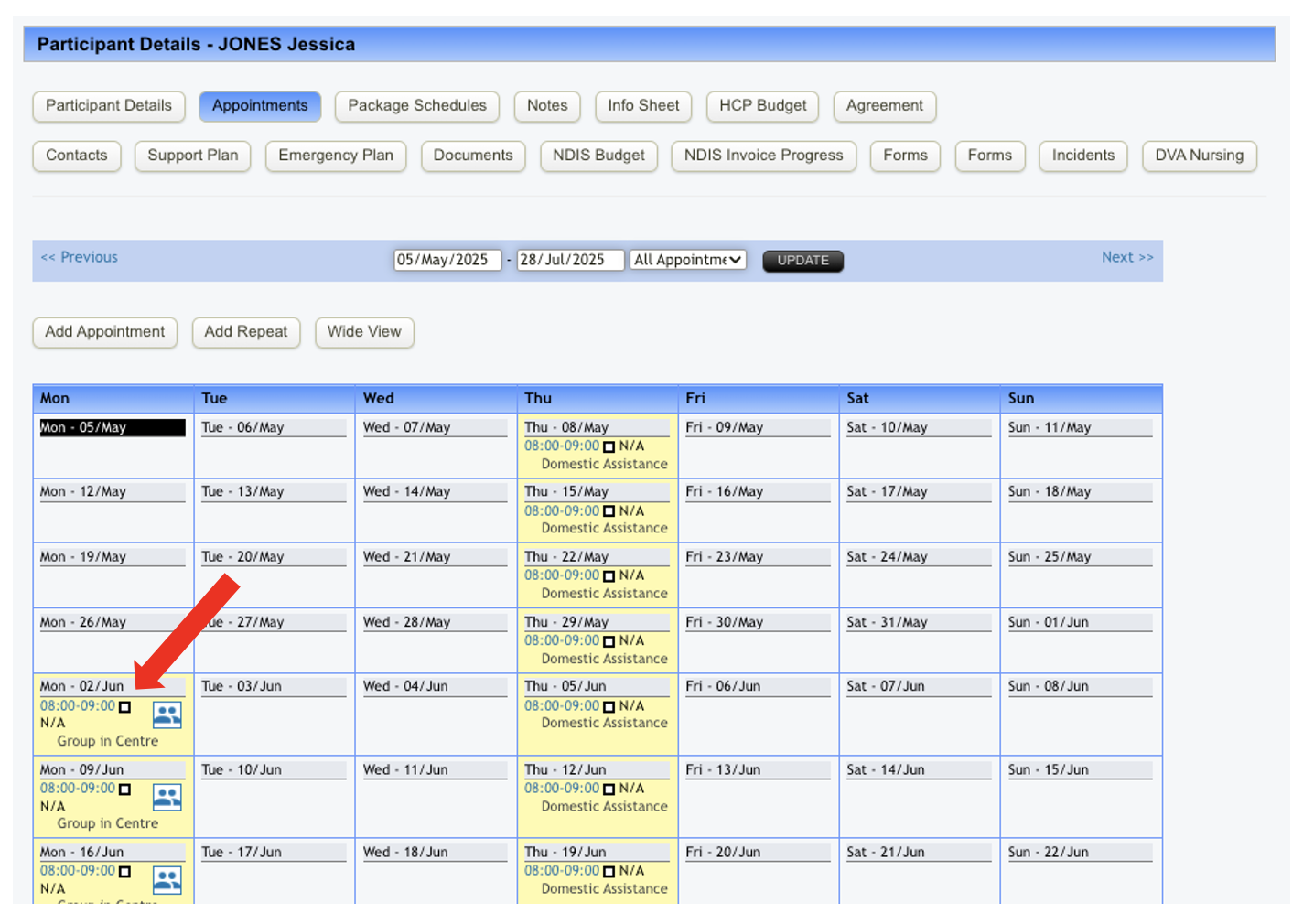
Here is a side by side view of client's appointment within the Repeats Group Appointment.
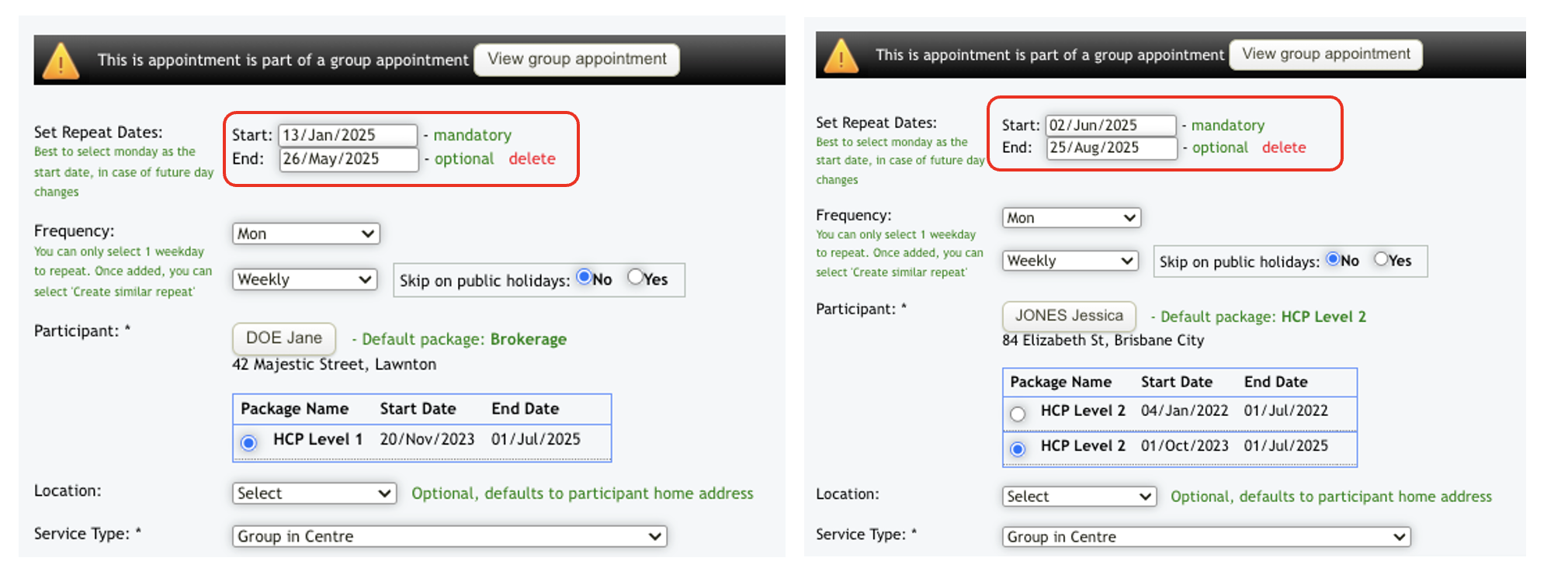
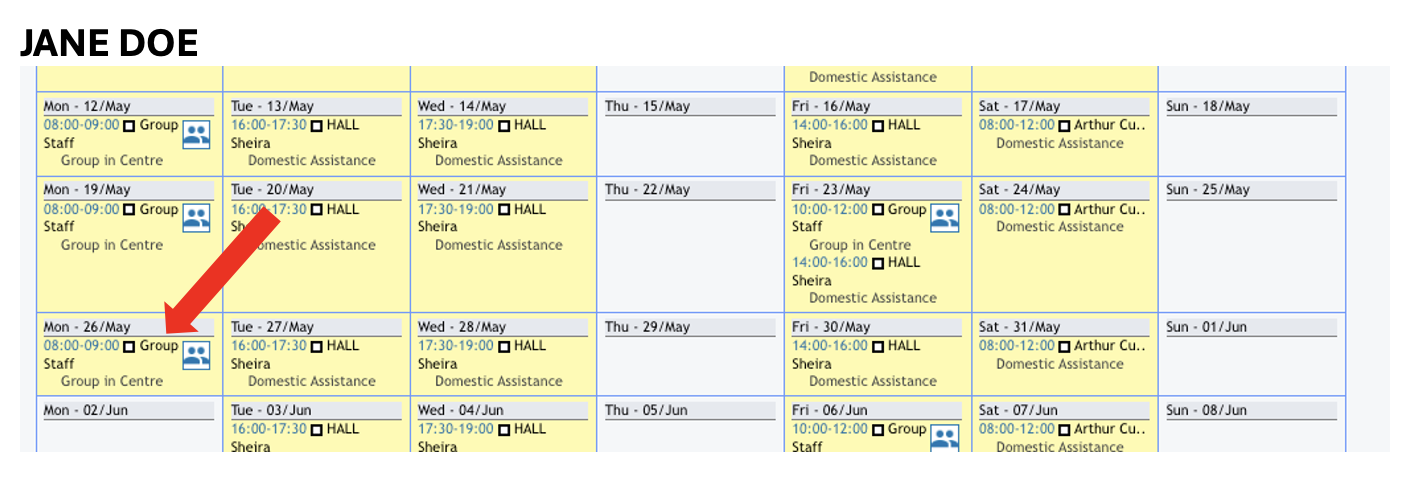
Jane Doe's calendar reflects that her Repeat Group Appointment ended on May 26, 2025, as indicated in her individual repeat appointment settings.
Jessica Jones' calendar shows that her Repeat Appointment starts on June 2, 2025, following the date specified in her repeat appointment settings.
You may note that Group Appointments allocated for Jones on June 2025 appear as N/A. It's because these appointments have not yet been loaded in the Weekly Planner. Once loaded, this should appear as Group Session / Group Staff.
And that is how you manage Client's Start and End dates within the Group Appointment. For further assistance or clarification, feel free to reach out.