

How to access a draft claim
To access a draft claim you will need to navigate to the Support at Home Claims section:
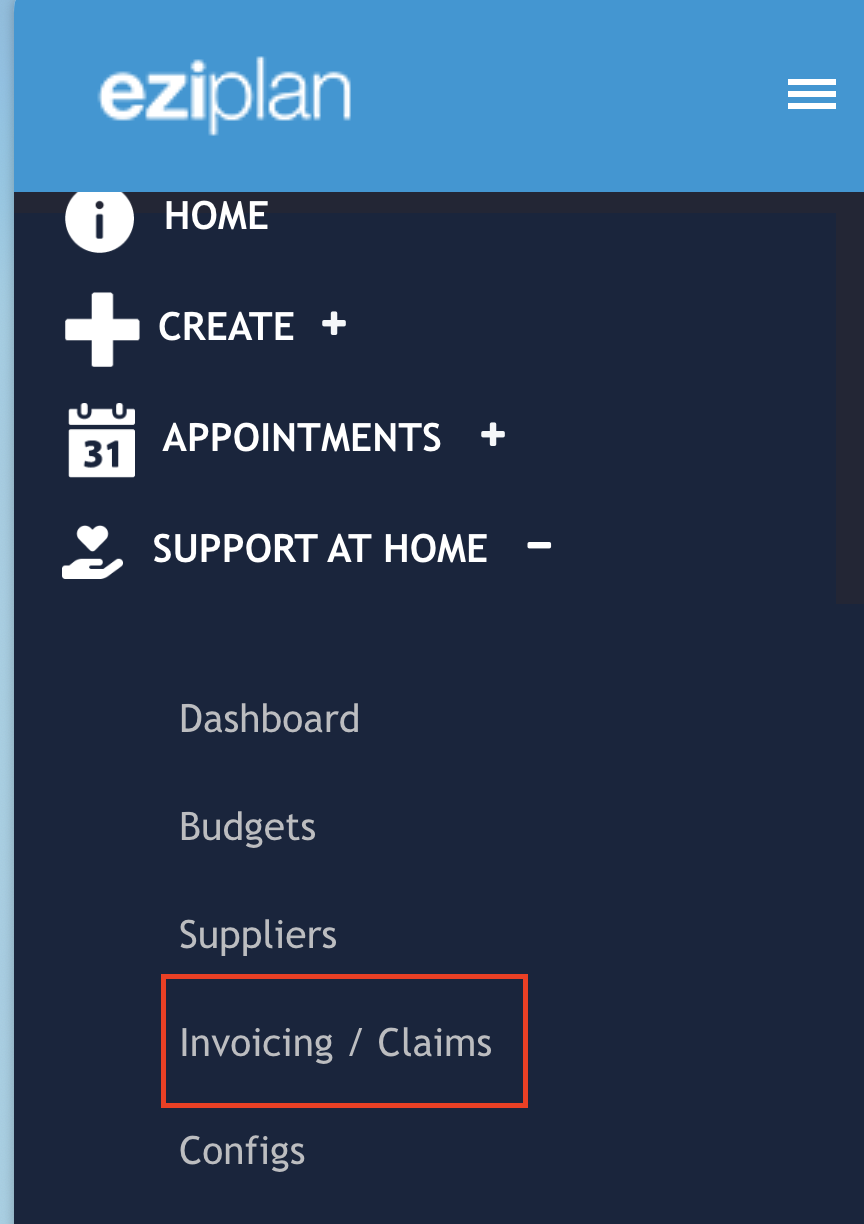
Once inside you can then select on the relevant claim you want to view:
Once inside the claims module you will see a popout with all claim information displayed on the screen:
The headers of the claim can be used to help identify and fix any errors:
Ref - Appointment or Supplier Invoice Item Line reference
Origin - Appointment or Supplier Invoice
Client Name
Date - Date of Appointment or Date of Service on Invoice Line item
SaH Service - The Support at Home Service that will be claimed
SaH Wrap - if applicable the Wrap that has been associated with the Invoice Line Item
SaH Item - if applicable the Item that has been associated with the Invoice Line Item
Amount - How much is being claimed
Budget - Has the system found a corresponding client budget
Valid - is this claim line valid and ready for claiming
Error - if the claim line is not valid what is the reason
Investigate - A link to where Eziplan is suggesting a fix
⊘ - Ignore button (see fixing errors section below)
🗑️ - Delete line (see fixing errors section below)
Fixing Errors
When you create a claim you might come across a variety of errors that have been put in place to avoid failed claims when loading into PRODA. The claims module is designed to help you quickly identify and resolve issues within the one screen.
In order to fix errors providers will have 4 options to choose from:
Delete the claim:
Until the claim is finalised users are able to delete a claim and start from scratch. To delete a claim click on the delete icon in the bottom left of the page:
Fix the error:
Providers will need to use the information and tools provided as part of the claims module to identify and fix errors.
In the claims module there are 3 sections that will help you identify and resolve issues:
Error Column
The error column will display the errors that are causing the claim line item to fail. For a list of errors see the section belowRef. Column
The Ref. column is hyperlinked to where the claim item came from. For appointments it will take you straight to the Appointment - for Supplier Invoice Item Lines it will take you to the Supplier Invoice it came fromInvestigate
Depending on the error, Eziplan will link users to different sections. This link is a suggestion and may not be the root cause of the issue.
As an example"No matching billing rule found for service/ budget / price plan revision combination" might have multiple causes.
Eziplan will link users to the clients budget assuming that the clients budget is missing a service. However what could have also happened is the client was rostered onto the wrong service type and as such the user needs to go to the appointment and modify the Service Type to the correct one as listed on the budget.
3. Delete the claim row
If users are unsure what the correct fix is for a certain claim row but do not have the time to fix the error now, they can delete the row from this claim.
Whilst this will remove the row from this current claim, the claim item will be included in any future claims within the same date range.
Ignore claim row
If a mistake has been made previously and this claim item should never be claimed for, users can use the Ignore claim button to remove the claim row from this claim and ALL future claims.
If users make a mistake and ignore a row by mistake they can delete the row BEFORE finalising and the claim item will be included in future claims.
Error List
Appt./Invoice | Error | Investigate will link to | Possible Fixes |
|---|---|---|---|
Appointment | No SaH Service associated with TP Service Type | SaH Configs | |
Appointment | No active budget found for client / date range/ funding type combination | SaH Eziplan Budgets | Ensure that the client has an active budget for the correct date range with the correct funding type (package schedule) |
Appointment | No matching billing rule found for service / budget / price plan revision | SaH Eziplan Budget | Ensure that the clients budget has the appropriate service type added |
Appointment | Service billing rule is not an accepted type - cannot derive rate/price | SaH Configs | |
Appointment | Units / duration cannot be less than zero | Appointment | Ensure that the time being entered on the appointment is greater than 0 |
Appointment | Rate / price must be greater than $0.00 | SaH Configs | Ensure that the price plan has a rate >0 for the selected service type and shift |
Appointment | SaH Services requires wraparound/item | N/A | Add in the Wraparound or Item directly on the claim |
Invoice | No SaH Service associated with TP Service Type | SaH Configs | |
Invoice | Supplier invoice line does not have a budget | SaH Supplier Invoice | Ensure that the Supplier Invoice Line item in question is correctly matched to a budget |
Invoice | Supplier Invoice item has a Budget ID linked which is not Active | SaH Budget Planner | Ensure that the budget that has been linked as part of the Supplier Invoice process is set to Active |
Invoice | Units / duration cannot be less than zero | SaH Supplier Invoice | Ensure that the Qty listed on the Supplier invoice line item is >0 |
Invoice | Rate / price must be greater than $0.00 | SaH Supplier Invoice | Ensure that the Rate listed on the Supplier invoice line item is >0Ensure that the price plan has a rate >0 for the selected service type and shift |
Invoice | SaH Services requires wraparound/item | N/A | Add in the Wraparound or Item directly on the claim |