

Overview
This guide walks you through generating Support at Home (SAH) statements in Eziplan. SAH statements use complex calculations that are fundamentally different from Home Care Package statements, and require careful attention to ensure compliance and accuracy.
Statements are formatted to flow continuously across pages — content follows one section to the next without forced page breaks, and every page includes a footer showing: Client Full Name | Statement ID | Month/Year | Page Number. Individual rows are never split across pages.
Critical Information - Read Before Proceeding
Support at Home statement generation is irreversible. Once created:
Statements cannot be edited or deleted
All data is finalised and locked
There is no preview option
Before generating statements, you must:
Generate all claim items for the period
Fully reconcile all claims in Eziplan
Upload current budget information from PRODA
If you proceed after ignoring these requirements or making an error, Eziplan Support may not be able to assist.
Only proceed when you are ready to generate and issue final statements.
Prerequisites Checklist:
Before starting the statement generation process, ensure you have:
✓ Generated all claim items for the statement period
✓ Reconciled all finalised claims with received payments
✓ Downloaded current budget CSV file(s) from PRODA (see Step 4 below)
✓ Reviewed any outstanding or draft claim items
Statement Generation Process
Step 1: Navigate to Statements
Navigate to SAH Claims > Statements and click the + New button to open the statement generation wizard.
Step 2: Review Initial Warning
The wizard begins with a warning screen reminding you of the prerequisites and irreversible nature of statement generation. Read carefully before proceeding.
Step 3: Select Statement Criteria
Choose which participants and which month you want to generate statements for:
Participant Selection: Leave blank to generate statements for all participants, or select specific participants
Statement Month: Use the date picker icon to select the statement period
Step 4: Upload Current Budget Information from PRODA
Why This Step is Required
Unlike Home Care Package Payment Summaries, Support at Home files from the Government do not contain current budget information. To ensure your statements are accurate, up-to-date, and compliant, you must download current budget data from the Aged Care Provider Portal and import it into Eziplan.
Important: If you manage multiple NAPS IDs, download the budget CSV for each NAPS ID and upload them all in this step.
How to Download Budget CSV from PRODA
Log into the Aged Care Provider Portal via PRODA
Click the menu icon in the top left corner
Scroll down and click "Current Budgets"
Download the CSV file at the bottom of the page.
Upload the downloaded CSV file(s) in Eziplan
Repeat the process for Historical budgets
Upload Warnings — Partial Matches
If Eziplan cannot match some rows in the uploaded file to clients in your system, those rows will be skipped and the upload will continue with the valid rows. A yellow warning card will appear showing:
The number of rows successfully processed
The number of rows skipped and the reason for each (e.g. client not found in this branch)
This commonly occurs when a file contains clients from multiple branches or NAPS IDs. Eziplan automatically filters to process only the clients relevant to your branch — you no longer need to manually edit the file before uploading.
Review the warning details carefully. If clients you expected to be included appear as skipped, verify their client profile in Eziplan before proceeding.
Upload Errors — File Cannot Be Processed
If you see a red error message like this after uploading:
Common causes include:
The file format has been modified
The file contains data that cannot be parsed
If you see this error, stop immediately and resolve the issue before continuing. Contact Eziplan Support if you need assistance identifying the problem.
Step 5: Review Statement Preview and Warnings
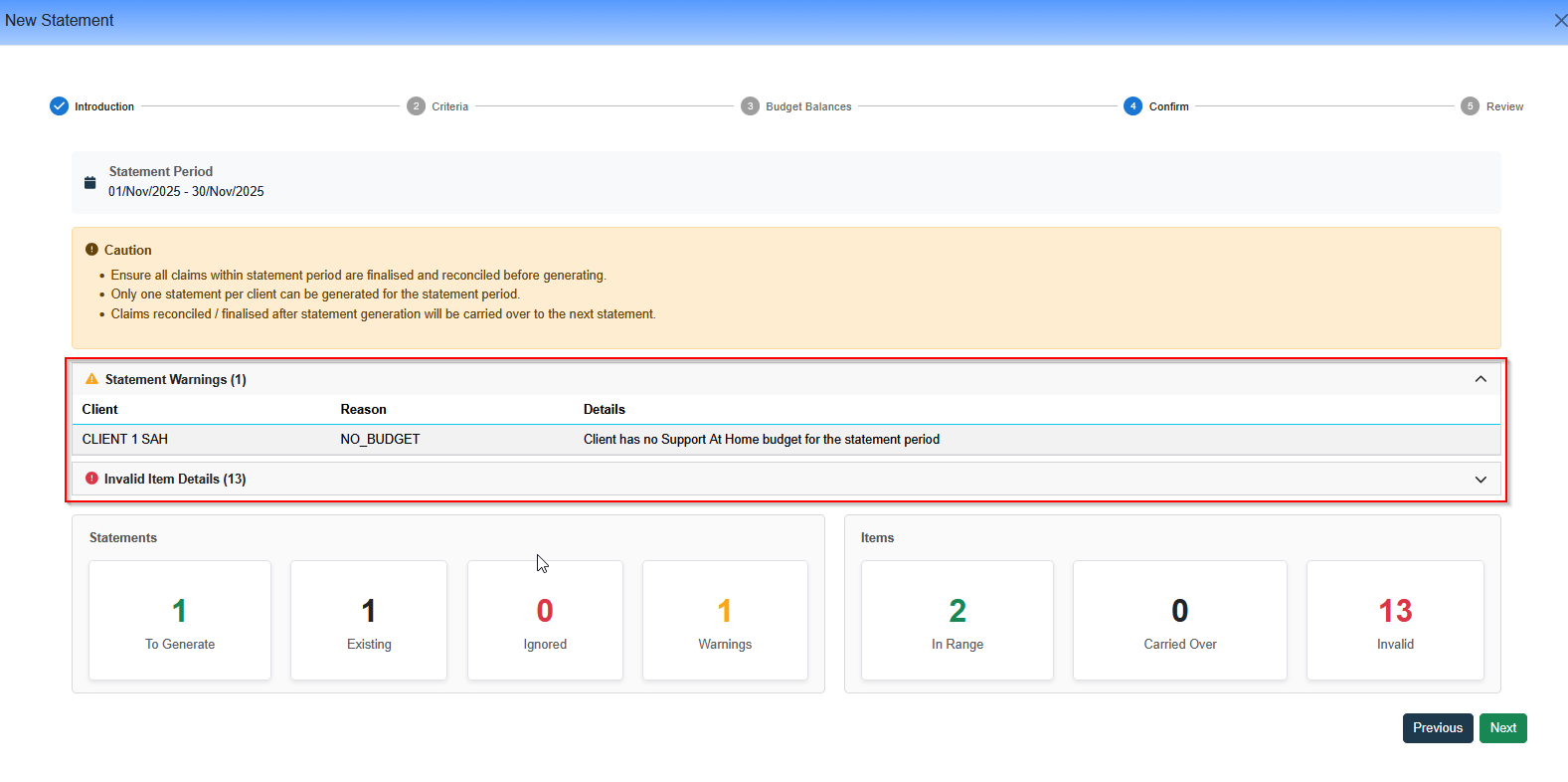
Eziplan displays comprehensive statistics and warnings about the statements that will be generated. Review all information carefully before proceeding.
Statement Statistics
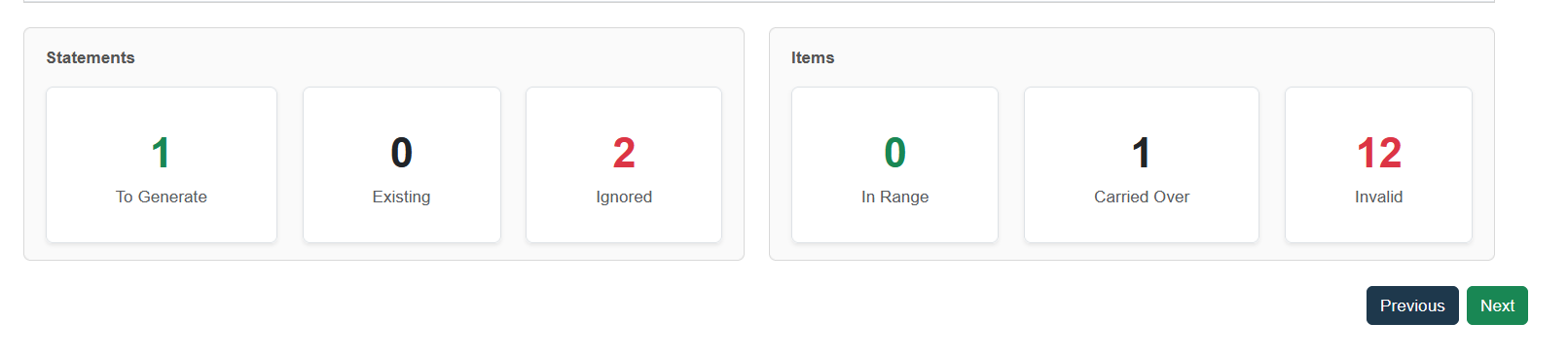
Statements:
To Generate: Number of participant statements that will be created
Existing: Number of statements already generated for this month
Ignored: Number of participants with no valid claim items (no statement will be created)
Items:
In Range: Valid items from the selected month that will be included
Carried Over: Valid items from previous months being added to this statement
Invalid: Items that will be excluded and carried to the next statement
Understanding Invalid Claim Items
Review the Invalid Claim Item Details section carefully. Items may be invalid for these reasons:
Draft Claim Items (Safe to Proceed)
These items have not yet been claimed with the Government. It is acceptable to proceed with these items showing as invalid. They will appear on the next statement as adjustments for a previous month.
Unreconciled Claim Items (DO NOT PROCEED)
This indicates you have finalised claims (submitted to the Government) for which you have not received or recorded payment. Proceeding will cause errors in participant opening and closing balances and result in non-compliant statements.
Action required: Complete reconciliation for all finalised claims before generating statements.
Budget Warnings
Eziplan performs checks to ensure budget calculations from PRODA are current and complete. The warnings section displays participants with:
Missing SAH budgets
Budgets not updated in the last 24 hours
Step 6: Final Confirmation
Before generating statements, Eziplan requires you to confirm you understand any warnings present. This is your last opportunity to review before finalisation.
The confirmation dialog displays:
Budget Warnings: Participants with missing or outdated budgets
Unreconciled Items: Claims awaiting reconciliation (if applicable)
Important: While this is not a complete block, proceeding with warnings may result in incomplete or inaccurate statements. Only confirm if you understand the implications and wish to proceed.
Once you confirm and click Next, Eziplan will generate the statements and display the finalised statistics:
After Statement Generation
Once statements are generated, you can:
View individual statements
Download statement PDFs
Email statements to participants
Troubleshooting
Budget upload fails repeatedly
Ensure the CSV file is directly from PRODA without modifications
Check that all participants in the file exist in Eziplan
Verify you're using the correct NAPS ID
Contact Eziplan Support for assistance identifying problem records
Many participants showing budget warnings
Verify you uploaded the most recent budget file from PRODA
Check if you're missing budget uploads for any NAPS IDs
Ensure the budget file was successfully uploaded (no error messages)
Unreconciled items appearing in preview
Do not proceed. Return to the reconciliation module and complete reconciliation for all finalised claims before generating statements.