

Required Setup
To ensure this feature functions correctly, a few setup steps need to be completed:
Navigating to Budgets
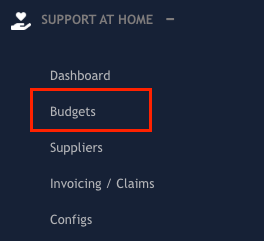
To access the Budget, go to the Budgets item in the Quick Access Menu.
Over-Allocation Indicator
The Budgets list view now includes a dedicated column that flags when a budget is over-allocated — that is, when the total of all section items exceeds the budget's total available amount. This gives coordinators a quick way to identify budgets that need review before services are delivered.
Understanding the Over-Allocation column
The Over-Allocation column appears in the Budgets list and displays:
Yes – The sum of budget section items exceeds the total available amount. This budget needs to be reviewed.
No – The budget is within its available allocation.
Filtering for over-allocated budgets
To quickly find all budgets that are over-allocated:
Open the Budgets list from the Quick Access Menu.
Click the search/filter icon to open the filter bar.
Locate the Show Over Allocated filter.
Select Yes and press Go.
The list will update to show only budgets where the section item total exceeds the available amount.
Case Manager Column
The Budgets list view displays the client's default case manager as a dedicated column. This allows coordinators to quickly identify which case manager is responsible for each client's budget without opening the individual budget record.
About the Case Manager column
The Case Manager column shows the client's default case manager as set on their client profile. A dash (–) is displayed when no case manager has been assigned to the client.
Filtering by case manager
To view budgets for a specific case manager:
Open the Budgets list from the Quick Access Menu.
Click the search/filter icon to open the filter bar.
Locate the Case Manager filter and type the case manager's name.
Press Go to apply the filter.
The list will update to show only budgets where the client's default case manager matches your search.
Inline Price Plan Revision Update
You can now update the price plan revision for any budget directly from the Budgets list view — without needing to open the full budget editor. This is useful when a new price plan revision has been released and you need to quickly update individual budgets.
How to update the price plan revision inline
Locate the budget you want to update in the Budgets list.
Click the Update Price Plan Revision row action icon (available in the actions column for each budget row).
Eziplan will apply the latest available revision of the price plan to the budget and recalculate all section items automatically.
Only the affected budget row refreshes — the rest of the list remains unchanged.
For a more detailed review of price plan revisions and how to manage outdated budgets, see the SAH – Budgets – Update Price Revision article.
Creating a New Client Budget
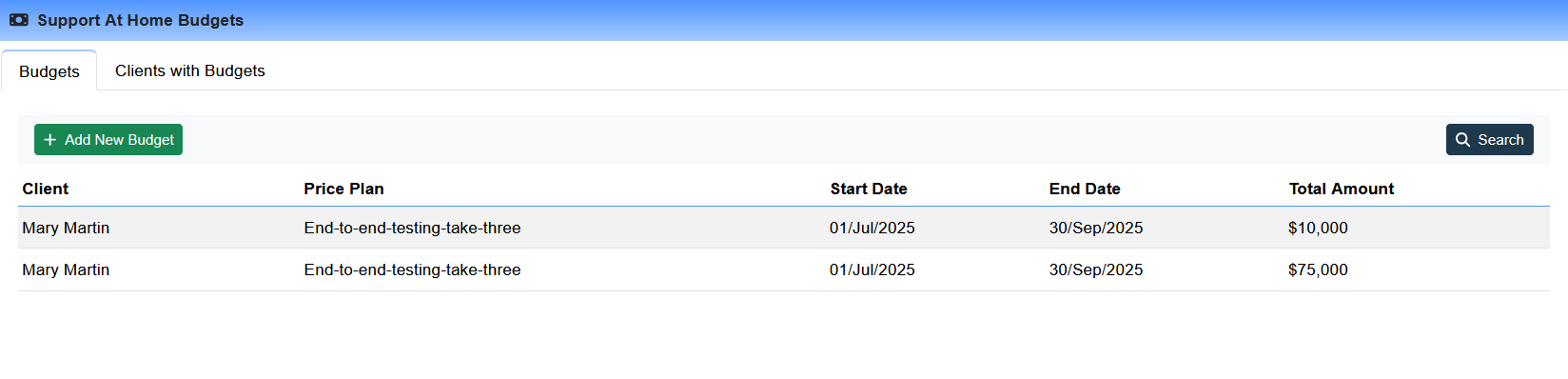
On the Support at Home Budgets page, click the green "+ Add New Budget" button to begin:
Creating a budget in Eziplan involves four stages, which we’ll step through below:

Step 1: Dates and Client
In this step, you'll enter the key details required for the budget:
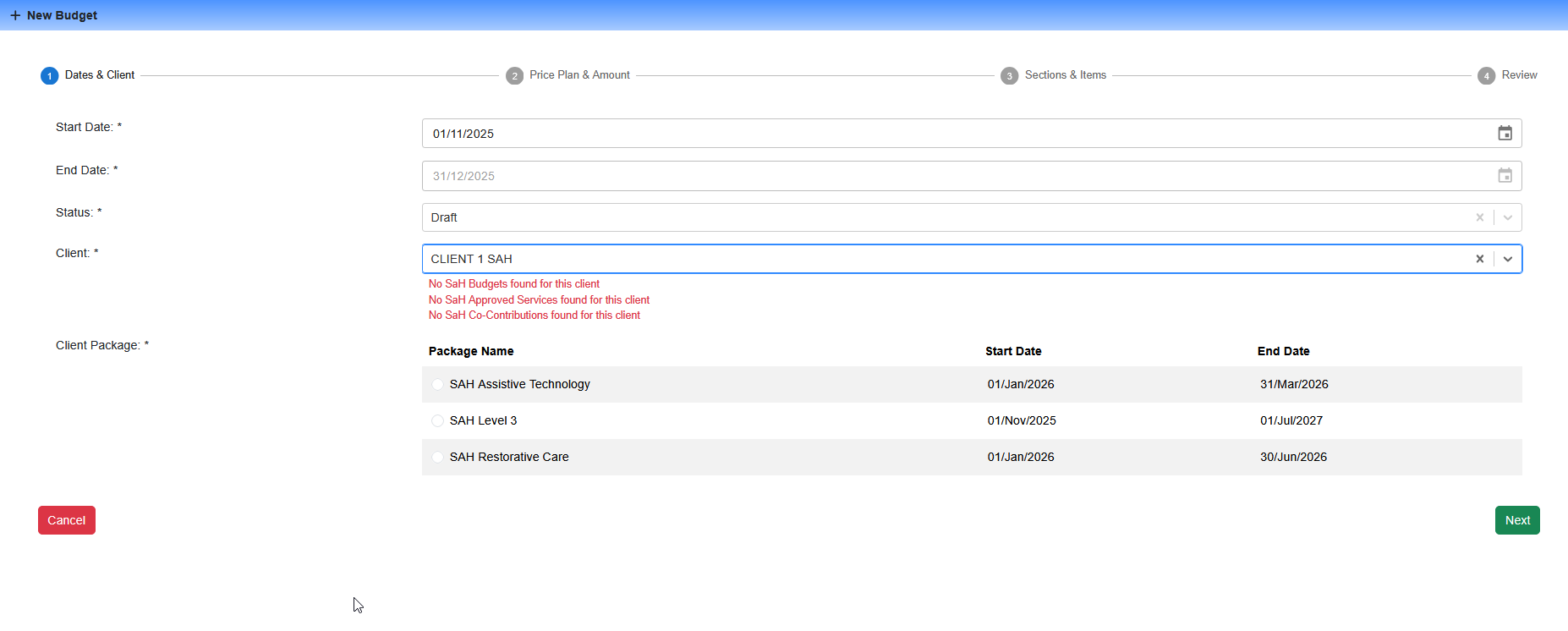
Start Date – The date the budget becomes active for the client.
End Date – Automatically set to the last day of the quarter from the selected start date, to align with the SAH program.
Status – Tracks the budget status: Draft, Active, Inactive, or Deleted.
Client – Select the client.
Client Package
Select a Package Schedule assigned to the client. Ensure you’ve already set up the SAH Package Types and assigned a SAH Package Schedule.
Step 2: Price Plan & Amount
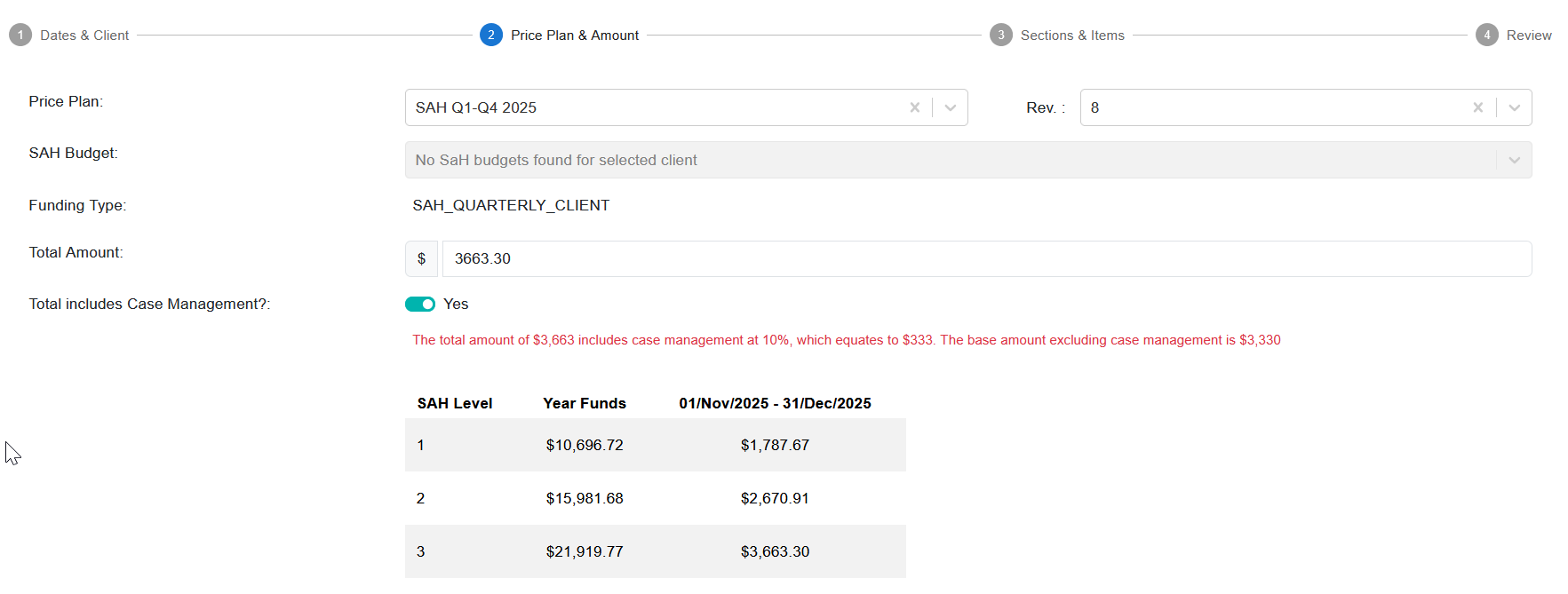
This step involves assigning funding information to the budget.
Price Plan
Attach your SAH Price Plan. You may change the revision, though we recommend keeping the default unless advised by your finance team.
SAH Budget
This field is non-selectable until Government features are live from 1 November.
Total Amount
Manually enter the total budget amount. Automation will come when Government features are active.For Quarterly Budgets, a dynamic table is available. Copy the values from the right-hand column.
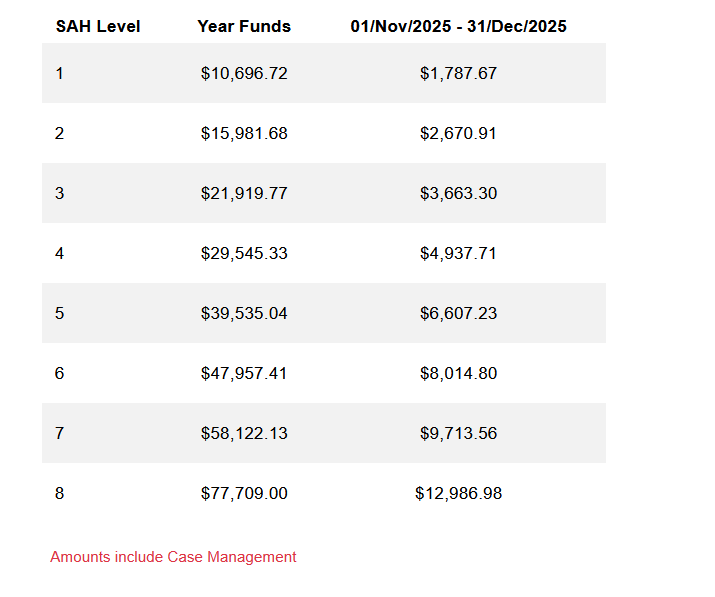
For Non-Quarterly Budgets (e.g. AT/HM Respite), manually enter the amount.
Case Management
Toggle this on if the amount includes Case Management. Leave off for other budget types. This will also become automated in November.
Linking to a Government SAH Budget
You can link this Eziplan budget directly to a Government SAH Budget imported from PRODA. Linking provides a clear connection to the official PRODA funding record and automatically populates the Total Amount field.
Step 3: Supplements
In this area you are able to add supplements to a clients budget that will affect both the Client Budget as well as the Case Management Budget:
Budget Supplements
These supplements will add to a clients Base Available budget. These values come directly from Department of Health
Case Management Supplements
These supplements will add to Providers Case Management Pool of funds.
Step 4: Section Items
This is the main area of the budget builder, where you add services and set their frequency across three categories. The interface is consistent across all.
Note: Case Management and Case Management Supplements will already show as Allocated as they have already been reserved from the client's budget to the provider's budget.
Add Row:
Click "+Add Row" to insert a new service.
Fill in Fields:
Service Type
Choose a service from the dropdown. Filtered by category and price plan.Start/End Date
Defaults to the budget dates, but adjustable for short-term supports.Weekday
Select the day(s) the service is delivered.Shift
Choose a shift type. For multiple shifts, use separate rows.Frequency
Set how often the service recurs. Editable later if needed.Hrs/Qty
Specify the expected service time or quantity.GST Inc
Indicate if GST applies (consult your finance team if unsure).Ext Provider
Tick if delivered externally. Adds a field for PO number.Pub Holiday inclusive
State whether the service is delivered on public holidays.
Save Row
Click the green tick to save.
Edit/Copy/Delete Rows
Use the icons to manage rows.
Step 4a: Summaries
Eziplan Budgets generate summaries broken down by:
Total Summary:
Case Management (Base + Supplements)
Grand Total (Government Contribution + Client Co-Contribution)
Category Summary
Shows the total for each category.
Service Summary
Breaks categories down by individual service.
Step 5: Review
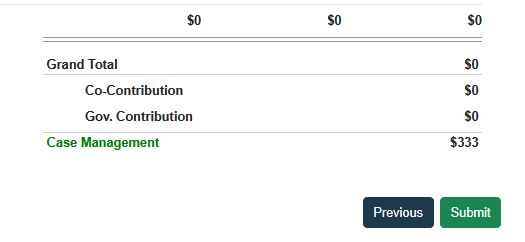
This final step provides a read-only summary of all inputs from Steps 1–3. To finalise the budget, click the Submit button.
Invoice and Invoice + 10% Price Types
Some services, such as cab charges, may not have set prices and as such need to be flexible in the budget. These can be set up as Invoice or Invoice +10% in the Price Plan feature - learn more in our Price Plans article.
Where a Price Plan Service has been set as Invoice or Invoice + 10%, when you add it to the budget you will notice a slight difference compared to other services:

You are unable to set the Weekday, Shift, Frequency or Hrs - this is not relevant for this type of service
As the Price Plan has been set to an Invoice or Invoice +10% it is assumed that this will be coming from an external provider and as such the Ext Provider tick box is force ticked
As there is no "Price" you are able to set a line total for the budget period. As an example, you might have an estimated Assistive Technology item for $500 and as such are budgeting for that within the time period.
Editing Date, Amount or Supplements
Users are able to edit the Budget Details by clicking into a budget and clicking on the Edit Budget Details button:
Users are able to edit the supplements by clicking into a budget and clicking on the Edit Supplements Button:
Why Case Management Isn't Auto-Applied to All Budget Types
Case management is a regular service component of Support at Home Packages but is not part of other funding types or specialised funding allocations. The system intelligently determines which funding types should include case management based on the budget type selected.
What Happens When You Link a Government SAH Budget
Linking a Government SAH Budget in Step 2 has specific effects on the Total Amount, Budget Supplements, and Case Management Supplements. Understanding these behaviours ensures your Eziplan budget accurately reflects the client's current PRODA funding position.
Total Amount
When a Government SAH Budget is selected, the Total Amount field is automatically populated with the value held against that budget in PRODA. This value represents the government's current allocation for that client and funding period — including any carry over funds (see below).
The Total Amount becomes read-only while a Government SAH Budget is linked. To override it, you would need to remove the SAH Budget link and enter the amount manually, though this is not recommended as it will no longer reflect the authoritative PRODA figure.
Budget Supplements
Budget Supplements represent additional funding provided directly by the Department of Health, on top of the client's base SAH Budget allocation. These values are already in the PRODA SAH Budget total.
Linking a Government SAH Budget does not affect or overwrite any Budget Supplements already entered. However any selections made DO NOT affect the total amount and are for visual purposes only. Supplements should be reviewed and updated independently whenever new supplement information is received from the Department of Health.
Case Management Supplements
Case Management Supplements add to the provider's Case Management pool of funds and are not included in the PRODA SAH Budget total. Unlike Budget Supplements, amending the Case Management Supplements will affect the values shown on the Budget, they will be added as an income and an expense on the budget resulting in a net zero result.
Review Case Management Supplement values separately whenever funding arrangements change.
Carry Over Funds
Support at Home budgets operate on quarterly cycles, and unused funds from one period may carry forward into the next. It is important to understand how carry over is reflected in Eziplan when using linked Government SAH Budgets.
How carry over funds are included in the SAH Budget total
When a Government SAH Budget is linked, the Total Amount imported from PRODA already includes any carry over funds from the previous period. You do not need to calculate or add carry over manually — PRODA manages this figure and Eziplan reflects it directly.
For example, if a client had $500 unspent at the end of their previous quarter, PRODA will include that $500 in the opening balance of the next quarter's budget. When that budget is imported into Eziplan and linked, the Total Amount will reflect the full amount inclusive of the carry over.
When carry over figures are updated in Eziplan
PRODA updates carry over and budget figures as part of its normal processing cycle. Eziplan imports the latest values from PRODA at two points:
During each statement run – Budget information is uploaded as part of the statement generation process (Step 4 of SAH – Creating Statements). The figures imported at this point will include any carry over that PRODA has processed up to that date.
Earlier, if budgets are uploaded manually – If you download and upload the PRODA budget CSV file prior to the statement run, Eziplan will immediately reflect the updated carry over figures. This is useful if you need to review current budget positions mid-period without waiting for the next statement cycle.
In both cases, the carry over is embedded in the Total Amount figure — there is no separate carry over field in Eziplan. If a client's total looks higher than expected, carry over from the prior period is the most likely reason.
Carry over and manually entered budgets
If a Eziplan budget is not linked to a Government SAH Budget (i.e. the Total Amount is entered manually), carry over funds will not be automatically reflected. You would need to manually adjust the Total Amount to account for any carry over received from the previous period.
For this reason, linking budgets to their corresponding Government SAH Budget in PRODA is strongly recommended wherever possible.