

The SAH Approved Services feature allows companies to list the approved services for each relevant client. In this article we will go through:
Approved Services for HCP Grandfathered Clients
Adding/Editing in Approved Services
Bulk Uploading Approved Services
Approved Services for HCP Grandfathered Clients
Under Support at Home, HCP Grandfathered Clients will not be receiving approved services under Support at Home. This means they can utilise any services that the provider is approved to deliver.
To make this easy, Eziplan will assume if a Client does not have any approved services then all services are approved and available.
Adding/Editing in Approved Services
To add in an approved service:
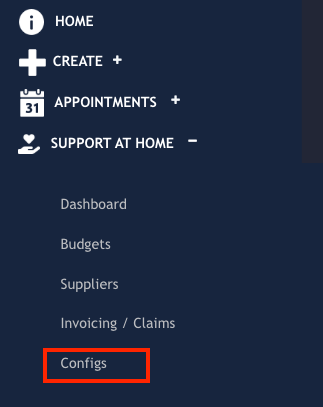
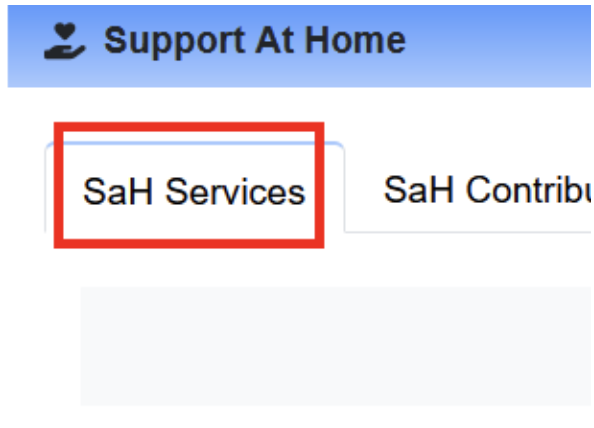
Navigate to the SaH Services Tab in the Config section of Support at Home
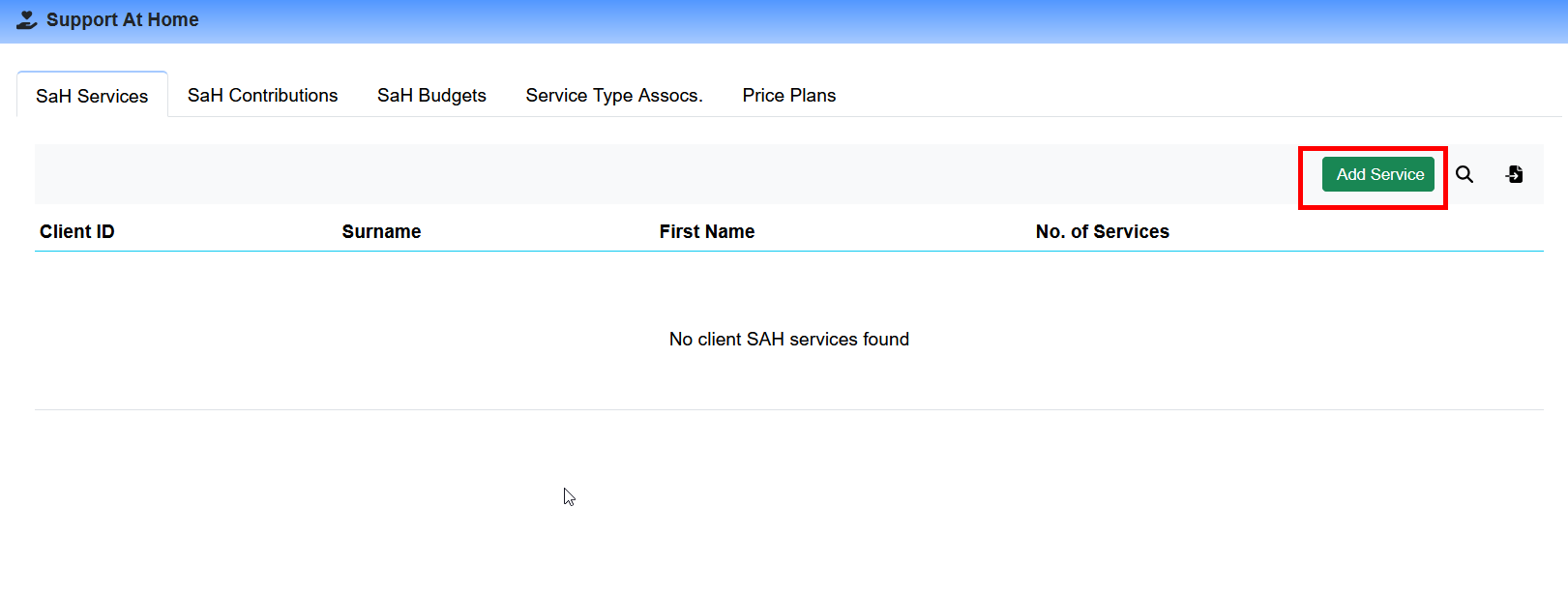
Click on the Add Service Button in the top right:
Fill in the required details:
Client
Service Name
Start Date
Click Add Service Button
Repeat for Each Approved Service
Bulk Uploading Approved Services
You can use the template attached to this article to bulk upload your approved services: client_services.csv. There are 6 columns required as part of the upload:
client_id - This represents the client that you wish to upload and is their Eziplan ID number. This can be found on the client list and on the client:
service.name- This represents the Support at Home Services that you wish to upload against. These have to be exact values and the full list can be found in the service types knowledge base article here.
start_date - The date this service is valid from
end_date - The date this service is valid to