The SAH Co-Contributions feature allows companies to add in a client's co-contribution % that will assist in the budget builder later on.
As the Government has not released Co-Contribution %'s to clients yet, this feature can be left blank until the information is available.
Adding/Editing in Co-Contributions
To add in a Co-Contribution:
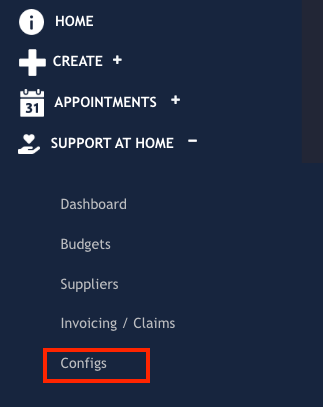
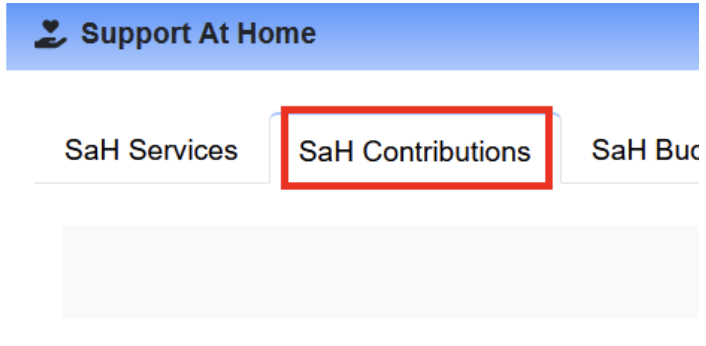
Navigate to the SaH Contributions Tab in the Config section of Support at Home
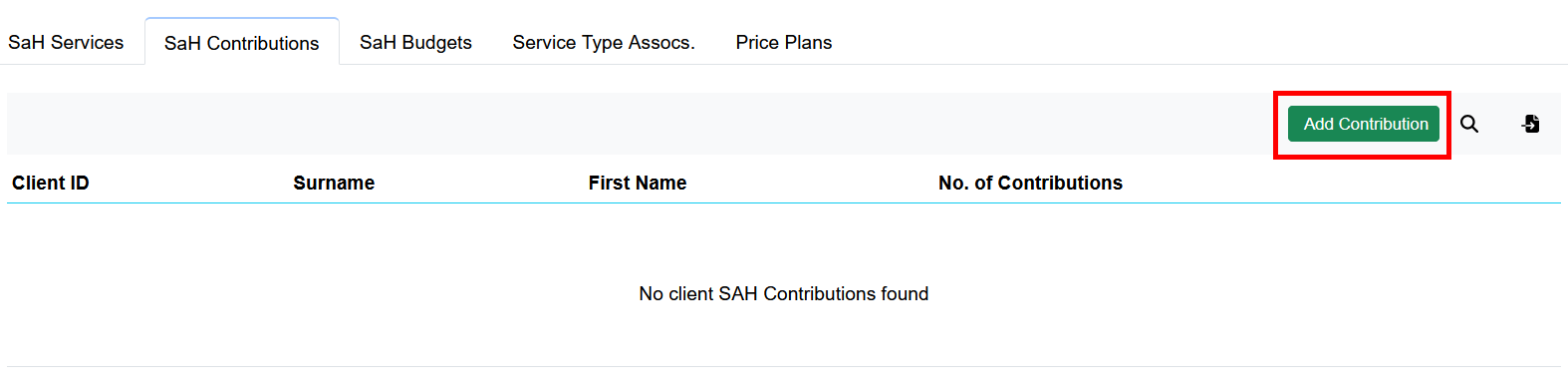
Click on the Add Service Button in the top right:
Fill in the required details:
Client
Category
Funding Source
Contribution (i.e. 30 would be 30%)
Start Date
End Date
Click Add Contribution
Repeat for Each Contribution
Bulk Uploading Co-Contributions
You can use this template to bulk upload your co-contributions: client_contrib.csv. There are 6 columns required as part of the upload:
client_id - This represents the client that you wish to upload and is their Eziplan ID number. This can be found on the client list and on the client:
category.name- This represents the category that you wish to upload against. There are two options:
Independence
Everyday Living
contrib_proportion - This represents the co-contribution % you want to apply. I.e. for 20% you would put in 20
start_date - The date this contribution is valid from
end_date - The date this contribution is valid to
funding_source_id - This represents what SAH funding type the co-contribution is applicable to:
SAH Quarterly Client = 15
SAH Home Modifications = 17
SAH Assistive Technology = 18
SAH Restorative Care = 19
SAH End of Life = 20
FAQs
Q: Where do the co-contributions show?
A: The co-contributions show at the top of the category within the clients budget.

Q: The updated co-contributions are not showing?
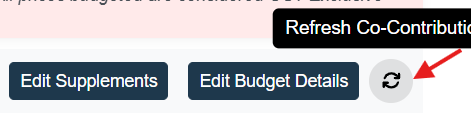
A: To pull the updated co-contributions through to the clients budget, select the 'Refresh' button next to the Edit Budget Details, within the clients budget.