

One major update that differs between SAH and the existing HCP processes is where to define prices for Service Types. This was previously achieved with a combination of defaults on Service Types and Billing rules. Under Support at Home we have moved into a dedicated Price Plan area that allows you to have one page for all services and prices as well as the ability to quickly copy and update whenever required.
Prerequisites
In order for this feature to properly work, you will need to ensure that you have set-up your Service Type Associations with all the Service Types you intend to offer in SAH. For more instructions click here
Access Price Plans
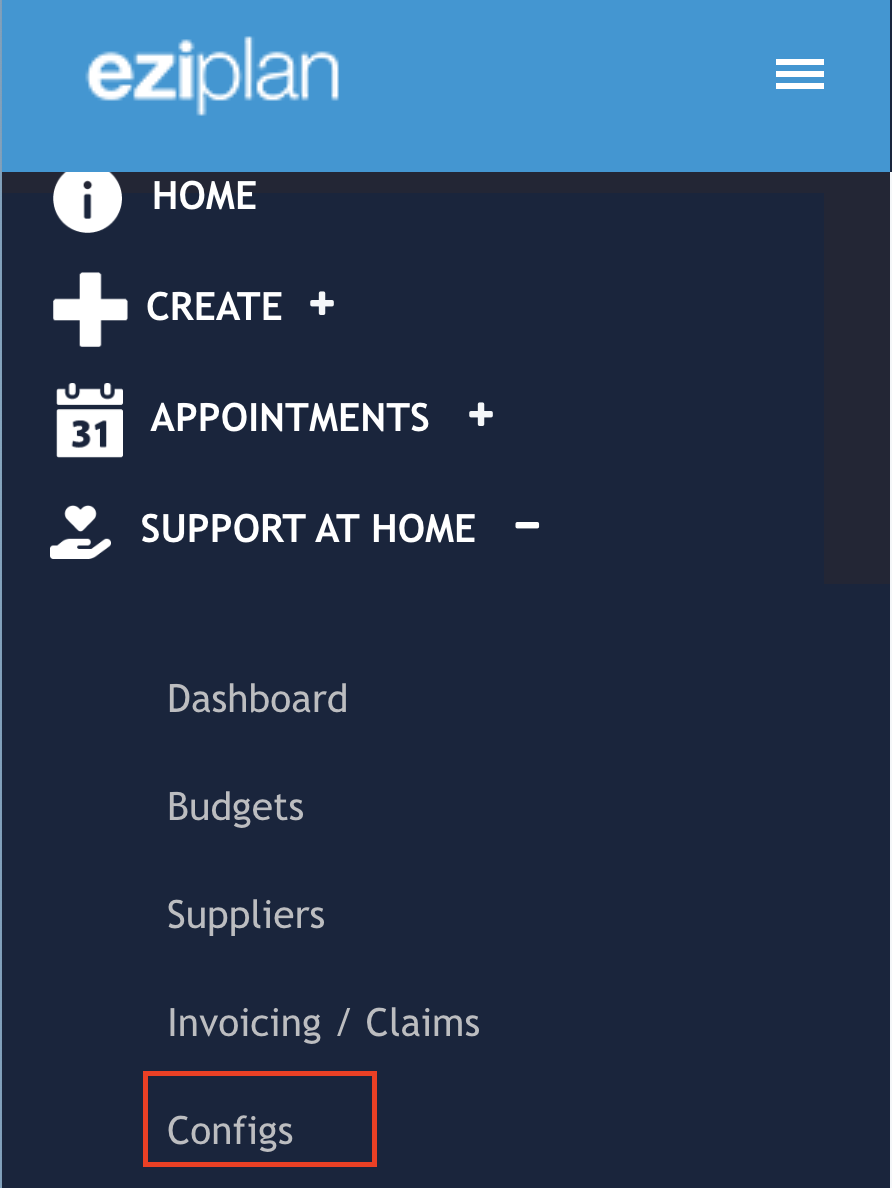
To access the Price Plans feature, navigate to the quick access menu and click on configs:
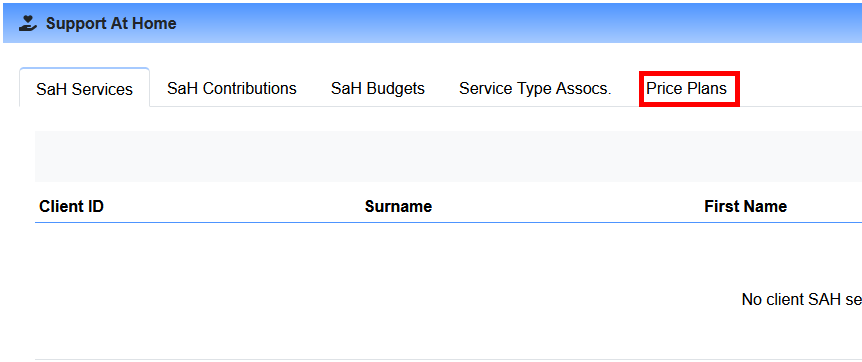
From here you can then select Price Plans:
Adding in a new Price Plan
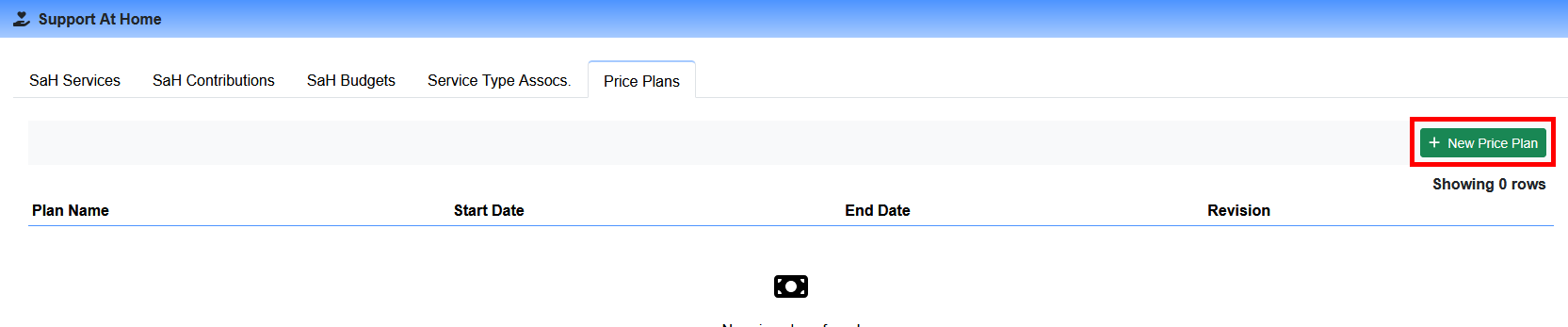
To add in a new price plan, click on the Green "+ New Price Plan" button:
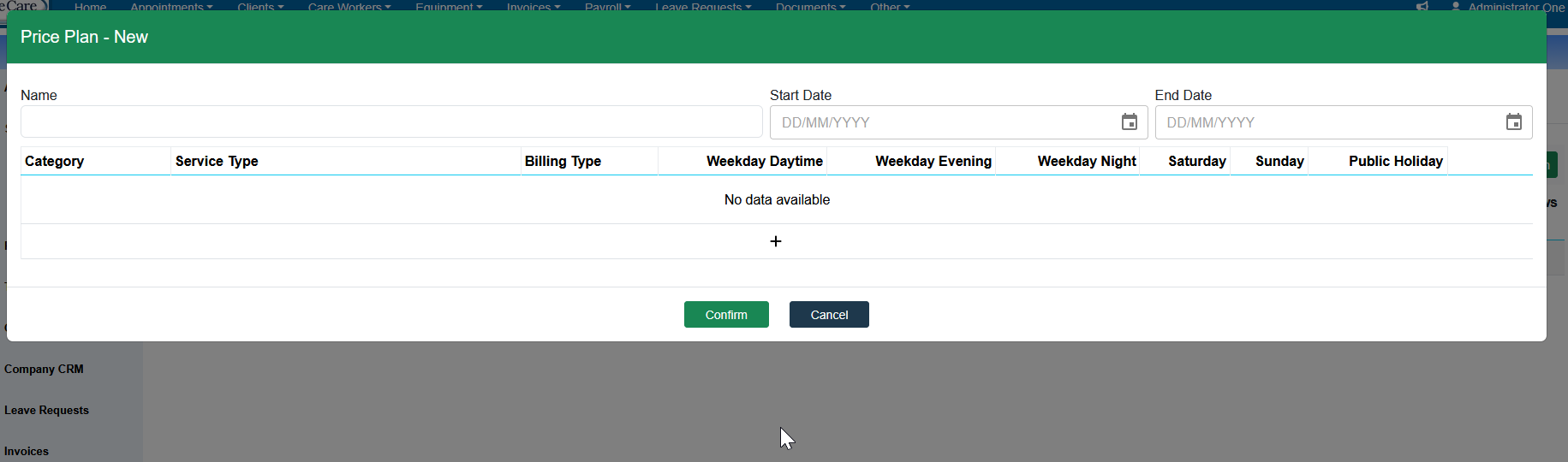
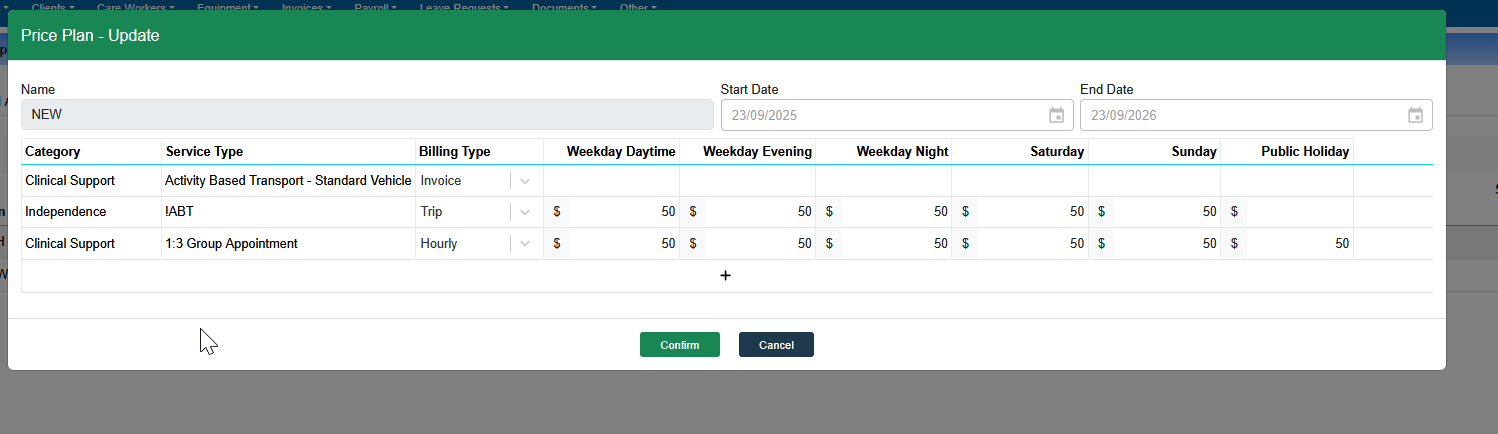
Each price plan needs the following information:
Name:
A name for your price plan that will be easily recognisable/understood. An example might be FY25/26 SAH Price PlanStart Date:
When do you want these prices to apply fromEnd Date:
When do you want these prices to apply to
Adding in Services
Click the "+" button to add in your first or new row
Select a Category
Select one of your Service Types from that category in the drop down list
Select your billing type
Hourly - values entered will be considered the rate per hour
Trip - values entered are considered fixed per appointment (qty)
Invoice - claimed value will be based off the invoice
Invoice +10% - claimed valued will be based off the invoice + an extra 10% (DO NOT USE FOR ANY AT/HM SERVICES)
Assign a Price for each of the different variables (if you do not deliver the service simply enter "0"
Weekday Daytime - 6am to 8pm
Weekday Evening - Start after 8pm and finishes before midnight
Weekday Night - Start before midnight and finishes on the next day OR starts before 6am and finishes on that same day
Saturday - Occurs on a Saturday
Sunday - Occurs on a Sunday
Public Holiday - Occurs on a Public Holiday
Repeat for Each Service
Once all services have been added, or to save your progress click the green confirm button
Editing a Price Plan
Eziplan allows for versioning of Price Plans, meaning you can make adjustments without breaking existing budgets already utilising old versions of the Price Plan.
Each time a price plan is edited a new version is automatically created.
To edit a price plan:
Click on the Plan you want to modify
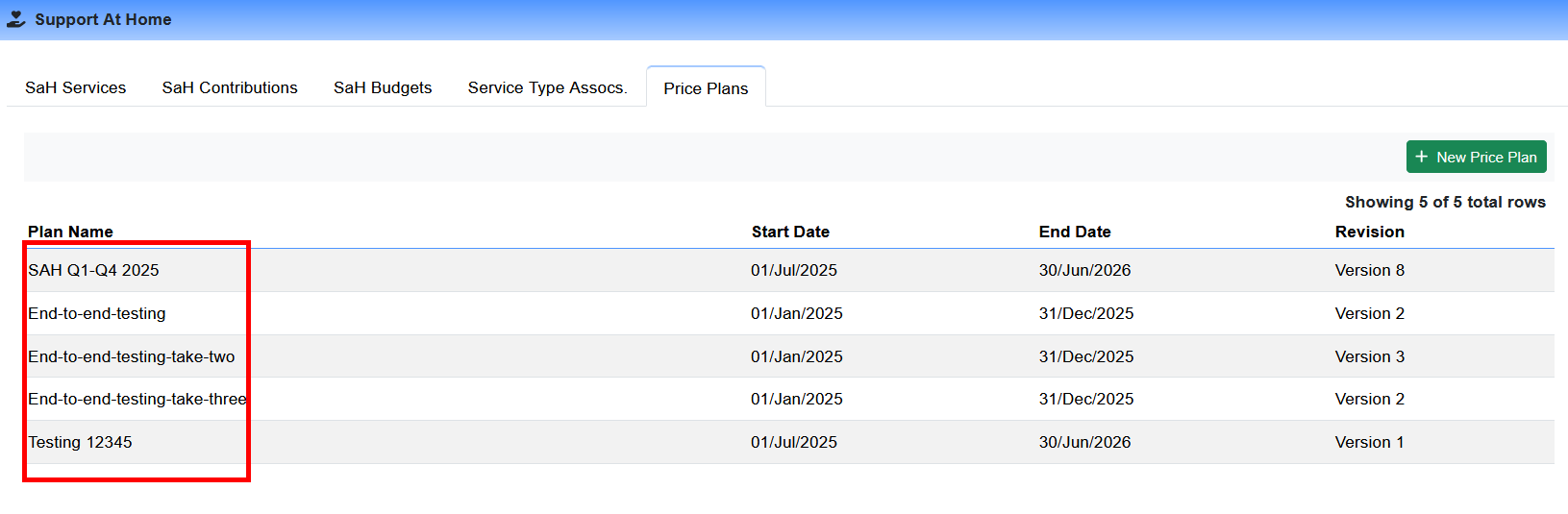
Edit the values as required
Click the green Confirm button to save your changes
Deleting a Price Plan
If you make a mistake or want to delete an old price plan you can follow these steps here.
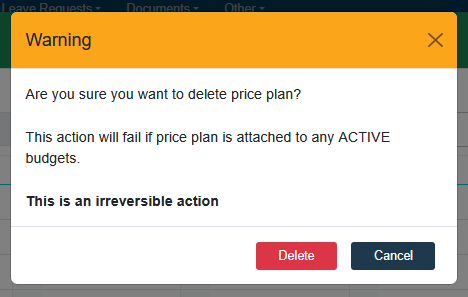
You need to make sure that there are no Active Budgets that use the price plan you want to delete. You can find more information about Budget Status' here. If you have Active Budgets attached the deletion action will fail.
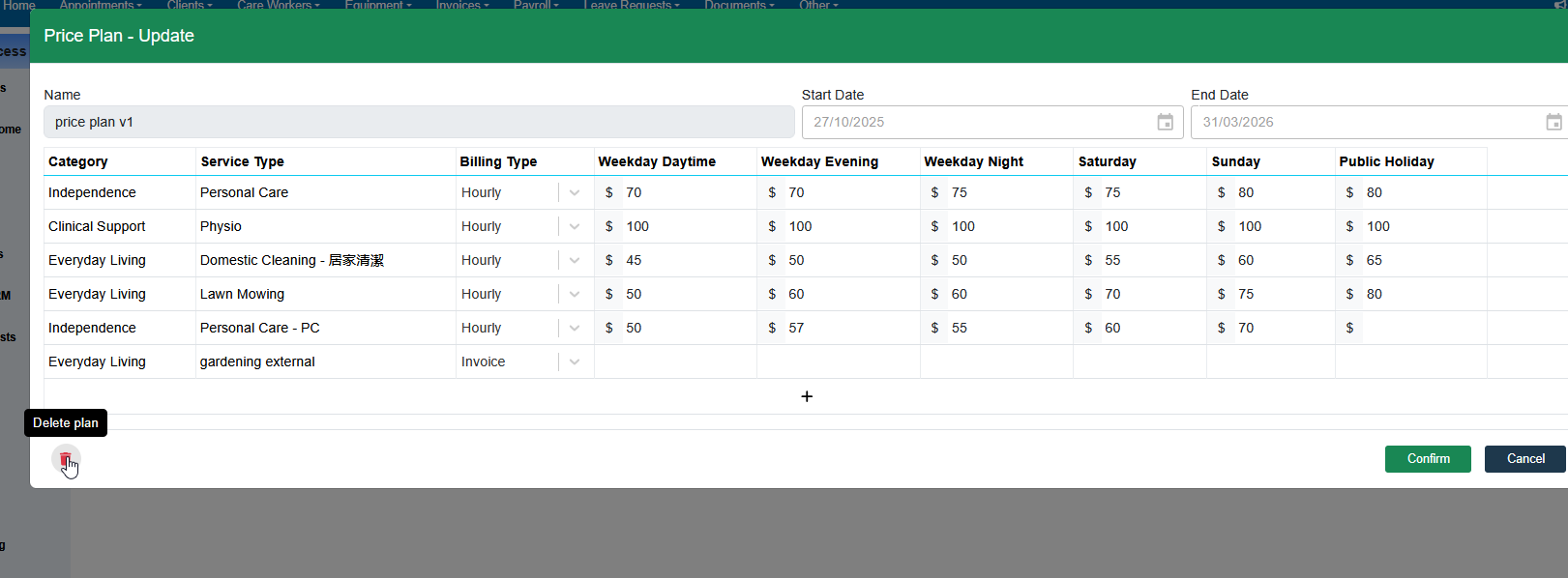
To delete simply head to the price plan page and select the price plan you want to delete
Once the price plan loads, click the delete icon and acknowledge the warning
Error Catching
The Price Plan is a pivotal component of the Support at Home process. It directly impacts client budgets, the budget tracker, dashboards, supplier invoices, and claiming. To maintain data integrity and prevent failed claims caused by missing information, Eziplan has implemented error-catching measures.
There are two main scenarios within the Price Plan that may cause issues:
An Eziplan Service Type is deleted
In this case, the Price Plan will indicate that a service type previously occupied a particular row but has since been deleted. The row and its associated price plan values will remain visible but will be read-only.

An Eziplan Service Type is dissociated in the Service Type Association configuration
In this case, the Price Plan will indicate that a category previously was associated with a particular row but has since been dissociated. The row and its associated price plan values will remain visible but will be read-only

For budgets that use a Price Plan containing deleted or dissociated service types, users will not be able to update the budget to the latest Price Plan revision until the affected service type is removed.
FAQ
A client Budget can only link to ONE price plan.
I've added incorrect service onto price plan, how do I delete the line?
- You cannot "delete" the services once added to price plan as it is linked to clients' budgets. Please update the rate to $0 if it's not needed in price planPrice Plan name or date cannot be updated
Billing Type Invoice or Invoice plus 10% will be selectable within the clients budget, where you can add the invoice amount.