

There are situations where you may have services for a 1:2, 1:3 (staff:clients/participants) ratio e.g SIL or for group settings. These services will have different pricing as a group session and require some additional set up to ensure the pricing is rationed accordingly amongst the clients/participants in the group for accurate billing.
To set this up accurately, we need to:
create service types with the correct code to reflect the number of clients/participants in the group session
ensure the service types do not replicate payroll payments for hours worked
ensure the service type is marked to ignore conflicts
create appointments for each client to record the individual outcomes
Service type setup
We can set up these service types for you, to do this you need to let us now what configuration you are needing i.e Personal Care 1:2, Groups in Community 1:3, Assistance in SIL 1:2 etc.
We will need to create new service types to match the number of clients/participants in the group i.e. 1:2 will need two service types, 1:3 will need three service types.
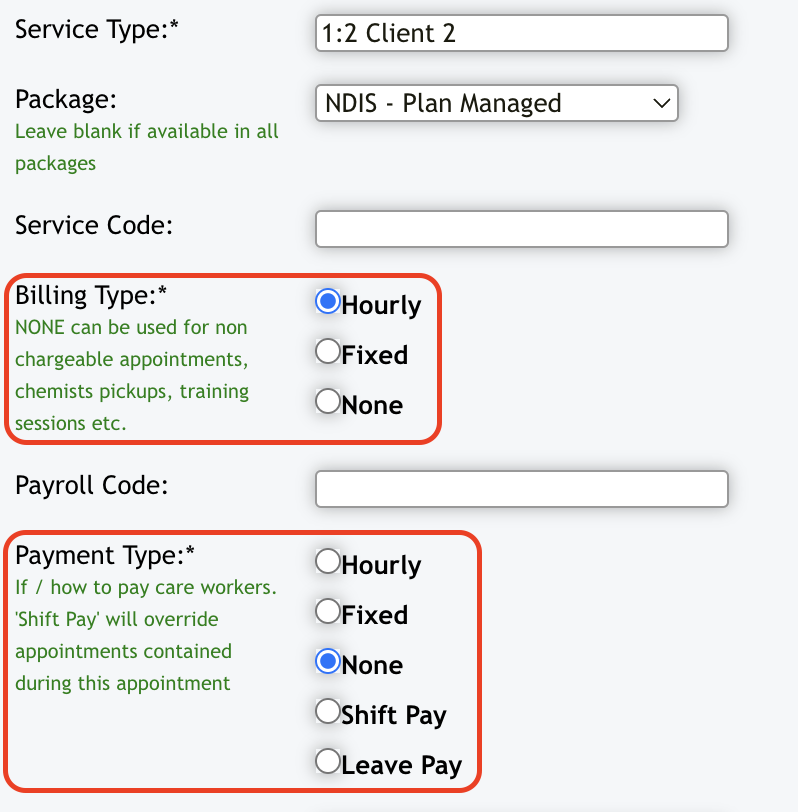
The additional service types we create will ignore payroll charges to avoid replicated payment of hours worked by the Care Worker.
Ignore Conflicts will be set to Yes for these service types so that it does not flag these in the weekly planner.
Service Type for Client/Participant 1 will be set for billing and for payroll:
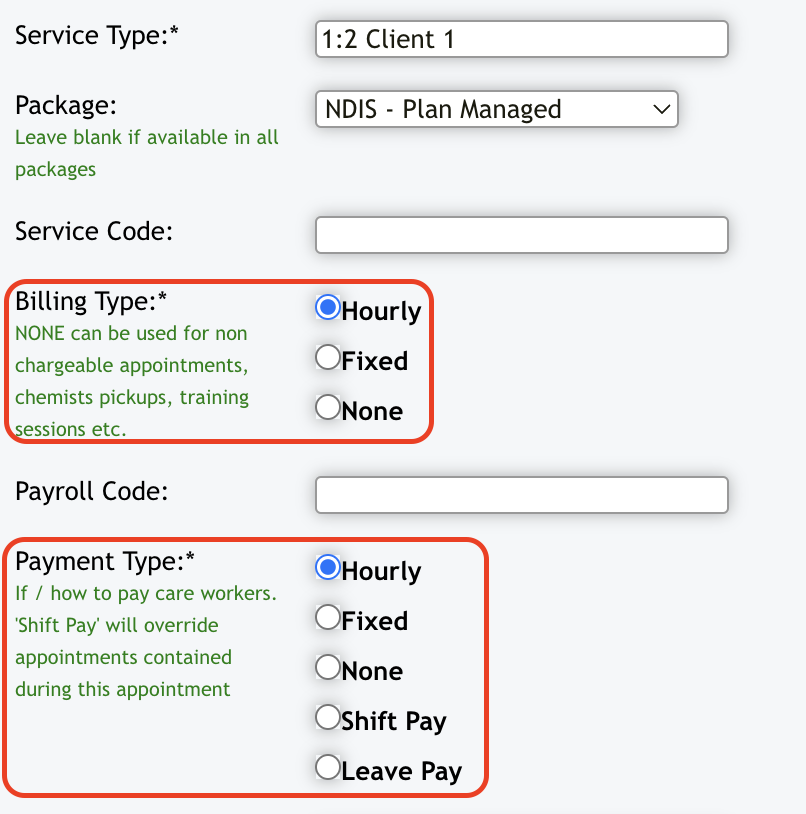
Service Type for Client/Participant 2 (and subsequent) will be set for billing only, not for payroll:
Appointment Creation
Once the service types have been created, you can attach these to your clients/appointments.
You will need to schedule repeat/individual appointments against each client and attach the correct service types to Client 1 and Client 2 etc.
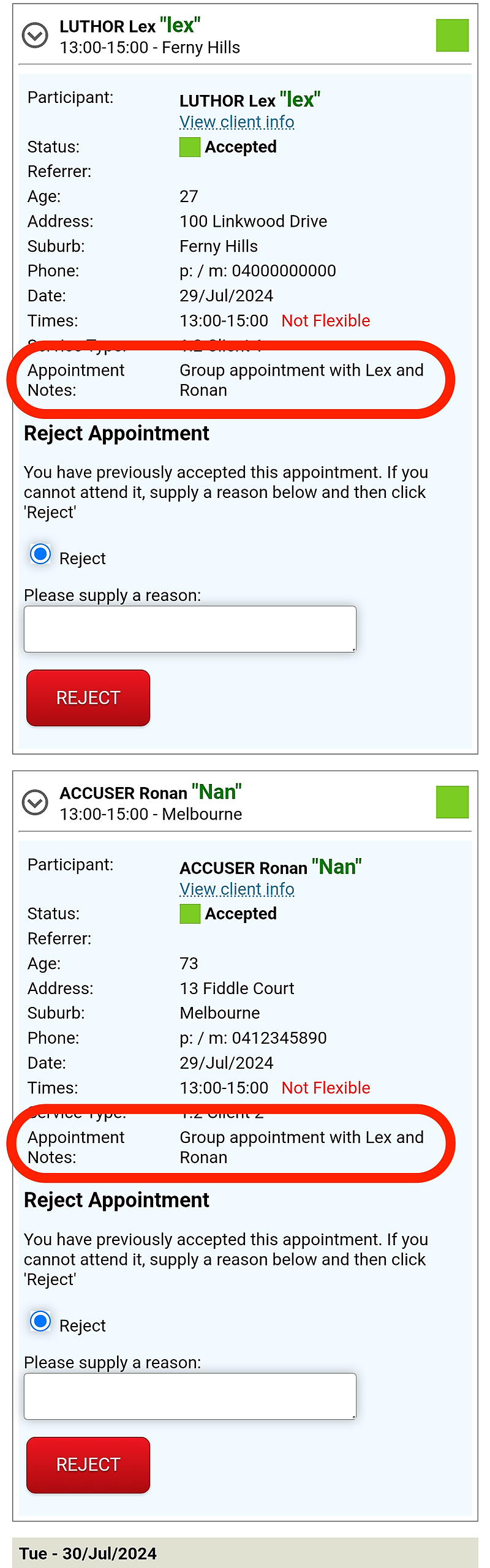
Enter notes in for each client regarding group sessions to provide this information for your care workers
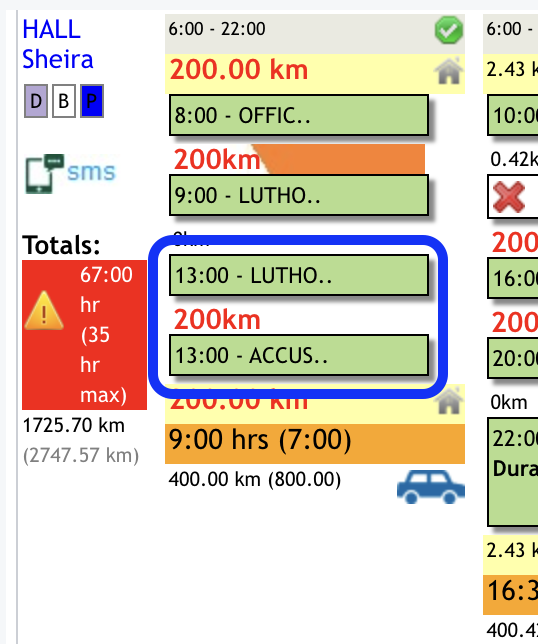
With the service type(s) set up for no conflicts, there will be no review needed in the Weekly Planner.
This is how the appointments will display on the weekly planner:
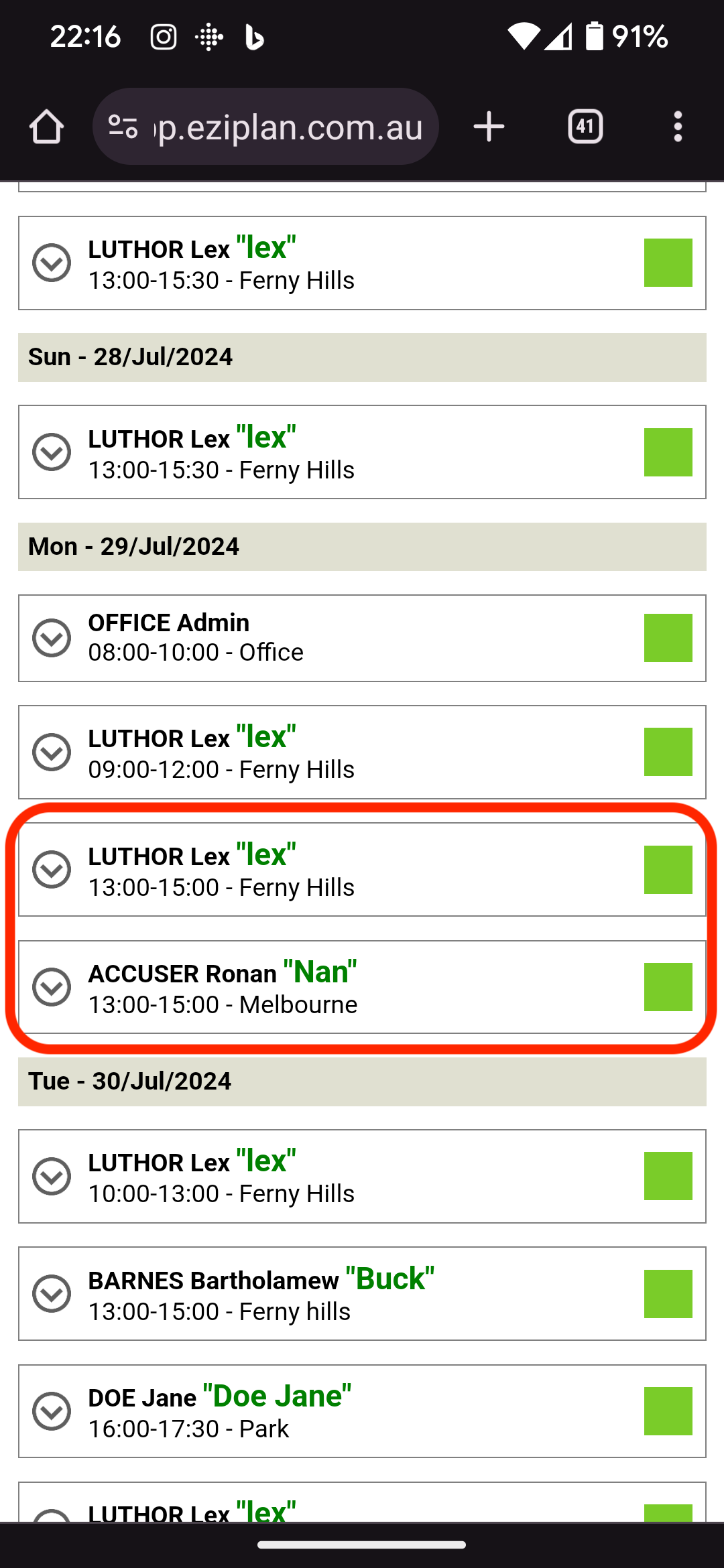
This is what your staff will see when they access these appointments from their device:
If there is travel involved in these appointments, then manual adjustments are required in Eziplan to reflect any client arrangements for kms charged.