

Note: The functionality for setting up group appointments needs to be configured by your Eziplan Support Team. If you'd like to take advantage of this feature, email support@eziplan.com.au and request for the feature to be enabled for your organisation and provide any specifics on the group naming, especially if you are going to have multiples e.g. gardening group, cooking class group. The support team will then set up your system in the back end to configure the profiles you will need to create your appointments.
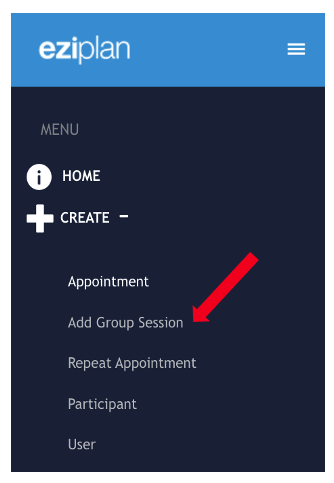
Start by navigating to the left side panel and click Create then Add Group Session from the selection.
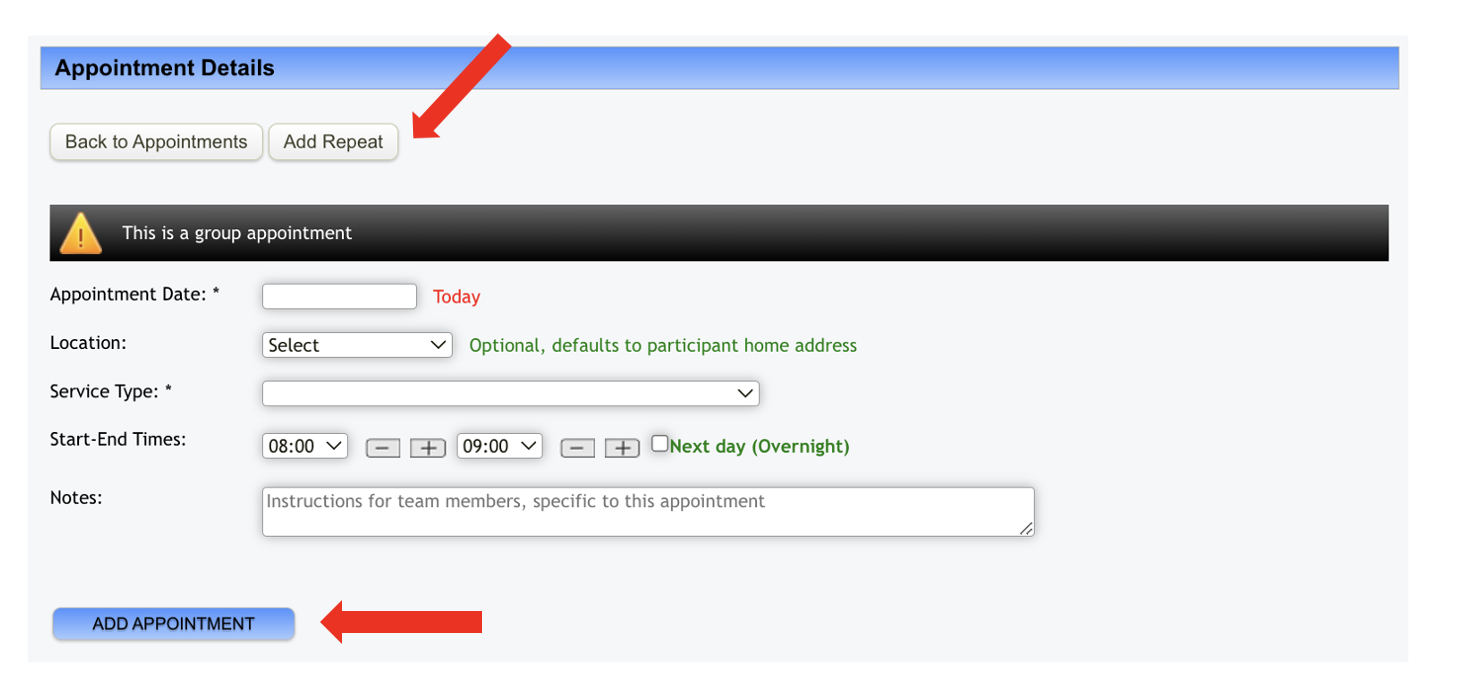
This will open the Group Appointment page. Click on Add Repeat, then fill out the required details, including Appointment Date, Location, Service Type, Start Date, and End Date. Finally, click Add Appointment to complete the Group Appointment setup
Similar to the regular Repeat Appointments, you'll need to enter the start date for the week when the appointment should begin (e.g., the Monday of that week). This allows flexibility if the appointment day changes. Then, select the specific day of the week for the appointment and set the frequency (e.g., weekly). Adding an end date is optional—useful if the series is only temporary, such as for a 3-month period. In that case, the appointment will stop appearing in the Weekly Planner after the end date.
You will also need to consider if this appointment should still occur on public holidays. Choose the 'No' option if the appointment should be skipped on public holidays so that it doesn't appear on the Weekly Planner.
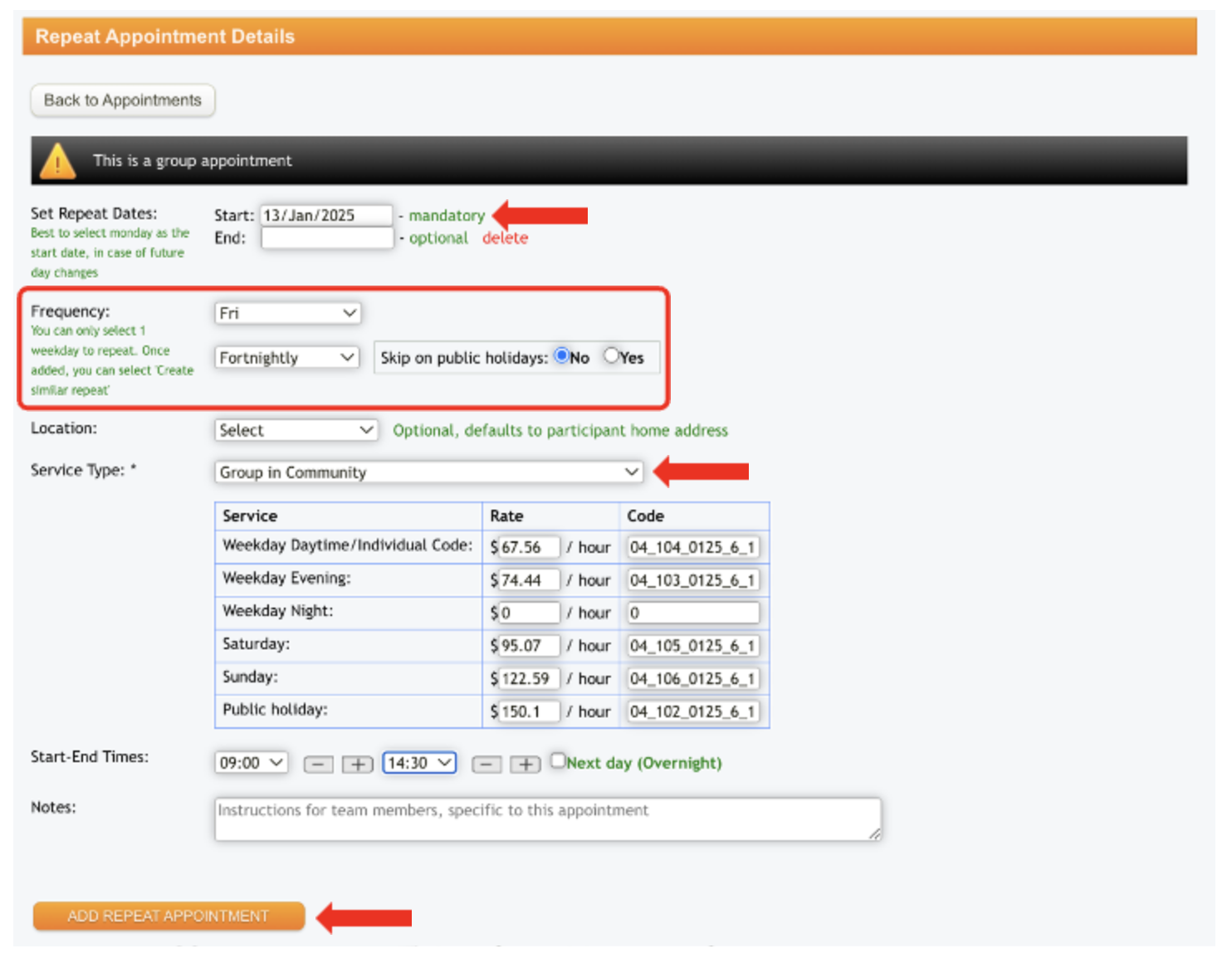
You can then fill in the rest of the information required and then click Add Repeat Appointment.
Important to note that appointments need to be loaded in Weekly Planner otherwise this appears as N/A in the Client Calendar and won't reflect when sending Client's Schedule.