

When a group appointment is assigned to staff, it will appear in the Eziplan Mobile App just like their regular shifts.
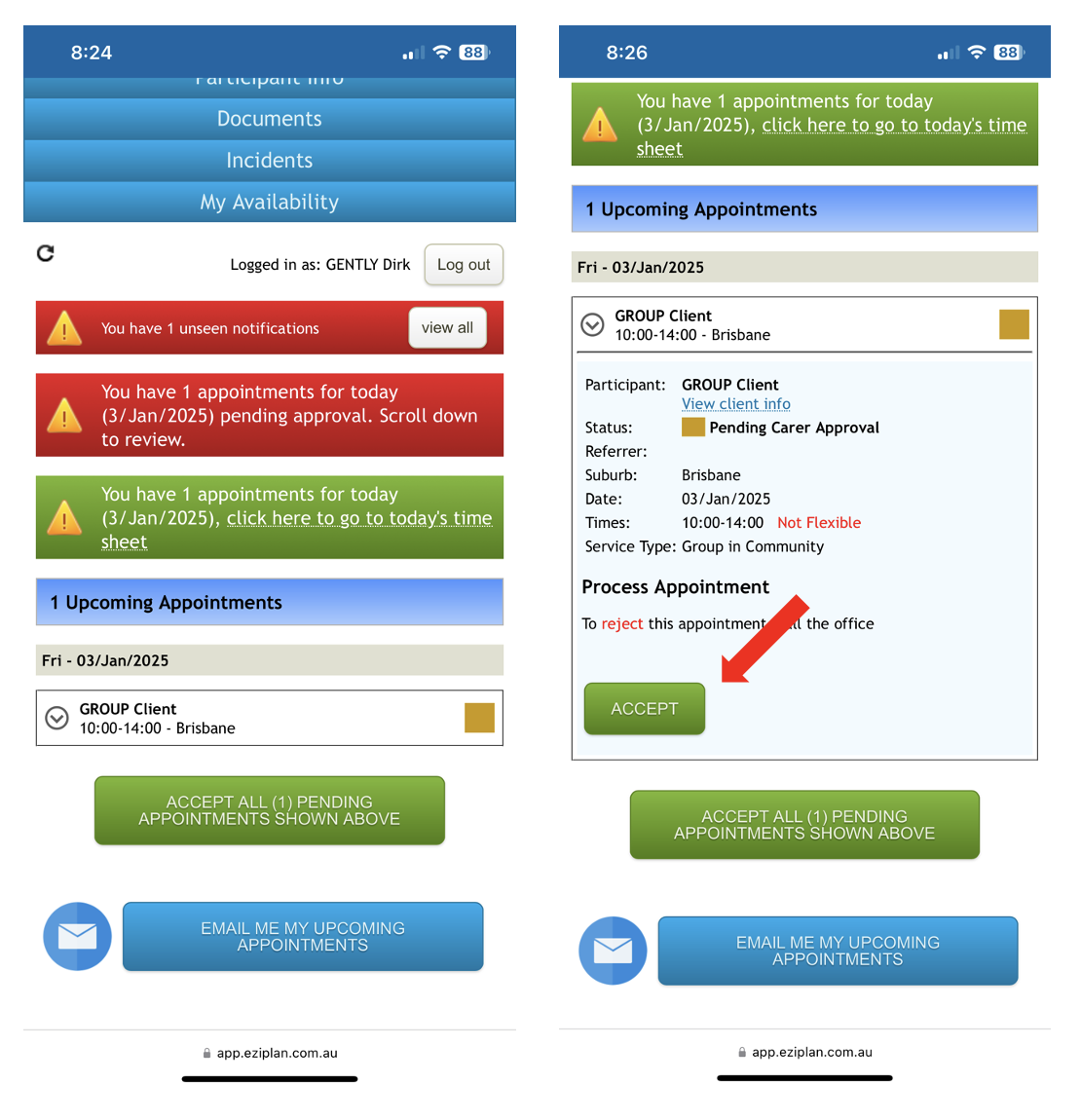
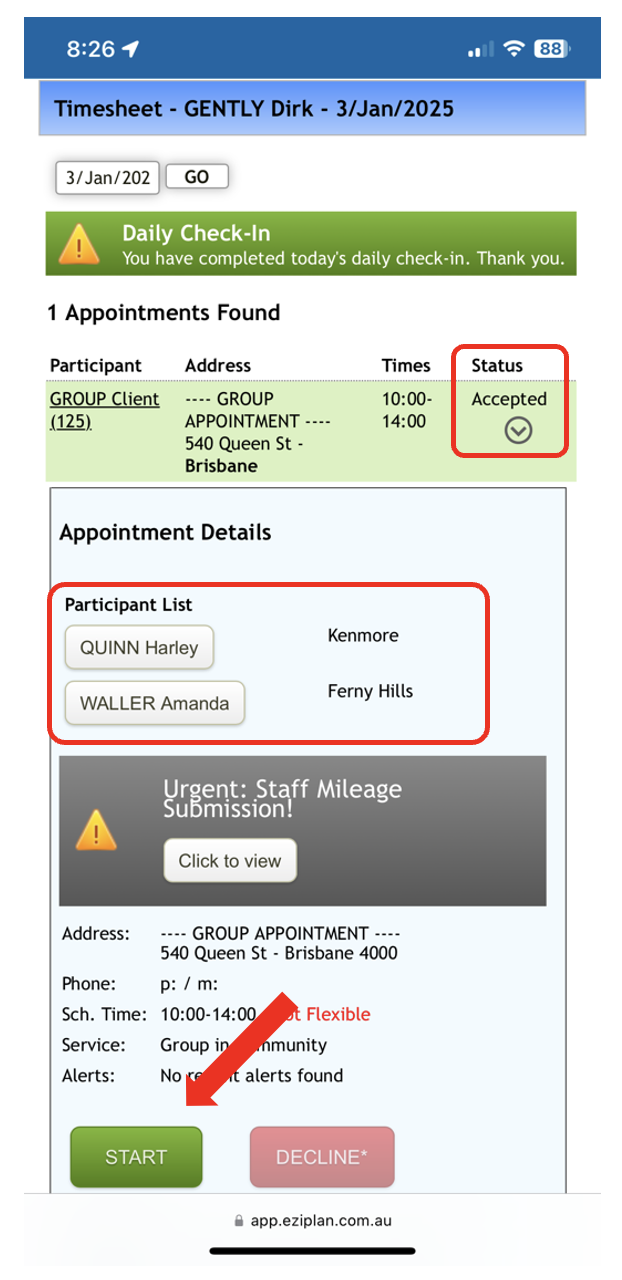
Staff members can view the participants included in the Group Appointment only after the group appointment has been accepted.
Tap 'Start' to commence the Group Appointment. This begins the time sheet for payroll purposes.
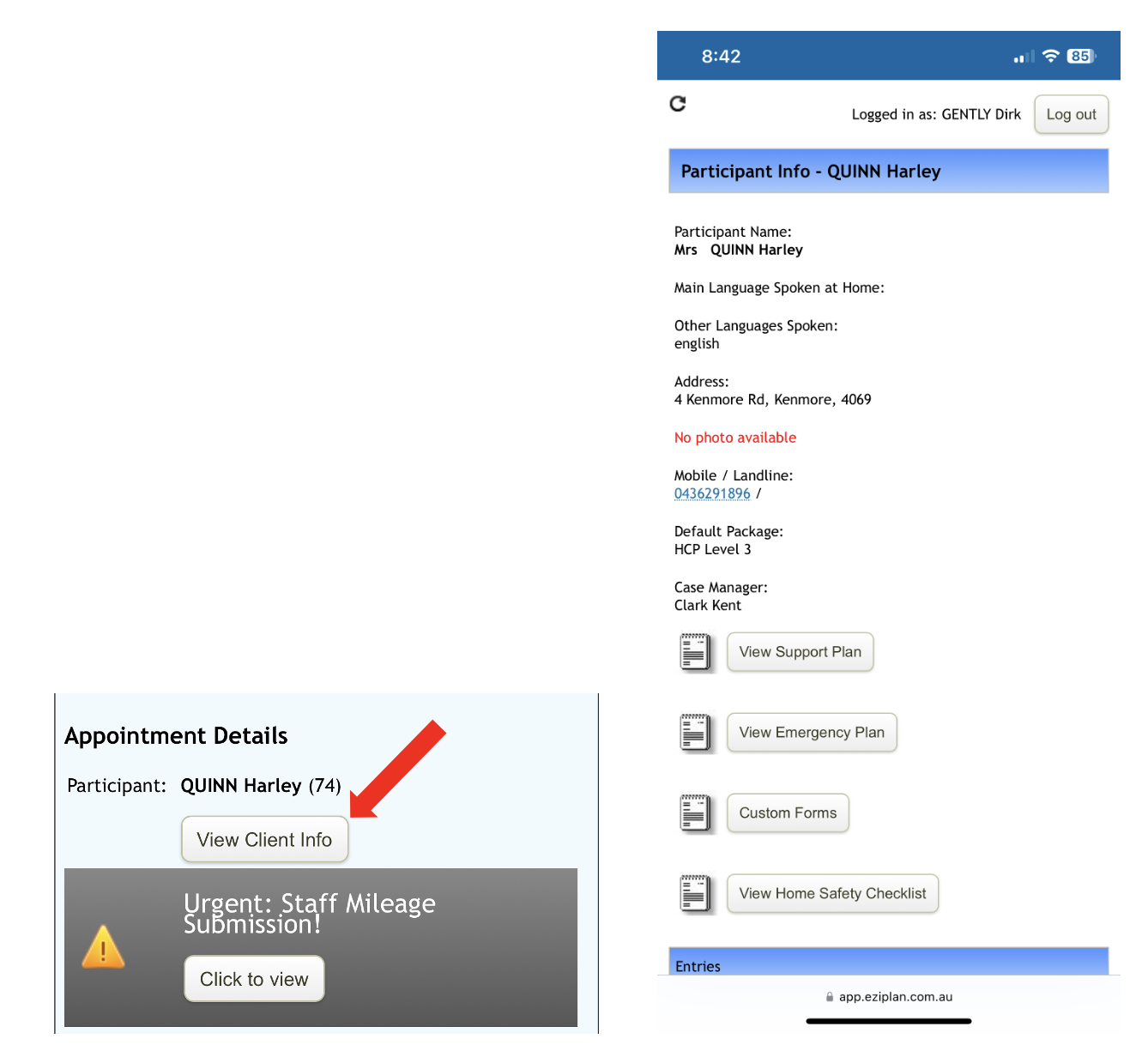
Clicking on a client's name will open their individual portion of the appointment, allowing staff to fill out specific details for that client.
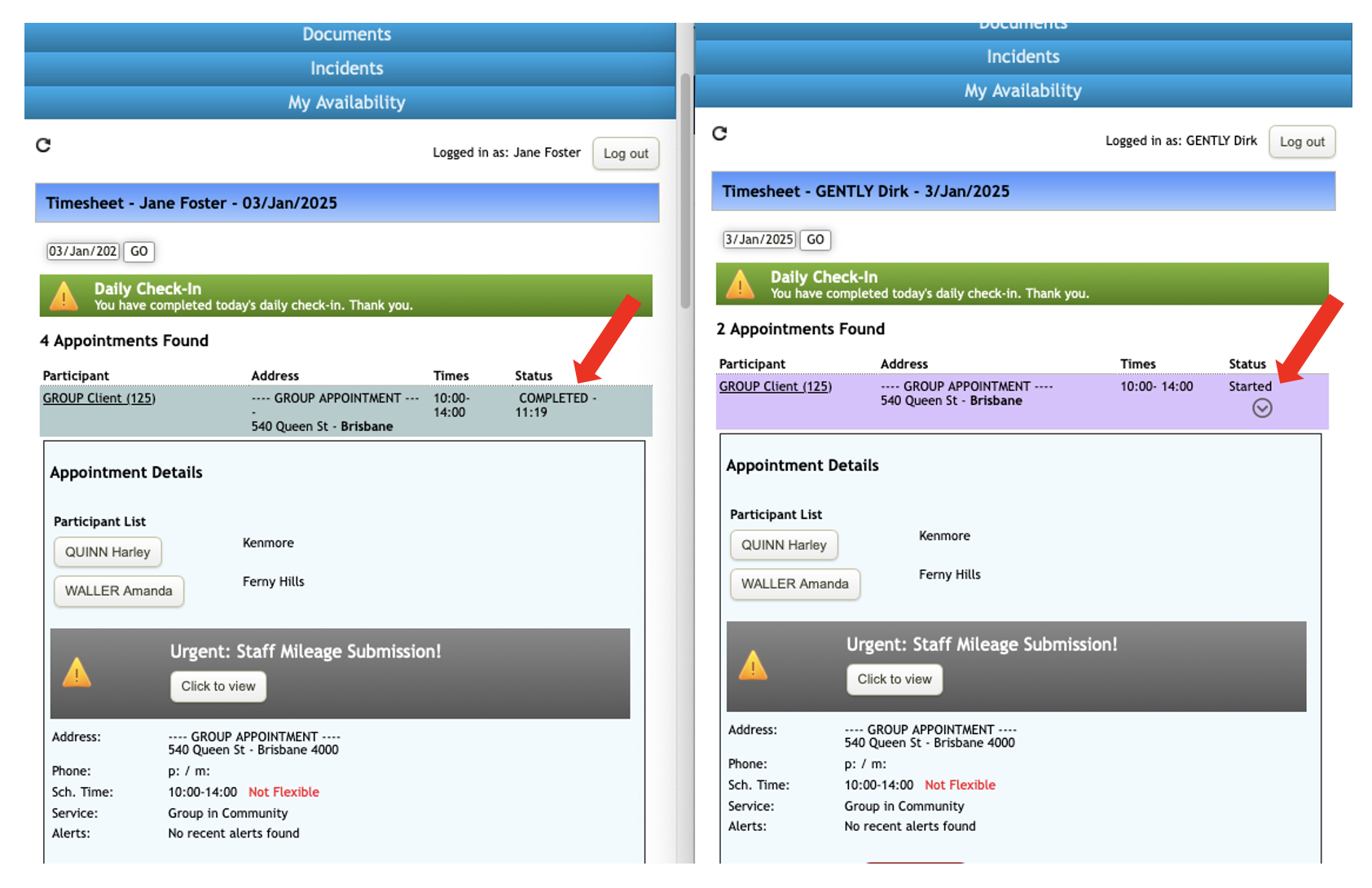
For accurate payroll processing, each staff member must independently start and complete their own individual portion of the group appointment. When a staff member Starts or Completes their individual portion, the status will not automatically update for other staff members in the group to ensure precise tracking and avoid discrepancies in payroll calculations.
Client-Specific Notes
Staff are required to complete the individual client appointments if they wish to write notes for each client. These notes will be visible in the client's individual record. The client portion of the appointment must be started and completed to save individual notes.
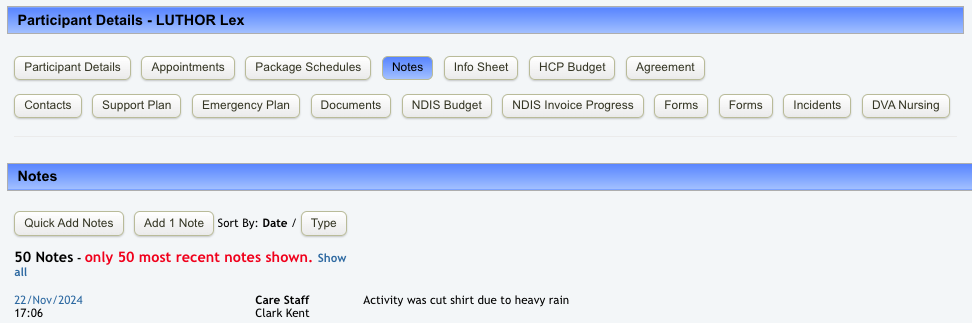
Group Appointment Notes:
Important to note that any notes written about the group appointment will only be visible against the Group Appointment and not associated to the clients.
Travel KM Claims:
Similar to starting and completing the Group Appointment, staff must log their individual portion of the Group Appointment when claiming the total travel kms TO and WITH the client. This ensures the travel is accurately recorded in their timesheets.
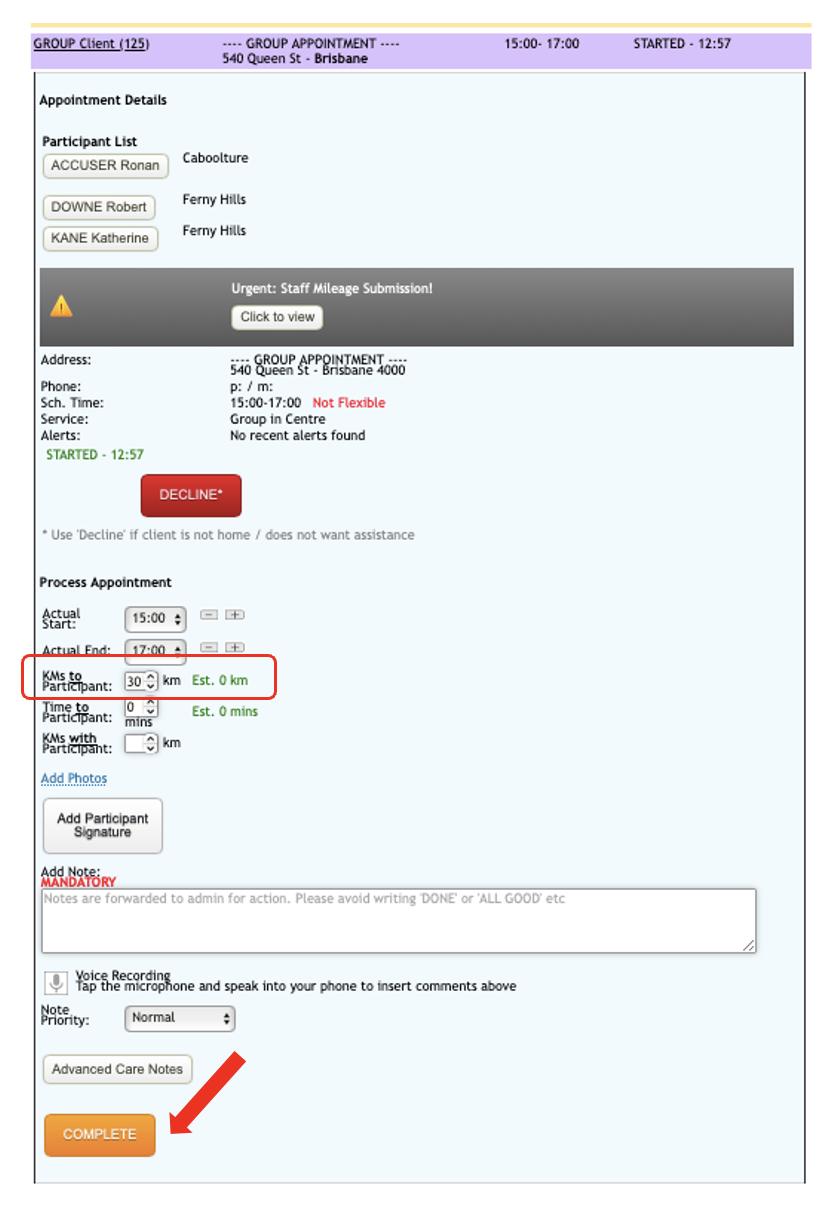
If and when one staff member attends to multiple clients, the Travel WITH distance should be distributed equally among the clients for accurate invoicing (based on business rules). For instance, if the total distance traveled is 30 km and there are 3 clients, each client would be allocated 10 km.
With this, select each participant's appointment start it, enter the allocated kms and hit Complete.
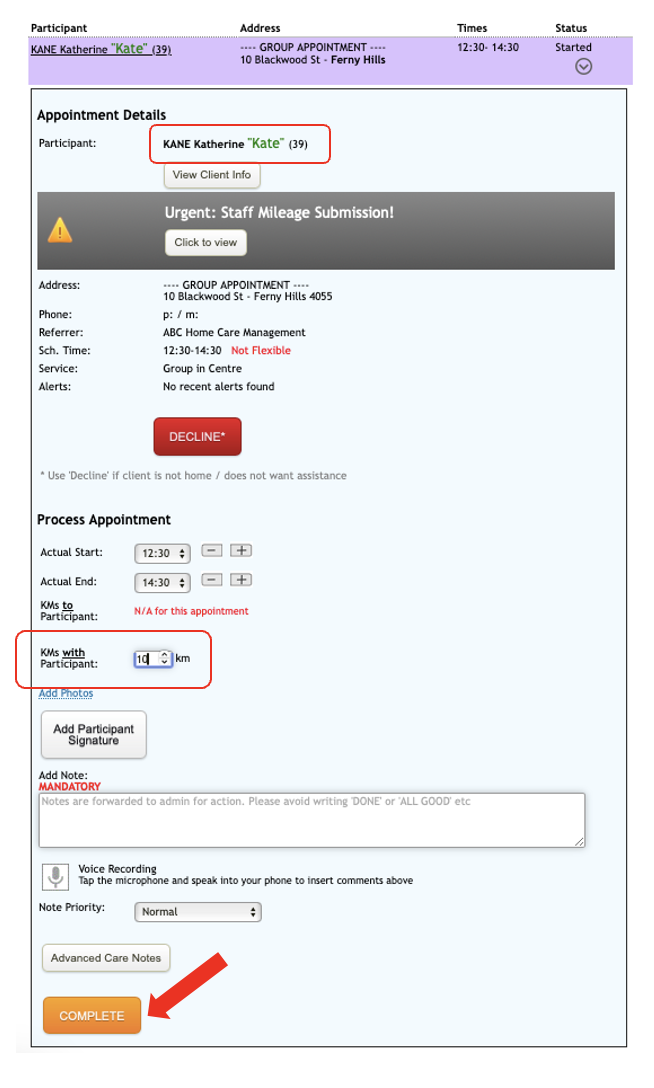
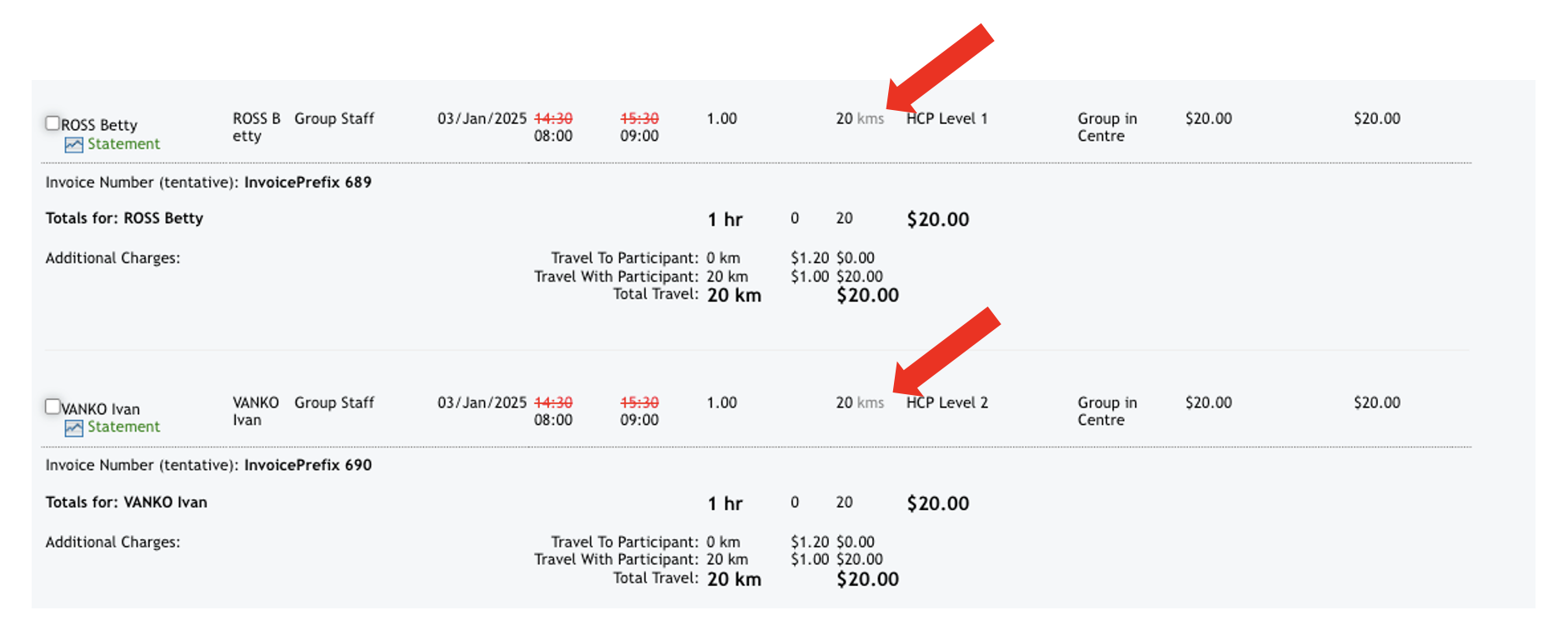
Below are sample snippets providing additional context on how the total travel kilometers claimed will be reflected in timesheets and invoicing.
Timesheets

Invoicing
Summary
Group Appointments:
Staff are required to start and complete the group appointment for payroll purposes.
Payroll is based on the group appointment itself, not the individual appointments within the group.
Travel-related components (e.g., travel time, "travel with," and "travel to") are calculated in relation to the entire group appointment.
Individual Appointments:
From a billing perspective, charges are determined based on the individual client appointments.
The system automatically invoices clients for services provided, including applicable travel costs.