

Overview
The Claim Items tab on the SAH Dashboard provides a consolidated view of every claim item across all claims for your organisation. Rather than opening individual claims one at a time, you can now review, filter, and export claim item data from a single table — making it easier to audit claim activity, investigate discrepancies, and share data with your finance team.
Accessing the Claim Items Tab
Steps to open the Claim Items view
Navigate to Support at Home > Dashboard in Eziplan.
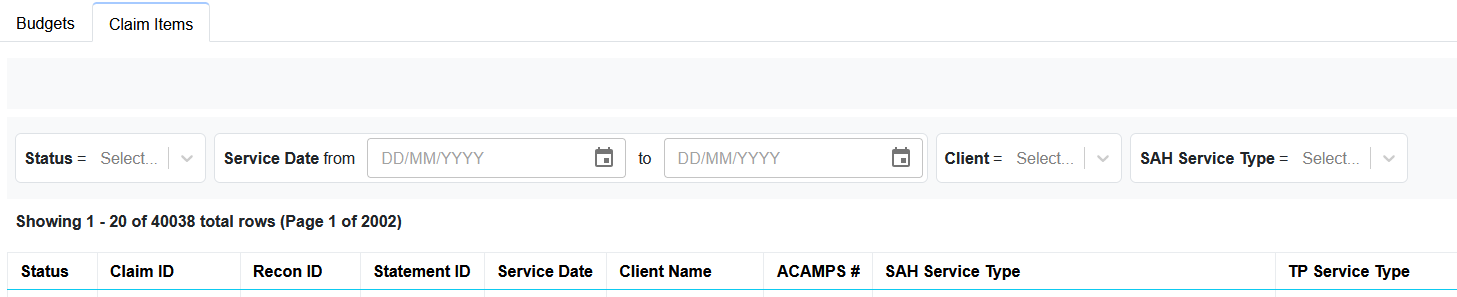
From the SAH Dashboard, select the Claim Items tab.
The table will load all claim items across your claims history.
Column Reference
The Claim Items table displays the following columns for each item:
Claim Item Ref ID – The unique reference identifier for the claim item (SII or APT code). This is displayed as the second column and is useful for cross-referencing items with PRODA payment summaries and supplier invoices.
Client – The client the claim item relates to
Service Date – The date the service was delivered
SAH Service – The service type associated with the claim item
Claim Status – The current status of the parent claim
Amount – The claimed amount for the line
Filtering Claim Items
The Claim Items table supports column-level filtering to help you narrow down records quickly.
Available filters include:
Client
Reference
Service date range
SAH Service
Claim status
Exporting Claim Items to CSV
You can export the full claim items dataset — or a filtered subset — to CSV for use in external reporting or finance workflows.
Steps to export claim items
Apply any filters you require to narrow the dataset.
Select the Export to CSV button from the toolbar.
The file will download automatically. For large datasets, this may take a moment to generate.